Rate Group Setup Instructions
Last modified on:
Overview
Rate Group Setup allows you to create different pricing structures, enabling you to assign various prices to products and unit types based on the selected rate group. This feature helps manage flexible pricing across different scenarios.
Prerequisites
- Access to the Setup tab under Pricing and Rates.
- Permissions to add, edit, or delete rate groups.
Steps
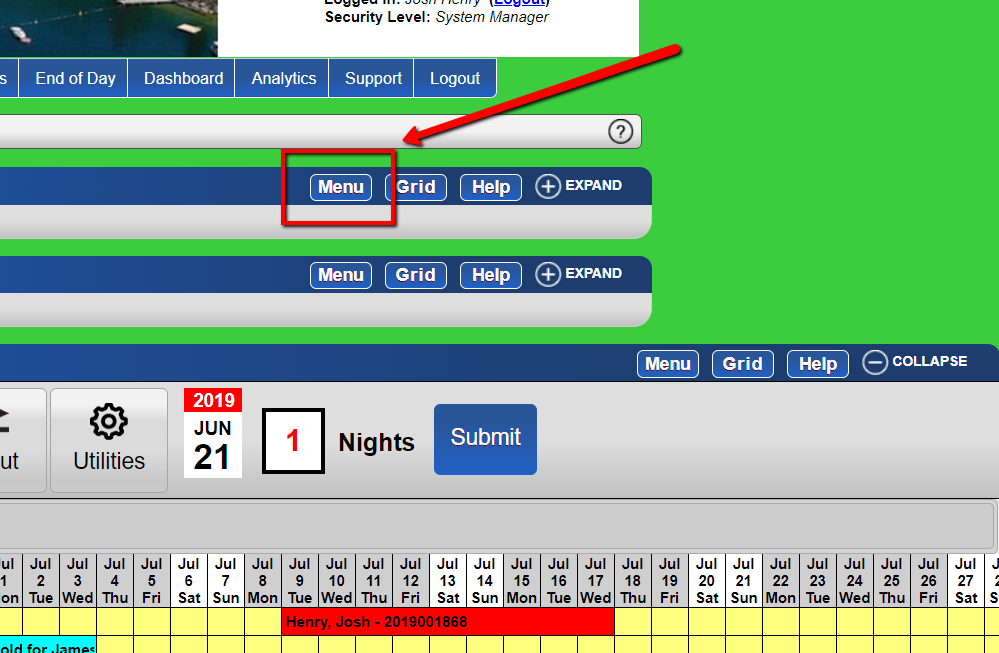
- Access Menu
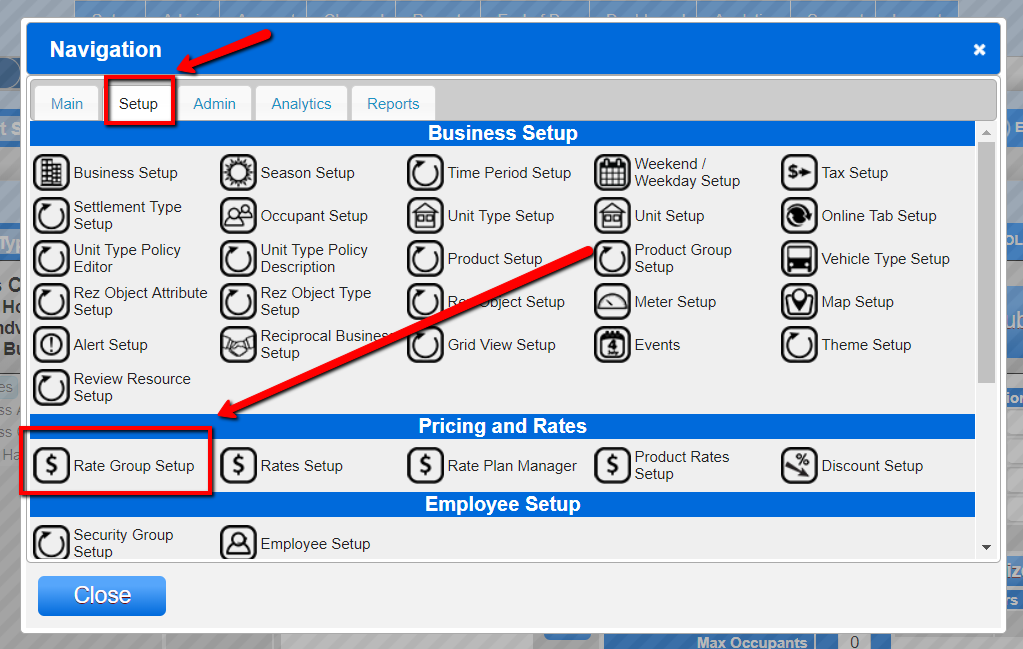
- Click the Menu button. - Navigate to Rate Group Setup
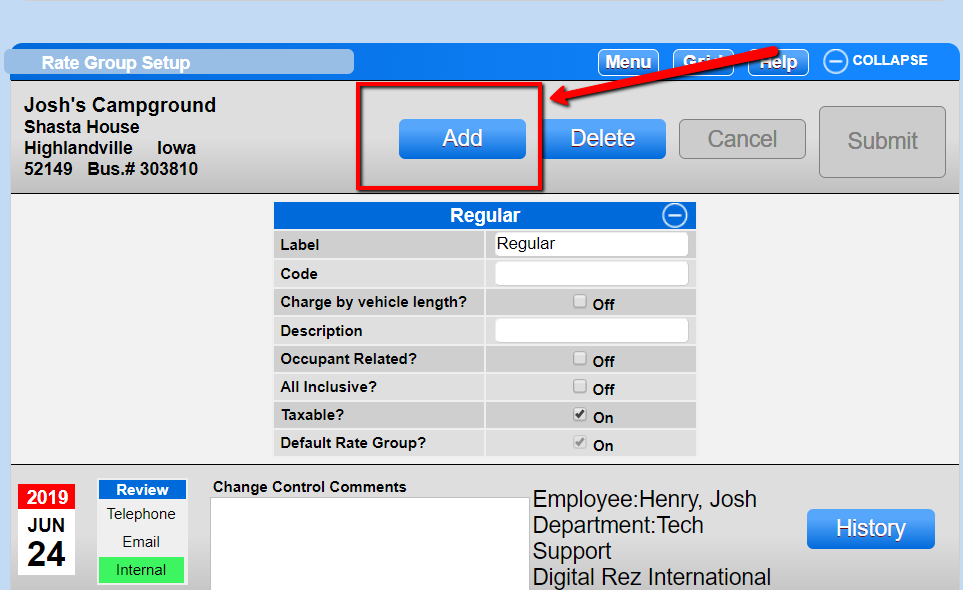
- Click the Rate Group Setup option under the Pricing and Rates section of the Setup tab. - Add a New Rate Group
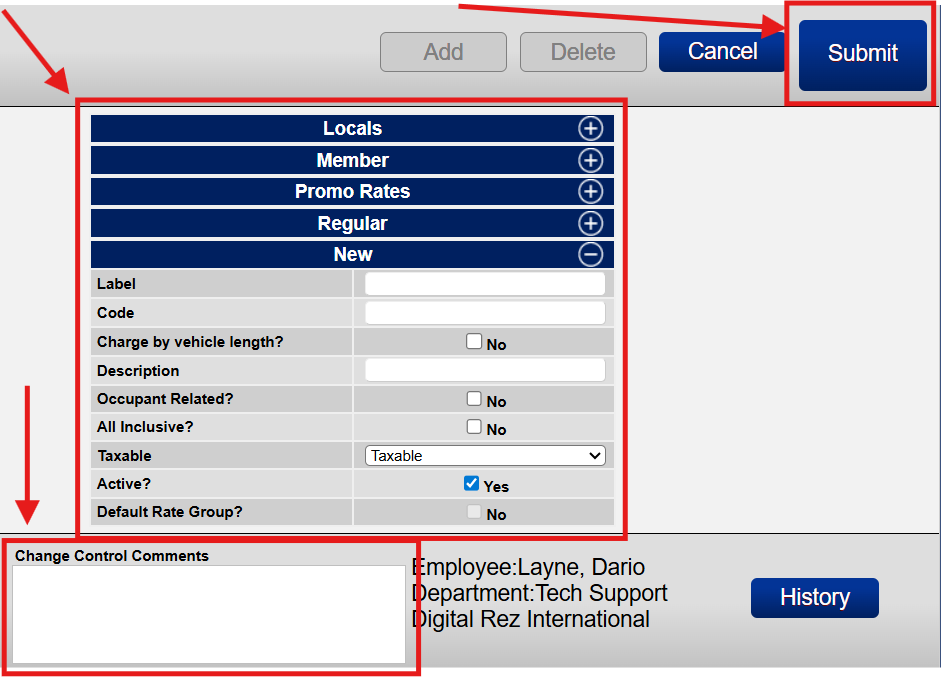
- Click the Add button. - Enter Information
- Fill in all relevant and required information. - Change Control Comments
- Enter your change control comments. - Submit Changes
- Click the Submit button.
Field & Descriptions
- Label: Enter the name of the Rate Group.
- Charge by vehicle length?: Check if the Rate is affected by vehicle length.
- Description: Enter a brief description of the Rate Group.
- Occupant Related?: Check if the Rate is affected by Occupancy.
- All Inclusive?: Check if other products and services are to be included in the room rate. This overrides the value set for the amount of occupants included in the Reservation fee in Unit Types > Units > Features.
- Taxable?:
- Taxable: Reservation charges and additional charges will be taxed.
- Not Taxable: Reservation charges and additional charges are exempt from taxes.
- Rez Charges Not Taxable: Reservation charges are exempt from taxes, but additional charges are still taxed.
- Default Rate Group?: This is the default Rate Group set in the system. Note that the Regular Rate Group is always set as the default. It may be edited, but no other Rate Group can be selected as the Default Rate Group.
Action Buttons
- Add: Click to add a new Rate Group.
- Delete: Click to remove the specified Rate Group.
- Cancel: Click to cancel any unsaved changes and refresh the page.
- Submit: Click to save changes you have made.
For more detailed instructions, refer to the Creating Rate Groups document.