Creating and Managing Electronic Forms
Last modified on:
Overview
This document provides detailed instructions on creating, editing, assigning, and previewing electronic forms.
Prerequisites
- Access to the Admin tab and Content Setup options.
- Familiarity with the Content Assignment Setup.
Steps
Location
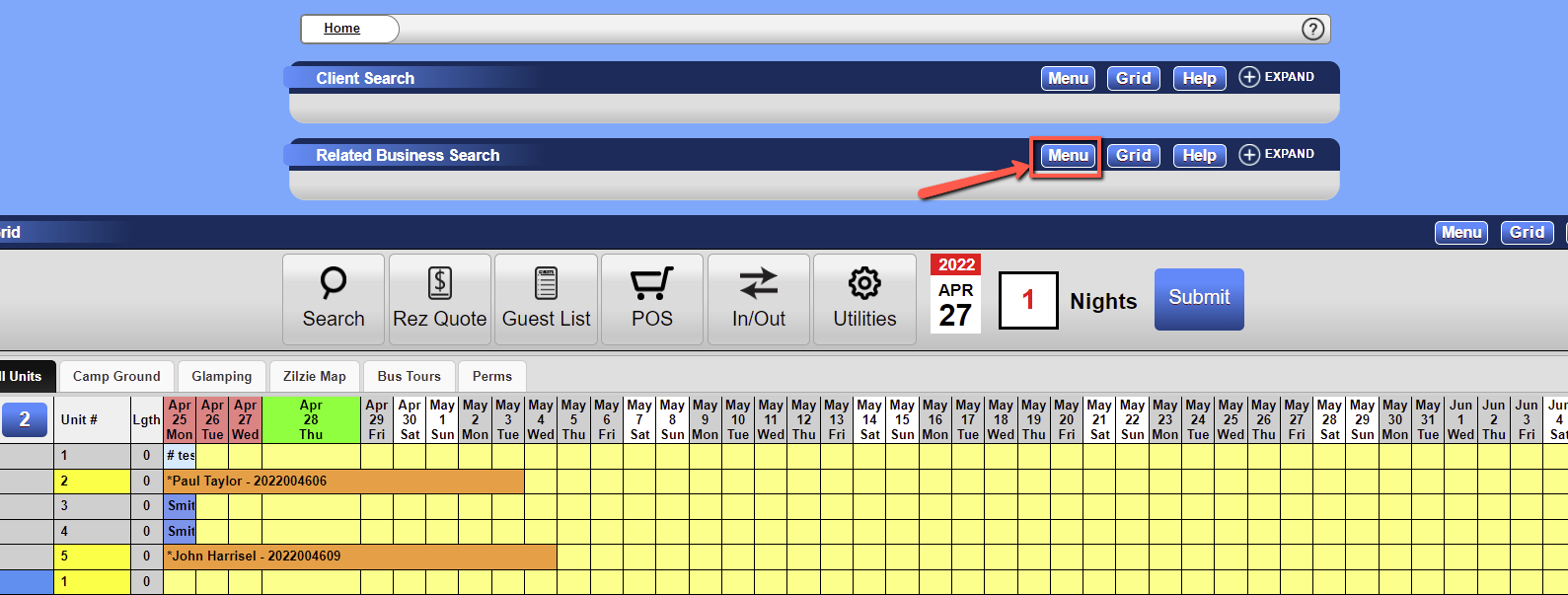
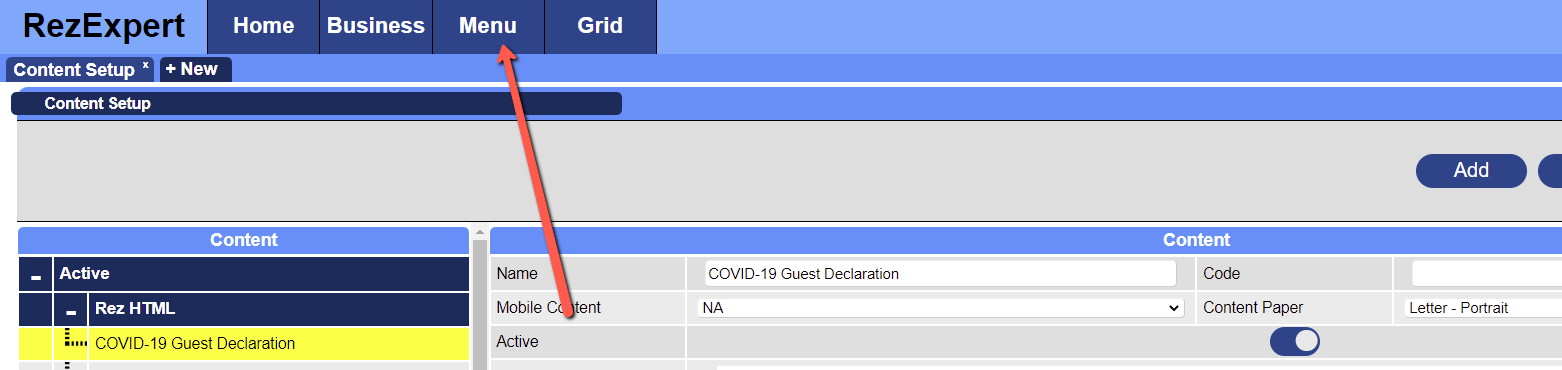
- Click the Menu button.
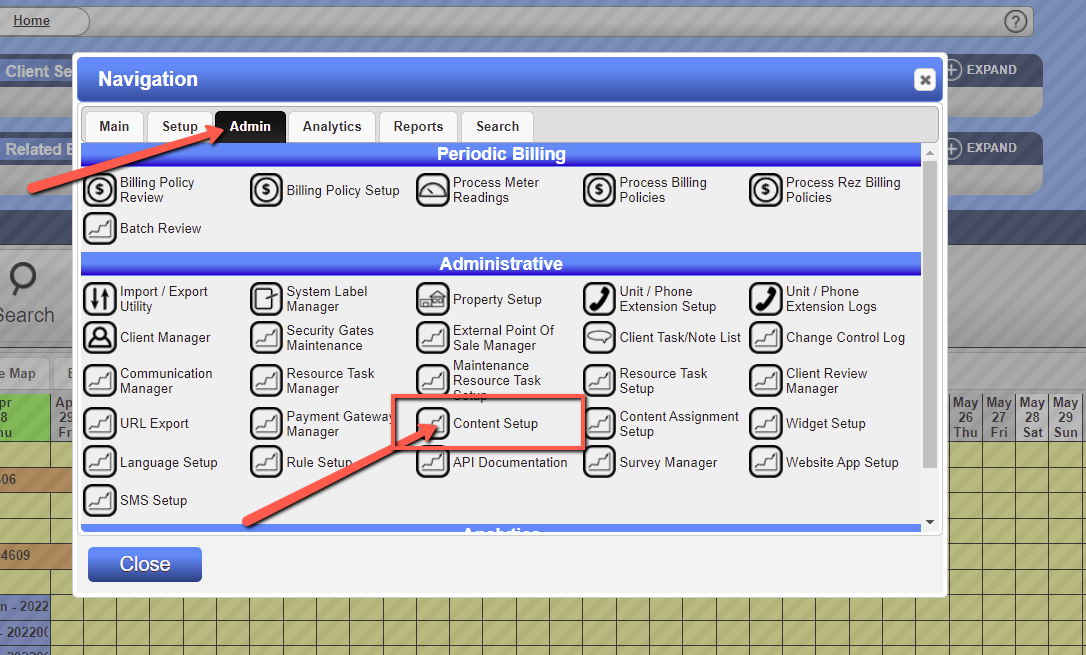
- Click the Admin tab.
- Select the Content Setup option.
Adding a Form
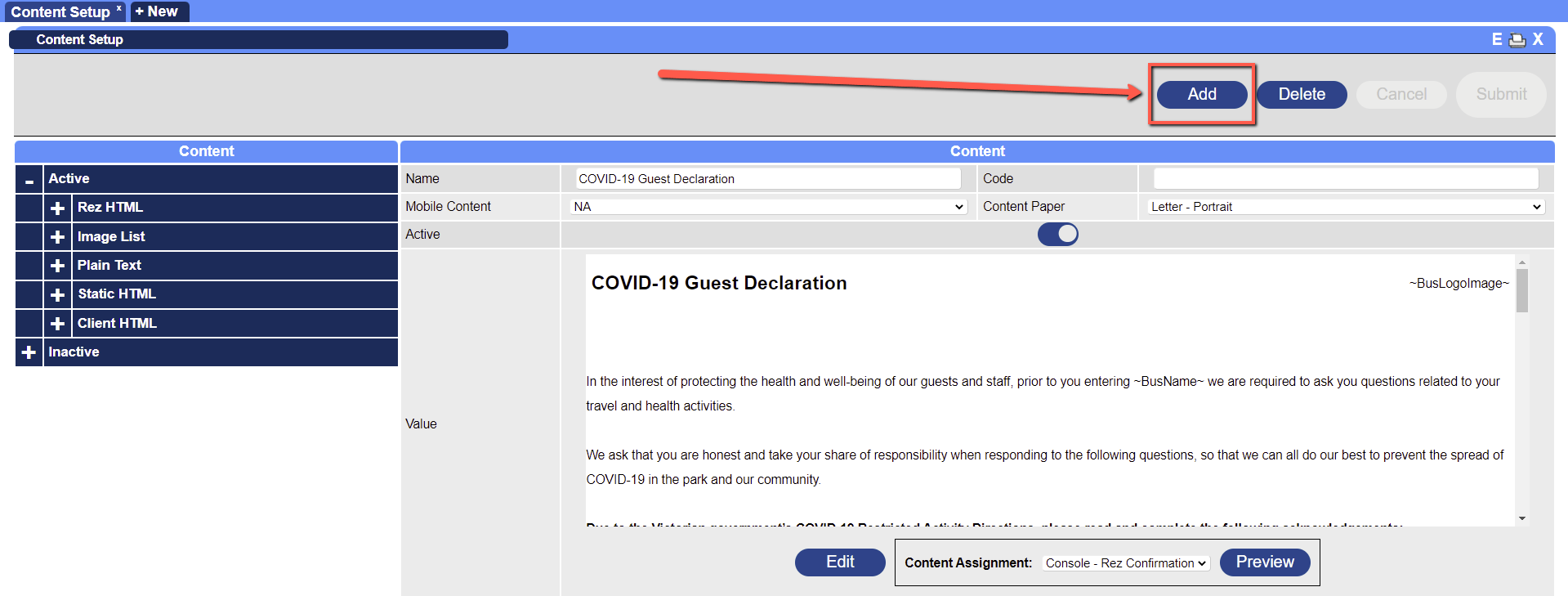
- In the Content Setup, click the Add button.
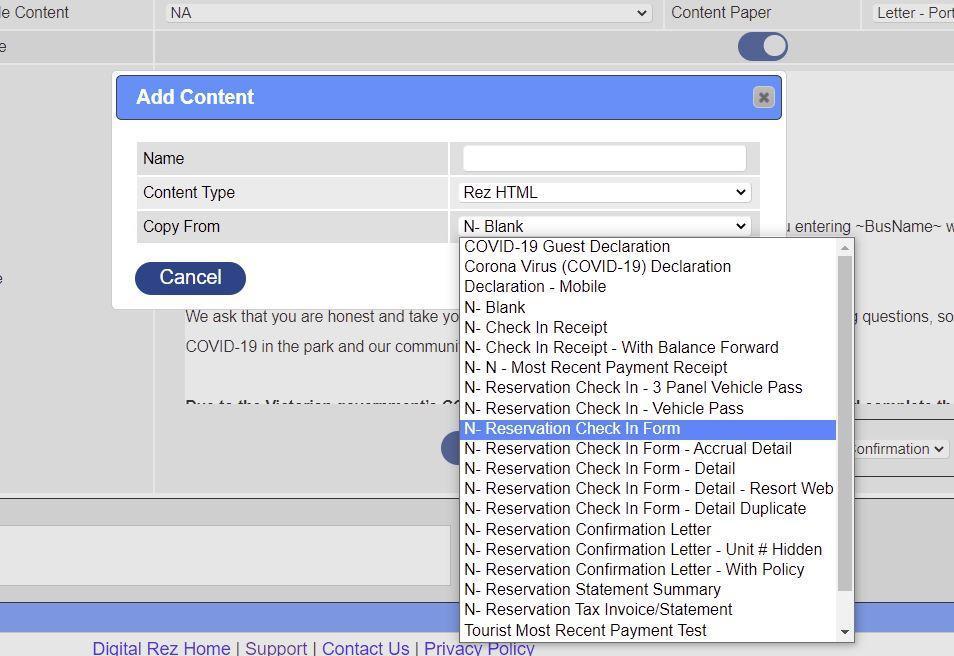
- Enter a Name for the form.
- Select Rez HTML as the Content Type.
- For Copy From, leave it as N-Blank to start with a blank form or choose an existing report from the drop-down.
- Click the Submit button when finished.
Editing a Form
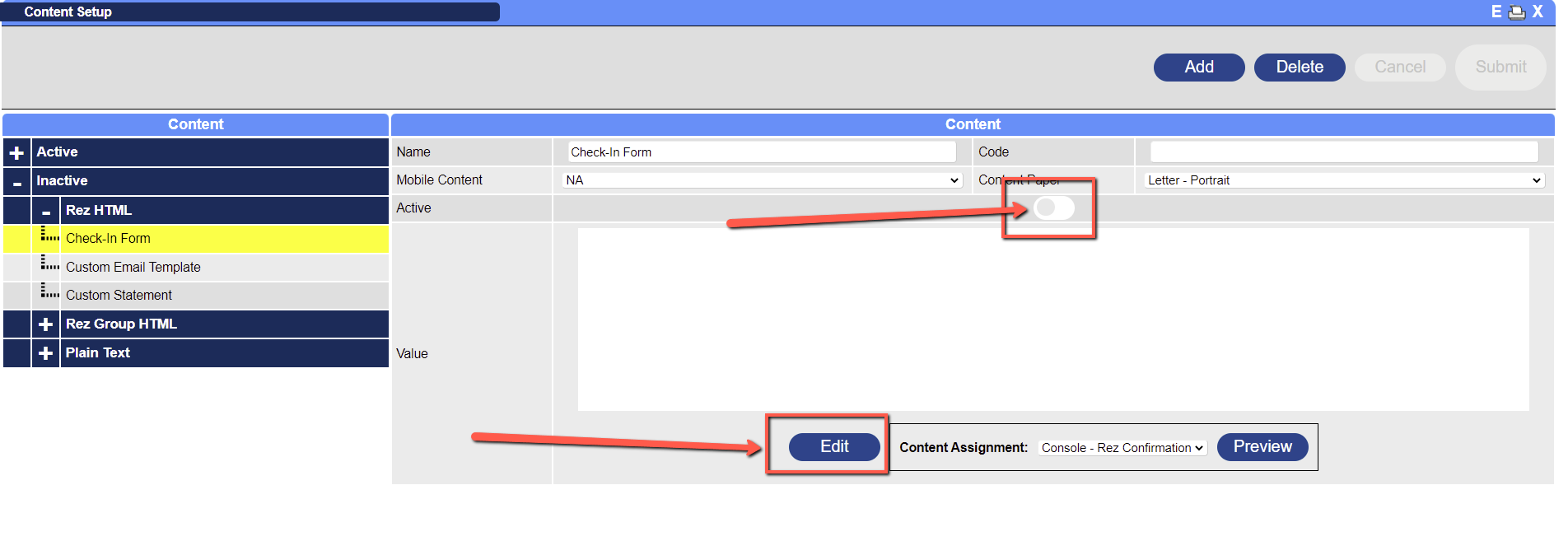
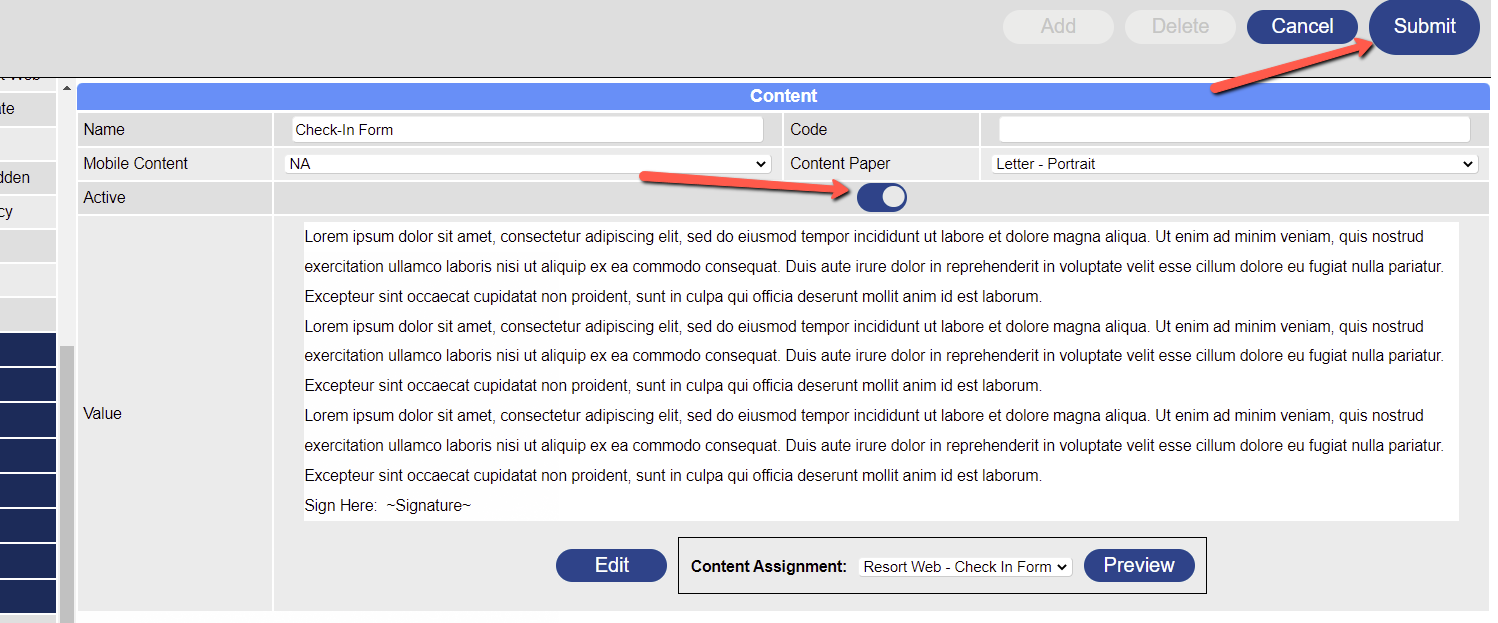
- Use the Active flag when ready to assign the form for use.
- Click the Edit button to open the content editor.
- In the Content Editor, you can:
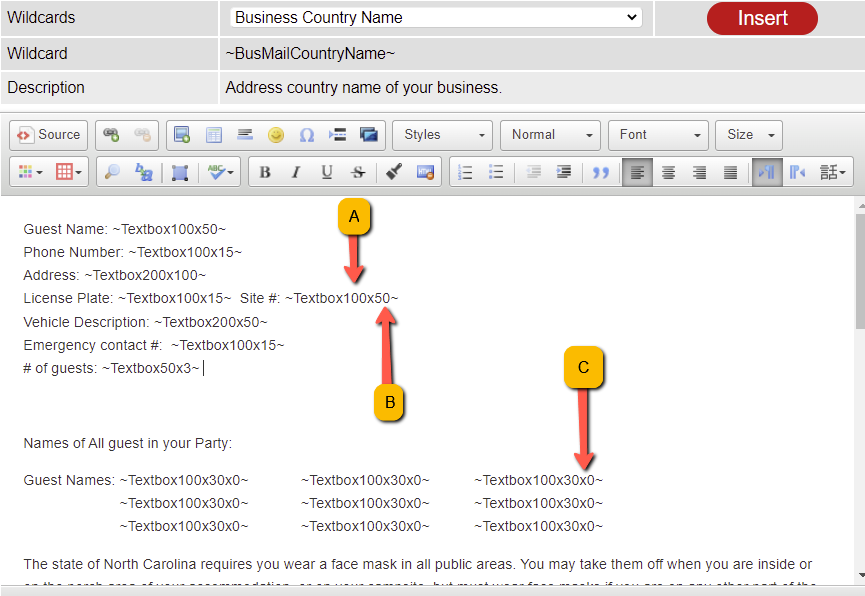
- Add text and place wildcards.
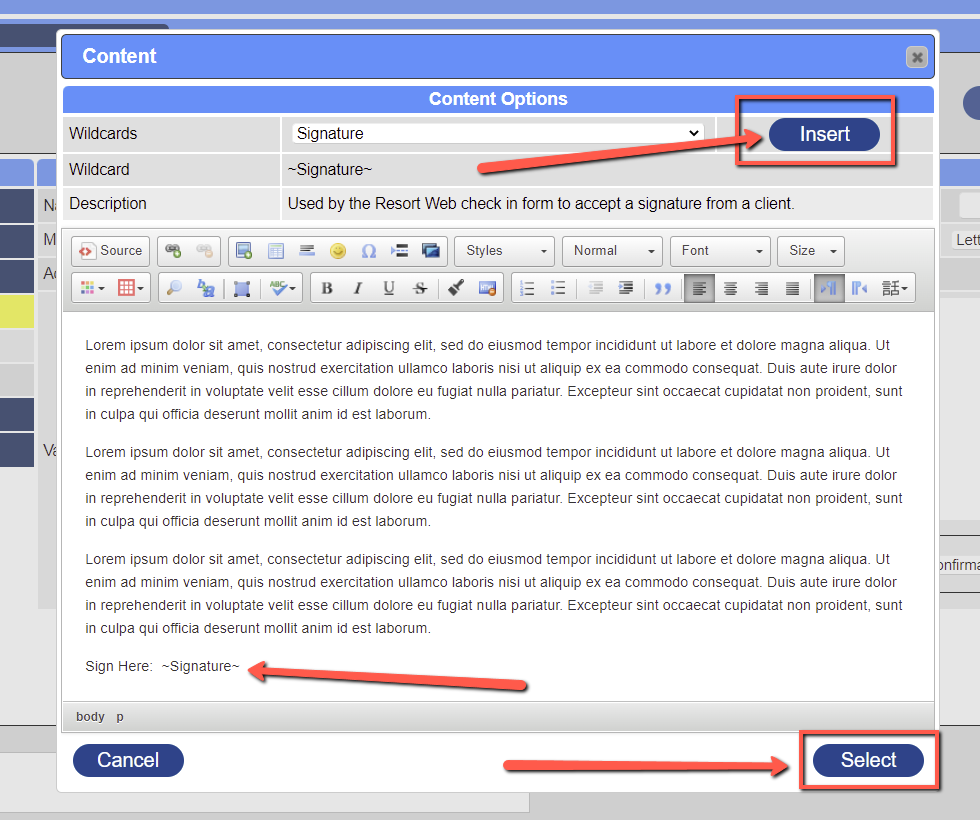
- Use the Wildcard drop-down to insert wildcards.
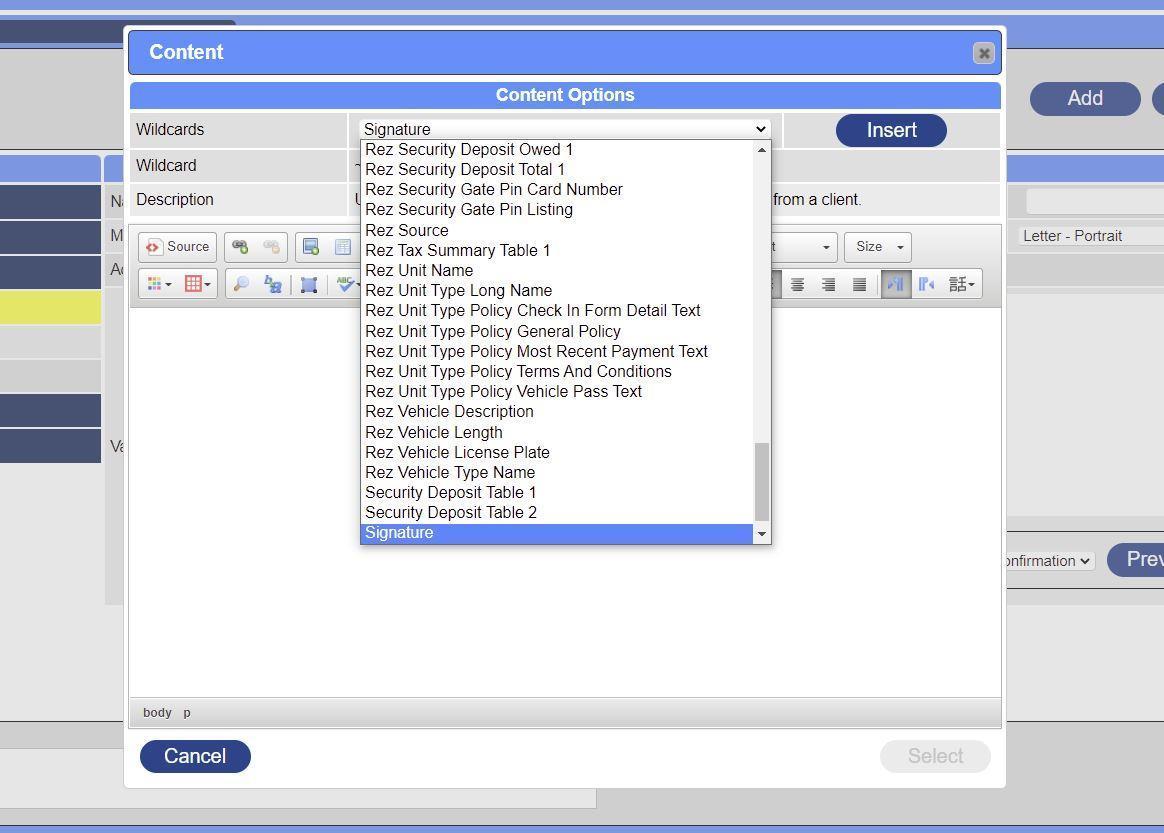
- Signature and Textbox wildcards allow guest interaction:
- Signature: Allows guests to sign the form.
- Textbox: Creates a textbox for guest input. Adjust size, character limit, and required status.
- Click the Select button, then the Submit button when finished.
- Turn on the Active flag and Submit when ready to assign the form.
Assigning a Form
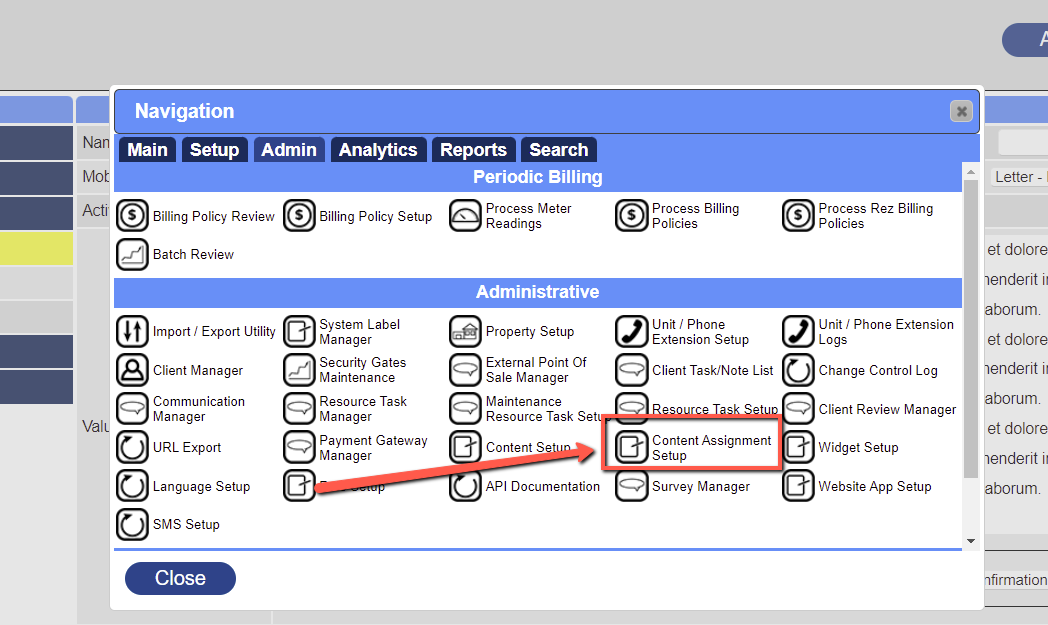
- Access Content Assignment Setup by:
- Clicking the Menu button.
- Selecting the Admin tab.
- Clicking the Content Assignment Setup button.
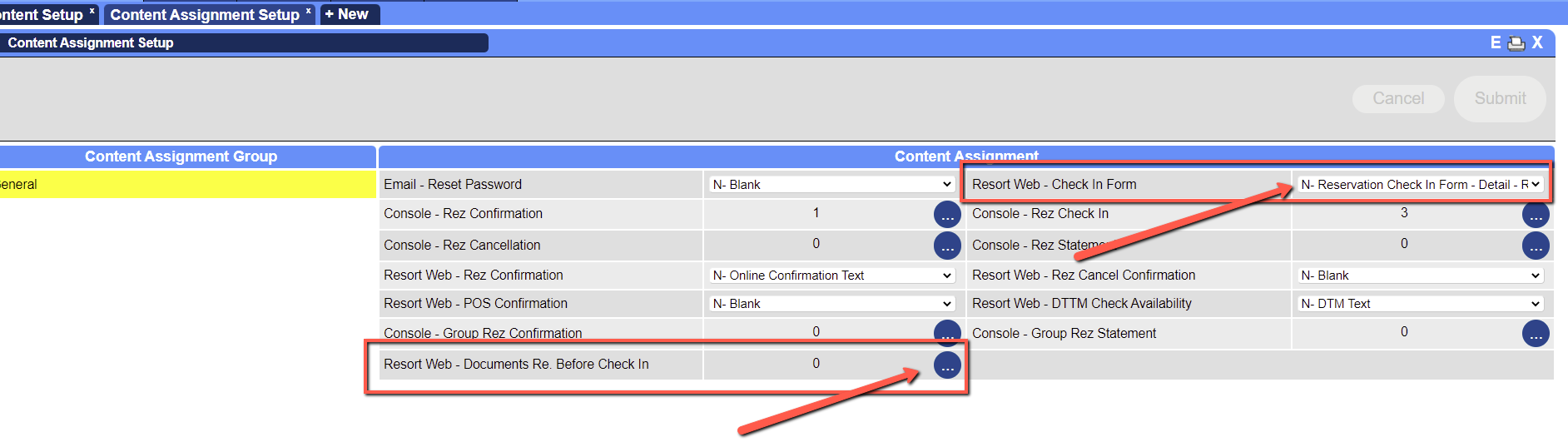
- In Content Assignment Setup, select General under Content Assignment Group.
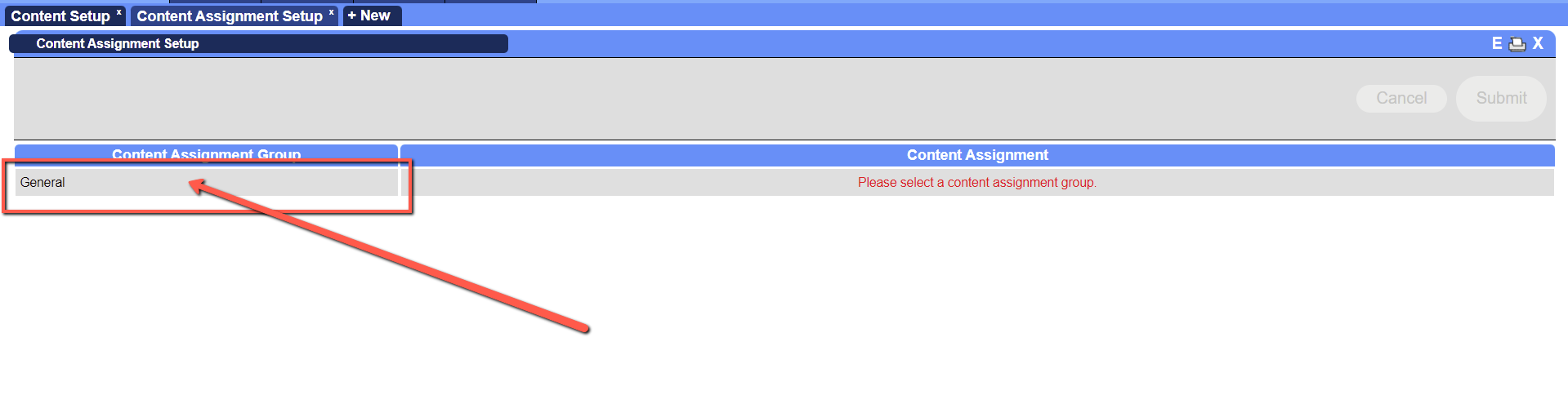
- Assign forms in:
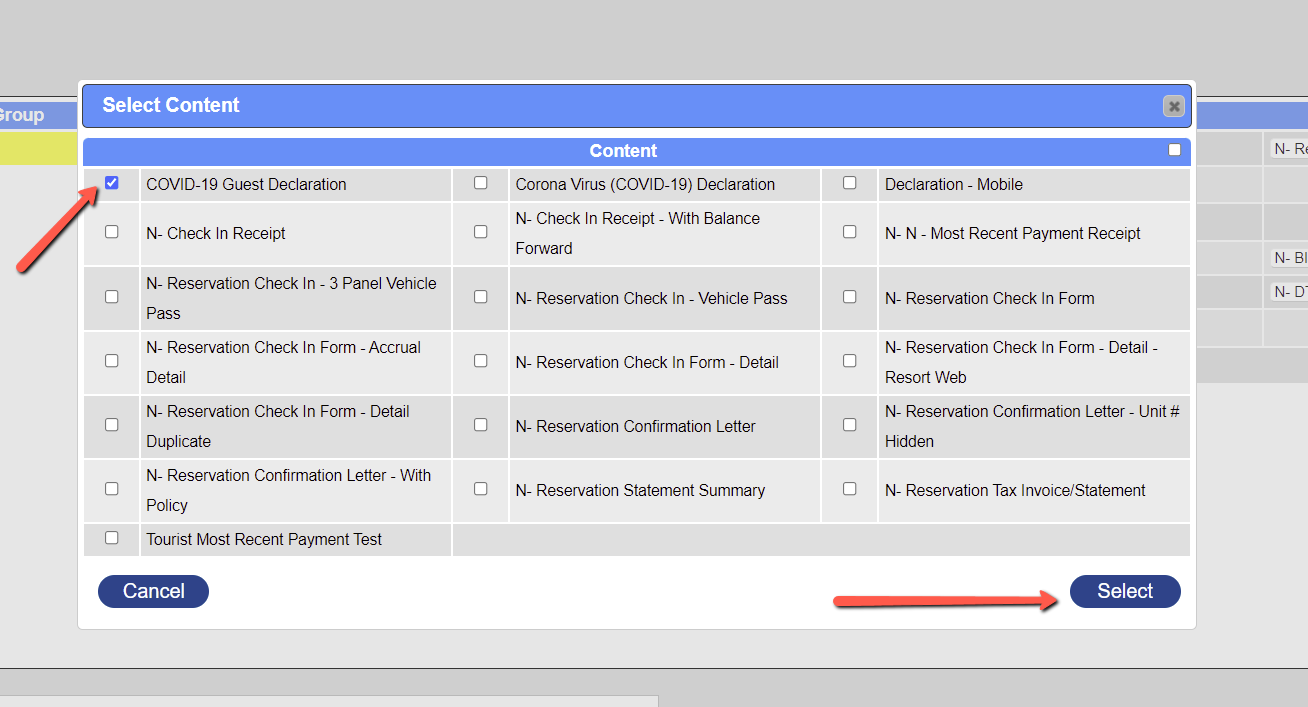
- Required Documents: Click the Three-dot button, check desired forms, and click Select.
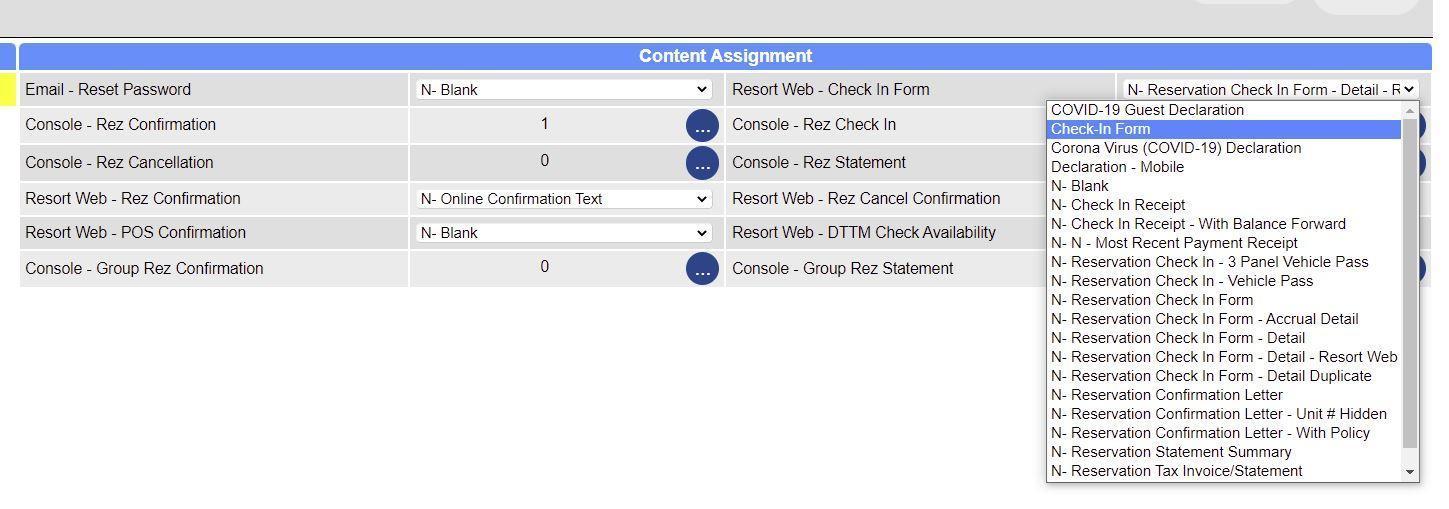
- Resort Web - Check In Form: Select the desired form from the drop-down.
- Click the Submit button when finished with content assignments.
Previewing a Form
- Preview assigned forms to see their online appearance.
- Click the Preview button. Ensure the Content Assignment drop-down matches the assigned area.
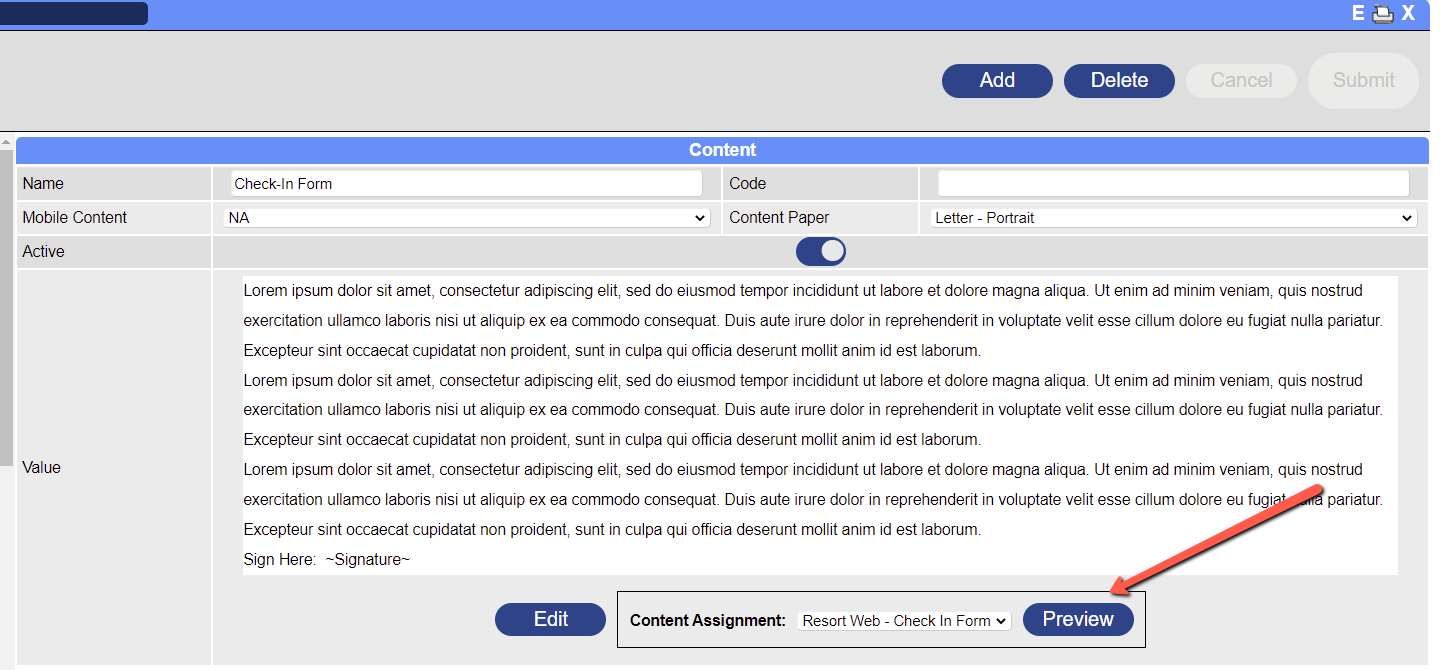
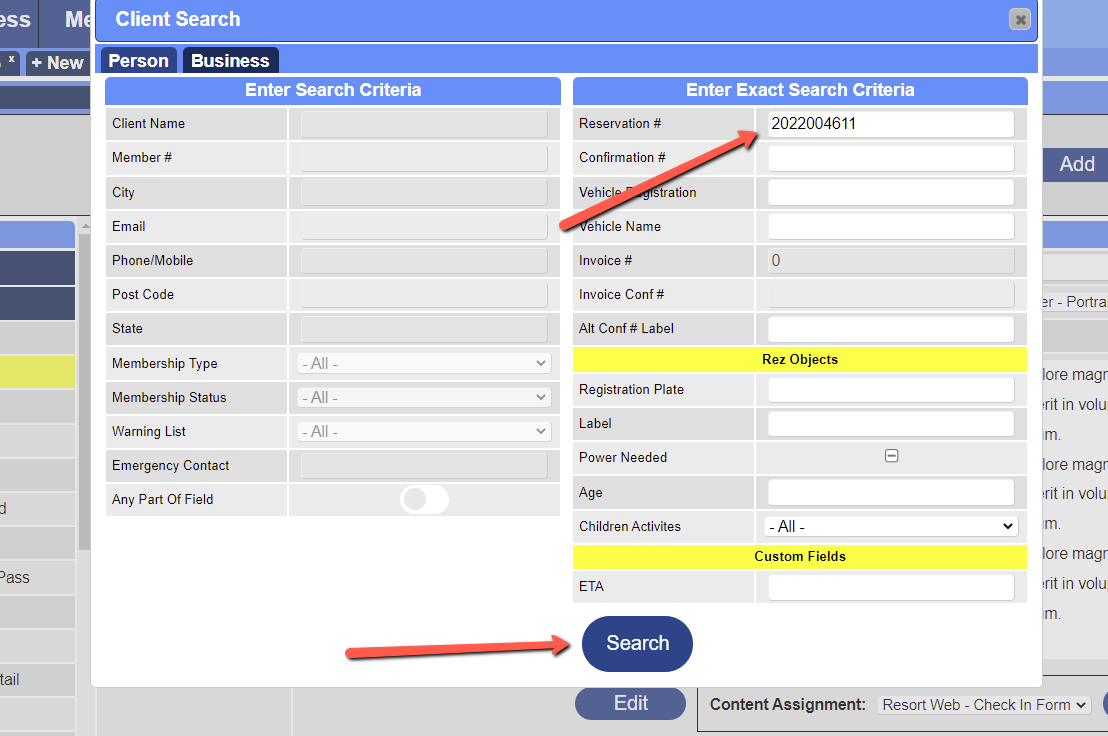
- Enter a Reservation # for any future reservation and click Search.
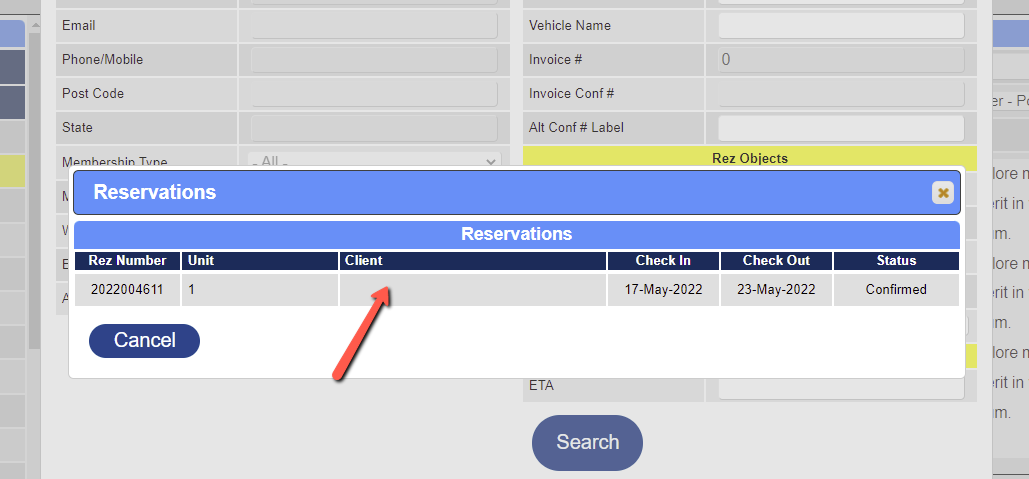
- Click on the reservation to proceed.
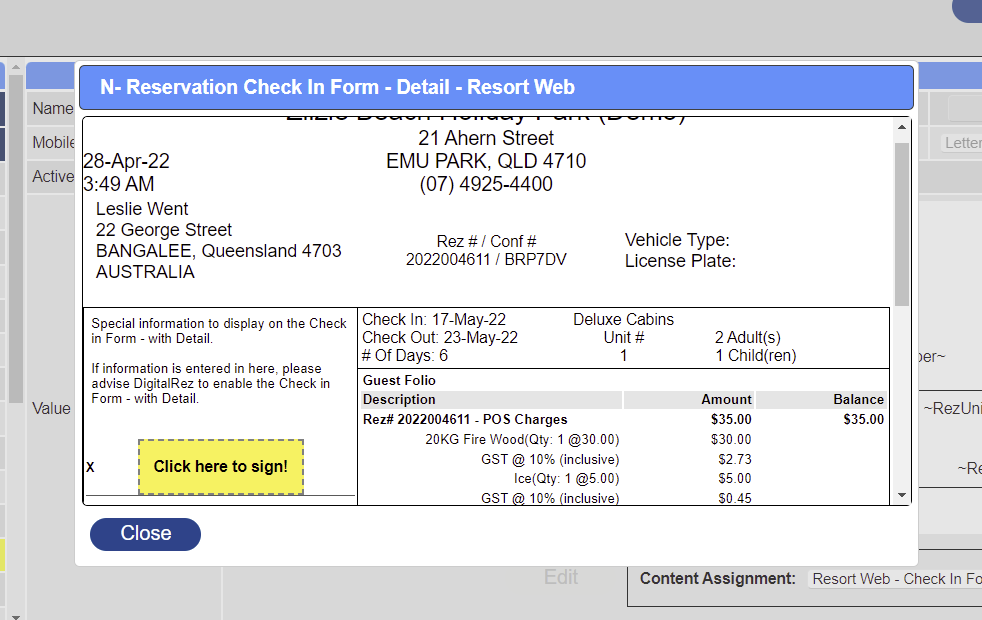
- The preview will be displayed.
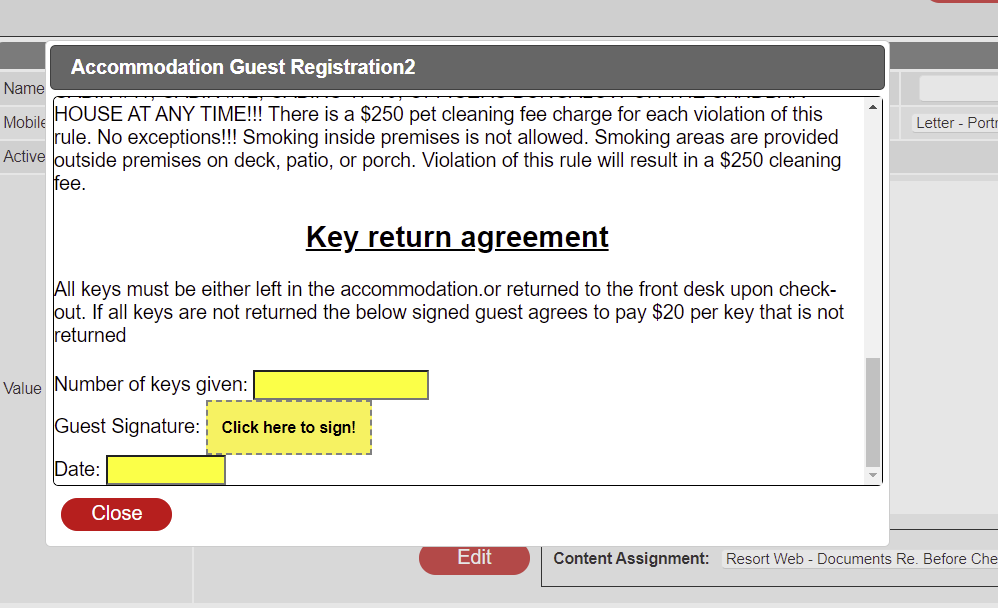
- Click Close to exit the preview pop-up.
Troubleshooting
- Ensure the Content Assignment drop-down matches the area where the form is assigned to avoid preview failures.
- If options are missing in Content Assignment Setup, enable them in Resort Web Setup (Menu → Setup → Resort Web Setup).