Creating and Managing Booking Waiting Lists
Last modified on:
Overview
A Waiting List allows guests to make a reservation when the requested inventory is unavailable. When a reservation is canceled or a site becomes available, the Waiting List can be used to display those waiting for availability. To enable the Waiting List feature, contact DigitalRez.
Prerequisites
- Enable the Waiting List feature by contacting DigitalRez.
Steps
Creating a Waiting List
- Initiate Waiting List Creation:
- Only a Client Detail and Reservation Date are required to create a Waiting List. Additional information such as Occupant details can be added.
- Use the Calendar Quote Tool to create Waiting Lists. - Select Dates:
- Choose the Date of Arrival and the number of nights requested, then press Submit. - Enter Client Details:
- In the Booking Quote screen, click on the Client Details tab.
- For a returning client, click Search For Client. For a new client, click Add New Client. - Specify Unit Preferences:
- If a specific Unit Type is requested, enter the amount of inventory next to the unit type and click Update.
- If a specific Unit is requested, click the Assign Unit button. - Add Occupant Details:
- Enter Occupant Details now or at a later stage. - Finalize Waiting List:
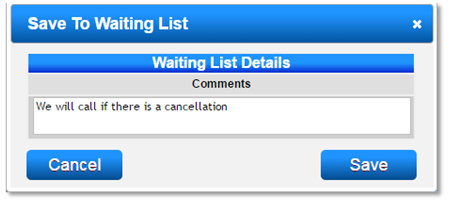
- Click the Waiting button to create the Waiting List.
- A box will appear to enter any required comments. These comments will appear on the Waiting List PDF and the Waiting List panel.
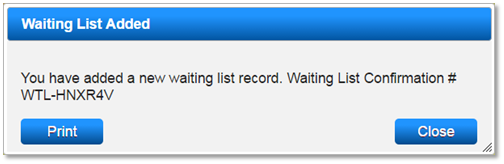
- A confirmation box will appear when the Waiting List is added, providing a Waiting List Confirmation # for reference.
Checking the Waiting List
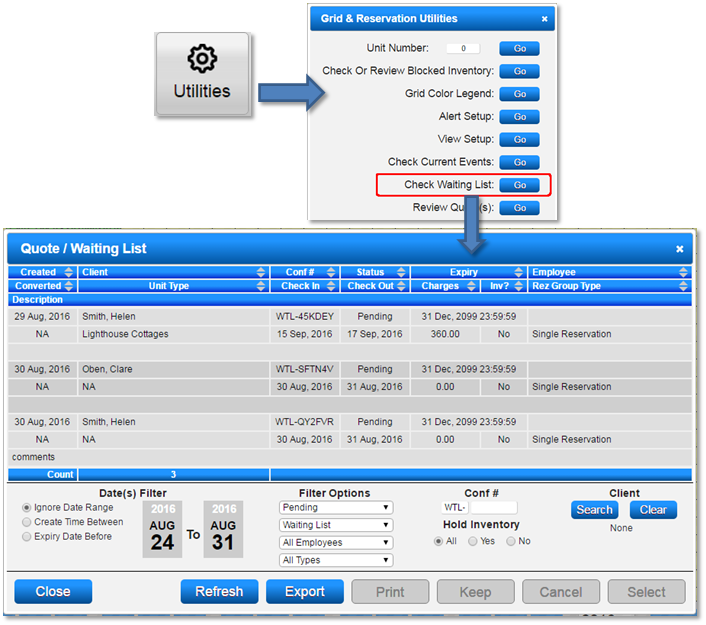
- All Waiting Lists will display within the Quote/Waiting List panel.
- Click the Utilities button on the Availability Grid and select Check Waiting List.
- The Quote/Waiting List panel will appear, displaying all current Waiting Lists. Note that created Waiting Lists will not display on the Availability Grid.
- To search for a Waiting List, enter the number into the Waiting Conf # Search panel. Use other filter options like Unit Type drop-downs to narrow the search.
Making a Waiting List into a Reservation
- If inventory becomes available, convert a Waiting List into a reservation.
- In the Quote/Waiting List panel, select the Waiting List and click Select to return to the Calendar Quote Tool screen.
- If Unit Type/Occupant Details were not entered initially, click on the required Unit Type and enter the number of occupants arriving. Click Submit to create the booking.
- If Unit Type/Occupant Details were entered, the Submit button will automatically display.
- After pressing Submit, the Guest Folio will display to complete the booking process.
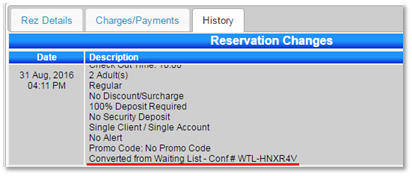
- Any Waiting List converted into a reservation will have the original Waiting List Confirm # indicated in the History tab.