Creating and Managing Reservation Quotes
Last modified on:
Overview
Reservation Creates are similar to pencil-ins, temporarily holding inventory for a guest while providing a costing quote/information. The quote includes more details than a pencil-in, such as client details, occupant details, and any additional products.
Prerequisites
- Contact DigitalRez to enable the Quote feature.
Steps
Creating a Quote
- Use the Calendar Quote Tool Submit button.
- Enter the arrival date and the number of nights required.
- Press Submit. - The Booking Quote screen will appear.
- Ensure a Client Name is attached to all quotes. - Enter guest information:
- Click the Client Details tab.
- For returning guests, click Search for Client.
- For new guests, click Add New Client. - Complete the quote:
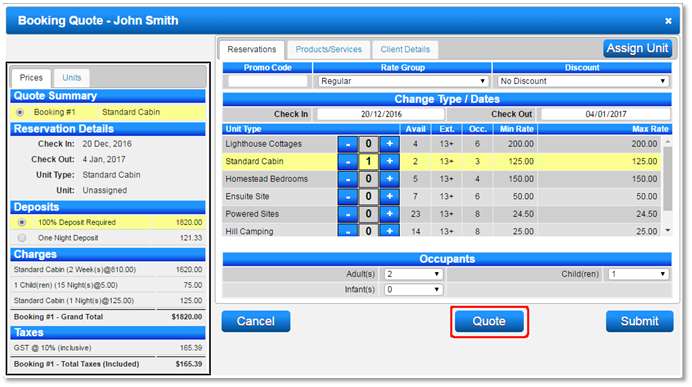
- Click the Reservations tab.
- Click the + symbol next to the required Unit Type.
- Enter the number of Occupants required.
- Add additional products if needed.
- Click the Quote button to create the quote.
- A Save Quote box will appear for comments and more information.
- Hold Inventory: Tick to hold inventory and display the quote on the Availability Grid.
- Expiry Date: Enter a date for quote availability if applicable.
- Comments: Enter comments for the Reservation Quote PDF and Quote Panel.
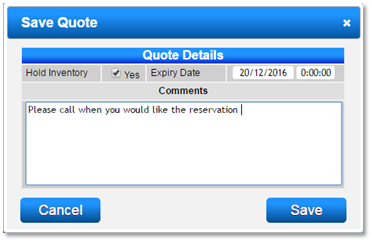
- Click Save to save the Quote.
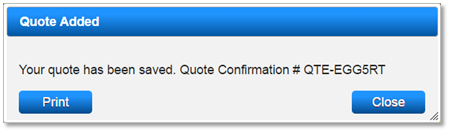
- A Quote Confirmation number will be generated for reference.
Reviewing Created Quotes
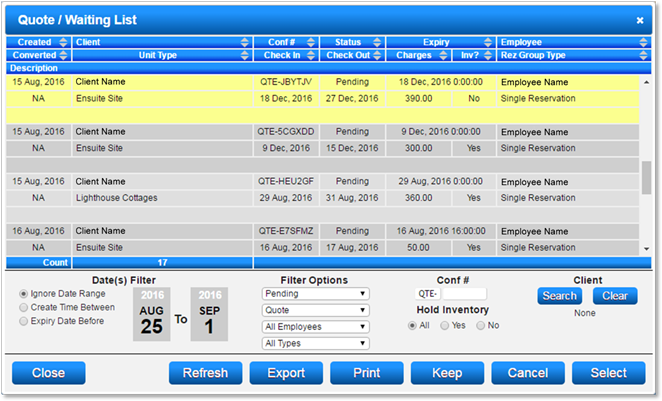
- All Quotes are displayed within the Quote/Waiting List panel.
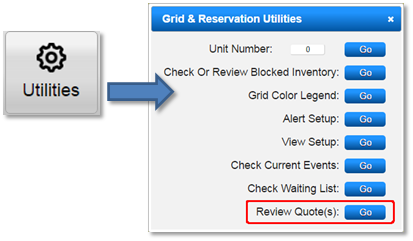
- Click the Utilities button on the Availability Grid and select Review Quotes.
- The Quote/Waiting List panel will display all current Quotes.
- Searching for a Quote: Enter the number into the QTE Conf # Search panel. Use Date Filters and Quote Status drop-downs for assistance.
- Expired Quotes: Select and click Keep to adjust the Expiry Date if needed.
- Cancelling a Quote: Select the Quote and click Cancel. The client is not notified.
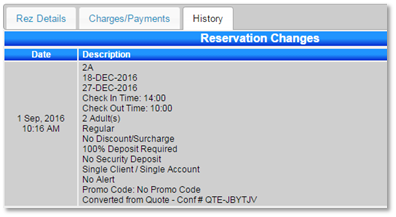
- Making a Quote into a Reservation: Select the quote and click Select. Adjustments can be made before finalizing the reservation. The original Quote # is logged in the Reservation's History Tab.
Troubleshooting
- Warning List Clients: Quotes for clients with a Warning List flag will display the warning list color.
- Viewing Quotes: Quotes can be viewed from the Pencil In tab of the Arrivals/Departures panel but cannot be adjusted there.
- Quote Comments: Comments entered during Quote creation are not stored on the Guest Folio after submission.
- Quote Changes: Any changes to a Quote will result in cancellation and creation of a new Quote and QTE#.
- Statistics: Revenue and Occupancy statistics do not include quotes.
- Quote Conf # Search: Only searchable within the Quote/Waiting List panel.
- Group and Corporate Bookings: Quotes can handle these bookings.
- Grid Selection: Selecting dates/unit from the Grid and pressing Submit allows for Quotes.
- Availability Listing: Units with assigned Quotes and Hold Inventory flag enabled will not display.
- Upcoming Bookings Panel: Displays quotes with Hold Inventory flag enabled.
Click here to print the Help Document.