Selling Tickets in RezExpert System
Last modified on:
Overview
This document provides instructions on how to sell tickets within the RezExpert system. Ticket sales can be performed directly to a client or transferred to a reservation. Please contact DigitalRez to enable the Ticket Module.
Prerequisites
- Ensure the Ticket Module is enabled by contacting DigitalRez.
Steps
Cash Payment: Selling a Ticket with a Client's Name Assigned
- All tickets sold with a client assigned will display in the Ticket Search panel under the client’s name.
- Click on the Person symbol to search for a created Client File.
- If a client file is not available, click on the Add New Person button to create a new client record.
- After searching for or creating the client, the Ticket Availability box for today’s date will appear.
- If a future date is required, click Cancel, select the date from the Calendar, and then click Ticket.
- Select the required ticket by clicking the radio button and click Select.
- Select the quantity of tickets required.
- If the ticket is Occupant Related, select the quantity for each occupant.
- If the ticket has Unit Type Related and/or Vehicle Related settings, select the required Unit Type and enter the client’s vehicle information.
- Click Add Ticket(s).
- If more tickets are required, click the Ticket button to select additional ticket types and repeat the process.
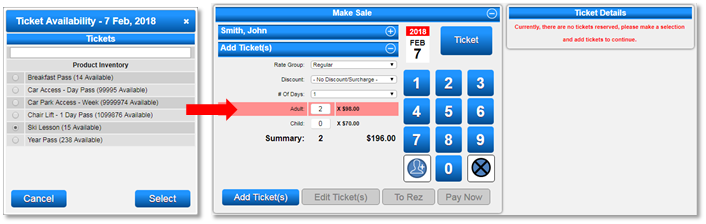
- The selected tickets will display in Ticket Details.
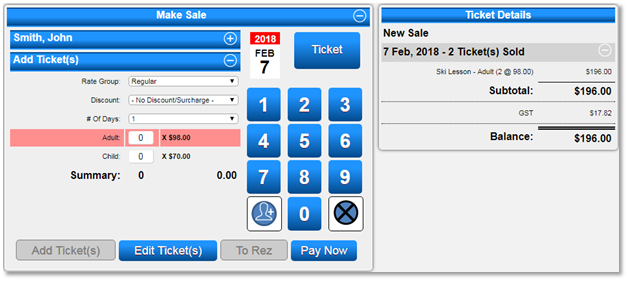
- Click Pay Now to select the payment type. Select Payment Type, click Post, and Submit to finalize.
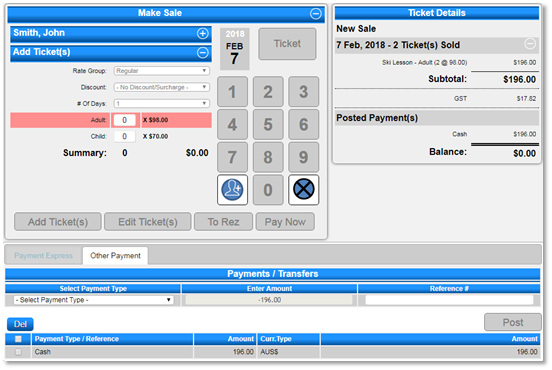
- Click Print Ticket to print out the ticket(s).
- Click Email/Print to email the confirmation with or without the printable ticket link and/or receipts; print the receipt.
- Click New for a new ticket sale.
- If a client was selected in the previous sale, click the Person Symbol to search for a new client, or click the + symbol next to the client to select Clear Client, removing the selected client from the ticket sale.
- Note: If additional information is required after selecting the Payment button, cancel payment to add/edit.
Cash Payment: Selling a Ticket without a Client's Name Assigned
- Tickets sold without a client’s name will display in the Ticket Search panel as ‘No Client Assigned’.
- Click the Ticket button to select the required ticket.
- If the ticket is for a future date, select the date from the Calendar before clicking the Ticket button.
- Select the quantity of tickets required.
- If the ticket is Occupant Related, select the quantity for each occupant.
- If the ticket has Unit Type Related and/or Vehicle Related settings, select the required Unit Type and enter the client’s vehicle information.
- Click Add Ticket(s).
- If more tickets are required, select the tickets.
- The selected tickets will display in Ticket Details.
- Click Pay Now to select the payment type. Select Payment Type, click Post, and Submit to finalize.
- Click Print Ticket to print out the ticket(s).
- Click Email/Print to print the receipt(s) if required.
- Note: If additional information is required after selecting the Payment button, cancel payment to add/edit.
Applying a Ticket to a Reservation
- Once a reservation is created, a ticket can be applied to it.
- On the reservation's till tape, click the Ticket button.
- The client’s name associated with the reservation will automatically populate on the ticket.
- If the ticket is for a future date, select the required date from the Calendar and click the Ticket button.
- Select the required ticket and quantity.
- If the ticket is Occupant Related, select the quantity for each occupant.
- If the ticket has Unit Type Related and/or Vehicle Related settings, select the required Unit Type and enter the client’s vehicle information.
- Click Add Ticket(s).
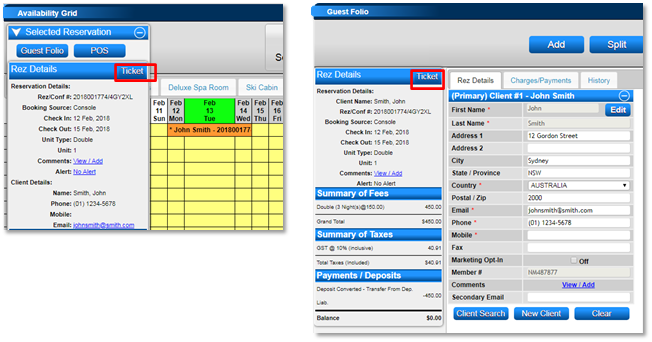
- If more tickets are required, select the tickets.
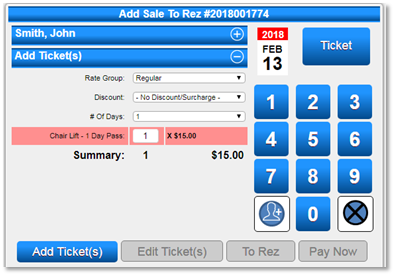
- Click the To Rez button to send the ticket to the reservation Guest Folio for future payment.
- Click Pay Now if the ticket is to be paid immediately and not displayed within the Guest Folio.
- Click Print Ticket to print out the ticket(s).
- Click Email/Print to print the receipt(s) if required.
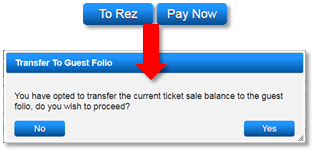
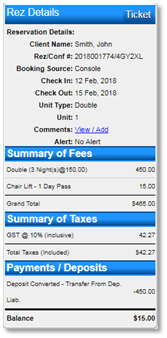
- Within the Guest Folio, click the Ticket Invoice to print the ticket or invoice. Click Print Ticket(s) to print the ticket.
- Clicking Rev next to the ticket will direct you to the Ticket Sales to cancel the ticket and reverse the transaction off the reservation charges.
- The To Rez button will display to transfer the reversed ticket charges back to the Guest Folio.
- If the ticket has not been paid for within the Guest Folio, the Guest Folio balance will display according to the reservation charges/balance.
- If the ticket has been paid for within the Guest Folio, the balance will display a refund to process through.
Troubleshooting
- Sold tickets will display in the Ticket Search panel.
- For additional information, refer to the Ticket Search panel.
- For a printable version of this help document, click here.