Managing Client and Unit Tasks in RezExpert
Last modified on:
Overview
RezExpert allows you to create and assign unlimited amounts of Notes and Tasks to a Client, Employee, or Unit Type. Staff can assign and track notes, whether it is the manager assigning a task to an employee or for Housekeeping/Maintenance purposes. Note: This is an additional RezExpert Module. To enable, please call your Support Tech at DigitalRez.
Unit Tasks/Notes
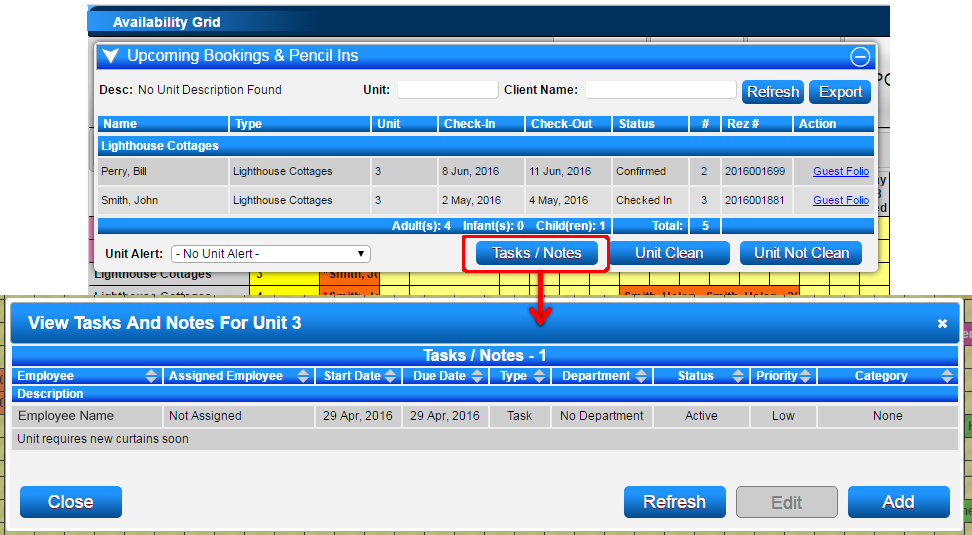
- Click on the Unit label on the Availability Grid.
- The Upcoming Booking & Pencil In box will appear, click on the Tasks/Notes button.
- The Tasks/Notes for the selected unit will display - click Add.
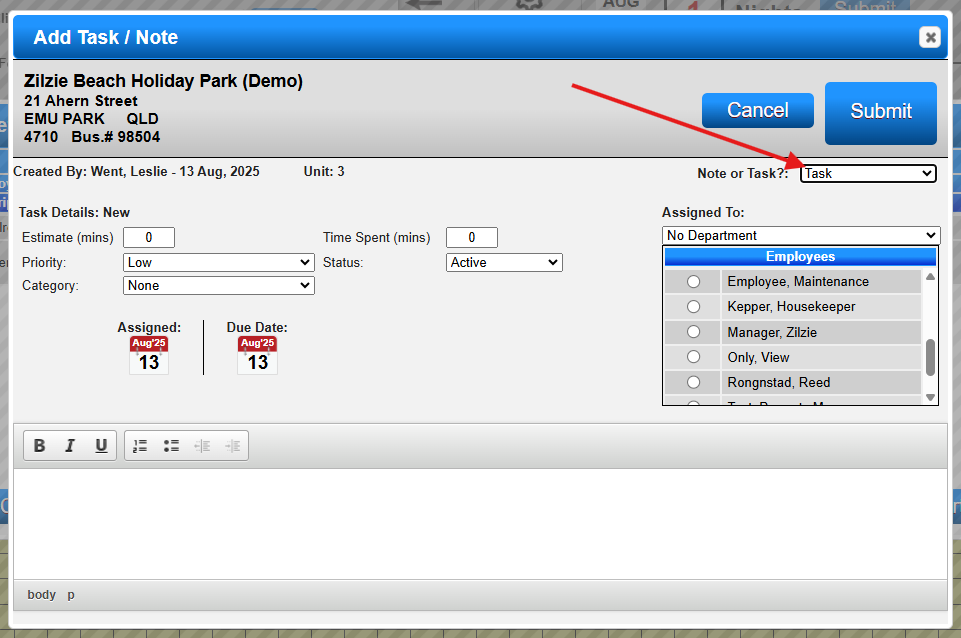
- Select Note or Task from the drop-down selection.
- Set criteria (With a task, Time, Priority, and Category can be assigned) and details.
Once a note or task has been created, staff members can click on the Tasks/Notes link to view the Note. Additional notes can be added to the task if required. When a task has been completed by the employee, the Status can be changed to Complete, if required.
Select whether it will be a Task/Note.
Client Tasks/Notes
To add a Task or Notes to a selected Client, it can be added by:
- Selected Client from the Grid:
- Click Search
- Enter client details and click Search
- Once the client has been selected and redirects to the grid, click Task/Notes hyperlink in the Selected Client slider
- Reservation Till Tape:
- Left Click the reservation from the grid
- Within the Till Tape slider, click View/Add hyperlink for Tasks/Notes
- Guest Folio:
- Click View/Add hyperlink for Tasks/Notes
- Client Editor:
- Once the client is selected, click View/Add hyperlink for Tasks/Notes
Viewing all Tasks and Notes
Location
- Menu
- Admin
- Client Task/Note List
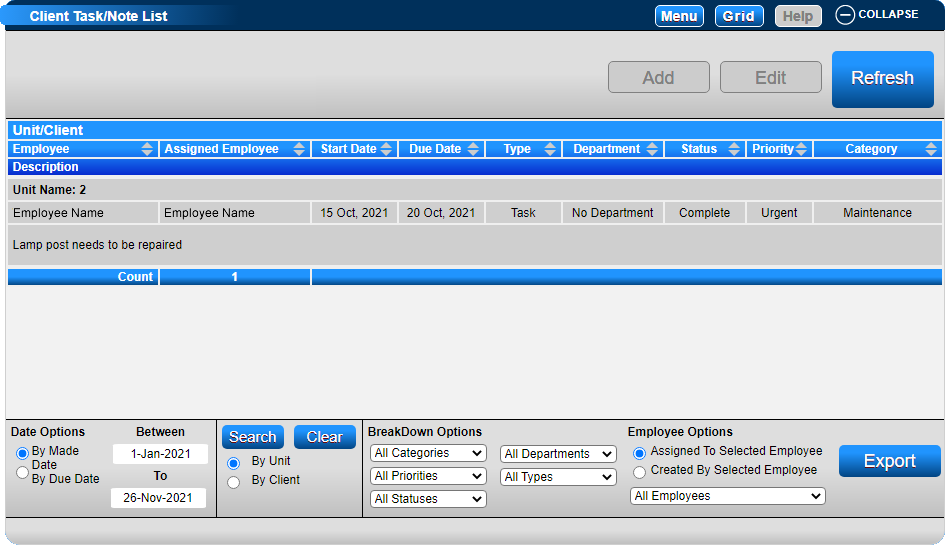
This will display both Client and Unit Tasks and Notes.
Search Parameters
- By Made Date: Search for all Tasks/Notes created between selected date range
- By Due Date: Search for all Tasks/Notes with Due Dates between selected date range
- Date Range: Select the date range required.
- By Unit: Return Unit based tasks/notes. To filter by a specific Unit, click the Search
- By Client: Return Client based tasks/notes
- Search: If on By Unit, will provide a list of all units allowing a specific unit to be selected. If on By Client, will provide the search dialog to select a specific client.
- Clear: Remove any specific Unit or Client that was selected to provide a full search of Units or Clients
- Select the sort order for the Tasks/Notes to display in. Clicking the Search button will allow you to search for a particular Unit or Client. (Clicking Clear will clear out the searched selection).

Breakdown Options
- All Categories: Filter results based on created categories. Categories are created in the Task Category Setup (Menu Button => Setup tab => Task Category Setup)
- All Priorities: Filter based on Priority (Urgent; High; Medium; Low)
- All Statuses: Filter based on status (Active; Complete; Cancelled)
- All Departments: Filter based on department
- All Types: Filter based on Task/Note type (Task, Note, Client Tasks)
Employee Options
- Assigned to Selected Employee: View an Employee's assigned Notes/Tasks for them to view/complete.
- Created by Selected Employee: View the Notes/Tasks made by a selected Employee. All Employees are listed in the Employee drop-down selection.
Once the Search Parameters have been selected, click Refresh to view the Notes/Tasks that meet the Search Parameters.