Mail Merge with RezExpert and Microsoft Word
Last modified on:
Overview
Microsoft Office Word allows you to create custom letters, emails, etc., to bulk send to guests. Within RezExpert, you can create your client list using the Export function.
Prerequisites
- Access to RezExpert
- Microsoft Office Word
- Microsoft Excel
Steps
Exporting the Client List
- The Export function is available in many areas within RezExpert, allowing you to export the required information.
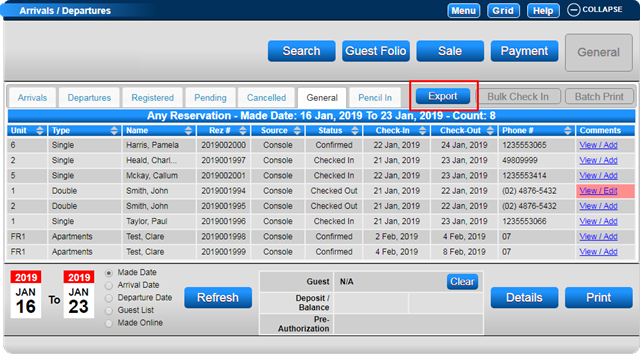
- For example, the Arrivals/Departures panel allows you to export client and reservation information.
- Click on the In/Out button on the Availability Grid.
- The Export button is available on the tabs within the Arrivals/Departures panel.
- Select the required tab. The General tab is recommended as it contains all reservations within the selected Date Range and Radio button, regardless of Status (except Cancelled reservations).
- Adjust the date range to the required period.
- Select the required radio button, e.g., Arrival Date.
- Click Refresh, and the panel will display all reservations that meet the criteria.
- Click Export.
- Within the Data Export panel, click on the Column Editor button to create a Preset Column list. Once created, you can recall the column list in the future.
- Enter a Label for your reference.
- Untick the Sel All flag and tick the required Export column(s).
- Click Submit and then Continue.
- The data will display; click Export.
- The exported data file will then download for your use.
Cleaning up the Data File
- It is essential to review the exported data file before using it in your mailing.
- Open the file within Microsoft Excel.
- Review the exported file to remove any duplicates, records with no email addresses (if sending an email), and any other unrequired information.
Remove Duplicates
- Clear out any duplicate client records.
- Click on the Data tab.
- Select the Remove Duplicates option.
- Unselect all columns and tick the required field to check, e.g., Client Name or Client Email.
- Click OK to remove the duplicates.
Remove NA Emails
- If you are sending emails, remove any records that have NA in the Client Email field.
- When you have completed the review, save the file in CSV format.
Creating the Template
- Open Microsoft Office Word to create your letter or email template to send to guests.
- Click on the Mailings tab.
- Click on Start Mail Merge and select the type of template.
- Click on Select Recipients and select Use Existing List to select the saved exported CSV file.
- Create the template.
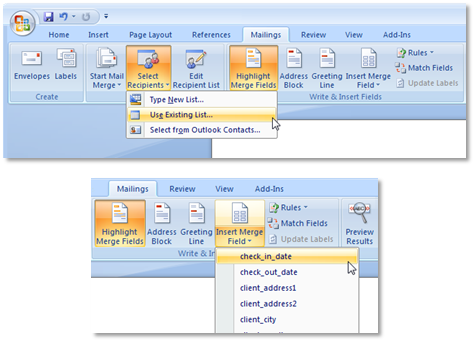
- Insert Merge Field will allow you to insert fields into the template that will display information from each client/reservation in the file.
- For example: "Dear <>" will display "Dear John."
- To preview before completing:
- Click on the Preview Results option to preview the first record’s result.
- Use the right arrows to switch through the other records.
Finalising
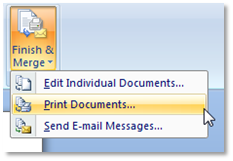
- After the template has been completed and previewed, select Finish & Merge to either:
- Print Documents to print the letter documents.
- Send E-mail Messages to email out to the client’s email addresses.
- To save the template for future use:
- Click File and select Save As.
- Enter a file name before saving.
- When using the template in the future, complete the Select Recipients step with the new export file.
Troubleshooting
For further assistance, click here to print off the Help document.