Setting Up Meter Charges to AR Account
Last modified on:
Overview
Meter charges can be sent to a Permanent Resident’s AR Account for better handling of charges and payments. Create a Meter Billing Policy with an AR Account attached for the resident. RezExpert will send the processed Meter charges to the AR Account instead of the resident’s reservation.
Prerequisites
- A Billing Policy Type needs to be created for the Meter(s).
Steps
Setup Requirements - Billing Policy Type
- Click on a Menu button, select the Setup tab, and click on Billing Policy Type Setup.
- Label: Enter a Policy name for identification, e.g., Utility Billing or Water Billing.
- Policy Type: Property
- Default Invoice Label: Leave blank – Invoice Label will come from the Meter Processing.
- Destination Account Type: Acct Receivable
Note: If you charge two Meters (e.g., Power and Water), you don’t need to create a second Billing Policy Type. The one Billing Policy will handle both Meters and send both charges to the AR Account.
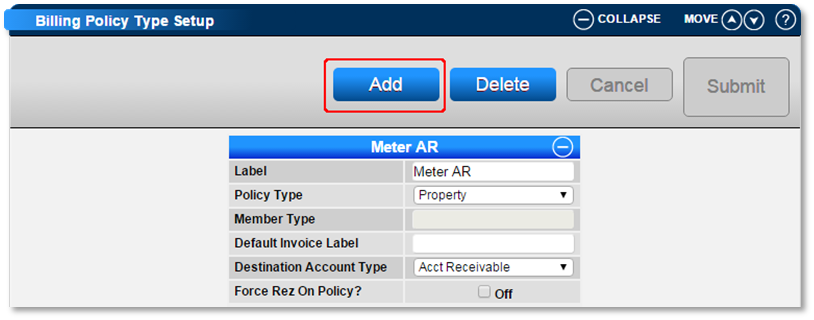
Setting up Resident’s Meter Billing Policy
- Once the reservation has been made for the resident/guest, change to the Charges/Payments tab within the Guest Folio.
- Click on the Billing Setup button to be directed to the guest's Billing Policy Setup panel.
- Click Add.
- Policy Type: Select the Meter Billing Policy Type.
- Unit #: Click to select the reservation’s assigned Unit #.
- Reservation #: Leave blank.
- Start Date: Enter a start date.
- End Date: Enter an end date.
- Next Billing Date: Enter the Start Date.
- In the Account section, select the AR Account to send the meter charges to.
- If an AR Account hasn’t been previously created for the resident, click Click Here to Create and Select a New Account, and an AR Account will instantly be made for the resident.
- The other fields in the Billing Policy Setup panel do not need to be adjusted.
- Click Submit to finalize and then Activate the policy.
Once Activated, all future Meter charges will go to the resident’s AR Account for later payment.
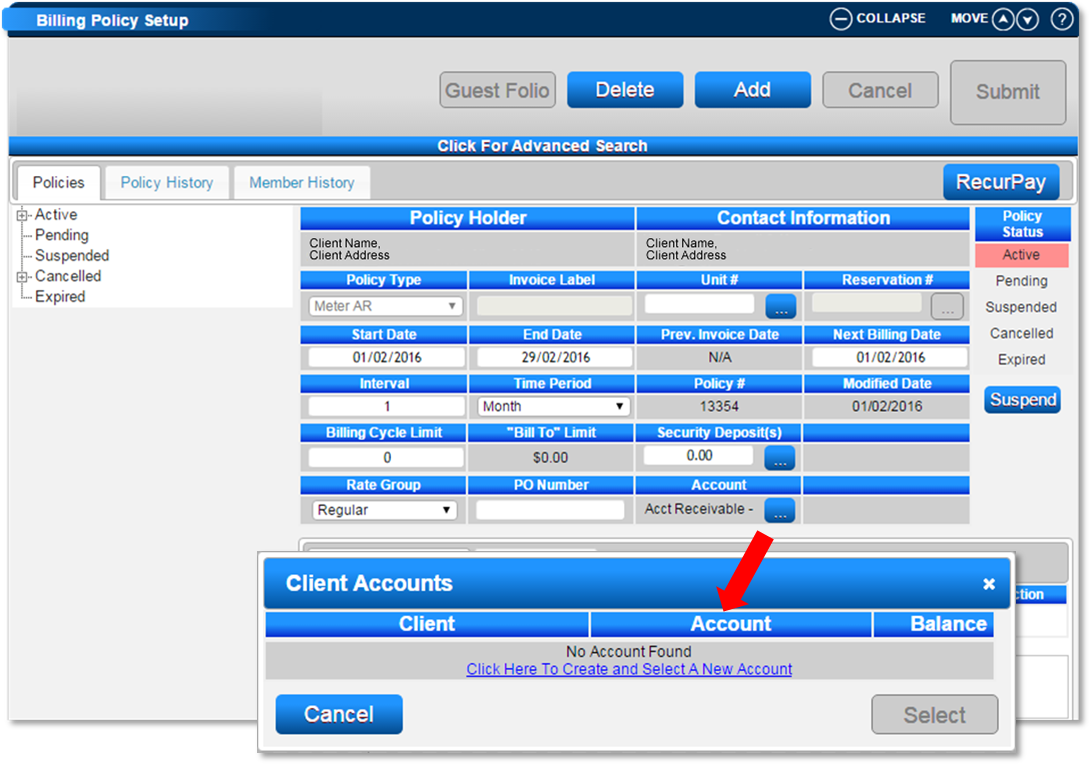
**Note**: Once a Meter Billing Policy has been created for the resident, there could be multiple billing policies displaying in the **Active** section. If there needs to be any adjustments made to any of the resident’s policies, ensure the correct policy has been selected prior each time, prior to altering the fields.
Handling Payments
- The Charge/Payments tab of the guest/resident’s guest folio will display the ongoing AR Balance.
- If the resident’s rental charges/payments are handled within the Guest Folio: Rent and Meter payments need to be handled separately now – rent paid off in the Reservation and Meter paid in the AR Account.
To pay Meters:
- In the resident’s Guest Folio – Rez Details tab, click Acct next to the First Name.
- In the Client Accounts box, select the Account and click Go to Account.
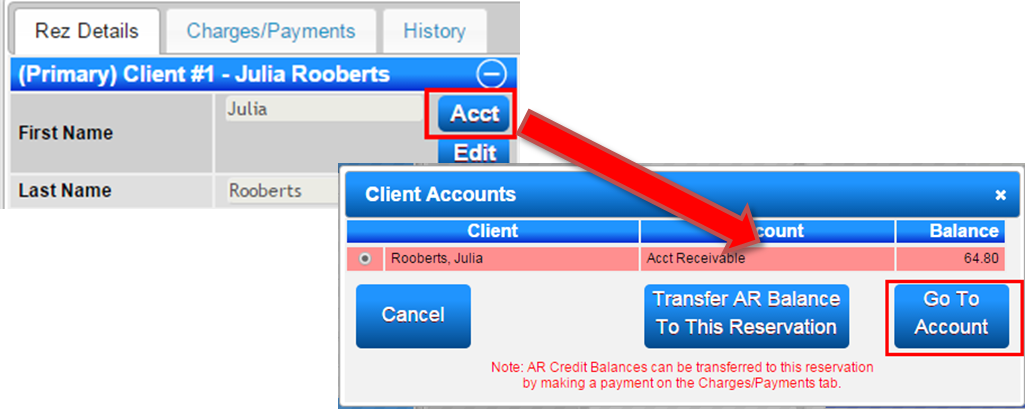
- You will be directed to the AR Account to process through the payment.
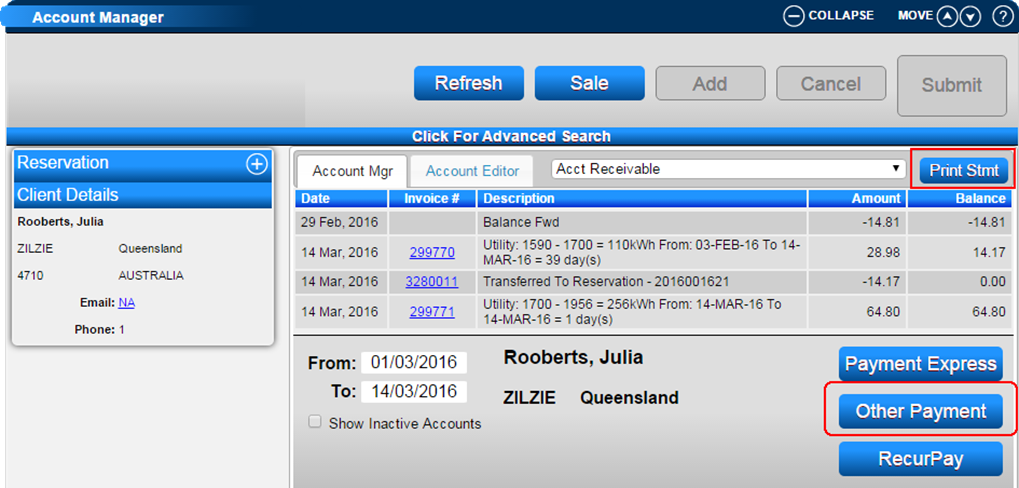
To print off a receipt:
- Click Print Statement and print off the required Receipt/Statement.
TIP - End of Resident’s Stay: At the end of the resident's Rental Lease and they are due to finalize all payments prior to leaving, you can click Transfer AR Balance To This Reservation to transfer any outstanding Meter charges to the reservation. This will allow the operator to process through one final payment for any outstanding rent and meter charges.
Troubleshooting
FAQs
What happens if I adjust the Meter Readings in the Reservation?
- Any changes to the Meter Readings in the reservation will send the charges to the reservation’s Guest Folio, and not the AR Account. DigitalRez recommends only adjusting the Reservation Meter readings within the reservation’s Guest Folio when the resident is checking out and their final readings need to be finalized.
What do I do to stop sending the Meter charges to AR Account?
- Deleting the Meter Billing Policy will stop sending the charges to the AR Account and back to the Reservation’s Guest Folio.
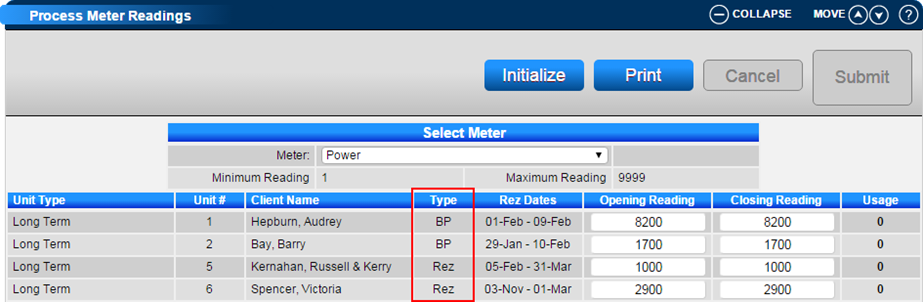
How do I tell if the charges are going to the Reservation or to an AR Account?
- Within the Process Meter Readings panel, the TYPE will display next to each active meter.
- Rez – Reservation – Charges going to the Guest Folio.
- BP – Billing Policy – Charges going to the AR Account.
How do I adjust a Meter Reading without generating Meter Charges?
- The current Open Reading of a Meter can be adjusted in the Process Meter Readings panel.
- Click a Menu button, select the Admin tab, and click on Process Meter Readings.
- Click on the Meter dropdown and select the meter type.
- Enter in the new Opening Reading for the meter required.
- Enter a change control comment and click Submit to finalize the change.