Rate Plan Manager: Dynamic Pricing Features
Last modified on:
Overview
The Rate Plan Manager provides multiple functionalities, including:
- Daily Percentage Occupancy
- View/Edit Rates
- View Total Inventory
- Create Dynamic Pricing Rate Plans (add-on module)
- Field Descriptions
Prerequisites
To view the Rate Plan Manager, navigate through the following steps:
- Click on the Menu button.
- Select the Setup tab.
- Choose Rate Plan Manager under the Pricing and Rates section.
Steps
Daily Percentage Occupancy
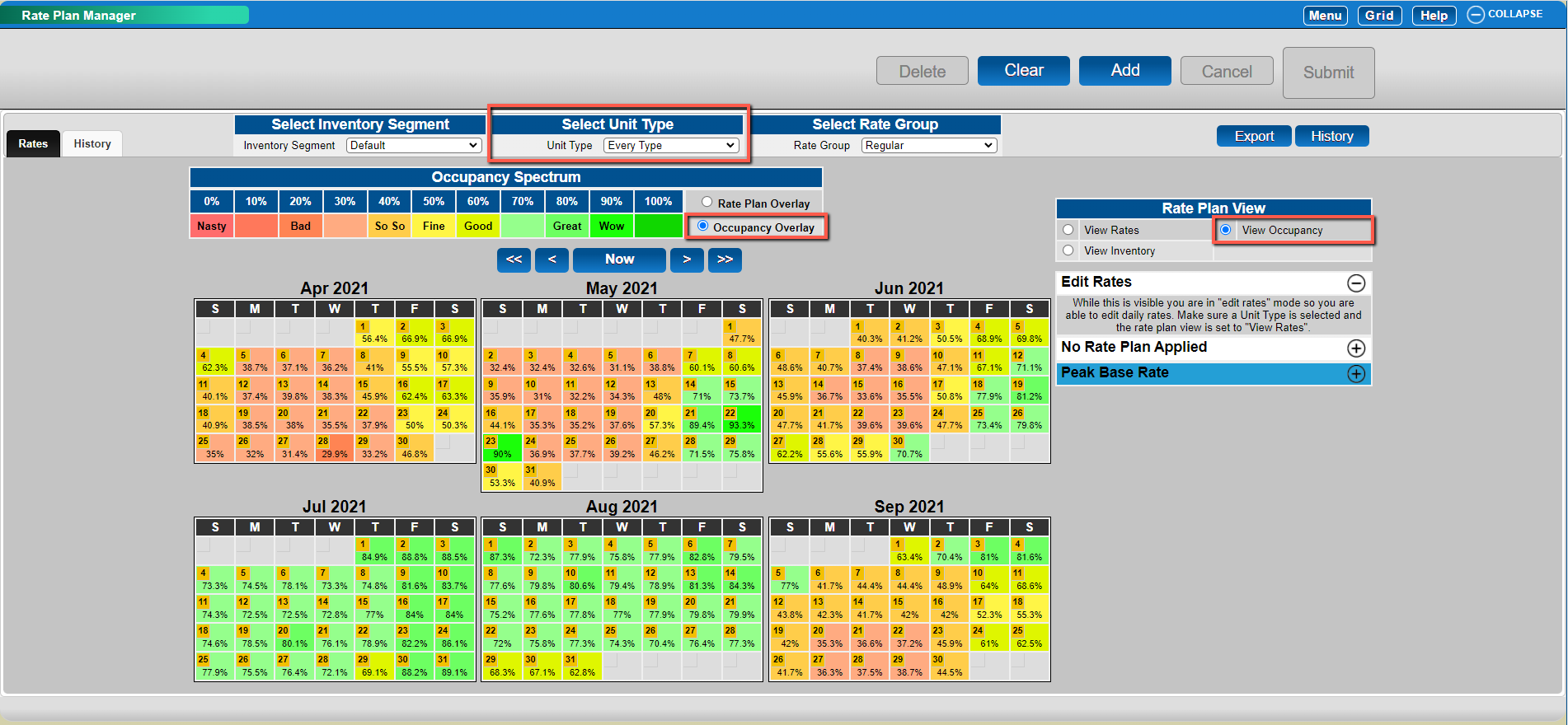
The system provides a daily breakdown of percentage occupancy for a six-month period at a time. Users can:
- View the status of the entire business (Every Type) or drill down to each individual Unit Type (excluding time-based Unit Types, e.g., Hourly).
- Use the Occupancy overlay for a color-coded display to easily determine the status of any date based on the percentage occupancy.
View/Edit Rates
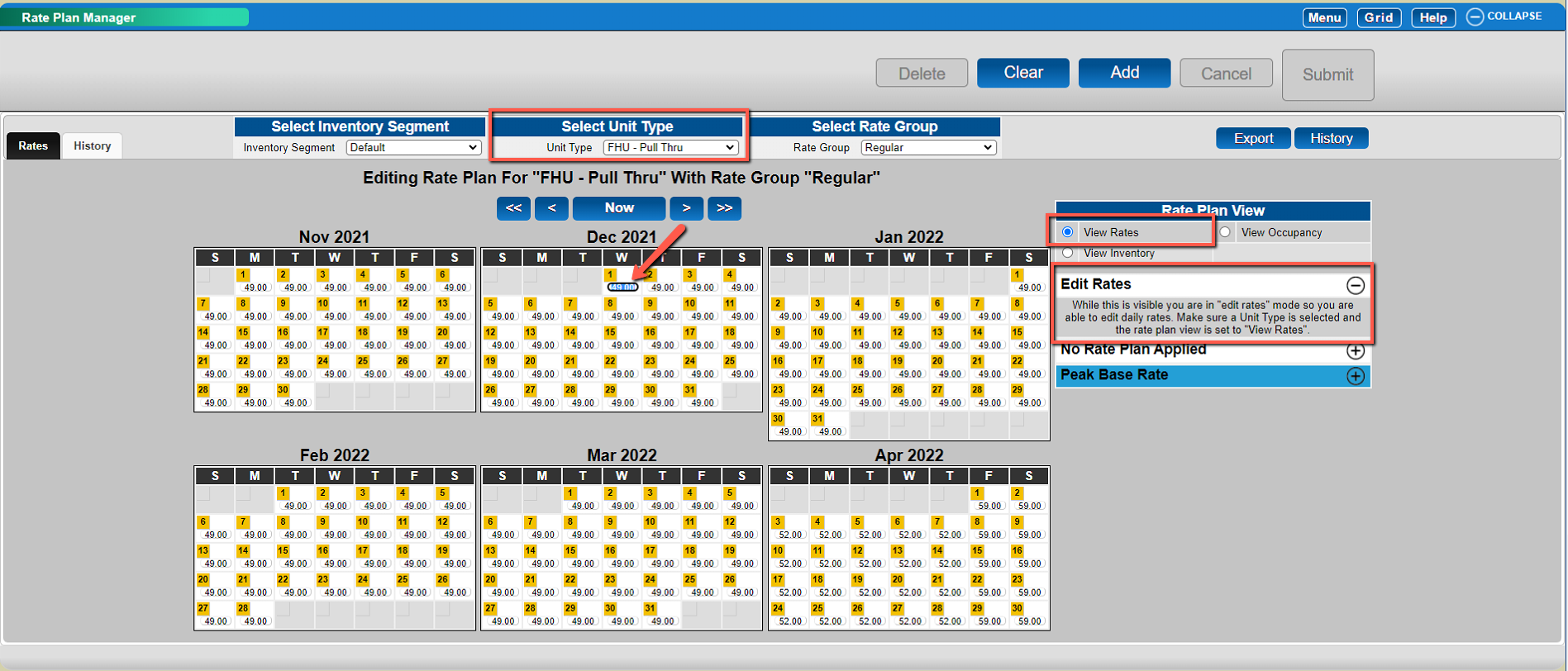
Upon selecting View Rates, users can:
- View daily rates for each day over a six-month period once a specific Unit Type is selected.
- Select and edit a specific daily rate.
View Total Inventory
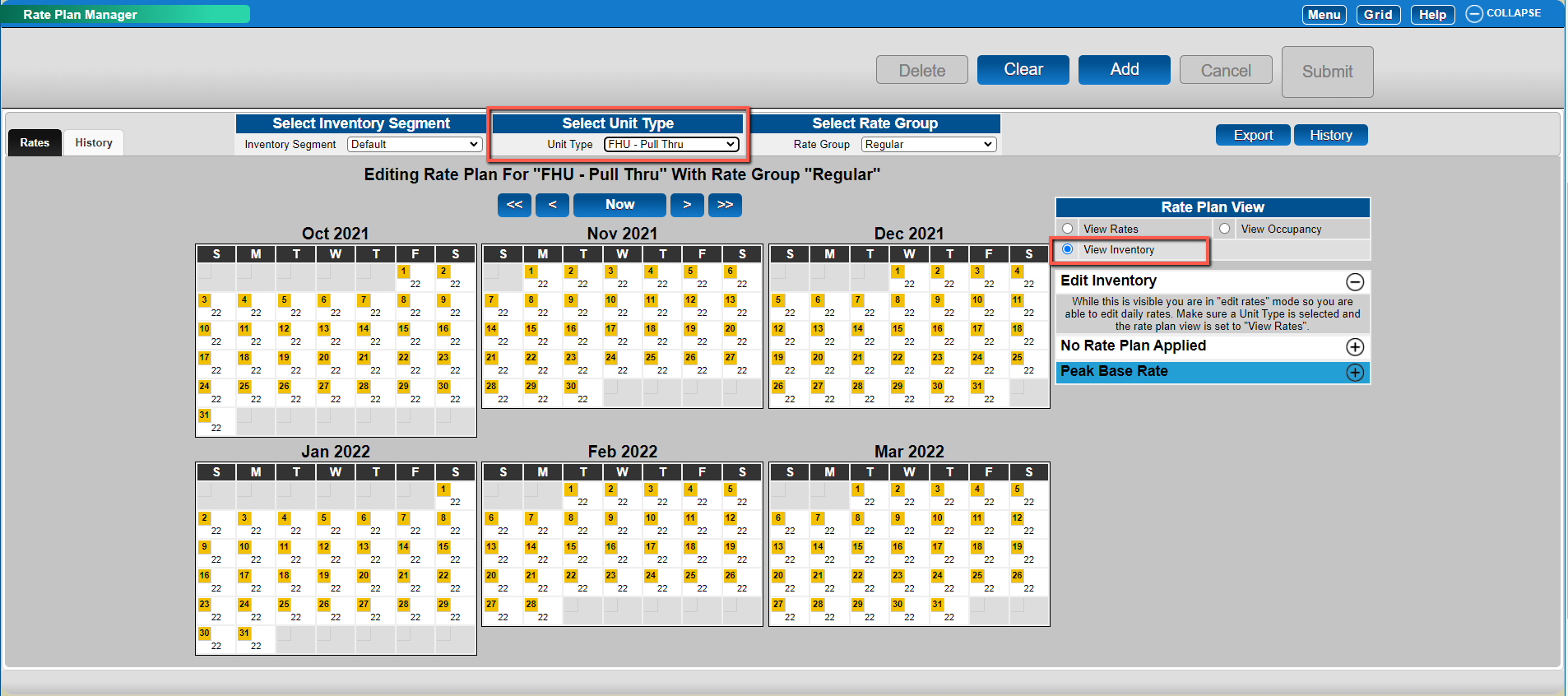
By selecting View Inventory, users can:
- See the total inventory for the selected Unit Type.
Create Dynamic Pricing Rate Plans (add-on module)
Once the module is enabled, users can:
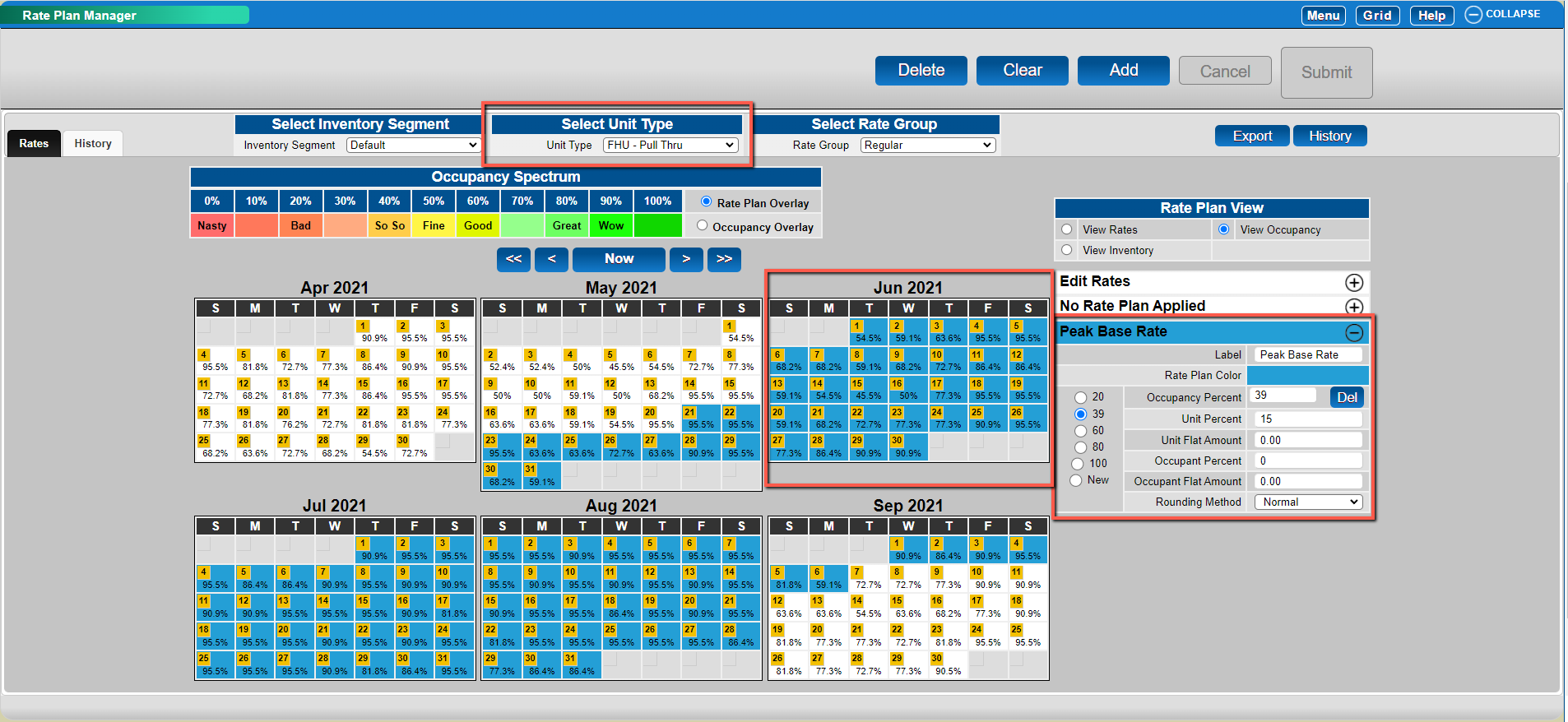
- Create multiple rate plans that automatically adjust rates based on occupancy.
- Increase or decrease rates by a percentage or a flat amount.
- Enter the first occupancy percentage amount, representing the range from zero to that value (e.g., if 20 is entered, this represents the adjustment for 0% - 20%).
- Click on New to set the next occupancy range, which represents the range from the prior value to the entered value (e.g., in the image, 39 represents the range from 21% to 39%).
Note: 100% should always be entered as one of the occupancy ranges.
Once the rate plan is created and selected by having it expanded, users should:
- Select the start date and the end date on the calendars.
- Ensure rate plans do not overlap; one must end for another to start.
Troubleshooting
Field Descriptions
- Label: Name of the rate plan.
- Rate Plan Color: Color assigned to the rate plan.
- Occupancy Percent: Enter the "up to" percentage occupancy. This will represent the range from the prior occupancy percentage to the entered value. If this is the first value entered, it represents 0% up to the entered value.
- Unit Percent: Percentage adjustment for Unit Type rate to be applied when occupancy is between the prior occupancy percentage and the entered Occupancy Percent (Note: a negative value represents a reduction in the rate).
- Unit Flat Amount: Flat amount adjustment for the Unit Type rate to be applied when occupancy is between the prior occupancy percentage and the entered Occupancy Percent (Note: a negative value represents a reduction in the rate).
- Occupancy Percent: Percentage adjustment for the Occupant rate to be applied when occupancy is between the prior occupancy percentage and the entered Occupancy Percent (Note: a negative value represents a reduction in the rate).
- Occupant Flat Amount: Flat amount adjustment for the Occupant rate to be applied when occupancy is between the prior occupancy percentage and the entered Occupancy Percent (Note: a negative value represents a reduction in the rate).
- Rounding Method:
- Normal: Rounds up if the 3rd decimal place is 5 or higher (e.g., 10.126 would be rounded to 10.13).
- Force Up: Rounds up regardless of the 3rd decimal place value (e.g., 10.121 would round to 10.13).
- Force Down: Rounds down regardless of the 3rd decimal place value (e.g., 10.126 would round to 10.12).
- New: Create a new occupancy range for the selected rate plan.
Note: All rate plans should have the final Occupancy Percent as 100.