Adding Credit to Client Account
Last modified on:
Overview
This document provides a detailed guide on how to add a credit to a client's account. It includes various methods depending on the client's existing account status and the nature of the credit application.
Prerequisites
- Ensure the client has an existing account. If not, refer to "How to Create an Account for a Client."
Steps
- Verify Client Account
- If the client does not have an account, create one.
- If the client already has an account, proceed to apply the credit. - Choose Credit Application Method
- A) Payment Directly to Account
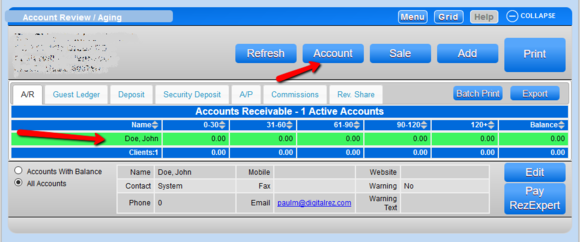
- Navigate to "Account" from the Menu Bar.
- Search for the client to whom you wish to give the credit.
- Click the Account button.
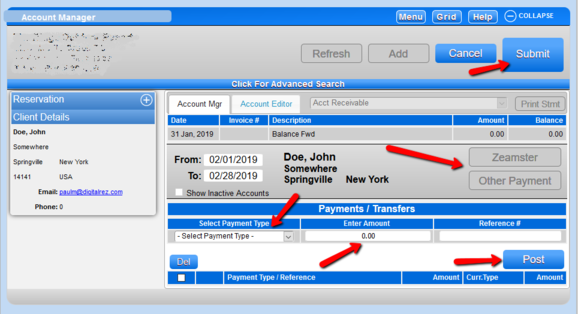
- If applying a payment as a credit:
- Click the PAYMENT method button.
- Select the payment type.
- Enter the credit amount as a positive value.
- Post and Submit.
- B) Adjustment via POS (Point of Sale)
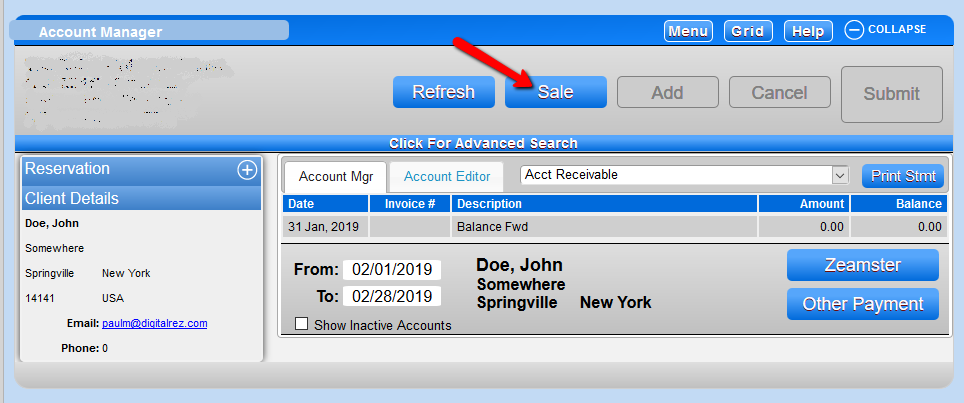
- If the credit is due to an adjustment:
- Click the Sale button.
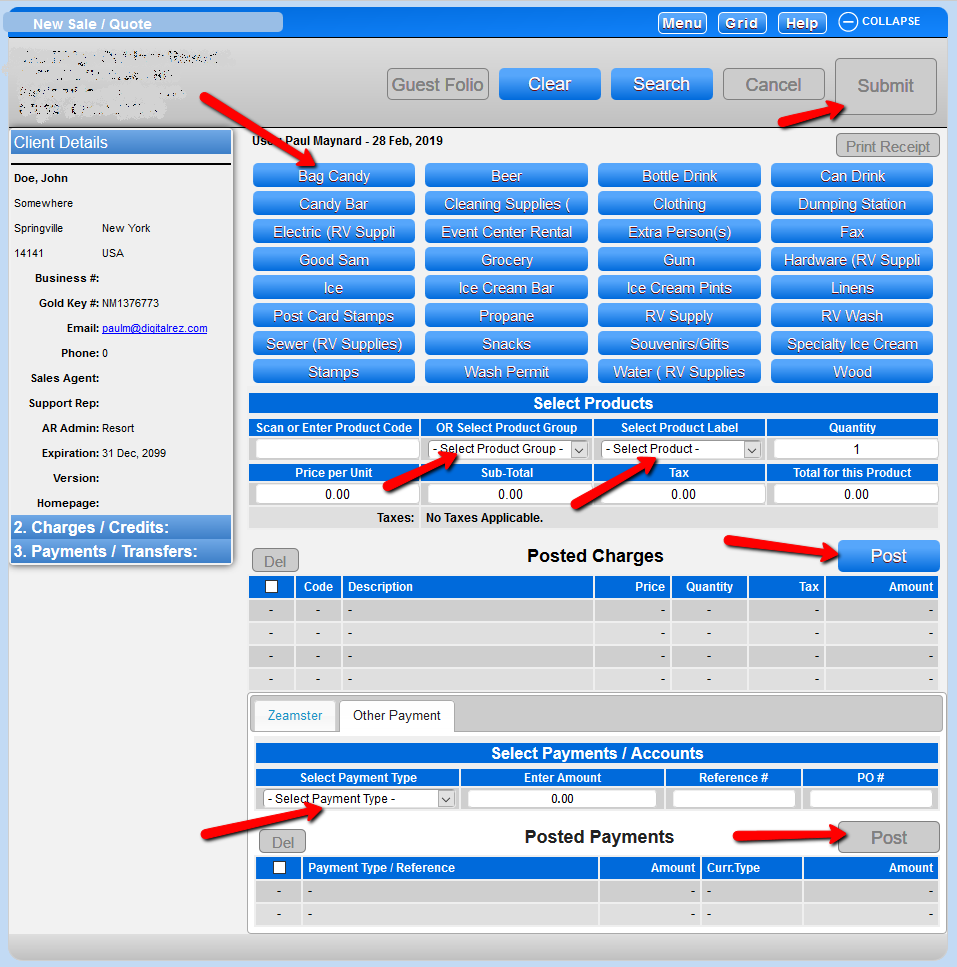
- Select the product for the adjustment.
- Enter the amount as a negative (-) value.
- Set payment type to AR transfer.
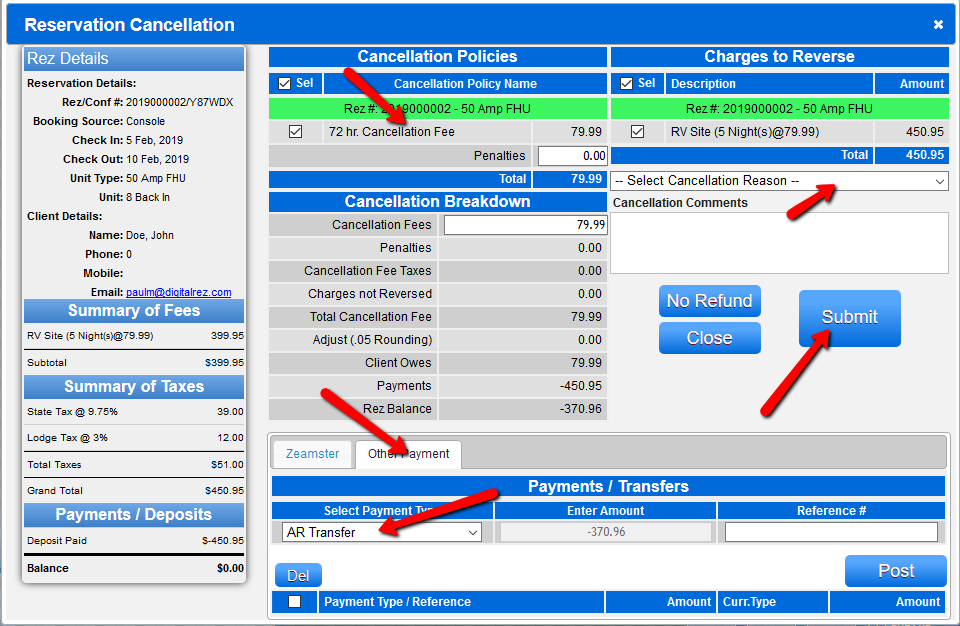
- C) Canceling Reservation and Applying Deposit as Credit
- When canceling a reservation and keeping deposits as credit:
- Select Other Payment.
- Choose AR Transfer as the payment type.
- Transfer the deposit (less cancellation fee if applicable) to the client's account.
- Note: Ensure the client's account is created for AR Transfer to be available.
Troubleshooting
- For further assistance, contact support at 888 777-0602 (Aust/NZ 61 7 4925 4400) or email support@digitalrez.com.