Creating Custom Reports in Availability Grid
Last modified on:
Overview
This document provides a guide on how to create a custom report.
Prerequisites
- Access to the Availability Grid.
Steps
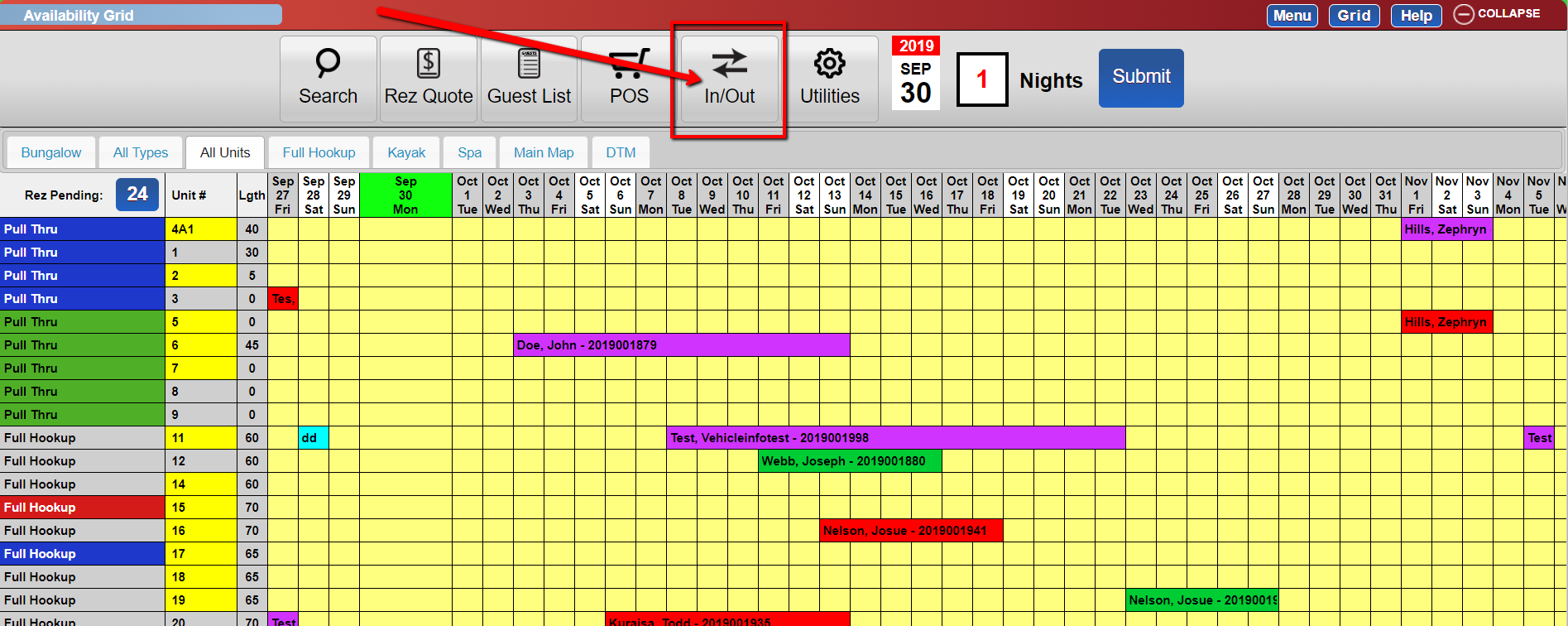
- On the Availability Grid, click the In/out button.
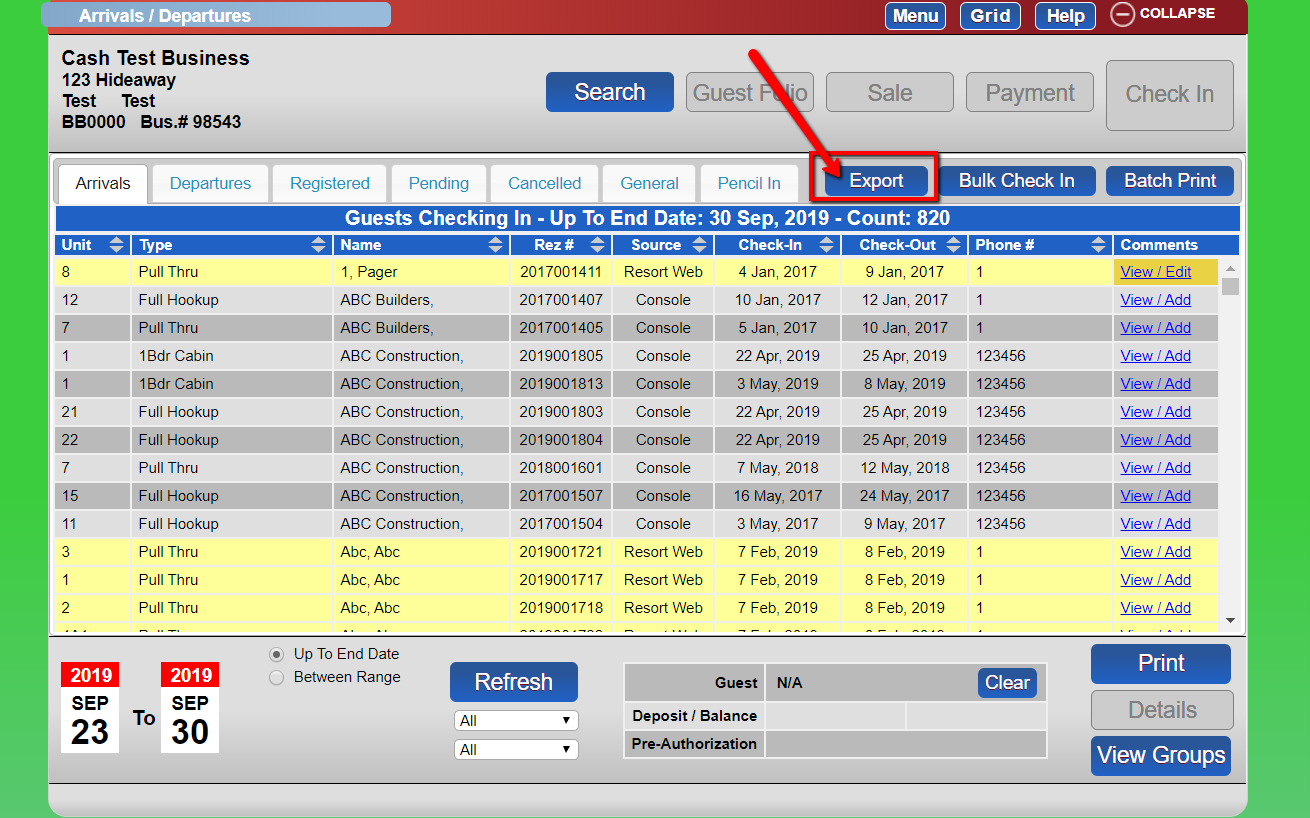
- Set the desired criteria (tab, dates, and filters) and then click the Export button.
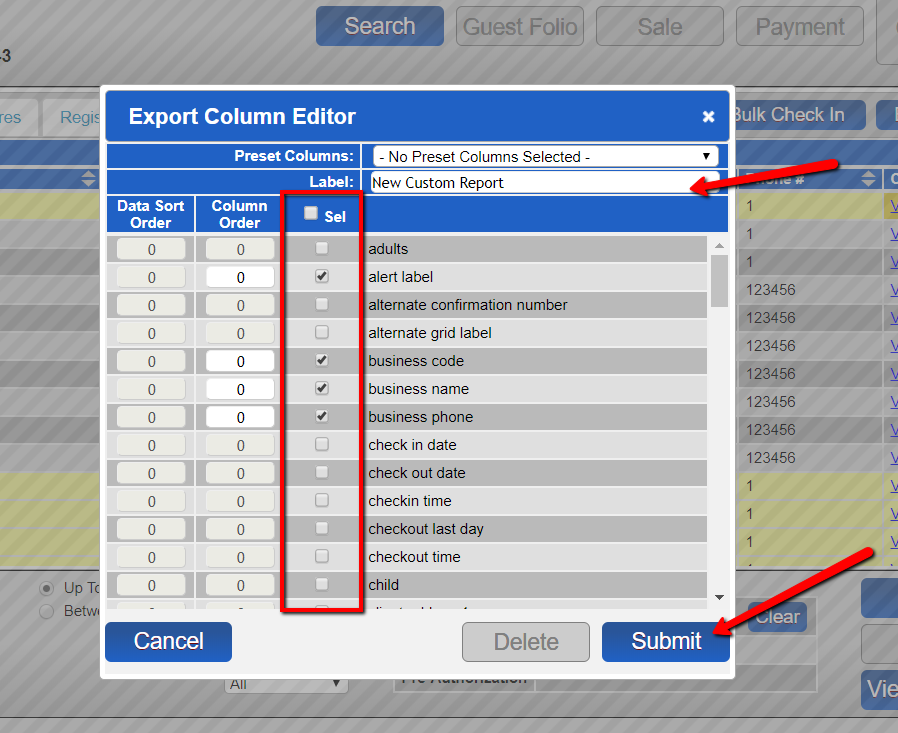
- Ensure that Preset Columns has "No Preset Columns Selected" selected. Enter a label (name of the export for future reference) and select your desired fields. Press Submit to save the preset column selection.
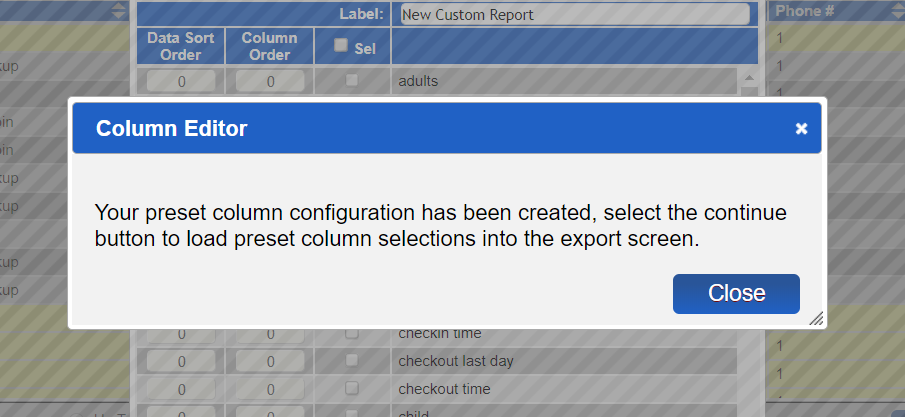
- Note: If no custom reports are saved, it will pull up the full list of data columns. Click Column Editor to create the custom report. - The new custom report has been created. Click Continue to view the custom report. This custom report can be selected in the future by clicking the Preset Columns drop-down.
Troubleshooting
For more information on Export Options, click here to view additional details.