Creating Pencil-In and Maintenance Bookings
Last modified on:
Overview
Pencil-ins temporarily hold a unit’s availability and can be converted into a reservation at a later date. Maintenance pencil-ins can also be created, making units requiring maintenance unavailable for booking.
Prerequisites
- Access to the system where pencil-ins and maintenance bookings are managed.
Steps
Dates
- Select the dates for the Pencil In by dragging the mouse across the desired dates.
- The "Create Pencil In" box will appear.
- Click "Go" to create the Pencil In.
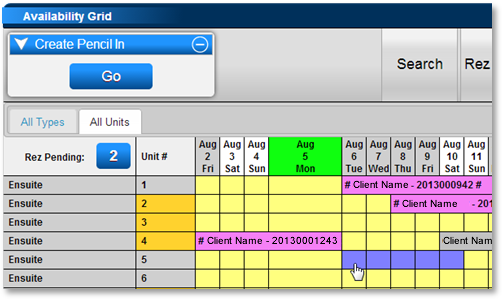
Pencil In Reservations
- To lock the Pencil In to a specific Unit #:
- Click "Locked?" to set it to Yes.
- Enter comments associated with the Pencil In, such as Client Name and Phone #.
- Adjust the Open and Close Dates if required.
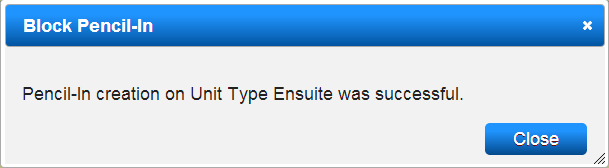
- Press "Submit" to accept the Pencil In.
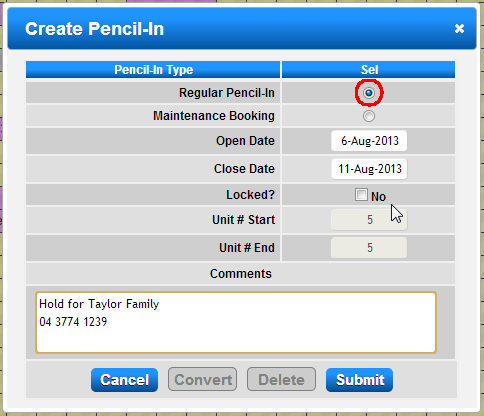
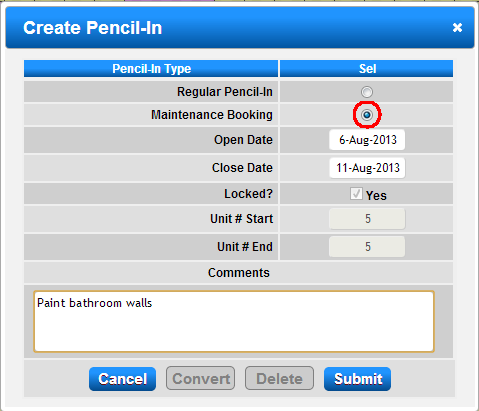
Maintenance Booking
- Maintenance bookings are automatically locked to the Unit #.
- Select the "Maintenance" radio button.
- Enter comments associated with the maintenance of the Unit # (e.g., Paint walls).
Converting a Pencil In
- To convert a pencil in into a reservation:
- Click on the Pencil In within the Availability Grid.
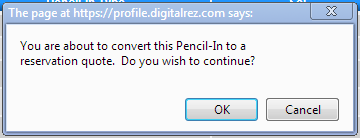
- Click "Convert" to change it into a reservation.
- You will be directed to the Guest Folio to enter Client Dates and continue to Charges/Payments to process any payment.
- If the pencil in is no longer required, click "Delete".

- The below video demonstrates how to create a pencil-in.
Click here to print the Help Document
Troubleshooting
For any queries, please contact us at:
- Phone: 888 777-0602 (Aust/NZ Clients +61 7 4925 4400)
- Email: support@digitalrez.com