Assign Security Gate PinCard to Reservation
Last modified on:
Overview
Security Gate Pin/Cards can be assigned to a reservation and/or a guest. This allows the guest to access the property via the boom gates or access doors. The "Generate PIN at Rez Create" setting will automatically assign a PIN number to the reservation when it is made.
Prerequisites
- Ensure the "Generate PIN at Rez Create" setting is enabled if you want automatic PIN assignment.
- If the setting is not enabled, PIN numbers or cards need to be manually assigned/added to the reservation.
Steps
Assigning a Pin/Card
- If the "Generate PIN at Rez Create" setting is not enabled, follow these steps to assign a Pin/Card:
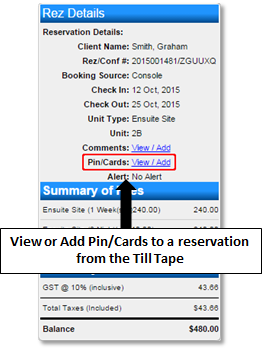
- Access the reservation via the Till Tape.
- Click on the reservation on the grid. The Till Tape will display on the left.
- Click "View/Add" next to the Pin/Cards link to view or add Pin/Cards.
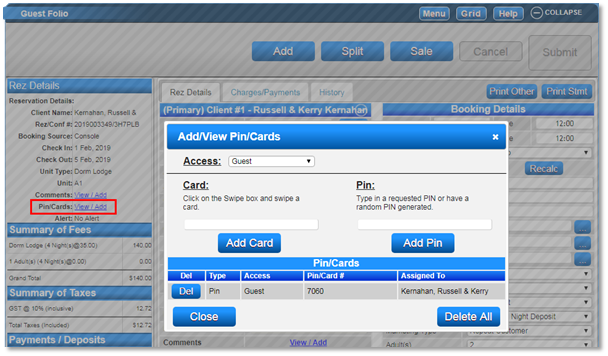
- If in the Guest Folio, the Till Tape displays on the left. Click "View/Add."
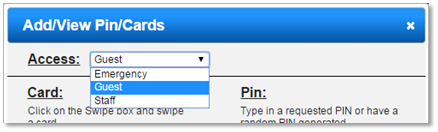
Access Level
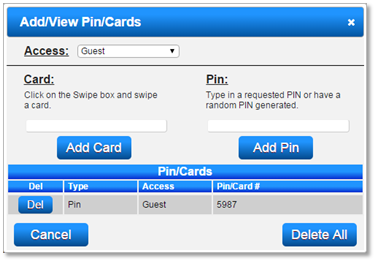
- The selected Access Level will display as "Guest." Adjust if required.
Adding a Pin/Card
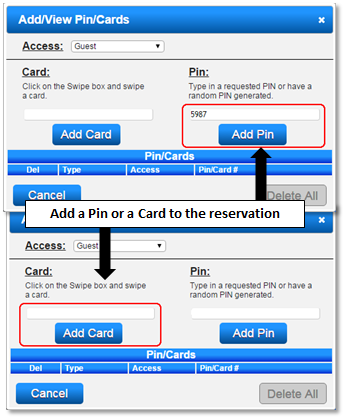
- If using a Pin:
- Type in the requested PIN or have a random PIN generated by clicking "Add Pin."
- The new Pin will be added to the Pin/Cards List.
- If using a Card:
- Click on the Swipe box and swipe a card. Click "Add Card" to assign.
Viewing an Assigned Pin/Card
- The assigned Pin/Card will display. Click "Del" to delete the selected Pin/Card.
- If there are multiple Pin/Cards associated with the reservation, click "Delete All" to delete all Pin/Cards.
Troubleshooting
For further assistance, click here to print the Help Document.