Future Date Cutoff Rule Setup
Last modified on:
Overview
This rule allows a user to restrict bookings after a specified date.
Prerequisites
- Access to the Admin tab in the system.
Steps
- Navigate to the Menu button.
- Select the Admin tab.
- Click on Rule Setup.
- Click Add.
- Enter a name for reference, e.g., "Future Date Cutoff".
- Click on the Inventory Type dropdown and select Regular.
- Select the rule type – Future Date Cutoff.
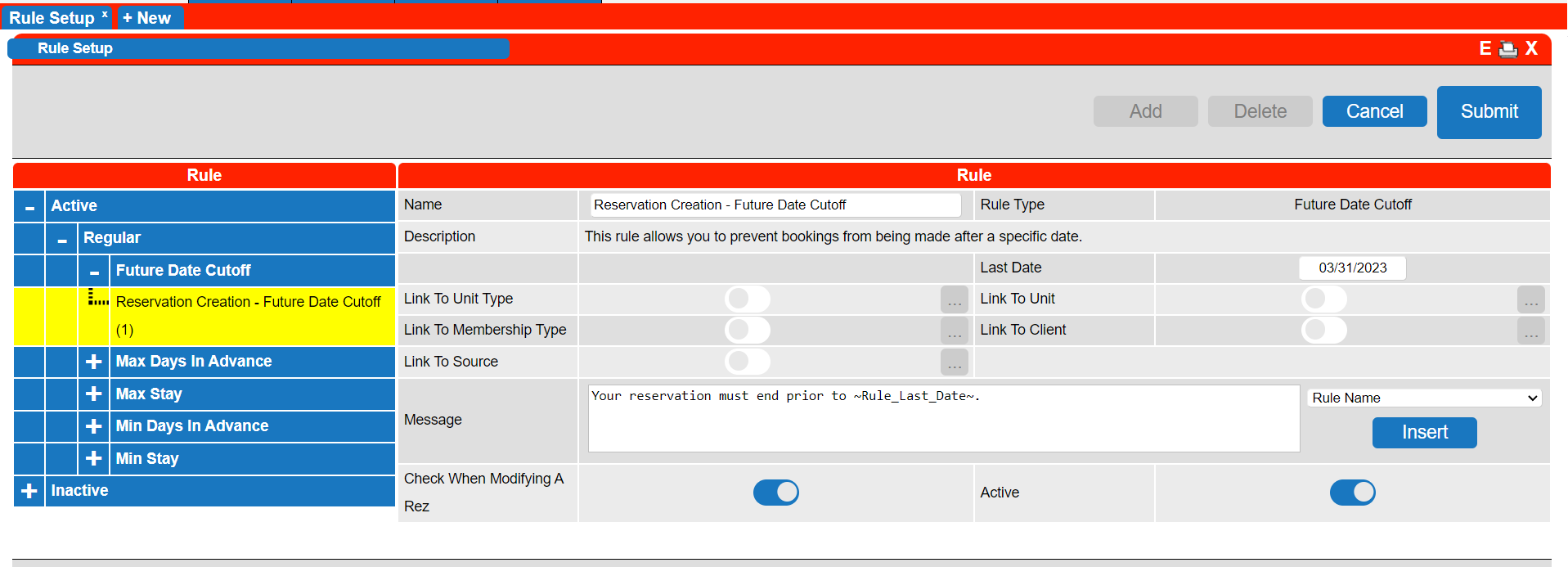
- Set the Last Date: Select the end date of the period.
- Link To Unit Type:
- If the rule applies to specific Unit Types, click on the slider and select the required Unit Types.
- By default, the slider will be on with no Unit Types enabled. - Link To Membership Type:
- If the rule applies to specific Membership Types, click on the slider and select the required Membership Types.
- By default, the slider will be on with no Membership Types enabled.
- Link To Client:
- If the rule applies to specific Clients, click on the slider and search/select the required Client(s).
- By default, the slider will be on with no Clients enabled.
- Link To Source:
- If the rule applies to a specific booking source (e.g., Online Bookings only), click on the slider and select the booking source.
- By default, the slider will be on with no Source enabled.
- Message:
- A default message will display when a booking does not meet the required amount of days/nights.
- The message can be adjusted if required.
- Check When Modifying a Rez:
- Enable the flag if the rule is to be checked when a confirmed reservation is modified.
- Active:
- Enable the flag to make the rule active.
Troubleshooting
- Ensure that all required fields are filled correctly.
- Verify that the correct Inventory Type and rule type are selected.
- Check that the appropriate links to Unit Type, Membership Type, Client, and Source are configured as needed.
- Confirm that the rule is active if it is not functioning as expected.