Viewing Occupancy Overlay in Rate Plan Manager
Last modified on:
Overview
View Occupancy % overall and by unit type in 6-month blocks. Individual Unit Type Occupancy % can also be selected. This is an important tool for owners and managers.
Prerequisites
- Access to the Rate Plan Manager within the Pricing and Rates section.
Steps
Location
- Click on a Menu button.
- Select the Setup tab.
- Click on Rate Plan Manager within the Pricing and Rates section.
Viewing Occupancy Overlay
- By default, if you are not using any Rate Plans & Channels, the system will display the Occupancy overlay.
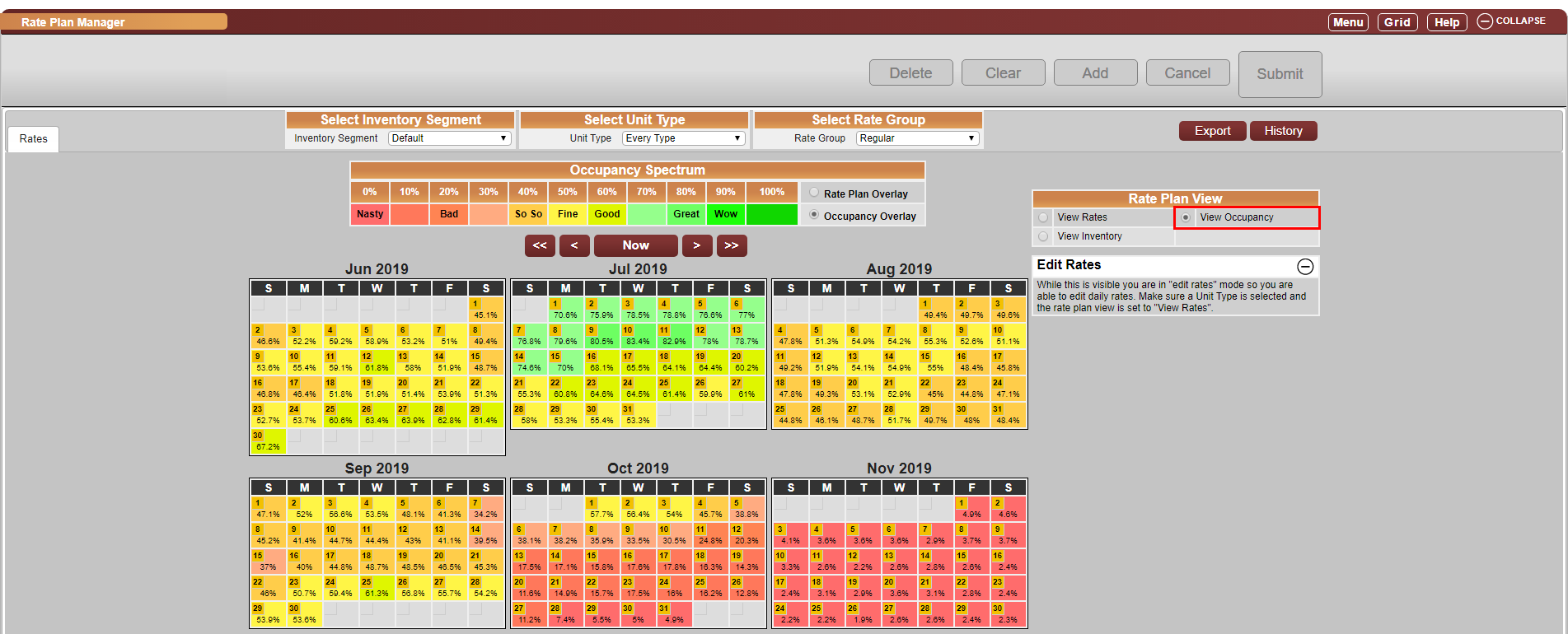
- In Rate Plan View, select the radio button "View Occupancy."
- This will provide a daily percentage overlay on the Rate Calendars. The default setting is for All Types – showing the total occupancy percentage for the property.
- A six-month calendar will display occupancy for an entire half year. Navigating back in time allows for export of historical data.
- To view future months, click on the > button to move forward.
- To view past months, click on the < button.
Occupancy of Specific Unit Types
- To view the Occupancy percentage for a specific Unit Type, select the Unit Type from the "Select Unit Type" drop-down.
- The occupancy percentage for the Unit Type will display.
- Note: Any Decommissioned Unit Types are not included in the Occupancy calculations or available to select in the Unit Type drop-down. This ensures the percentages reflect true occupancy.
Occupancy Spectrum
- The Occupancy Spectrum displays the color range associated with the Occupancy percentage. As occupancy percentage increases, the color will adjust accordingly.
Occupancy Export
- The Occupancy data can be exported into an Excel spreadsheet, where historical and future comparisons can be made.
Troubleshooting
- For further assistance, click here to print the Help Document.