Unit Revenue and Occupancy Panel Guide
Last modified on:
Overview
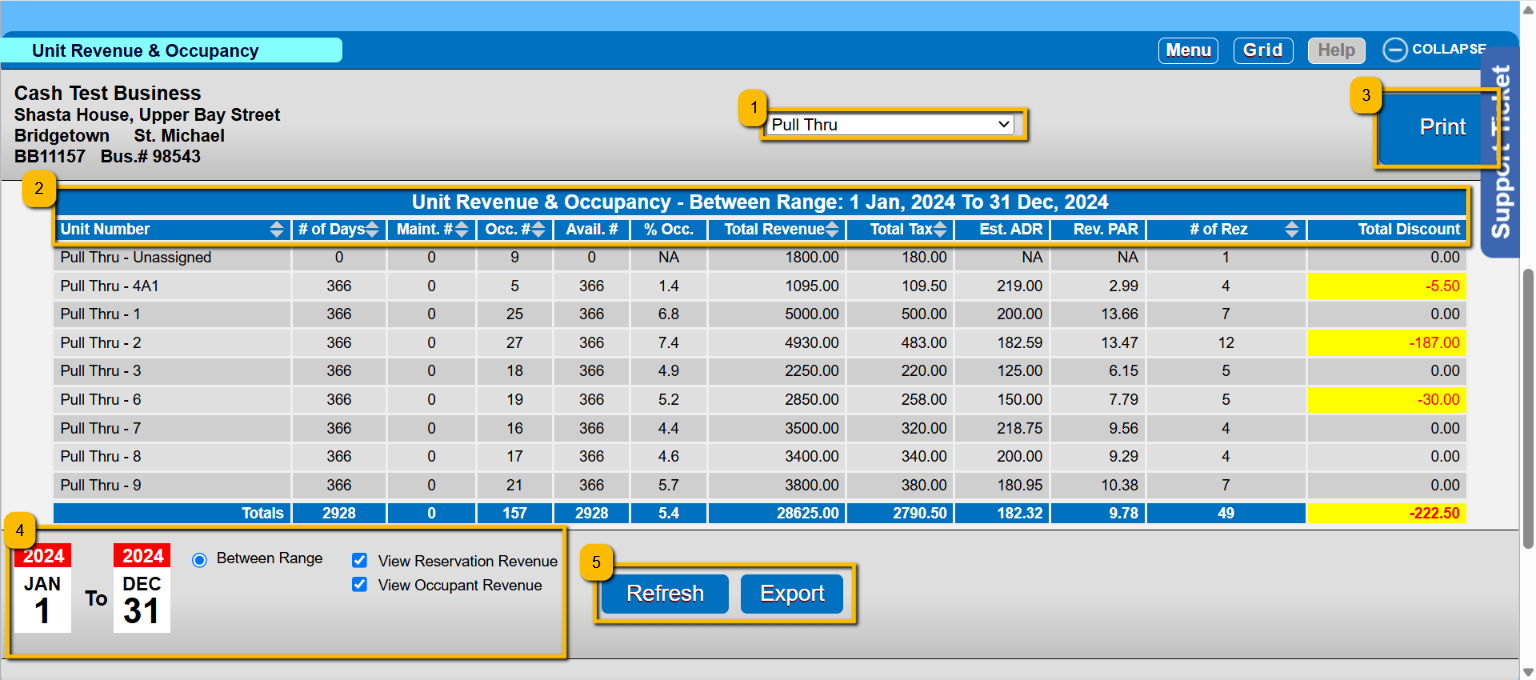
The Unit Revenue & Occupancy panel displays statistics for each unit within a selected Unit Type over a specified date range. Access this screen by selecting a Unit Type from the Unit Type Revenue & Occupancy panel.
- Date Range Limit: 366 days or less.
Prerequisites
- Access to the Unit Type Revenue & Occupancy panel.
Steps
- Filter By Unit Type
- Use the dropdown at the top of the screen to select a unit type to view its performance. - Table Breakdown
- Definitions of Columns:
- Unit Number: The name of the unit.
- # of Days: Number of days within the searched date range.
- Maint. #: Number of Maintenance pencils made.
- Occ. #: Number of Units occupied/booked.
- Avail #: Total number of Units available for the days selected (calculated as # of units X # of days).
- % Occ.: Percentage of available units occupied (calculated as Occ # divided by Avail #).
- Total Revenue: Amount of revenue (reservation charges) charged.
- Total Tax: Amount of Tax on charges.
- Est. ADR: Estimated Available Daily Revenue (calculated as Total Revenue divided by Occ #).
- Rev. PAR: Revenue per available room (calculated as Total Revenue divided by Avail #).
- # of Rez: Total number of reservations made.
- Total Discount: Total discount value applied to this unit’s bookings.
- Print
- Click Print to print out the Type Revenue and Occupancy Report. - Date Range Selector
- Select your custom report range using the calendar controls:
- Start Date (left)
- End Date (right)
- View Options
- View Reservation Revenue: Displays revenue based on reservation charges.
- View Occupant Revenue: Shows revenue collected for occupants beyond base occupancy. - Refresh or Export
- Refresh: Updates the panel with the current date for the selected filters.
- Export: Downloads the table data in a CSV or Excel-compatible format.
- Note: Within the Export display, "Number of Service Booking Days" is equivalent to "Maint. #".
Troubleshooting
- Ensure the date range does not exceed 366 days.
- Verify the selected Unit Type from the dropdown for accurate data display.
- If export issues occur, check compatibility with CSV or Excel formats.