Restrict User Access to Online Reservations
Last modified on:
Overview
This guide explains how to prevent specific users from making online reservations by utilizing rule setups. By assigning these clients to a rule that will always trigger, you can control the message they receive.
Prerequisites
- Access to the Admin panel
- Ability to navigate and modify Rule Setup
Steps
Navigate to the Rule Setup
- Go to the Menu
- Select Admin
- Choose Rule Setup
Setting up the Rule
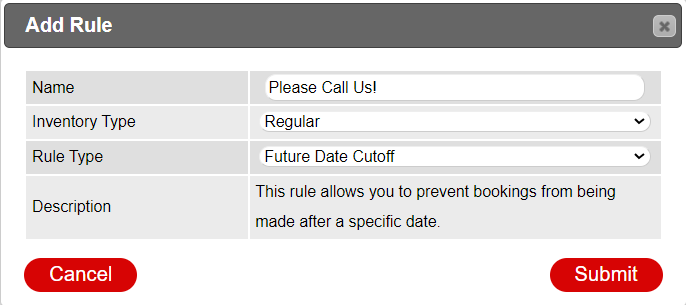
- Click on the Add button.
- Select the Rule Type Future Date Cutoff.
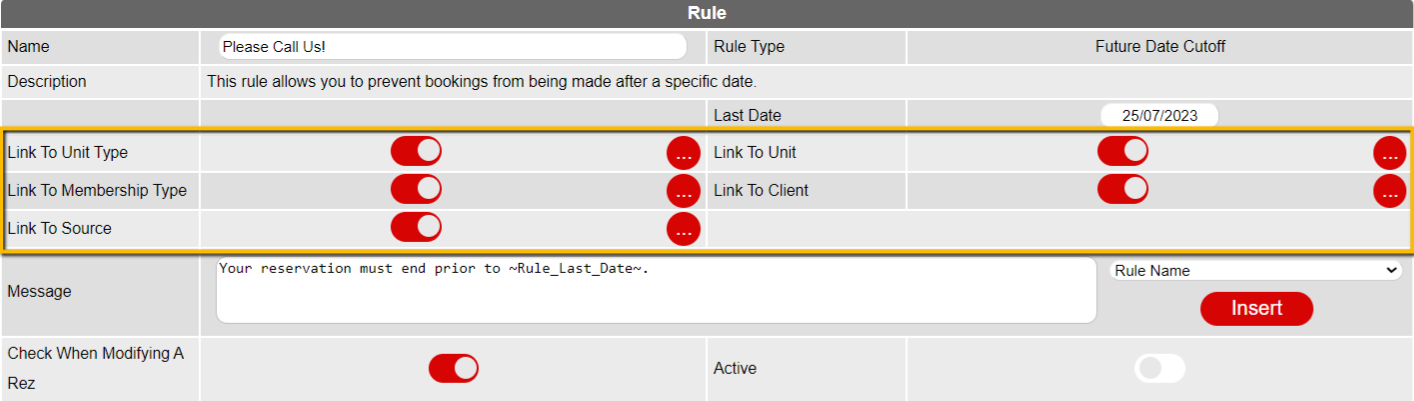
- Disable all other links except Link To Client.
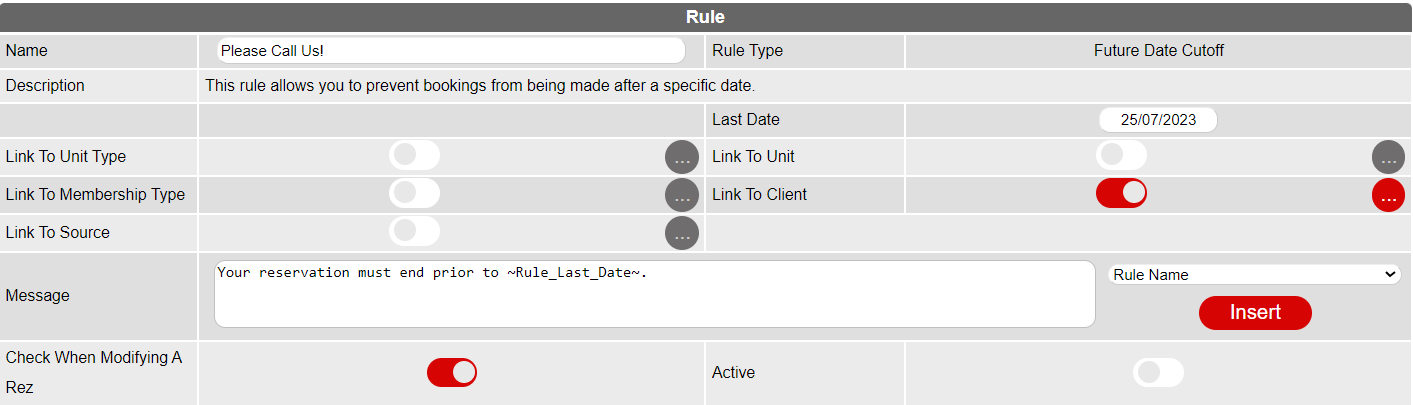
- Click the three-dot button for Linked to Client and add all clients from the Warning List.

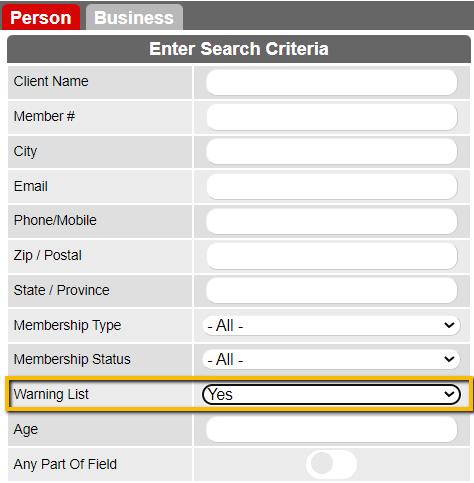
- Click on the dropdown list for Warning List and select Yes. Then click on the Search button to return the warning list.
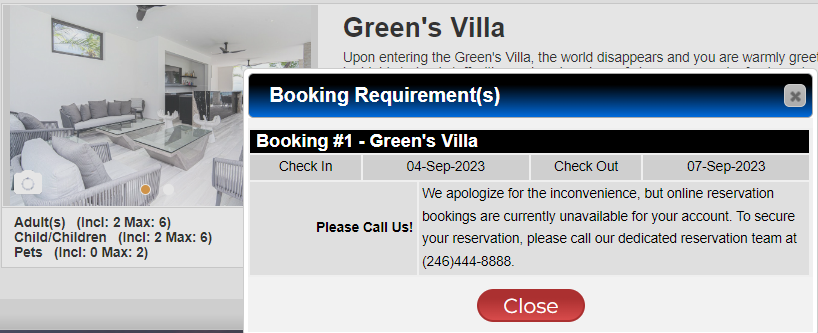
- Modify the message these customers would see.

- Finally, click on the Active selector and then click on the Submit button.
Example
- Example of the message that appears when trying to book:
Troubleshooting
- Ensure all steps are followed correctly if the rule does not trigger as expected.
- Verify that clients are correctly added to the Warning List.