Setting Up Online Booking Products
Last modified on:
Overview
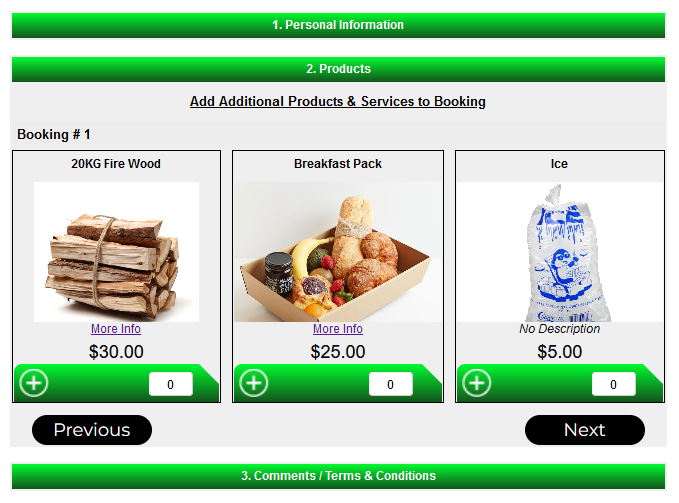
Products can be created to be available when customers book online.
Note: This is an additional module. Please contact your Tech Support to enable.
Prerequisites
- Ensure the additional module for online product setup is enabled by contacting Tech Support.
Steps
Location
- Click on the Menu button.
- Select the Setup tab.
- Click Product Setup.
- To make a current product available online, recreate the products under a different product label (name).
Creating the Product
- Click Add.
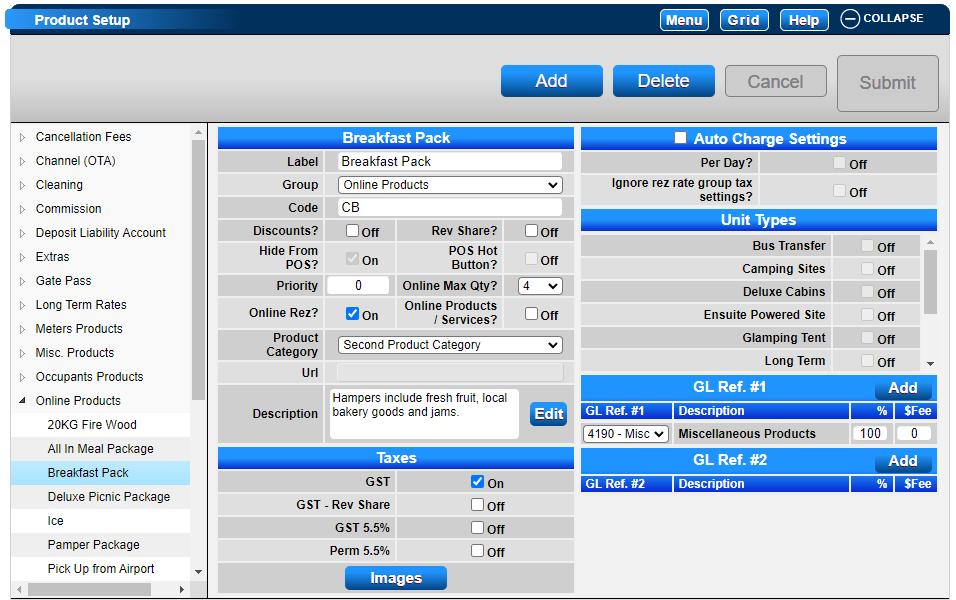
- Label: Enter the name of the product. If the product already exists, use an alternative label for the online version.
- Product Group: Select Online Products.
- Online Max Qty: Enter the maximum quantity of the product that customers can order online.
Note: The Max Qty needs to be at least 1 to make the product visible online. If the product is temporarily out of stock, change the Max Qty to 0. - Online Rez?: Tick this flag on. This enables products to display within the 2. Products section of the online booking process. Online Products/Services enables products to display within the Products/Services button within the menu bar of the Online Booking page. It is an additional sale; not associated with a reservation.
- Taxes: Tick on the appropriate tax value for the product.
- Product Category: Applicable for Online Products with Online Products/Services flag enabled only.
- Description: Enter a description of the product. This will display when the customer clicks on the More Info link within 2. Products section.
Product Images
- Images can be uploaded to display on the different online product views.
- Click on the Image button to upload the image.
Image dimensions: 250 pixels wide X 150 pixels high.
Format: jpg or png.
Assigning GL Codes
- On the right within GL Ref. #1, click on the Add button to select and assign the required GL Code.
- GL Codes can also be assigned with Product/GL Number Setup.
- Enter a Change Control and press Submit to finalize the new Online Product.
- Repeat the procedure with all the products that you want to offer online.
Product Rates
- Click on a Menu button, select the Setup tab, and click on Product Rates Setup.
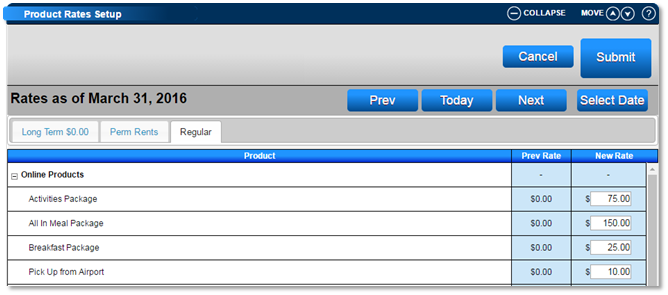
- All Online Products rates are to be entered into the Regular rate tab.
- Expand out the Online Products group by clicking on the + symbol.
- Enter the Product Rates into the New Rates column.
Troubleshooting
For further assistance, refer to the Help Document.