Add Logo to Email Templates
Last modified on:
Overview
Customize your emails by adding your business logo. This guide provides step-by-step instructions to incorporate your logo into email templates.
Prerequisites
- Access to the Admin tab in your system.
- The URL of your logo image.
Steps
Location
- Click a Menu button.
- Select the Admin tab.
- Click System Label Manager within the Administrative section.
Email Templates
- In the System Label Manager panel, click on the > next to Emails.
- Select Reservation Confirmation - Console.
- Click Edit.
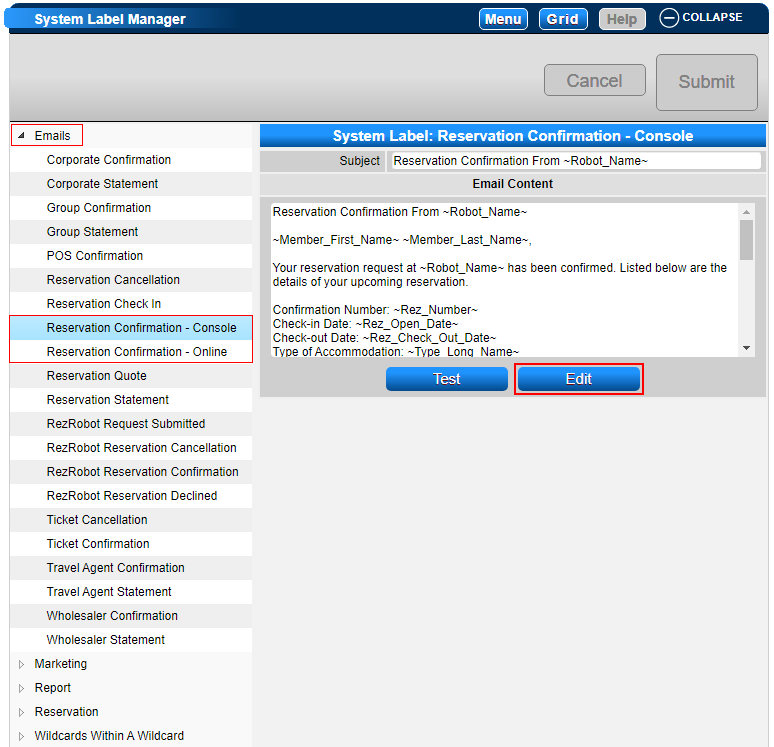
Inserting Image
- In the Logo URL, highlight the required URL and right-click to select Copy.
- Click the mouse before the line 'Reservation Confirmation From ~Robot_Name~'.
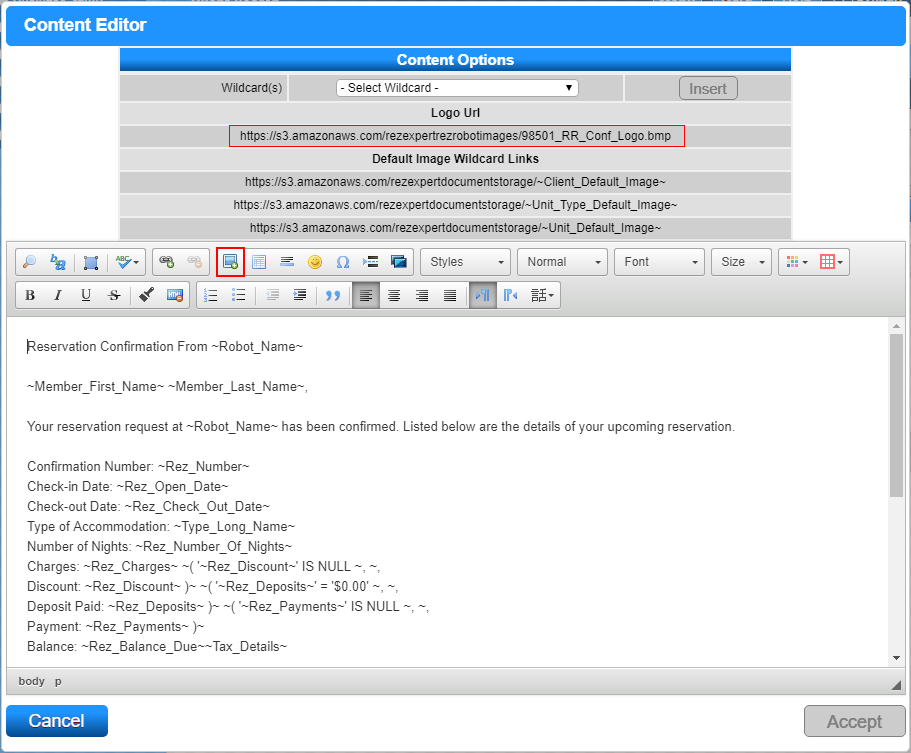
- Click on the Image symbol in the Format Section.
- The Image Properties box will appear. In the URL section, paste the copied Logo URL.
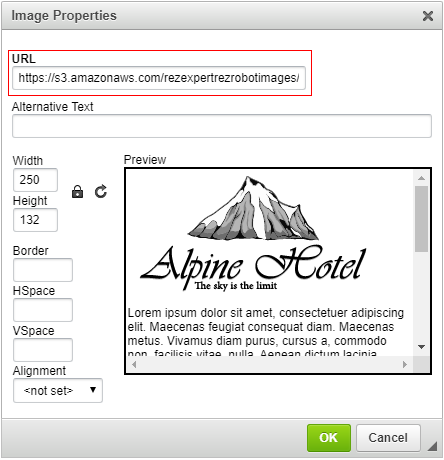
- Click OK to finalize.
- The logo will appear on the email in the location you selected.
- Enter a Change Control comment and press Submit to finalize.
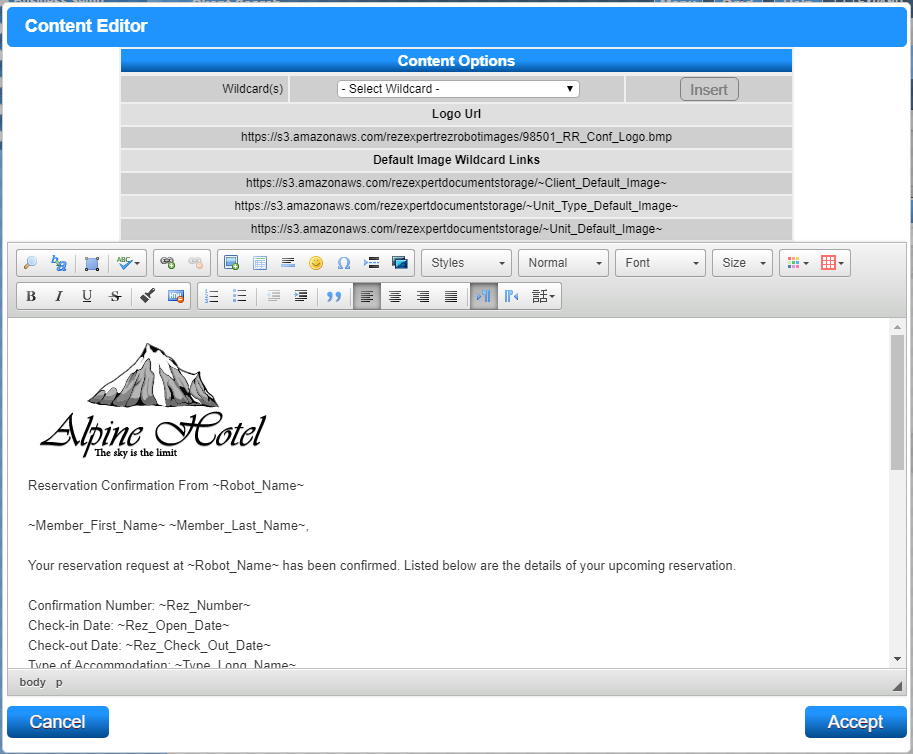
- Repeat the procedure with the Reservation Confirmation Email - Online, if using RezExpert Online Bookings.
Troubleshooting
- Ensure the logo URL is correct and accessible.
- Verify that the email template is correctly selected and edited.
- If the logo does not appear, check the image URL and ensure it is properly pasted in the Image Properties box.