Printing Account Invoices and Statements
Last modified on:
Overview
This document provides instructions on how to print a client's or company's account statement and individual transaction invoices. Account statements and individual transactions can be printed from a client or business's Account Manager.
Prerequisites
- Access to the client's or company's Account Manager.
- Permissions to view and print account statements and invoices.
Steps
Account Location
- Click on the Menu button and select Account Review/Aging.
- Select the required account and click Account.
- Alternatively, within the Client’s Guest Folio:
- Click on the Acct button next to the Client’s name in the Rez Details tab.
- Select the account and click Go To Account.
Account Statements
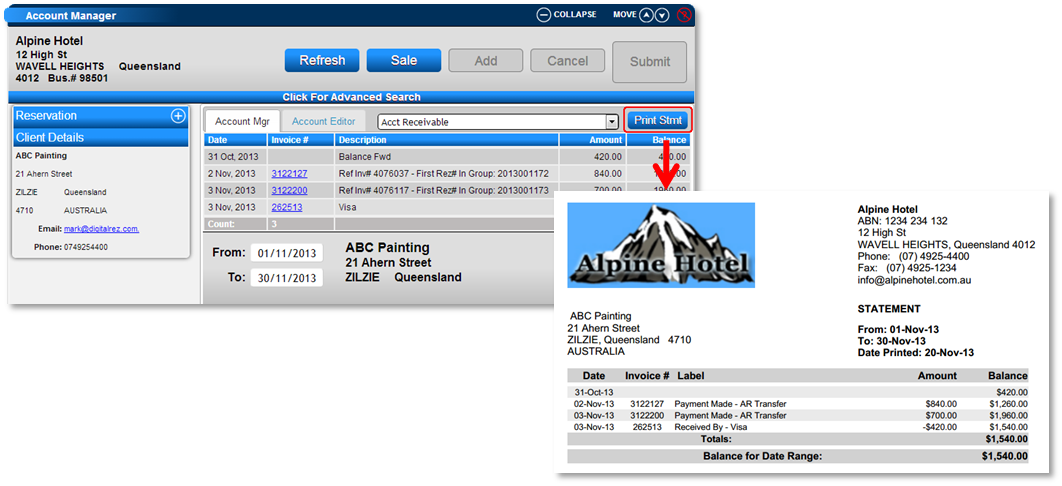
- Transactions displayed in the client’s Account Manager will appear on the current account statement.
- Expand the date range if the transactions are outside of the present date range.
- Click Print Stmt to print the account statement.
Transaction Invoices/Receipts
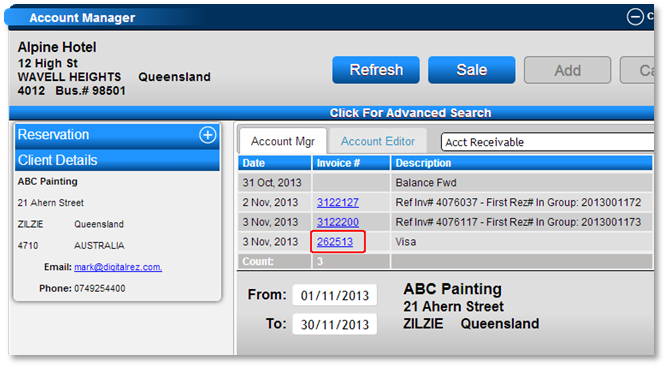
- Click on the transaction’s Invoice # to print an invoice or receipt.
Standard Statements and Receipts Available
- Account Statement
- Accounts Receivable - Billing Invoice
- Accounts Receivable - Invoice Detail
- Accounts Receivable - Payment Receipt
Note: Any custom text entered into Account Statement Text in Unit Type Policy Description will display on the account statements.
Custom RXC10 Statement
- Custom RXC10 Client Account Statements can be created within Content Setup.
Troubleshooting
For further assistance, please refer to the help document on Printing Account Invoices and Statement.
If you need additional help, contact support at:
- Phone: 888 777-0602 (AUS/NZ 61 7 4925 4400)
- Email: support@digitalrez.com