Arrivals and Departures Panel Overview
Last modified on:
Overview
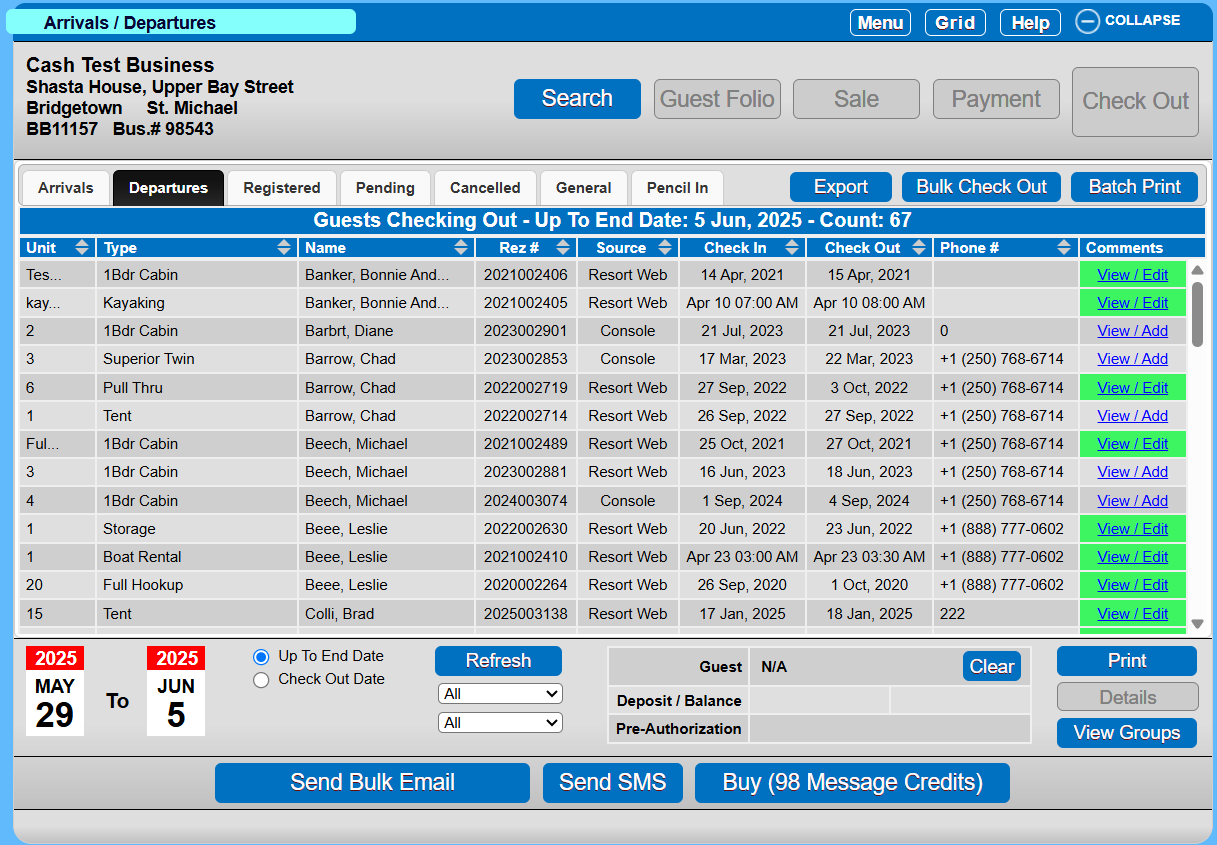
The Arrivals/Departure panel provides an interactive list of reservations based on the applied criteria. The list can then be either printed or exported.
Prerequisites
- Access to the Grid interface.
- Permissions to view and manage reservations.
Steps
Location
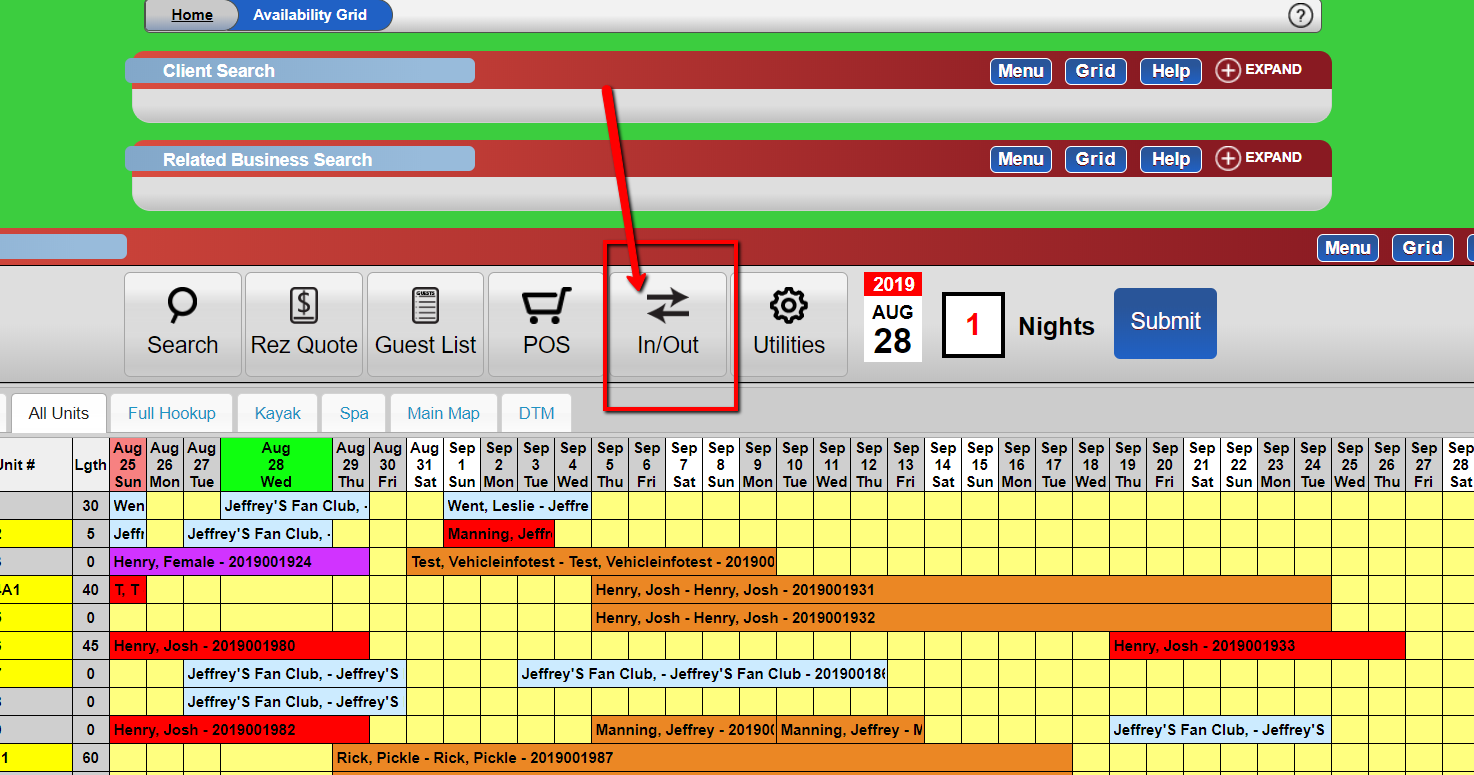
- From the Grid, click on the In/Out button.
- Alternatively, navigate through:
- Menu
- Main
- Arrivals/Departures
Reservation Categories
- Arrivals: Reservations due to be checked-in.
- Departures: Reservations due to be checked-out.
- Registered: Reservations currently checked in.
- Pending: Reservations with outstanding deposits. They will remain in this list for 90 days from the date they were created.
- Cancelled: Reservations which have been cancelled.
- General: All reservations except those that have been cancelled.
- Pencil In: All Pencil Ins.
Search Filters and Configurations
Each tab has different search filters and configurations at the bottom of the panels.
Arrivals
- Up to End Date: Shows all reservations which have NOT been checked in up until the date in the 2nd date picker.
- Check In Date: Shows all reservations which have NOT been checked in with check-in dates that fall within the selected date ranges.
Departures
- Up to End Date: Shows all Checked IN reservations with a Check Out date up until the date in the 2nd date picker.
- Check Out Date: Shows all Checked in Reservations with check-out dates that fall within the selected date ranges.
Registered
- Any: Brings back all reservations that are Checked In.
- Require Pre-Auth: Shows all records that require Pre-Authorization.
Pending
- Any: Shows all reservations with deposits due within 90 days of being created.
- With Credit Card: Shows pending reservations with the token saved to the reservation.
- No Credit Card: Shows pending reservations with no token saved to the reservation.
Cancelled
- Made Date: Shows all cancelled reservations where the made date falls within the selected time frame.
- Arrival Date: Shows all cancelled reservations where the check-in date falls within the selected time frame.
- Cancel Date: Shows all reservations where the cancellation date falls within the selected time frame.
General
- Made Date: Shows all reservations except those that are cancelled where the made date falls within the selected time frame.
- Arrival Date: Shows reservations with check-in dates that fall within the selected date ranges.
- Departure Date: Shows reservations with departure dates that fall within the selected date ranges.
- Onsite: Shows reservations onsite between the selected date ranges.
- Made Online: Shows reservations created through the online portal within the selected date ranges.
Pencil In
- Made Date: Shows all pencil ins created between the selected dates.
- Start Date: Shows all Pencil Ins where the start date falls between the selected dates.
- Onsite: Shows all Pencil Ins that cross over the selected dates.
Additional Features
- Date pickers: Calendars provided to load data based on specific time frames.
- Refresh Button: Used to load new data with the configured settings.
- DTTM filter: Filters between all reservations, no time-based reservations, or only time-based reservations.
- Promo code filter: Filters based on all reservations and reservations with specific promo codes (if applicable).
- Client Balance display: Displays information showing client name, related deposits, related reservation balance, and Pre-Authorization status.
- Print Button: Allows the user to print reports assigned to the panel.
- Details: Loads the reservation details in the form of the Till Tape to the left of the panel.
- View Groups: Loads a list of Group reservations based on time frame and search filter configuration.
- Send Bulk Email: Allows a user to send multiple emails if utilizing the bulk email feature.
- Send SMS: Allows the user to send bulk SMS to listed clients with a mobile number on file if utilizing the SMS module.
- Buy: Redirects the user to the SMS setup infrastructure to purchase additional SMS credits.
Troubleshooting
- Ensure date pickers are set correctly to filter the desired reservations.
- Verify that the correct tab is selected for the type of reservation you are managing.
- Check permissions if unable to access certain features or data.