Processing Future Rent Payments in Guest Folio
Last modified on:
Overview
The process for handling future billing policies (weeks' rent) has been simplified. Rent can now be processed directly from the selected resident's Guest Folio.
Prerequisites
- Access to the Availability Grid
- Resident's Guest Folio
Steps
Resident's Guest Folio
- Locate the resident’s Guest Folio on the Availability Grid.
- Right-click and select Charges/Payments.
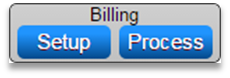
- In the Charges/Payments tab, find the Billing Panel on the right, below the Payment button.
- Click Setup to access the Billing Policy Setup panel.
- Click Process to handle future weeks.
- Click Process.
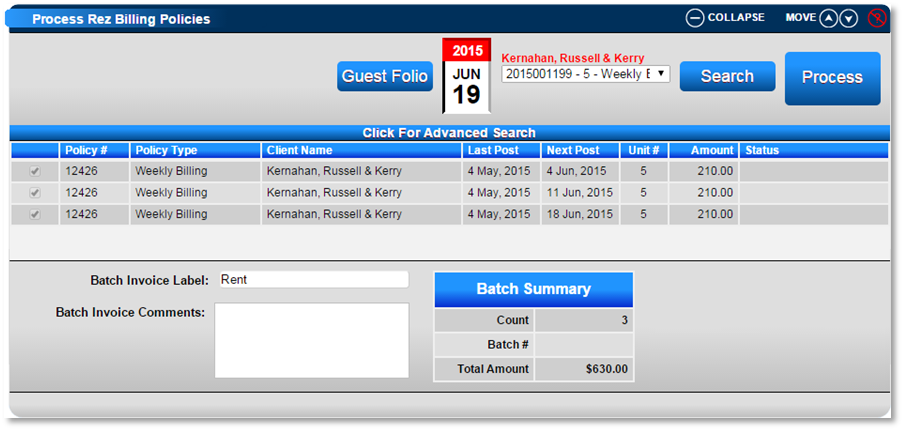
Process Billing Policies
- The Process Rez Billing Policies panel will open with the selected resident’s billing policy.
- Click on the Date Calendar to select the number of weeks the resident wishes to pay, then click Search.
- Review the Dates displayed in the Next Post column to ensure the correct dates are processed.
- Adjust the Date Calendar to display more or fewer weeks if needed.
- Click Process through the weeks displayed.
Note: These Rent Batches will be automatically confirmed. Ensure the correct dates are selected.
Applying the Payment
- After processing rent, click Guest Folio.
- Click on the Charges/Payments tab and then the Payment button to process the payment.
- Select the Payment Type and click the Allocate link.

- Select the required Rent Invoices to be paid and press Submit.
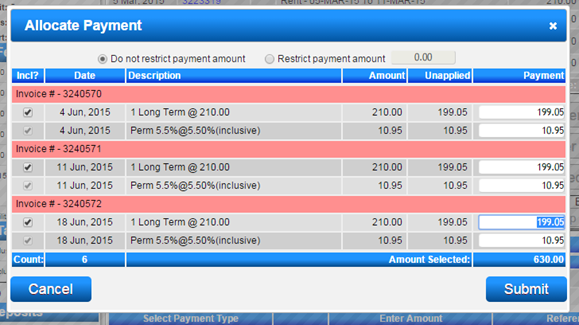
- Click Post to post the payment and Submit to finalize the payment.
- Click Print Other to select the required receipt option (e.g., Most Recent Payment or Tax Invoice/Statement).
Troubleshooting
For further assistance, refer to the Help Document on Paying Rent in Advance.