Managing Electronic Forms in the Console
Last modified on:
Overview
This guide provides step-by-step instructions for managing electronic forms in the console. It outlines three primary methods for handling documents: signing and uploading forms directly from the console.
Prerequisites
- Access to the console
- Necessary permissions to manage electronic forms
Steps
Step 1: Open Rez Documents
- Click on "View/Edits" for the specific reservation.
- A red highlight indicates that no documents have been submitted for this reservation.
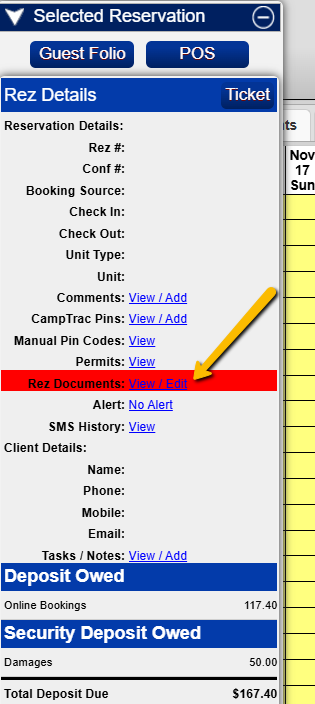
Step 2: Choose How to Handle the Document
You have three options:
Option 1: Sign and Upload the Document Directly from the Grid
- Locate the document under the appropriate content assignment:
- Check-In Form
- Required Before Check-In
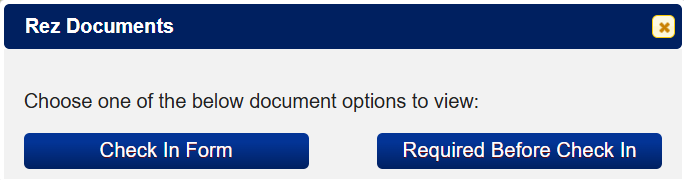
- Click on "Open Document" to access the form(s).
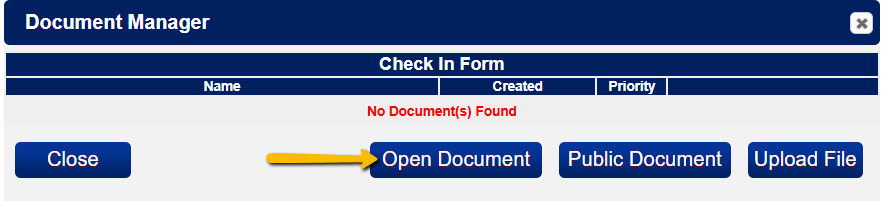
- Click on the “Open” button for the specific form.
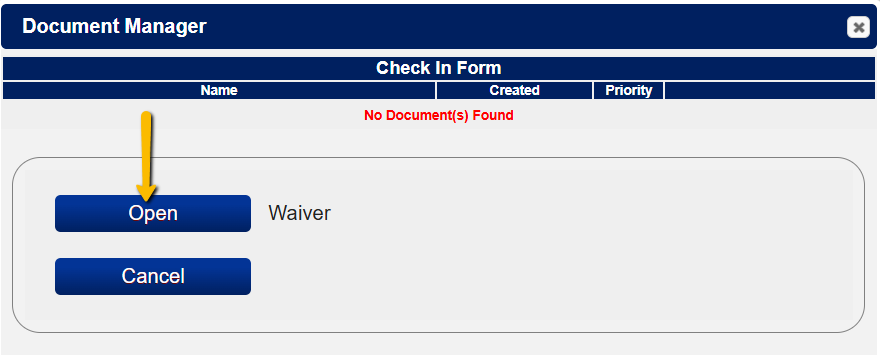
- Complete the document directly from here.
- Once submitted, the document will be uploaded and saved automatically.
Option 2: Upload a Document from Your Computer
- Open the "View/Edits" section for Rez Documents.
- Locate the document under the appropriate content assignment:
- Check-In Form
- Required Before Check-In - Select the "Upload File" for the specific document.
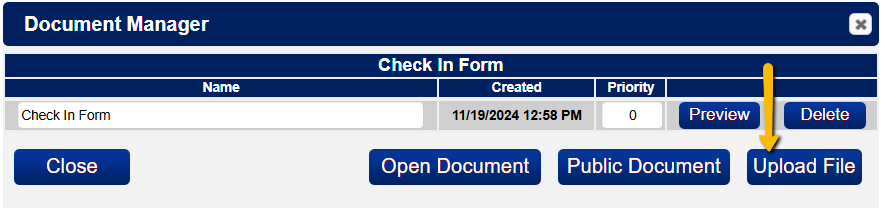
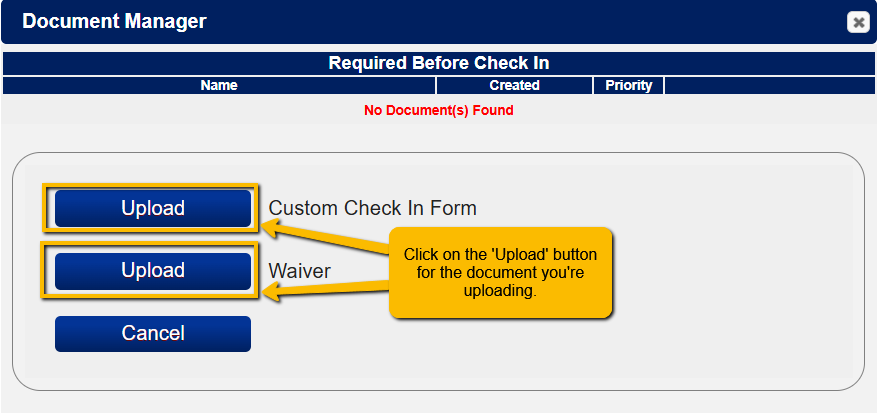
- Choose the file (PDF) from your computer.
- Once uploaded, you can:
- Preview and download the document.
- Delete it if necessary.
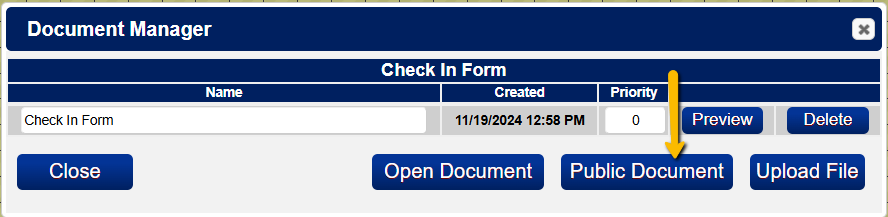
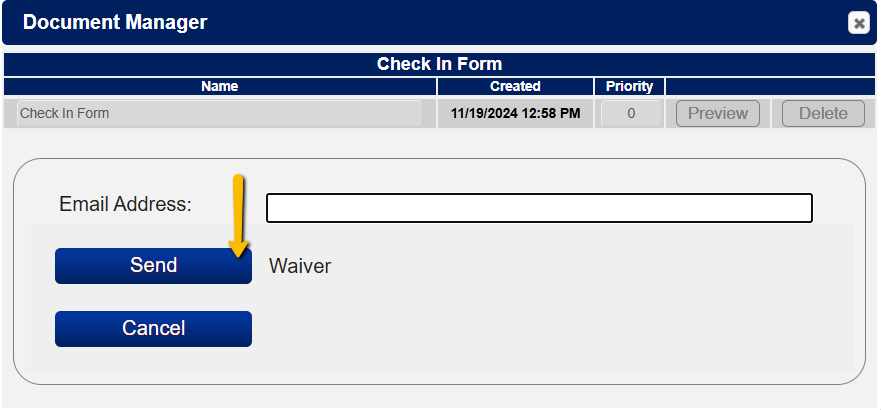
Option 3: Send the Document to the Guest for Completion
- Click on the "Public Document" button.
- Choose to Send Email or Send SMS (If SMS is enabled).
- By default, the guest's email address or mobile number will be preloaded.
- You can update the email or phone number if needed.
- Select the document you want to send and click "Send".
Guest Submission Process
- The guest will receive an email with the subject:
- 'Business Name' – 'Name of Document' Submission Request. - The email contains a link for the guest to:
- "Load Document for Submission" - Complete and submit the form online.
Troubleshooting
- Ensure you have the necessary permissions to access and manage forms.
- Verify the guest's contact information is correct before sending documents.
- If issues persist, contact support for further assistance.