Accounts Receivable Flow in RezExpert System
Last modified on:
Overview
RezExpert processes and reports on reservations where charges need to be sent to the Accounts Receivable account for the client or business. This document explains the flow within the reporting and Account Manager for your reference.
Prerequisites
- Understanding of cash-based and accrual-based accounting methods.
- Familiarity with RezExpert system operations.
Steps
Introduction
- Sales or purchases on credit require a comprehensive reporting system for managing unpaid bills or tracking multiple customer receivables.
- In RezExpert, sales made "To Account" using the payment type AR Transfer (on credit) are recorded using the accrual basis of accounting.
- This method records revenue in the proper time period and tracks accounts receivable amounts due from customers, including partial payments.
- The accrual basis provides a more accurate picture of profit or loss as it includes all revenues, paid or unpaid.
How RezExpert Reports Sales "To Account"
- February 1st: A $110.00 reservation balance is transferred from a “Cabin” booking to an individual or company’s Accounts Receivable.
- Daily Trial Balance Report:
- Debit: Accounts Receivable $110.00
- Credit:
- Tax-GST 10% $10.00
- Cabin Revenue $100.00
- March 15th: The individual or company pays the account $110.00 by VISA.
- Daily Trial Balance Report:
- Debit: Accounts Receivable $110.00
- Credit: VISA $110.00
Account Review/Aging Panel
- The Account Review/Aging panel displays the current AR balance.
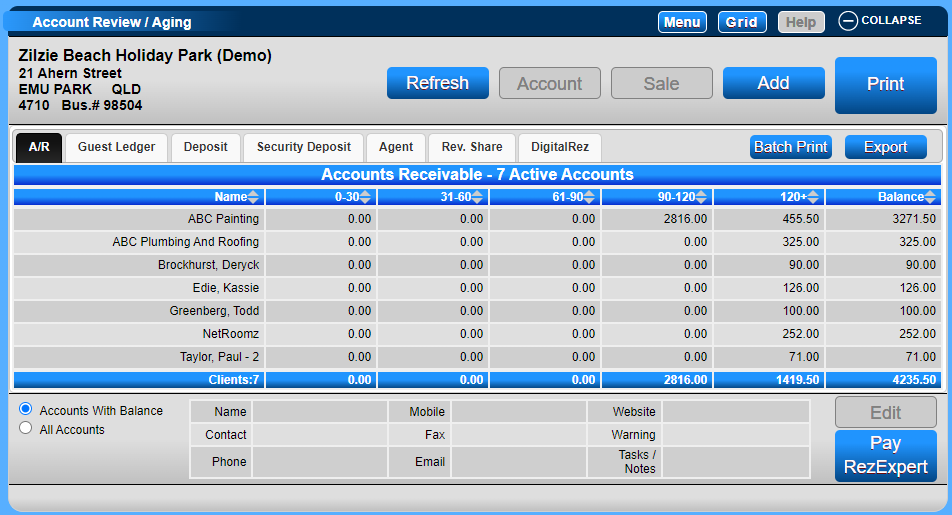
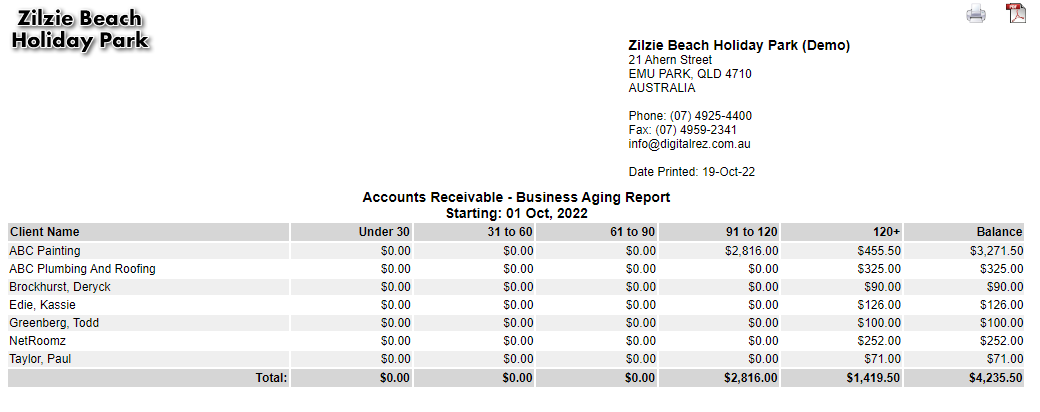
- The Accounts Receivable - Business Aging Report can be printed from the Account Review/Aging panel or the Report library.
- To print from the panel, click Print.
- To print from the Report library, click on a Menu button, select the Reports tab, and click on Accounts Receivable - Business Aging Report in the Manager section.
- Example:
Trial Balance Report
- The RezExpert Trial Balance reports all debit and credit movements in and out of the Accounts Receivable ledger.
- The Trial Balance can be run from the first business day operating with RezExpert to today, displaying the current AR balance.
- This display matches the current AR balance shown in the Account Review/Aging Panel.
- To print the Trial Balance:
- Click on a Menu button, select the Reports tab, and click on Trial Balance in the Income section.
Troubleshooting
- Ensure all transactions are correctly recorded in the system to maintain accurate reporting.
- Verify that the AR balances in the Account Review/Aging Panel match those in the Trial Balance report.