Click To Move Reservation Management Module
Last modified on:
Overview
The Click To Move module introduces an additional reservation management option within the Right Click functionality on the Availability Grid. This feature allows operators to quickly move a reservation to an open space on the availability grid.
Note: Contact your RezExpert support tech to enable the module.
Prerequisites
- Ensure the Click To Move module is enabled by contacting RezExpert support.
Steps
Right Click Menu
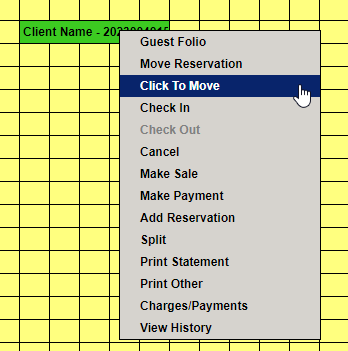
- On the Availability Grid, right-click on the desired reservation to open the Right Click menu.
- Click on "Click To Move."
Selecting New Site
- A Click To Move message will appear on the top left of the Availability Grid, indicating that you are in Click To Move mode.
- Click on the required new available site on the Availability Grid.
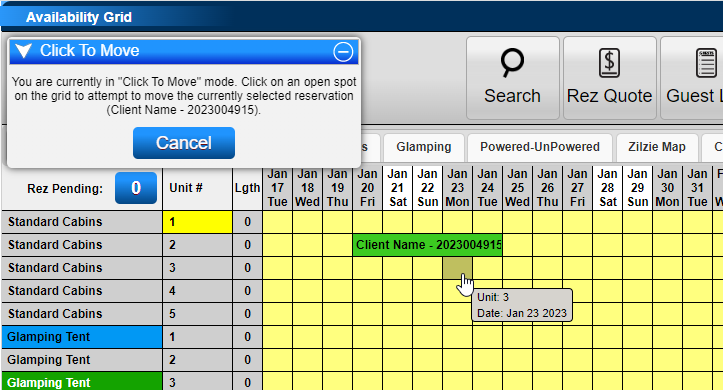
Note: Only available sites/units on the Availability Grid can be selected. If the site/unit is currently occupied by a reservation or pencil in, adjustments will need to be made prior.
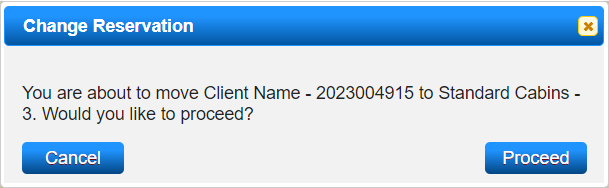
- A Change Reservation message will appear, informing you of the selected changes.
- Click "Proceed" to continue with the move.
Guest Folio
- The Guest Folio will appear, allowing for any changes to Booking Details or Reservation Charges that need to be completed prior to pressing "Submit."
- Click "Submit" to finalize the move and any changes made in the Guest Folio.
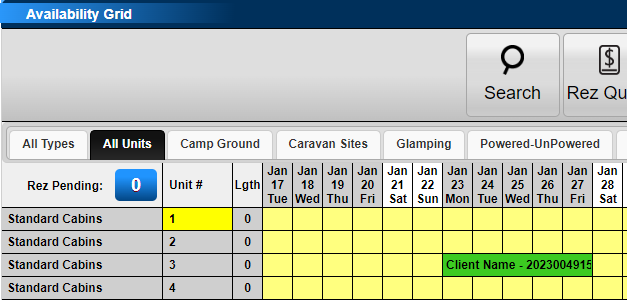
- The reservation will automatically move to the selected new site/unit (and dates) on the Availability Grid.
- A record of the change will be logged within the Guest Folio > History Tab of the reservation for future reference.
Troubleshooting
For further assistance, refer to the Help Document.