Adding a Deposit Policy Step-by-Step
Last modified on:
Overview
This guide provides a step-by-step process for adding a deposit policy for the first time.
Prerequisites
- Access to the system with permissions to modify deposit policies.
Steps
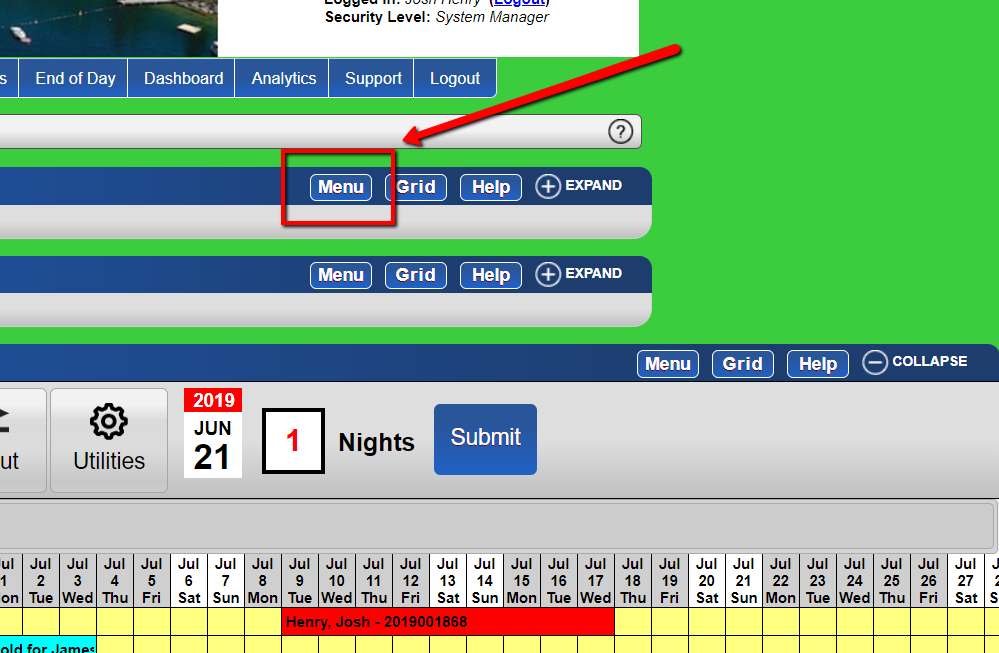
- Navigate to Menu
- Go to 'Menu'.
-
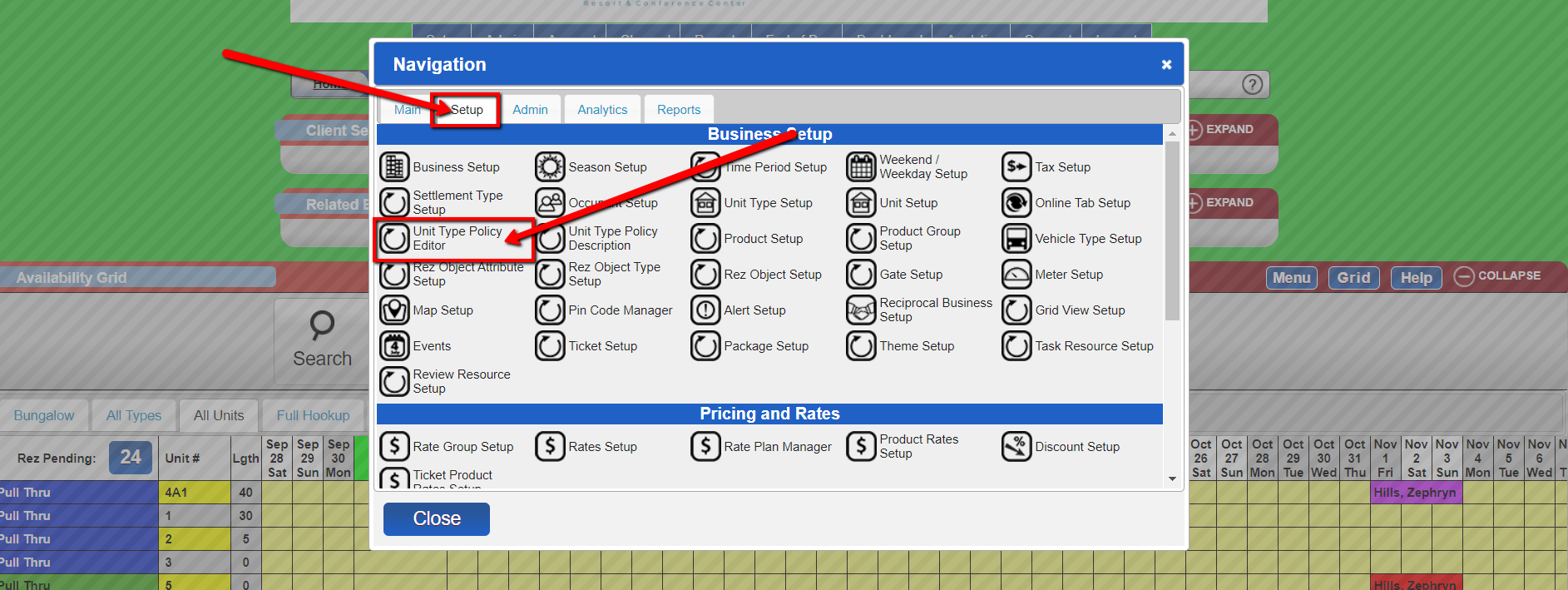
- Access Unit Type Policy Editor
- Select 'Setup'.
- Under 'Business Setup', select 'Unit Type Policy Editor'.
-
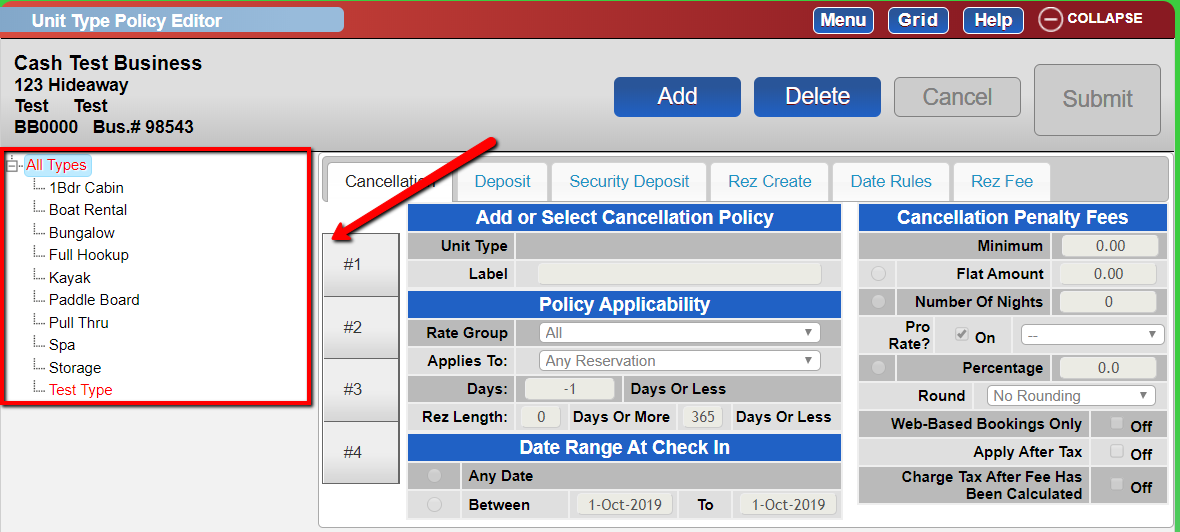
- Select Policy Application
- To apply a policy to all unit types, select 'All Types'.
- To apply a policy to a specific unit type, select the unit type under the category 'All Types'.
-
- Add Deposit Policy
- Select 'Deposit' and click 'add'.
-
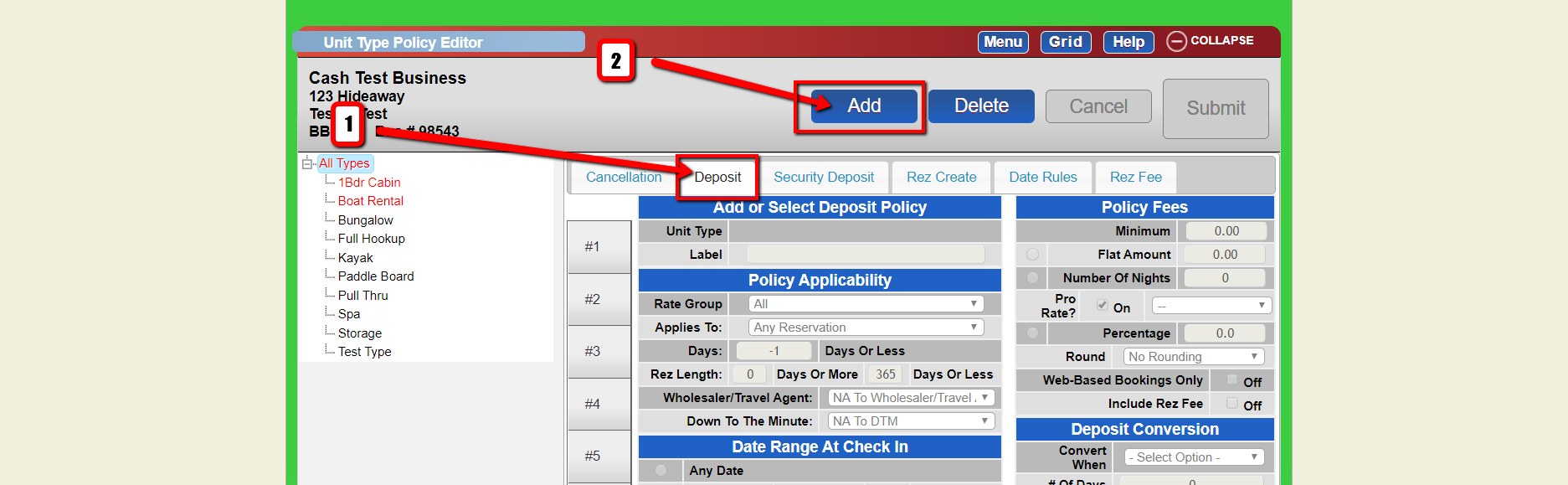
- Configure Policy Details
- Set appropriate flag for label and fill in any other applicable information.
-
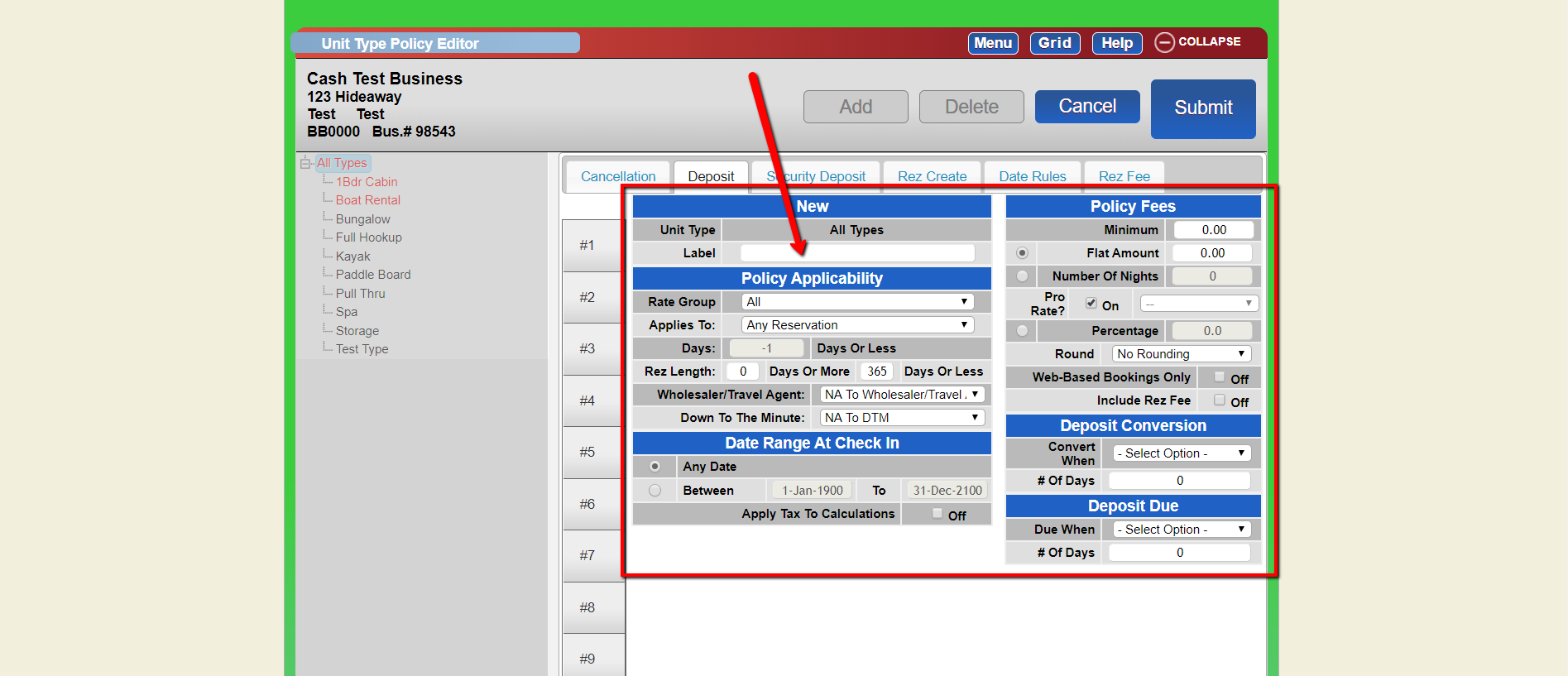
- Policy Applicability
- Rate Group: Select the appropriate tag for policy application.
- Applies to: Choose applicable reservation conditions.
- Rez Length: Define the policy duration.
- Wholesaler/Travel Agent: Apply to business customers if needed.
- Down To The Minute: Apply to reservations timed to the minute.
- Date Range At Check In: Set start and end dates for the policy.
- Apply Tax To Calculations: Include taxes in deposit calculations if required. - Policy Fees
- Minimum: Set the minimum amount for cancellation.
- Flat Amount: Define a fixed amount regardless of reservation size.
- Number of Nights: Specify nights condition for cancellation.
- Pro Rate: Set the average nightly rate.
- Percentage: Determine percentage of reservation fee for cancellation.
- Rounding: Choose rounding options (up, down, or none).
- Web-Based Bookings Only: Display policy online only if needed.
- Include Rez Fee: Include reservation fee if applicable. - Deposit Conversion
- Convert When: Decide when to convert the deposit into revenue.
- # Of Days: Set the number of days to hold the deposit before conversion. - Deposit Due
- Due When: Determine when to receive the deposit.
- # Of Days: Set days prior to check-in for deposit payment. - Submit Changes
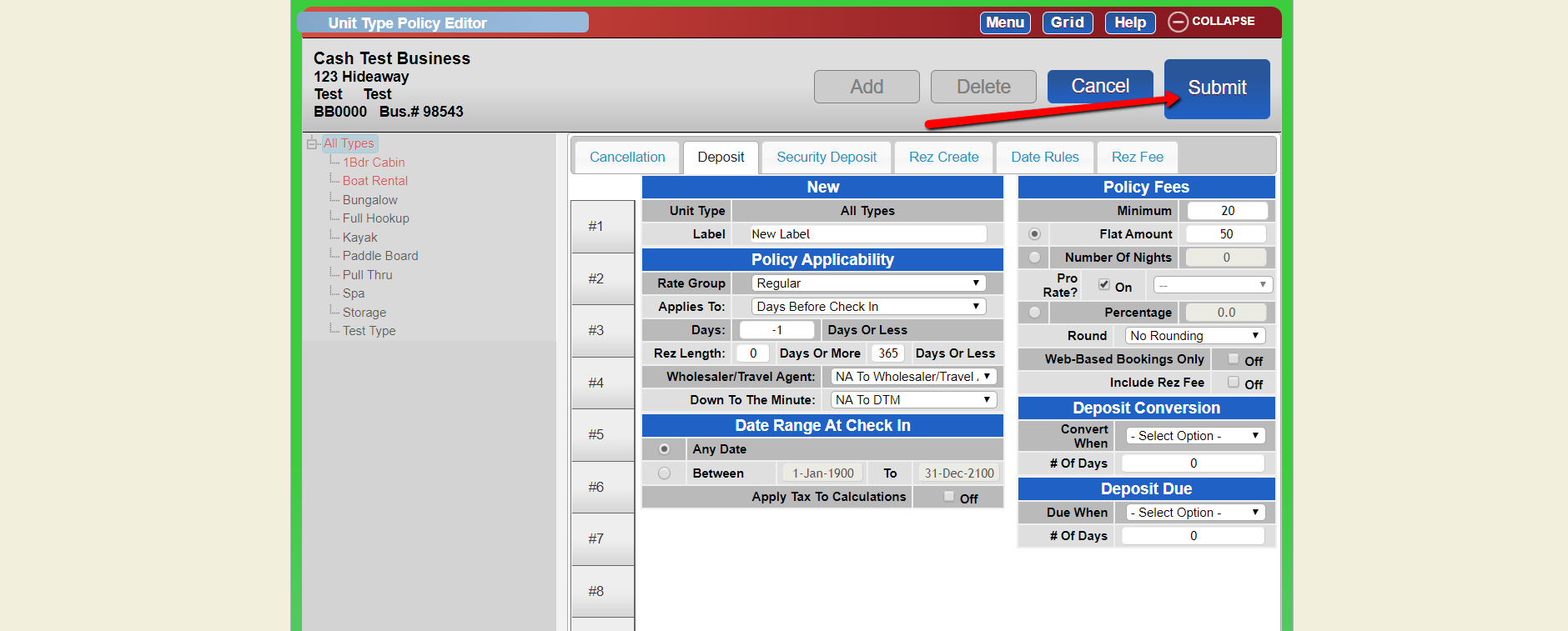
- Add a change control comment at the bottom of the panel and submit.
Troubleshooting
- Ensure you have the correct permissions to access and modify deposit policies.
- Verify all fields are filled correctly before submitting changes.