Change Unit Site Between Unit Types
Last modified on:
Overview
This guide provides instructions on how to change a unit site from one unit type to another. There are two scenarios to consider based on whether the site being moved has reservation history or not.
Prerequisites
- Access to the Setup > Business Setup > Inventory Setup > Unit tab.
Steps
If the Unit/Site Has No Previous Reservation History
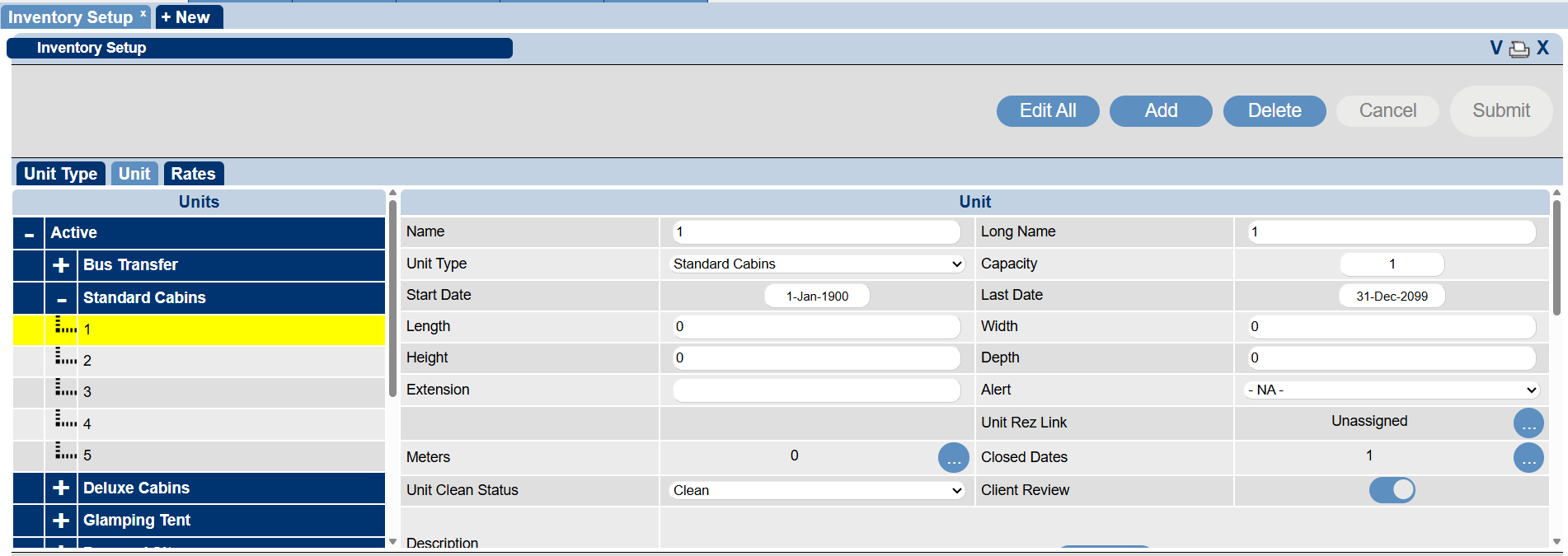
- Navigate to Setup > Business Setup > Inventory Setup > Unit tab.
- Expand the Unit Type that contains the unit and select the unit.
- Click on the Unit Type dropdown, select the new Unit Type, and then click on the Submit button.
If the Unit Being Moved Has Previous Reservations or Pencil-Ins
- Reservations or pencil-ins must be moved or unassigned before deactivating the unit.
- Navigate to Setup > Business Setup > Inventory Setup > Unit tab.
- Expand the Unit Type that contains the unit and select the unit.
- Toggle the Active selector off to decommission the unit.
- Recreate the unit under the new Unit Type:
- Click on the Add button.
- Enter a name in the Name & Long Name fields and select the new Unit Type.
- Move any current/future bookings to the newly placed units under the new type.
Note: All future reservations on the old unit must be moved, and future pencil-ins deleted before decommissioning the unit.
Troubleshooting
- Ensure all reservations and pencil-ins are handled as described before deactivating or moving units to avoid errors.