Managing Marketing Types in RezExpert
Last modified on:
Overview
Marketing Types allows the ability to keep track of how clients hear about your business. Collect feedback on all your marketing methods.
Prerequisites
- Access to the system's Menu button and Setup tab.
Steps
Location
- Click on a Menu button.
- Select the Setup tab.
- Click on Marketing Type Setup within the Marketing Setup section.
Add a New Marketing Type
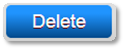
- Click "Add" to add a new marketing type.
- Label: Name of the marketing type.
- Enter any additional information in the Description field, if needed.

Delete
- To delete a Marketing Type, expand the Marketing Type and click "Delete."
Merging Duplicate Marketing Types
- Expand the Marketing Type to be merged.
- Click "Merge."
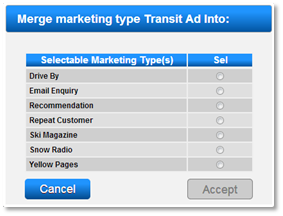
- In the light box, select the Marketing Type to be merged together.
- Click "Accept" to accept the merge.
Marketing Field in Guest Folio
- To display the Marketing Types field in a Reservation Guest Folio:
- Click on a Menu button.
- Select the Setup tab.
- Click on Business Setup and change to the Preferences tab.
- Click "Show" to make the field available in the Guest Folio.
- Click "Force?" to make entering a Marketing Type required with each new reservation created.
Marketing Field on the Online Booking Interface
- To display the Marketing Types field on the Online Booking Interface:
- Click on a Menu button.
- Select the Setup tab.
- Click on Resort Web Setup.
- Click "Show" to make the field available on the Online Booking interface.
- Click "Force?" to make entering a Marketing Type required with each new reservation created.
- Marketing Type Message: Enter a custom message to display online. Default Message: "How Did you Hear about us?"
- Click here to print the Help Document on Marketing Type Setup
Reporting
- Multiple areas to get the Marketing Type data for reporting:
- Marketing Report
- Marketing Type Statistics panel
Marketing Report
- To run the Marketing Report:
- Click on a Menu button.
- Select the Reports tab.
- Click on Marketing Report within the Manager section.
- Enter the required date range.
- Report Parameters: 1 = Check In Date; 2 = Made Date.
- Click "Submit" to produce the report.
Marketing Type Statistics Panel
- Click on a Menu button.
- Select the Admin tab.
- Select Marketing Type Statistics within the Analytics section.
- Date Range: Select the required date range for the report. Limit of 6 months or less. For larger ranges, export data and combine via Excel or run the Marketing Report within Report Category: Manager.
- Search Options:
- Type of Reservations (Regular or Cancelled)
- On-Site During Range; By Check In Date or By Made Date.
- Rez/Occ Products Only or All Products.
- Breakdown Options:
- By Item: All the Marketing Types created in RezExpert.
- By State: All entered States.
- By Zip/Postal Code: All entered Zip/Postal Code.
- By Country: All selected Countries.
- By Country – Summary: Summary of all countries.
- Press "Refresh" to see the Marketing Type Statistics.
- Statistics Display:
- Label: Name of Marketing Type
of Reservations: Total number of (selected Search Option) reservations
- Occupied Days: Number of occupied days for the reservations within the Date Range selected.
- Project Revenue: The revenue amount from the Marketing Type.
- Load Chart: To view a Pie Chart for the displaying Marketing Statistics, click "Load Chart."
- Chart Options: Choose the type of chart to display – Pie or Column. To print/download the Chart, click the three bars within the Chart.
- Print Report: To print the Marketing Report from the selected Search Options, click "Print."
- Click here to print the Help Document on Marketing Type Statistics
Troubleshooting
- Ensure that all steps are followed correctly.
- Verify that the correct tabs and options are selected as per the instructions.
- If issues persist, consult the help document or contact support.