Setting Up Last Day Charge in Rez Fee
Last modified on:
Overview
A Rez Fee can be created to automatically charge an Extra Day's charge to the reservation. This Rez Fee allows operators to easily reverse the fee within the Charges/Payments tab of the Guest Folio if it is not required. This feature is ideal for Kennels/Catteries Last Day Pick Up charge.
Prerequisites
- Access to the Setup tab in the system menu.
- Permissions to add and configure Rez Fee policies.
Steps
Location
- Click on a Menu button.
- Select the Setup tab.
- Click on Rez Fee Policy Setup.
Add
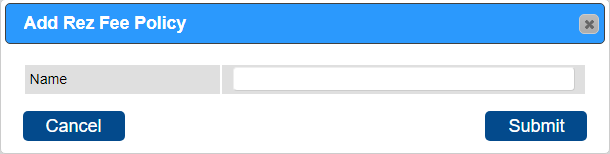
- Click Add.
- Enter the Name of the Reservation Fee.
- Click Submit.
Policy Applicability
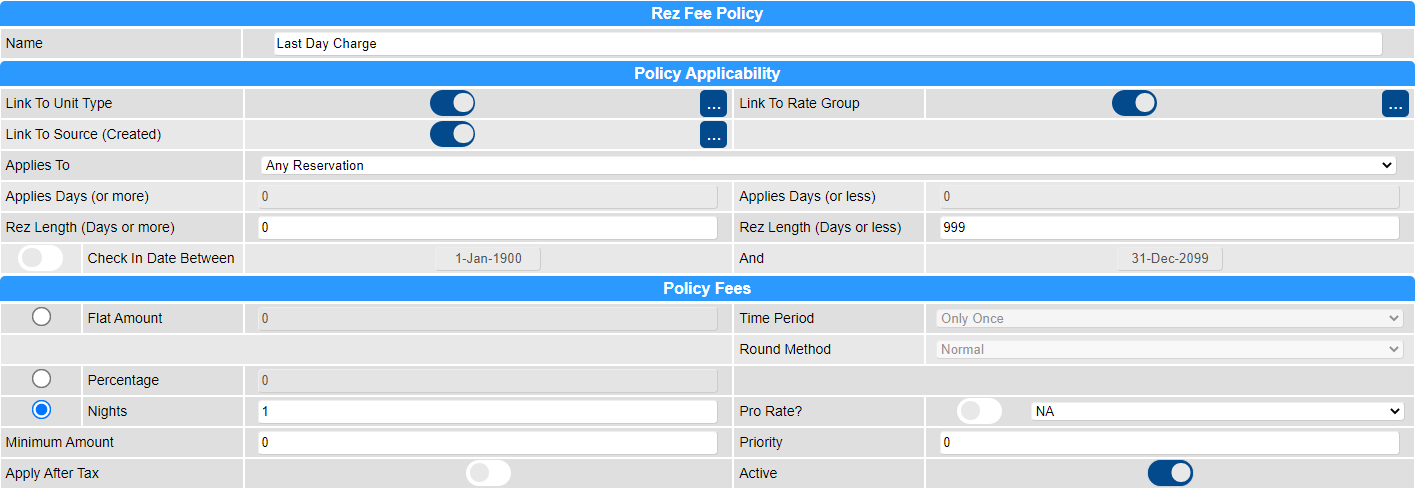
- Link To Unit Type:
- The reservation fee can apply to all Unit Types or selected Unit Type(s).
- To apply to selected Unit Type(s):
- Click on the Slider to activate.
- Click on the box and select the required Unit Type(s).
- When the slider is not activated and unit types are selected, the policy will apply to all Unit Types.
- Link To Rate Group:
- The reservation fee can apply to all Rate Groups or selected Rate Group(s).
- To apply to selected Rate Group(s):
- Click on the Slider to activate.
- Click on the box and select the required Rate Group(s).
- When the slider is not activated, the policy will apply to all Rate Group(s).
- Link To Source (Created):
- The reservation fee can apply to all Sources (Console, Resort Web) or selected Source(s).
- To apply to selected Source(s):
- Click on the Slider to activate.
- Click on the box and select the required Source(s).
- When the slider is not activated, the policy will apply to all Source(s).
- Applies To:
- Select the policy applicability on how you want the policy to apply – Any Reservation, Days Before Check In, or Days After Made Date.
- Applies Days (or more) and Applies Days (or less):
- Number of days for the policy applicability, e.g., 14 days prior to Check In.
- Rez Length (Days or more) and Rez Length (Days or less):
- Length of reservation.
- Check In Date Between:
- Check In date range.
Policy Fees
- Enter the Policy Fee – charges relating to the Reservation Fee.
- Flat Amount:
- A set flat amount to be charged, e.g., $25.00.
- When Flat Amount is selected, Time Period and Rounding Method become available for selection.
- Time Period: Ability to select the time period the reservation fee is applied for. The Fee will be applied for the amount of time periods within the reservation. For example: Fee is set for the Time Period: Nights, the fee will be applied per Night of the reservation.
- Round Method: Ability to select the rounding method.
- Percentage:
- Percentage of the Reservation Charges, e.g., 50%.
- Nights:
- Number of nights charged as the Reservation Fee.
- Pro Rate: When Nights is selected, Pro Rate can be enabled. The fee will average out over the number of reservation nights divided by the number of nights penalty.
- Minimum Amount:
- A Minimum amount is charged, ideal when Percentage is used.
- Priority:
- Priority of the Reservation policy.
- Charge Tax After Fee Calculated:
- Tax is charged after the policy fee has been calculated. (For Tax exclusive Businesses only)
- Apply After Tax:
- The policy fee is applied after tax has been calculated. (Enable for Tax Inclusive businesses.)
- Active:
- Enable to make the policy active/available.
Troubleshooting
Guest Folio
- Once created, the Rez Fee will automatically apply to new reservations that meet the Policy Applicability/Date Range set.
- At the time of Check Out, if the Rez Fee is no longer required:
- Click on the Charges/Payments tab.
- Click on the Rev next to the Rez Fee to reverse it off the invoice.
For further assistance, click here to print the Help Document.