Map Version 2 Customer Interface Guide
Last modified on:
Overview
The Map v2 interface offers an enhanced booking experience with an improved look and feel. Customers can easily zoom or drag on the map to find the best spot for their stay.
Prerequisites
- Ensure you have access to the Map v2 interface.
Steps
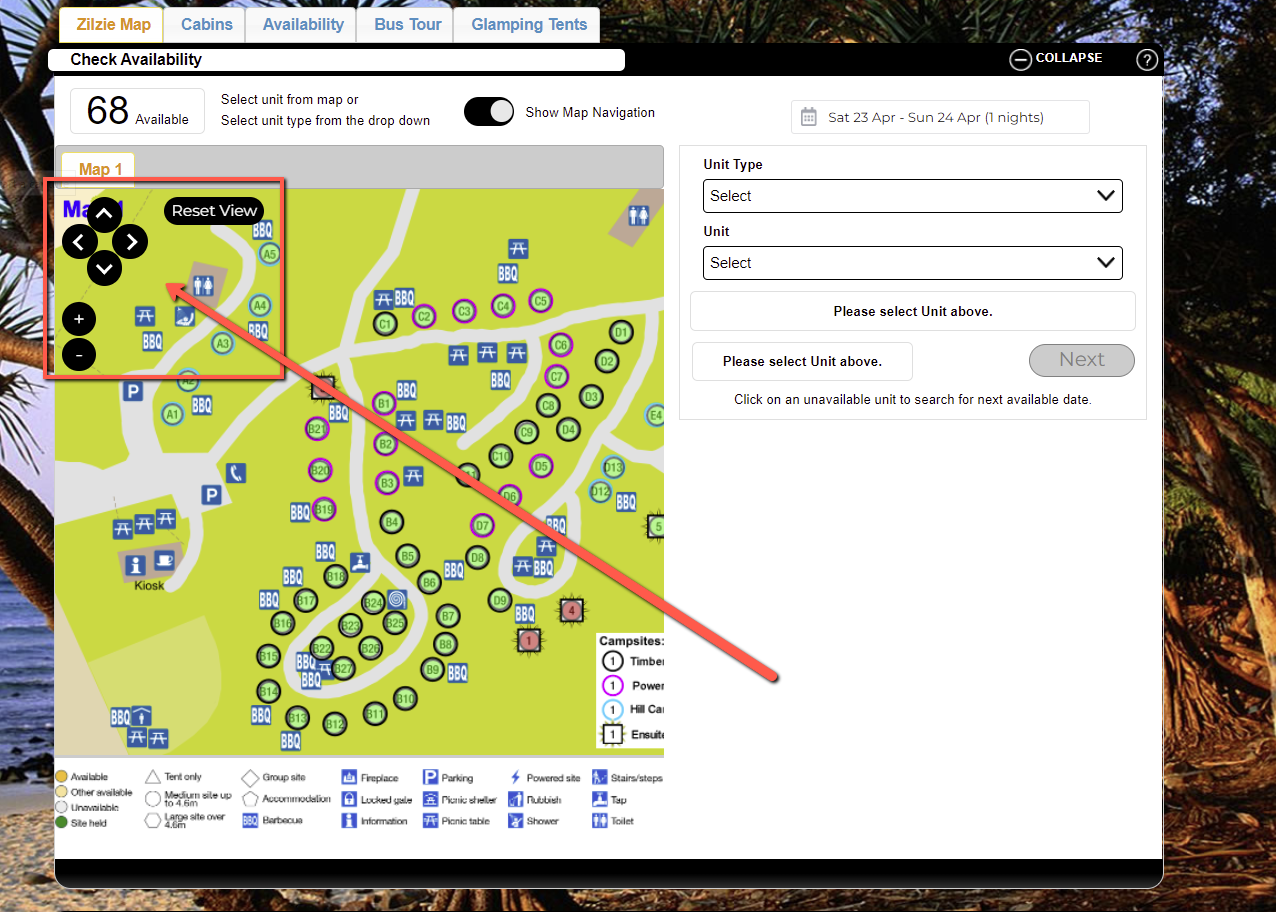
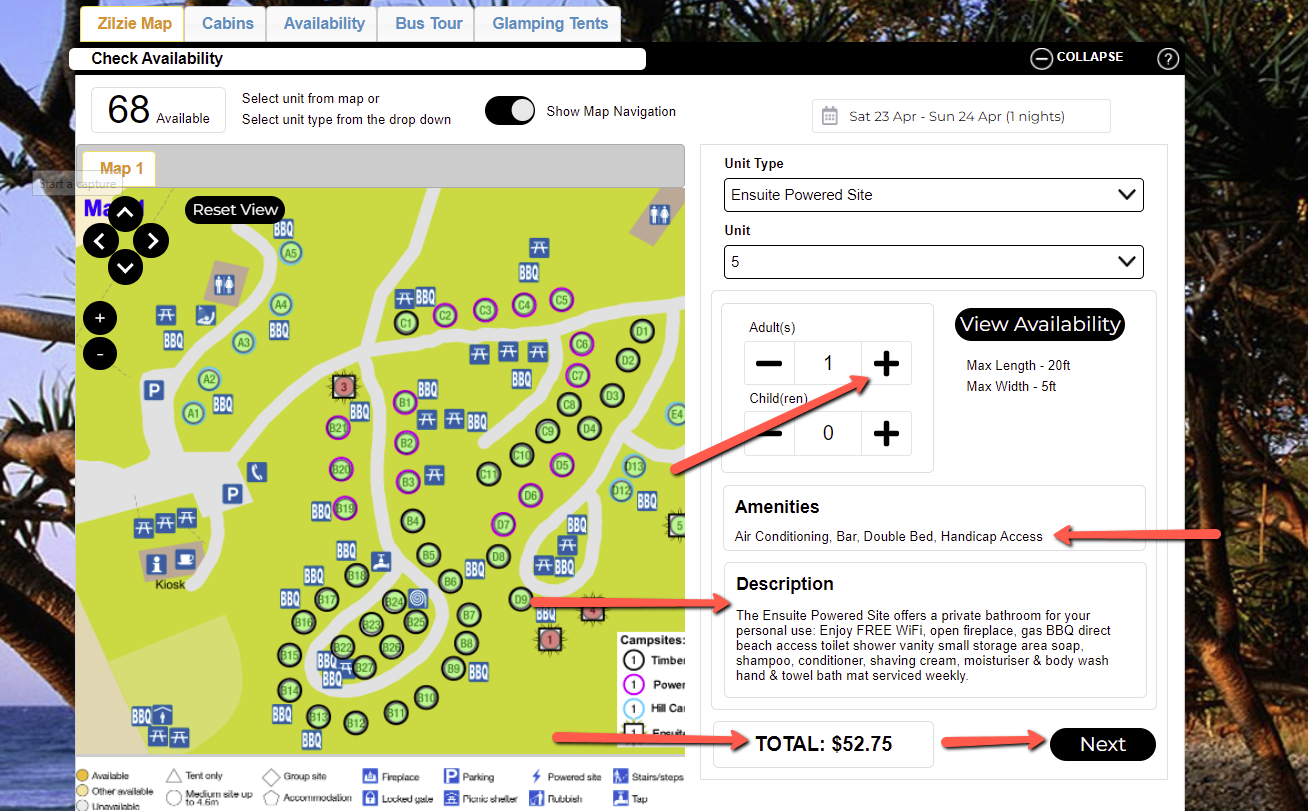
- Explore the Map:
- Zoom or drag on the map to find the desired location.
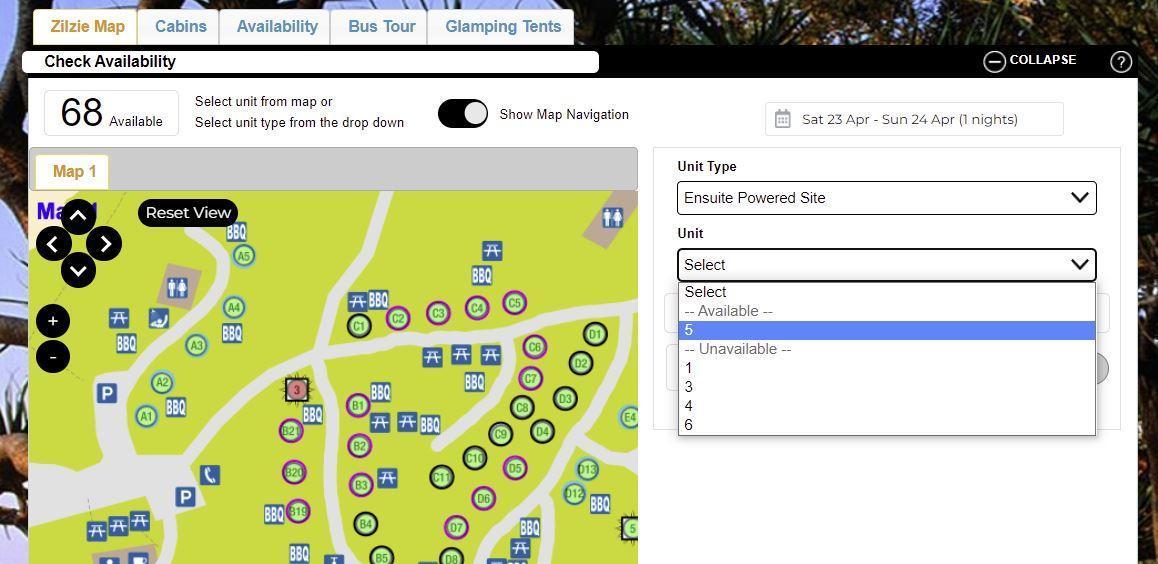
- Select Unit Type and Unit:
- Use the drop-down menus to choose the desired unit type and unit.
- The drop-down displays both available and unavailable units for the selected timeframe.
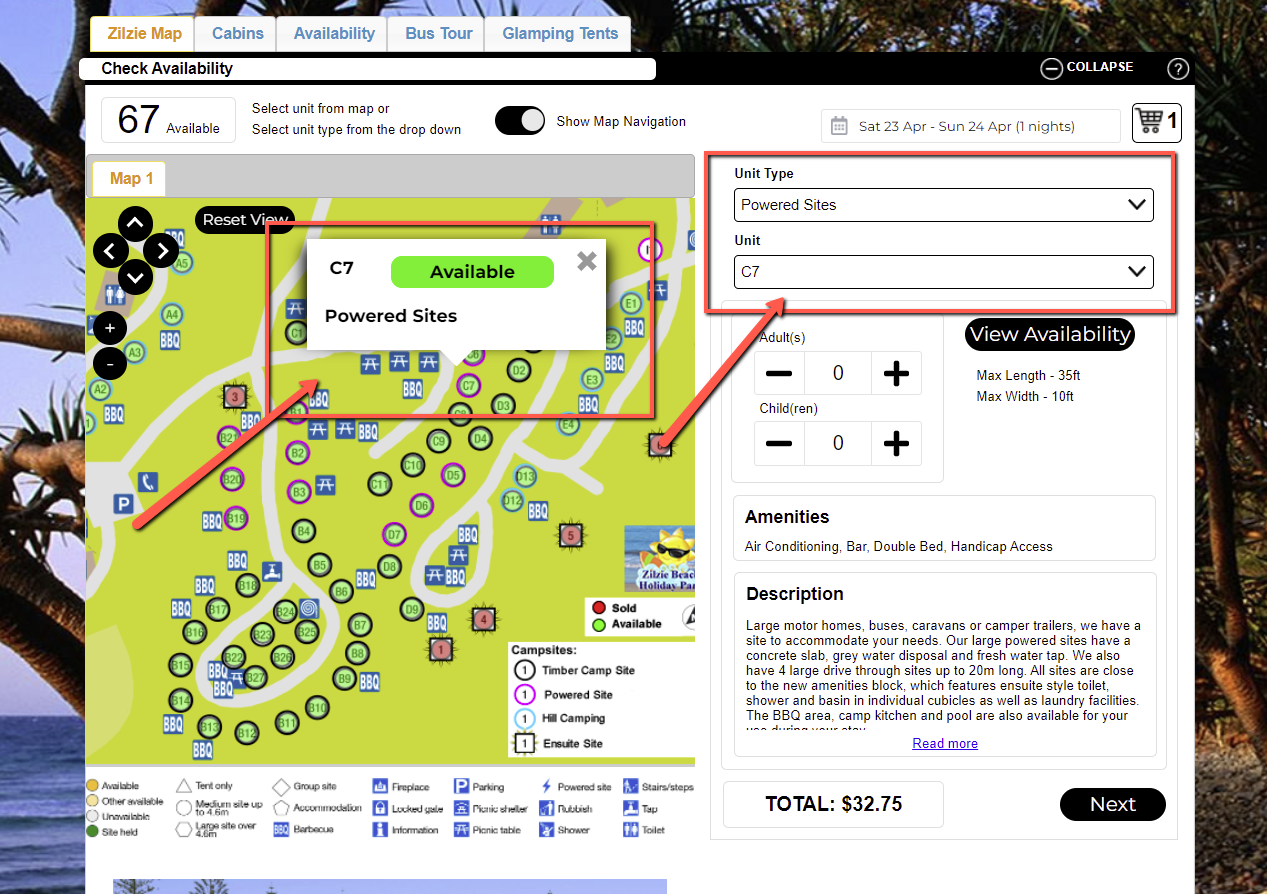
- Auto-Populate Selection:
- Selecting a unit from the map will auto-populate the drop-downs on the right.
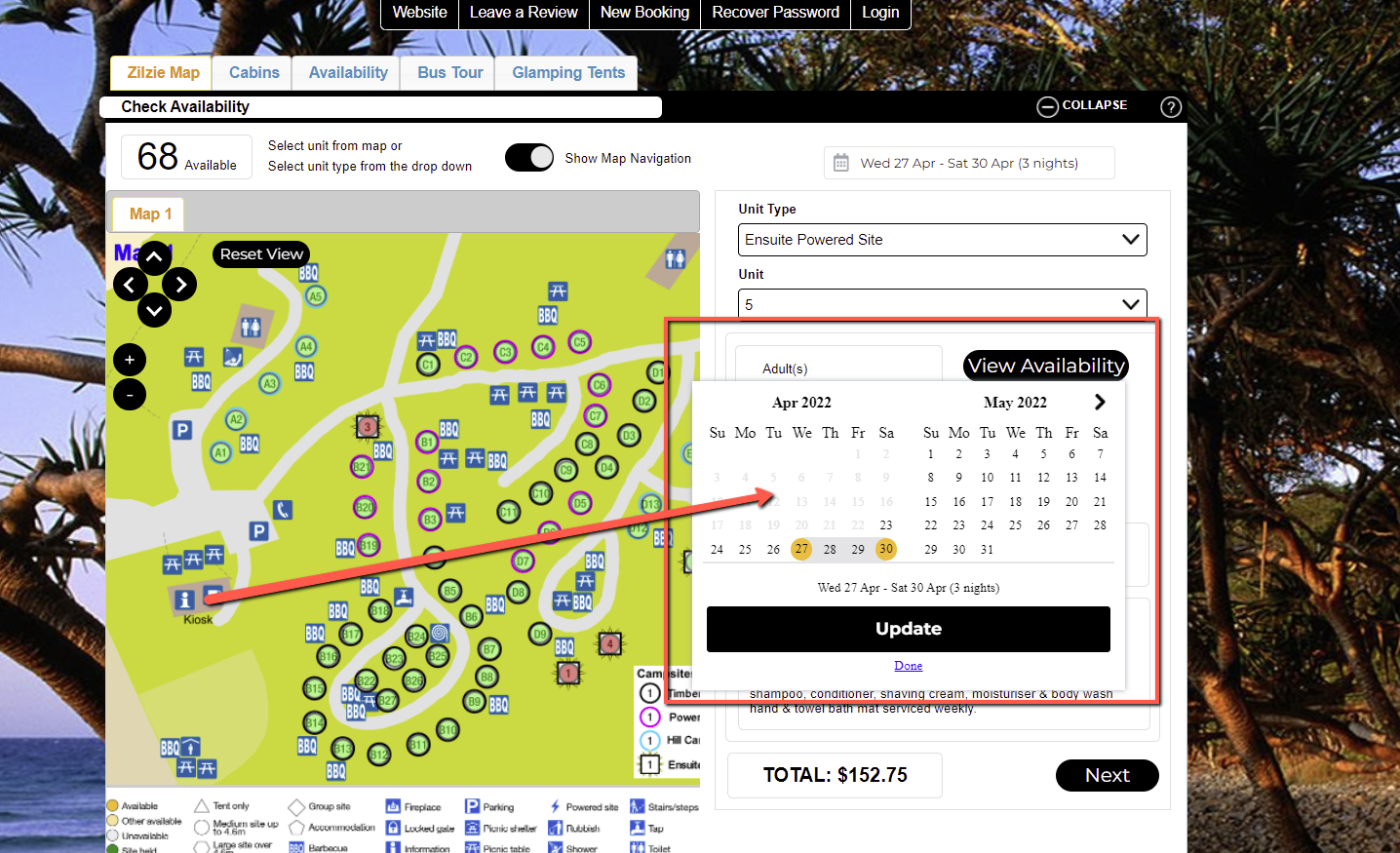
- Enter Occupant Details:
- Adjust the number of occupants using the + and - signs.
- Use the "View Availability" button to check future availability and modify check-in/check-out dates.
- Review Amenities and Total:
- View amenities and descriptions configured for the selected unit.
- The total cost will be displayed based on the selected dates.
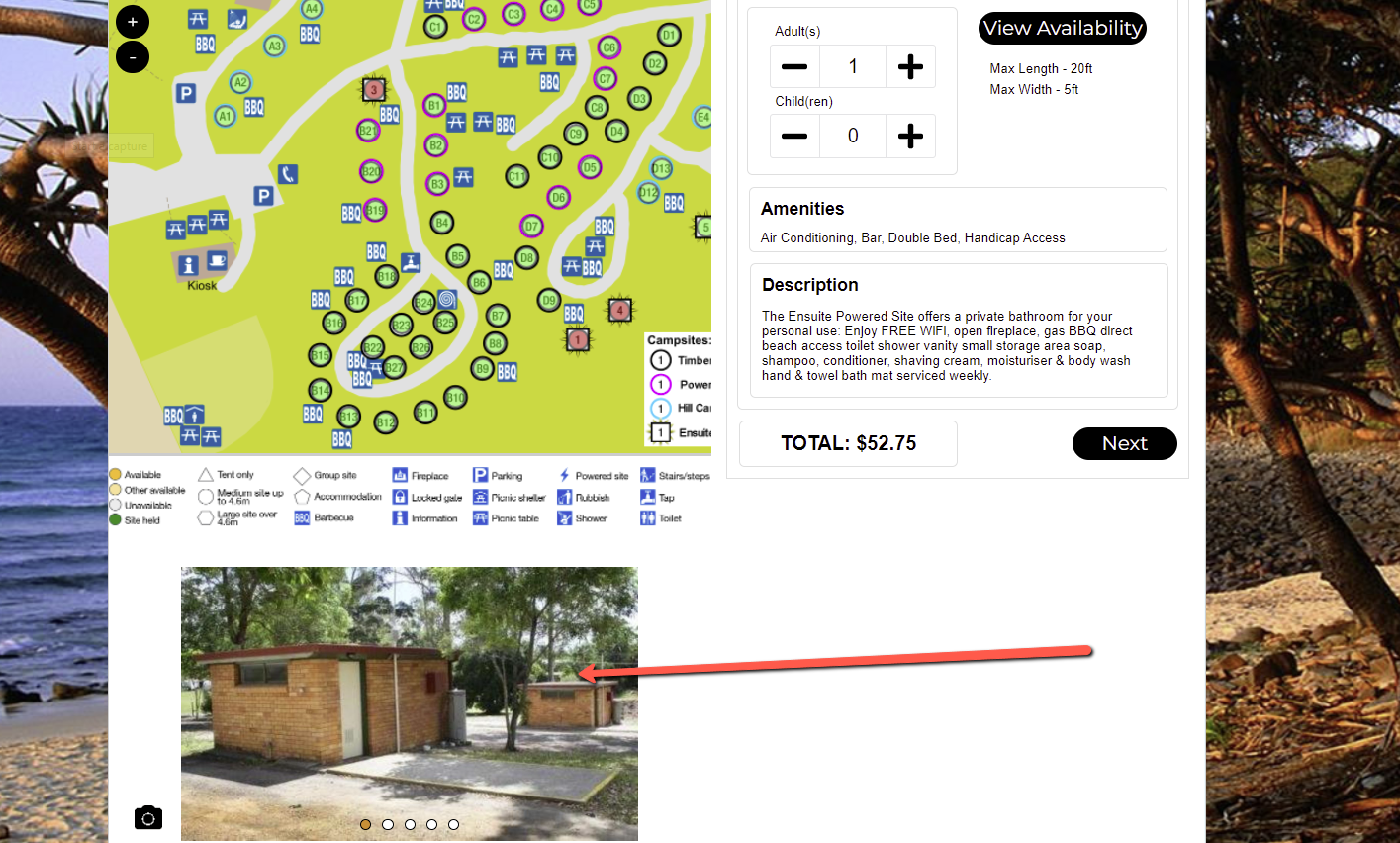
- View Images:
- Access any uploaded images for the selected unit type or unit.
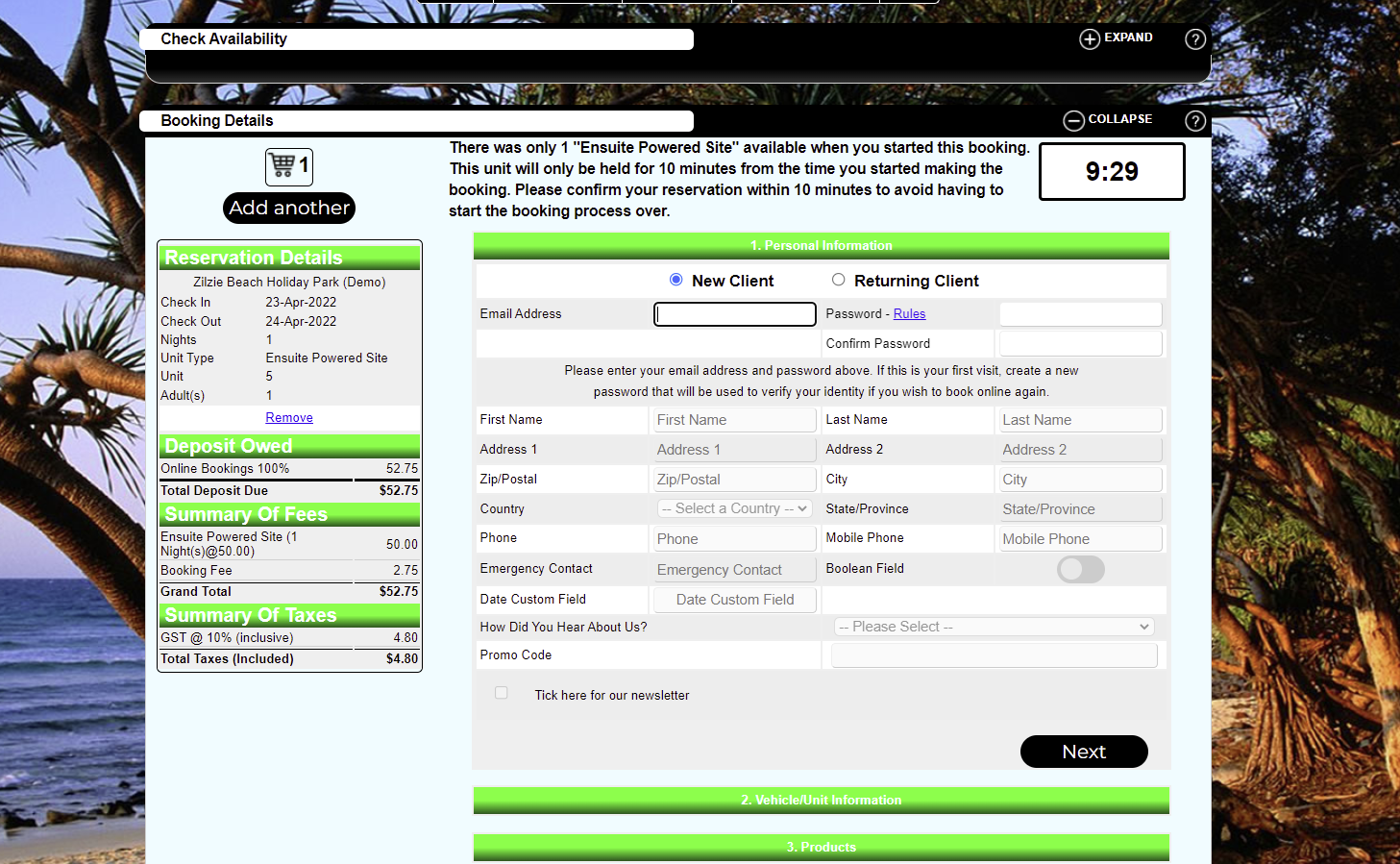
- Proceed to Next Step:
- Click the "Next" button to enter personal information and proceed to payment if necessary.
Troubleshooting
- Ensure your browser is updated to the latest version for optimal performance.
- If the map does not load, refresh the page or check your internet connection.
- For further assistance, contact customer support.