Accessing Revenue and Statistics Report
Last modified on:
Overview
This document provides a step-by-step guide to accessing the Revenue and Statistics report.
Prerequisites
- Access to the system with the necessary permissions to view the Admin tab and Analytics section.
Steps
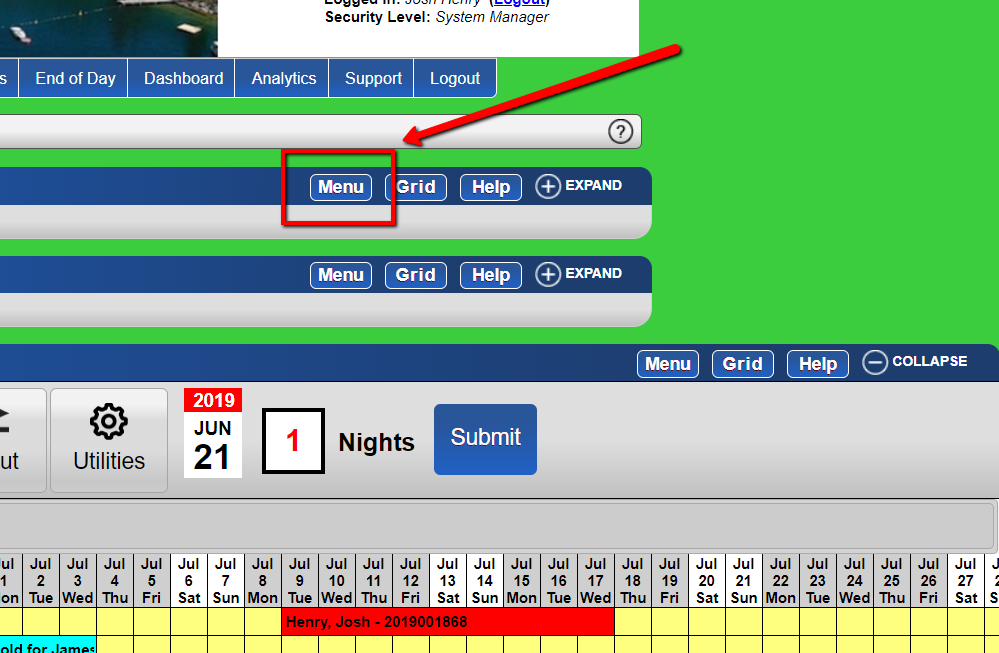
- Access Menu
- Click on the Menu button.
- Navigate to Admin Tab
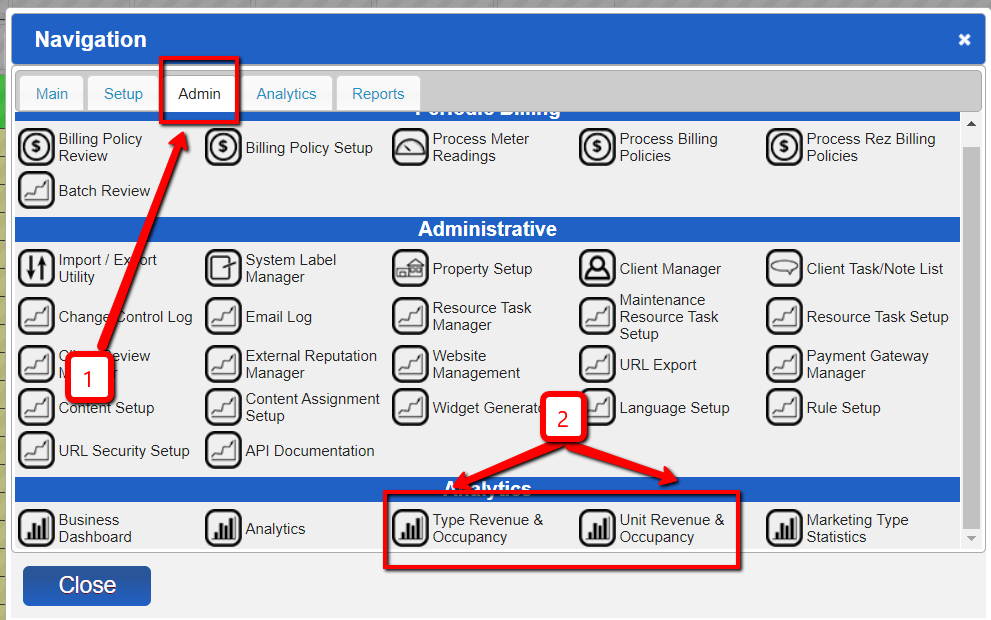
- Select the Admin tab.
- Within the Analytics section, click the type of Revenue and Occupancy desired.
- Select Date Range
- Select your desired date range and click Refresh.
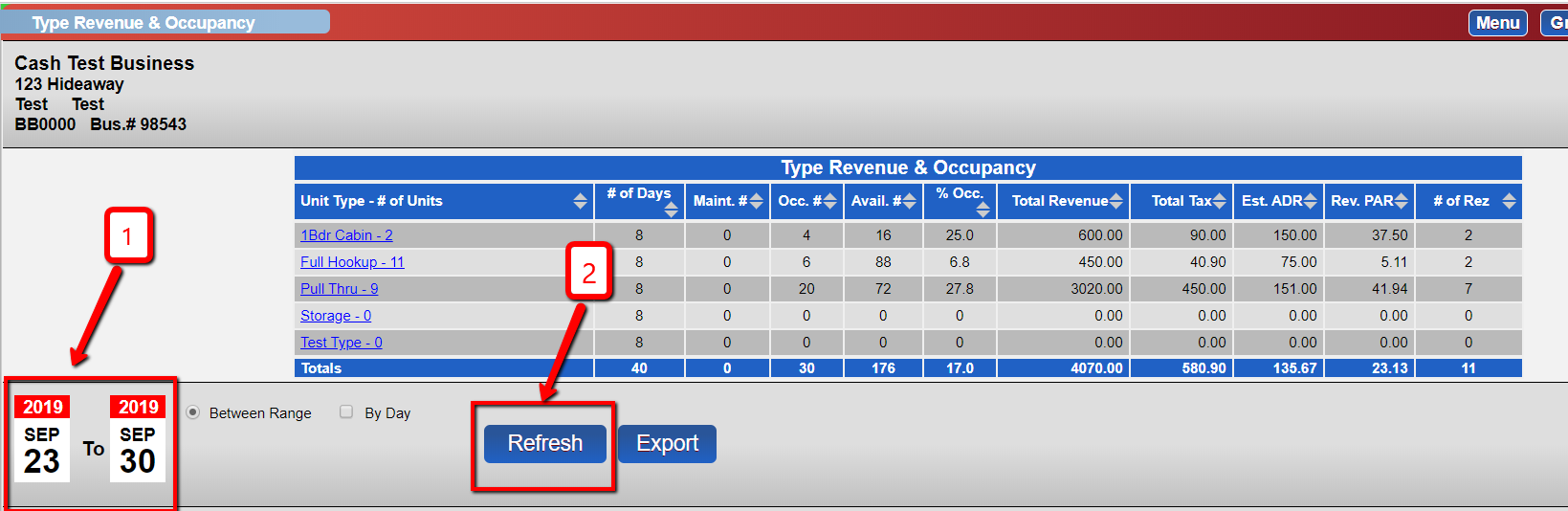
- Generate Report
- For a generic report, click Print.
- For a customized report or to export the raw data, click Export.
Troubleshooting
- Ensure you have the necessary permissions to access the Admin tab.
- Verify that the correct date range is selected if the report does not display expected data.