Editing Unit Type Policy Descriptions
Last modified on:
Overview
This document provides information on editing policy descriptions for all Unit Types or setting specific policies for individual Unit Types. It also includes the capability to edit the Terms and Conditions, Directions, Email Confirmation Text, and the General Policy of the Global business.
Prerequisites
- Access to the Setup tab within the Business Setup section.
Steps
Location
- Click on a Menu button.
- Select the Setup tab.
- Click on Unit Type Policy Description within the Business Setup section.
Description
Unit Type Policy Description comprises two tabs:
- Unit Type
- Global
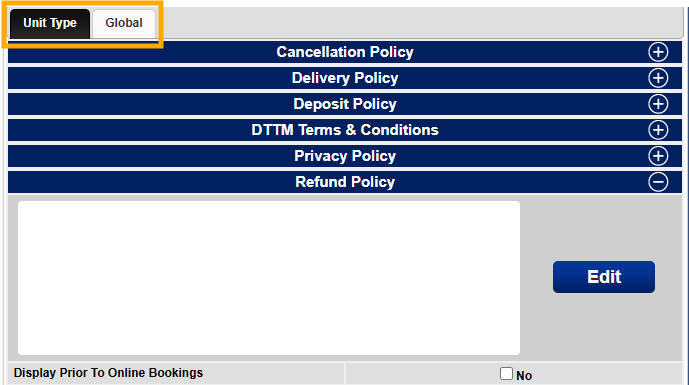
Unit Type Tab
- Allows entry of written Cancellation and Deposit Policies for all and individual Unit Types.
- Once text is entered, policies display on the Online Booking page in the Terms, Conditions, and Deposit Policies link.
Unit Type Tab - Cancellation and Deposit Policies
- Cancellation Policy:
- Click on the Cancellation Policy panel and click Edit.
- Enter the cancellation policy description.
- Click Accept and Submit to finalize.
- For specific cancellation policies, click on the + symbol next to All Types to select the required Unit Type.
- Deposit Policy:
- Click on the Deposit Policy panel and click Edit.
- Enter the deposit policy description.
- Click Accept and Submit to finalize.
- For specific deposit policies, click on the + symbol next to All Types to select the required Unit Type.
Unit Type Tab - DTTM Terms and Conditions
- For module: Down to the Minute.
- DTM Terms & Conditions:
- This panel allows for Down to the Minute Terms and Conditions policy text to be entered.
Global Tab
- Account Statement Text: Information will appear on AR & AP Account Statements.
- Business Description: Allows for text about the Business.
- Business Terms & Conditions: Information will appear on the Online Booking page Terms & Conditions link. This panel MUST be populated if using Online Bookings.
- Check In Form Detail Text: Information will appear on the PDF Reservation Check In Form – Detail.
- Check In Form Text: Information will appear on the PDF Reservation Check In Form.
- Corporate Package Summary: Information will appear on the PDF Corp Package/Summary.
- Directions: Ideal for any information to be “Displayed Prior to Online Booking”.
- Email Confirmation Text: Information will appear on the Confirmation Emails sent out and on the PDF Group Package Summary.
- General Policy: Will appear on the PDF Confirmation Letter – with Policy Detail and within the Online Booking page Terms & Conditions link.
- Group Package Text: Information will appear on the PDF Group Package/Summary.
- Group Statement Text: Information will appear on the PDF Group Statement.
- Guest Vehicle Pass Text: Information will appear on the Guest Vehicle Pass.
- Invoice Text: Information will appear on Invoices (Point of Sale Invoices and Invoices within the Guest Folio).
- Marketing Opt-In Text: Will appear on the Online Booking page for the Marketing Opt in Option (only with Marketing Opt-In enabled).
- Most Recent Payment Text: Information will appear on the Most Recent Payment Receipt. Used for Periodic Billing reservations only.
- Payment 3 Inch Receipt Text: Information will appear on the Payment 3 Inch Receipt.
- POS 3 Inch Receipt Text: Information will appear on the POS 3 Inch Receipt, available after any POS transaction.
- Receipt Text: Information will appear on the Receipts.
- Reservation 3 Inch Receipt Text: Information will appear on the Reservation 3 Inch Receipt.
- Reservation Package Text: Information will appear on the Rez Package Summary.
- Reservation Statement Long Term Text: Information will appear on the Reservation Long Term Statement. Used for Periodic Billing reservations only.
- Reservation Statement Text: Information will appear on the Reservation Statements (Reservation Statement Summary and Detail).
- Vehicle Pass Text: Information will appear on the Check In Form – Vehicle Pass.
- Wholesaler Statement Text: Information will appear on the Wholesaler Statement.
Troubleshooting
- Ensure the "Display Prior to Online Bookings" flag is set to allow text to display on the Online Booking page before the Availability Grid. Customers must accept before booking.