End of Day Procedures in RezExpert
Last modified on:
Overview
This document provides instructions on how to complete the End of Day Procedures in RezExpert, specifically focusing on performing the Staff End of Shift and ensuring that payments taken match the payments entered.
Prerequisites
- Access to the RezExpert system.
- Permissions to perform end-of-day procedures.
Steps
Performing the Staff End of Shift
- Access End of Day Procedures:
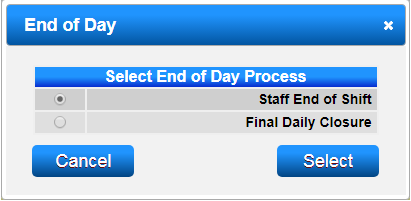
- Click on End of Day on the Menu Bar.
- Click on Staff End Of Shift.
- Alternatively, click on a Menu button and select Perform Cut-Off.
- Perform Cut-Off Panel:
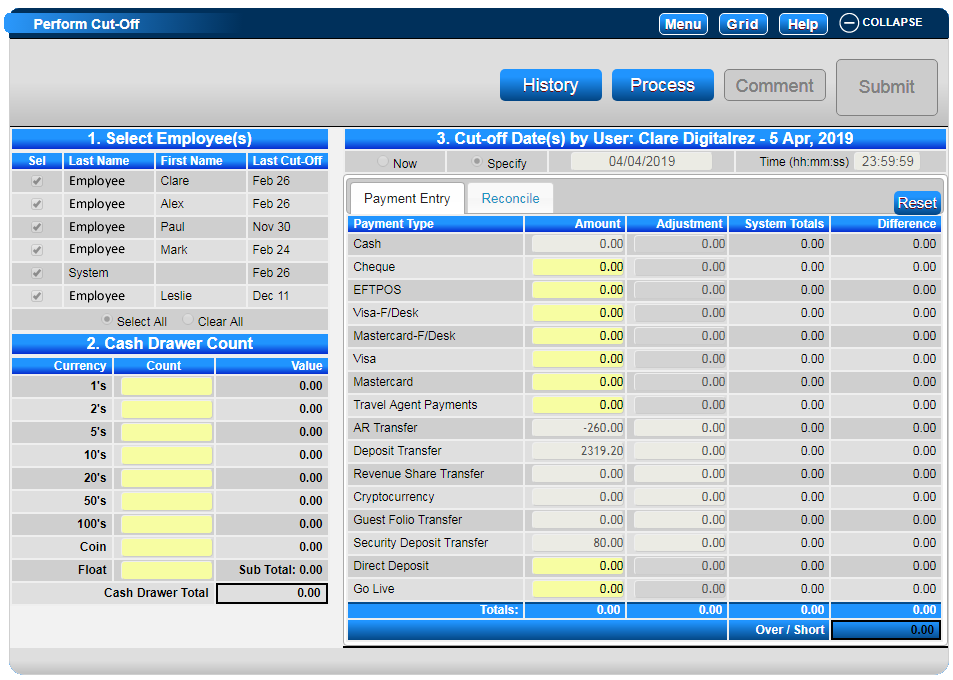
- The Perform Cut-Off panel will appear.
- Cut-Off Date(s) by User:
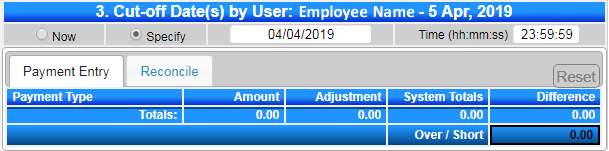
- If performing a cut-off for "Now" (all payments since last cut-off to now), proceed to Section 1. Select Employee.
- For a specified date (e.g., yesterday’s payments until midnight), click on the Specify radio button to select the required Date and Time.
- Select Employee(s):
- Select the required Employees, as well as System, and click Continue. The system will handle system settlement types such as AR Transfer, etc. - Cash Drawer Count:
- Enter the count of the cash drawer. Each currency denomination count total can be entered into each Count field, or the whole Cash amount can be entered into the Coin Field.
- If the till has a Float, enter the amount into the Float field. This amount will be deducted from the final Cash total.
- In the Payment Entry tab, enter Payments next to each Payment Type. Once all payments have been entered and checked, click Process.
- Click Yes to the displaying pop-up box.
Completing the Cut-Off
- After clicking Process, the RezExpert system will calculate the System Totals (the payments that have been entered into the system).
- Any differences will display.
- If the Over/Short amount is displaying 0.00, you have balanced. Click Submit to finalize.
- If the Over/Short amount is not 0.00, you have not balanced:
- Click on the Reconcile tab to view all payments associated with the cut-off.
- Click on the Payment Type drop-down to select the required payment type that doesn’t balance.
- If the difference can be fixed, click on the Grid button to correct the mistake.
- If the difference cannot be fixed, click on the Comment tab to enter a comment explaining the difference. Click Submit to finalize.
Printing the Cut-Off Report
- To print the report, click Print.
- The Print Selector will appear displaying the available End of Day Reports:
- End of Day Cut off Report: Displays the Cash Drawer Count and amount total for each Payment Type, with a listing of all payments taken within the specified cutoff.
- Reconciliation Display: Displays the Cash Drawer Count and amount total for each Payment Type.
Click here to print the Help Document
Troubleshooting
- Ensure all payments are entered correctly before processing.
- Verify the cash drawer count and float amounts are accurate.
- Use the Reconcile tab to address any discrepancies in payment types.