Using the Availability Calendar Tool for Quotes
Last modified on:
Overview
The Availability Calendar Tool is the primary quoting tool that provides operators with flexibility when performing a quote. It is located on the right-hand side of the Chrome Bar Action Header Bar. This tool allows changes to various aspects of a reservation, such as:
- Rate Group
- Check-In and Check-Out dates
- Add Discounts
- Adjust the number of Occupants
- Create Group Bookings
- Display available units for all types
- Maximum days available for extending the booking and more
Prerequisites
- Access to the Availability Calendar Tool
- Basic understanding of reservation processes
Steps
- Select Dates:
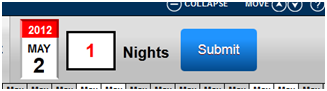
- Click the red and white date to open the calendar.
- Select an arrival date and edit the number of nights for the stay.
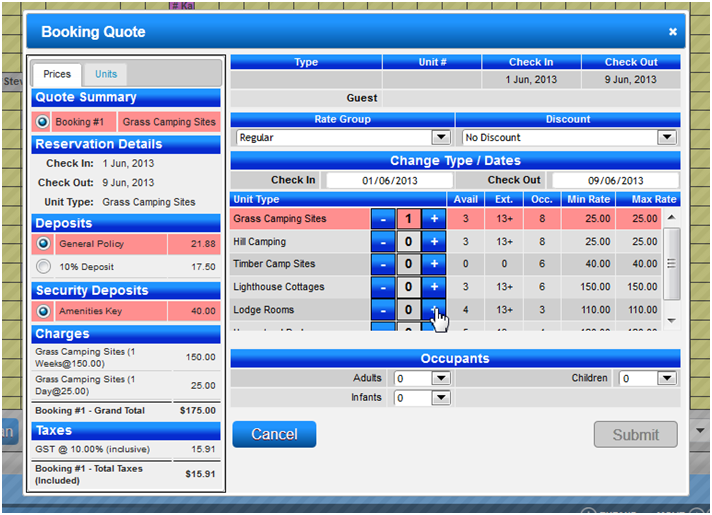
- Press submit to display the Booking Quote screen.
- Review Quote Details:
- Check accommodation types available for potential upgrades.
- Verify group bookings created (Demo Restricted).
- Ensure maximum occupancy is suitable for the booking.
- Confirm maximum availability extension if the guest wants to extend the reservation.
- Check minimum and maximum rates, especially if a peak period is entered. - Finalize Reservation:
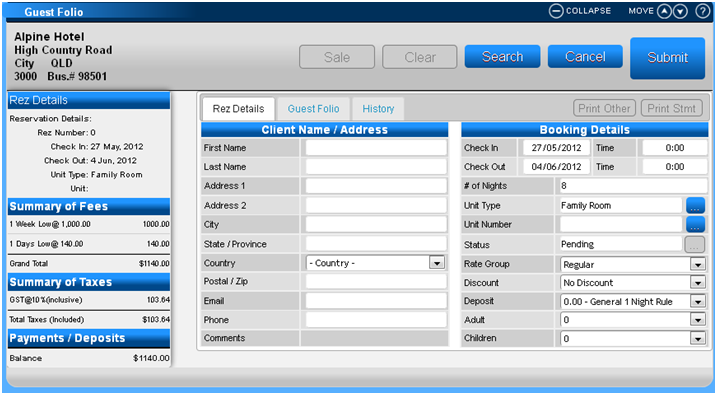
- As alterations are made, the Rez Details quote screen updates dynamically.
- Press the submit button to make the reservation and add client details in the Guest Folio panel. - Use Reservation Quote Button:
- Useful for phone or walk-in quoting.
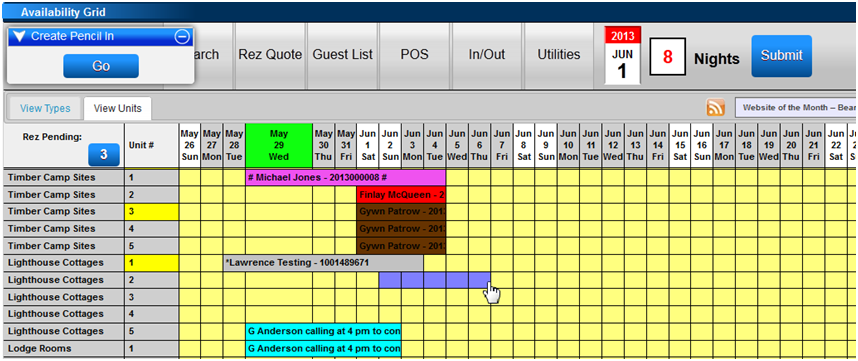
- Select the Unit Type and highlight/drag the required date range from either grid view.
- Note that a Pencil-In can be created to block online inventory.
- Convert Quote to Reservation:
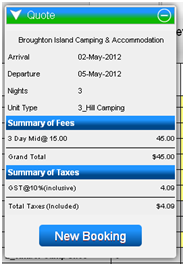
- Press the ‘Rez Quote’ button on the Chrome Bar Action Header to produce a Standard Occupant-Base Rate Quote.
- Click the ‘New Booking’ button at the bottom left of the Quote Panel to convert the quote to a reservation.
- Complete Guest Details:
- The Guest Folio panel will display, allowing you to add a guest, update occupants, change rates, or include offers or discounts.
- Hit the Submit button to save the booking to the grid and make a payment.
Troubleshooting
- Ensure all required fields are filled before submitting.
- Verify that the selected dates and unit types are available.
- Check for any error messages on the screen and follow the instructions provided.