Creating Surveys in RezExpert System
Last modified on:
Overview
Creating surveys to send out to your guests is an essential feature of the RezExpert system. To enable the Survey Module, please contact your Support Tech.
Prerequisites
- Ensure the Survey Module is enabled in your RezExpert system.
Steps
Location
- Click on a Menu button.
- Select the Setup tab.
- Click on Survey Type Setup.
Creating the Survey
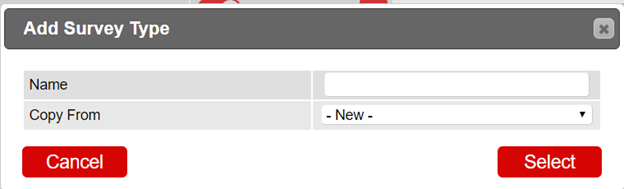
- Click Add.

- Enter the Name of the Survey.
- If using a template from a previously created survey, select it from the Copy From dropdown.
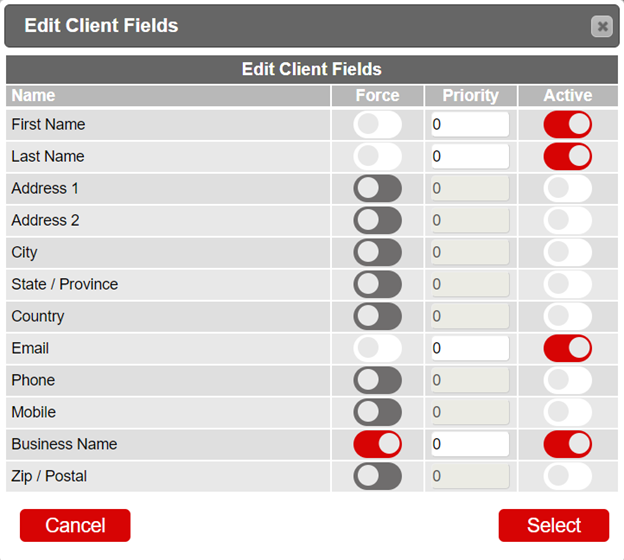
- Configure the Contact Form:
- Enable the Contact Form for guests to fill in their details.
- Click on the three dots to select required fields.
- Force: Makes the field mandatory.
- Priority: Order of appearance.
- Active: Enable fields to display.
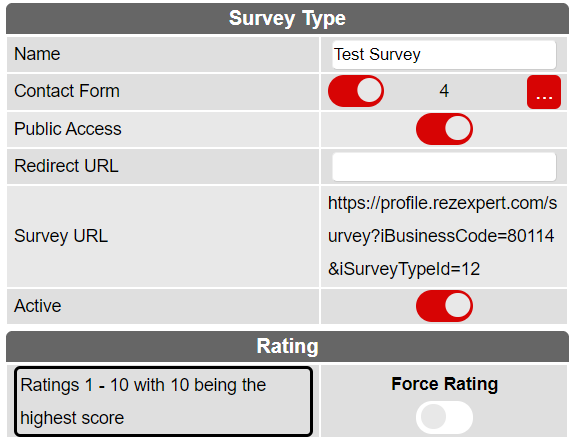
- Configure Public Access:
- Enable to allow public access via the Survey URL.
- Unselect to keep the survey internal for employees only. - Enter the Redirect URL for guests after survey completion.
- Note the Survey URL for online access.
- Configure Rating Options:
- Enable Show Rating to include a rating option.
- Enable Force Rating if mandatory. - Enable Active to make the survey available online.
Survey Question
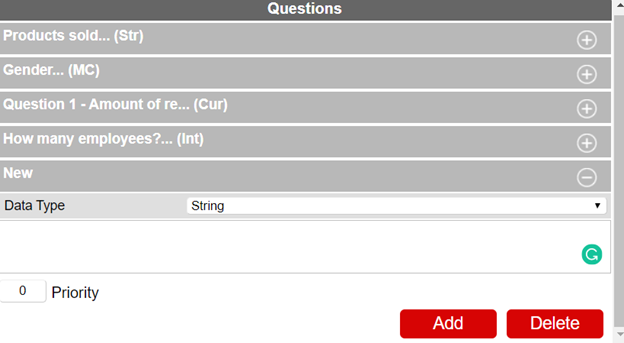
- To add Survey Questions, click Add under the Questions header.
- Select the required question data type:
- Currency: Monetary value or decimal.
- Integer: Whole numbers.
- Multiple Choice: Variety of answer options.
- String: Text. - For Multiple Choice:
- Click on the three dots next to Multi Choice Answers to create available answers.
- Name: Answer option.
- Code: Code for the answer option, displayed in the Export option.
- Priority: Order of appearance.
- Active: Enable to make the answer available.
- Delete: Remove if no longer required.
- Enter the question in the box below the Data Type and set the Priority.
- Click Add to create the next survey question.
- Click Submit to finalize.
Survey URL
- After creating the survey, embed the Survey URL into your After Reservation Marketing Emails and other communications with guests.
Troubleshooting
- The Survey Manager will display completed and non-completed surveys along with their answers.
- For further assistance, refer to the following resources:
- Help Document
- Survey Manager