Ticket Search Panel Overview and Usage
Last modified on:
Overview
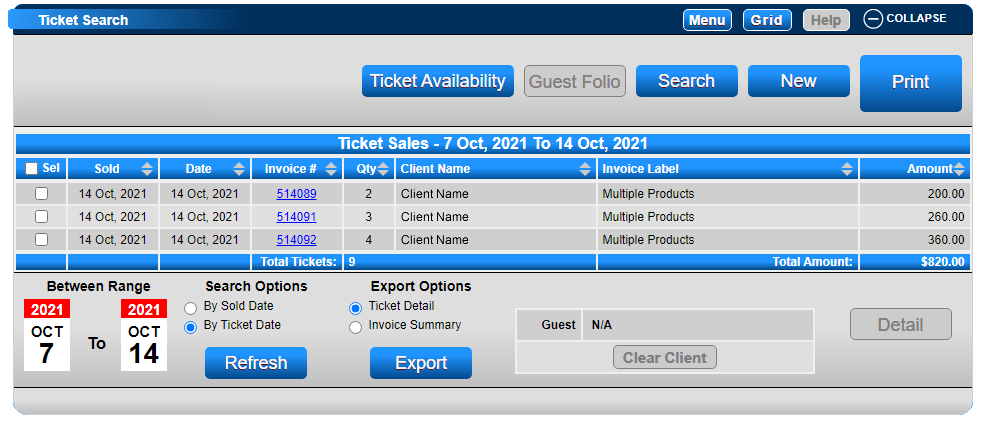
When the Ticket Module is enabled, an additional panel called Ticket Search becomes available to view purchased tickets.
Prerequisites
- The Ticket Module must be enabled.
Steps
Columns within the Ticket Search Panel
- Sel: Allows the operator to select a ticket, multiple tickets, or all tickets for printing purposes.
- Sold: Displays the date the ticket was sold/purchased.
- Date: Displays the date the ticket is valid for.
- Invoice #: Invoice number of the ticket sale transaction.
- Qty: Number of tickets within the ticket sale transaction. If the ticket has been cancelled, the Qty will display -1, etc.
- Client Name: Client name associated with the ticket sale. If no client was selected, "No Client Assigned" will display.
- Invoice Label: Name of the ticket. If multiple tickets are sold during the sale transaction, "Multiple Products" will display. If the ticket has been cancelled, the Invoice label will display "Reverse – Ticket Label".
- Amount: Displays the total amount of the ticket sale transaction.
Search Parameters
- Date Range: Dates can be selected to display tickets sold or valid between the date range. There is a maximum limit for searching of 6 months.
- Search Options:
- By Sold Date: Date the ticket was sold on.
- By Ticket Date: Date the ticket is valid for.
- Export Options:
- Ticket Details: Exports details of the ticket, e.g., length of ticket, vehicle/unit type associated.
- Invoice Details: Exports details of the invoice of the transaction, e.g., charges, ticket quantity.
- Refresh Button: After adjustments are made to Date Range and/or Search Options, clicking on the Refresh button will allow the panel to display the tickets associated with the search.
- Search Button: Ability to search for a client’s tickets.
Selecting a Ticket
When a ticket has been selected, the Detail button will highlight, allowing the operator to view the ticket(s) details. This will also allow the operator to print tickets, invoices, and cancel the ticket(s) if required.
Ticket Availability Button
The Ticket Availability button will allow operators to view the current availability/inventory of tickets.
Troubleshooting
For further assistance, you can: