Occupant Type Setup and Management
Last modified on:
Overview
Create different Occupant Types that a Unit Type can accommodate. Occupant Types can include people, pets, boats, trailers, etc. Once created, these can be associated with Unit Types and included in the maximum occupants allowed for the Unit Type(s).
Prerequisites
- Access to the system's Menu Bar.
- Permissions to modify Occupant Types.
Steps
Location
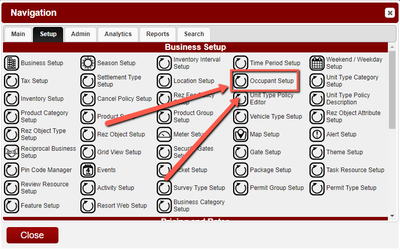
- Click Menu from the Menu Bar.
- Click the Setup tab.
- Click Occupant Setup.
Adding an Occupant Type
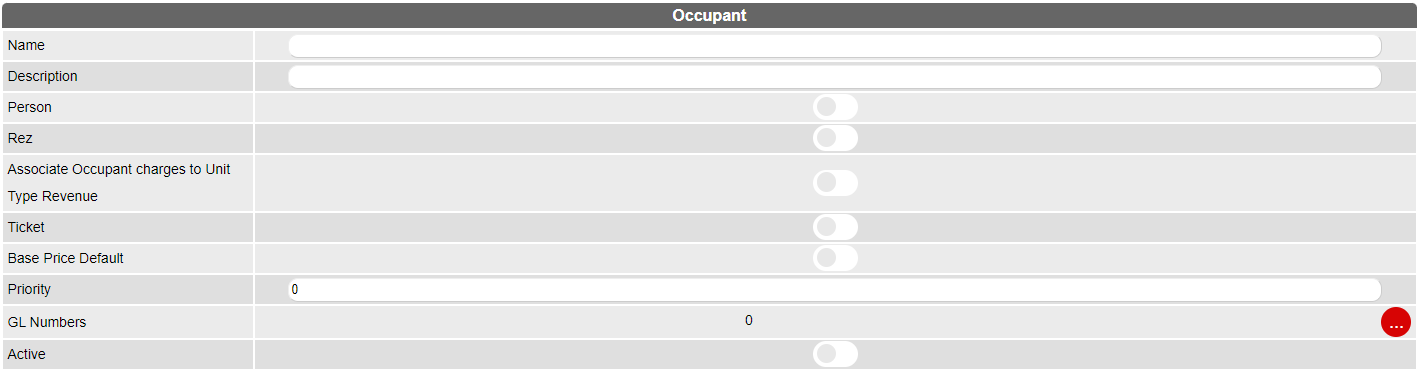
- Click Add to add a new Occupant Type.

- Name: The name of the Occupant.
- Description: A brief description of the occupant.
- Person: Toggle to include the Occupant in the Occupant Count for a reservation, display on the Online Booking page, and reports.
- Rez: Toggle to make the occupant available for assignment to a reservation.
- Associate Occupant charges to Unit Type Revenue: Set this flag to include occupant charges in the reservation’s Unit Type revenue. This change is reflected in financial reports such as the Trial Balance report.
- Ticket: If Tickets are set up, enable if the Occupant is for Ticket Sales.
- Base Price Default: Allows any combination of occupant type(s) to comprise the base rate. Select the Default (Base Price) Occupant flag on one Occupant Type (e.g., Adult). This ensures that the total occupants included in the base rate are used before extra occupant charges are added. When enabled, any occupant combination up to the value of the Incl value will be charged at the Base Rate set in the Rate Setup panel. Any extra occupant(s) added after the Incl value will be charged the extra occupant charge.
Example: With the flag enabled, a reservation for a Suite with a charge for 3 extra Children will have that extra charge revenue reported under Suite instead of Occupant Product: Children.
- Priority: Adjusts the display order of the occupant.
- GL Numbers: Assign GL numbers to the occupant for accounting/report purposes.
- Active: Toggle to make the occupant active for use across the system.
Deleting an Occupant
- Select the Occupant Type to be deleted.
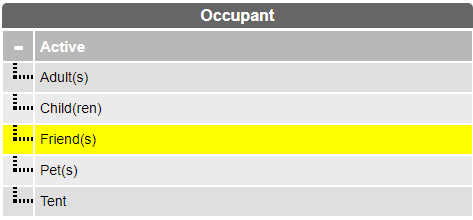
- Click Delete.

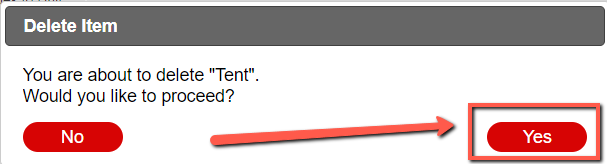
- Click Yes to confirm the deletion process.
Troubleshooting
- Ensure you have the necessary permissions to add or delete Occupant Types.
- Verify that all required fields are filled out when adding a new Occupant Type.
- If issues persist, consult the system administrator for further assistance.