Night Audit Processing Steps and Troubleshooting
Last modified on:
Overview
For Accrual Accounting: Compile the latest set of invoices to be processed for the selected date—current or future. Future dates should be for review purposes only.
Prerequisites
- Ensure you have access to the End of Day section in the system.
- Familiarize yourself with the Process Daily Charges panel layout.
Steps
Location
- Click on the End of Day button within the Menu Bar.
- Select Process Daily Charges.
- Alternatively, click on a Menu button and then click on Process Daily Charges within the End of Day section.
Panel Layout

Process Daily Charges
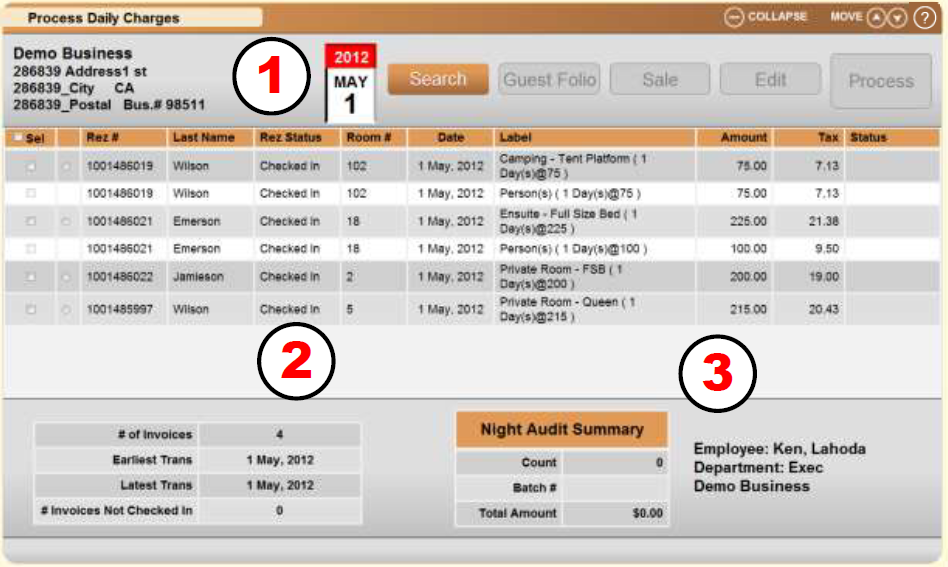
- Invoice Search Calendar: Compile the latest set of invoices to be processed for the selected date—current or future (future dates should be for review purposes only).
- Invoice List Summary: Provides the current invoice count (not transaction count) to be processed.
- Night Audit Summary: Summarizes the batch once completed and shows the employee who processed the batch.
- No Show Indicator: Review clients who have not arrived to determine if they are a No Show before completing the batch. Unassigned bookings will not be processed and will be carried forward until the guest checks in or the booking is canceled.
Daily Charges Elements
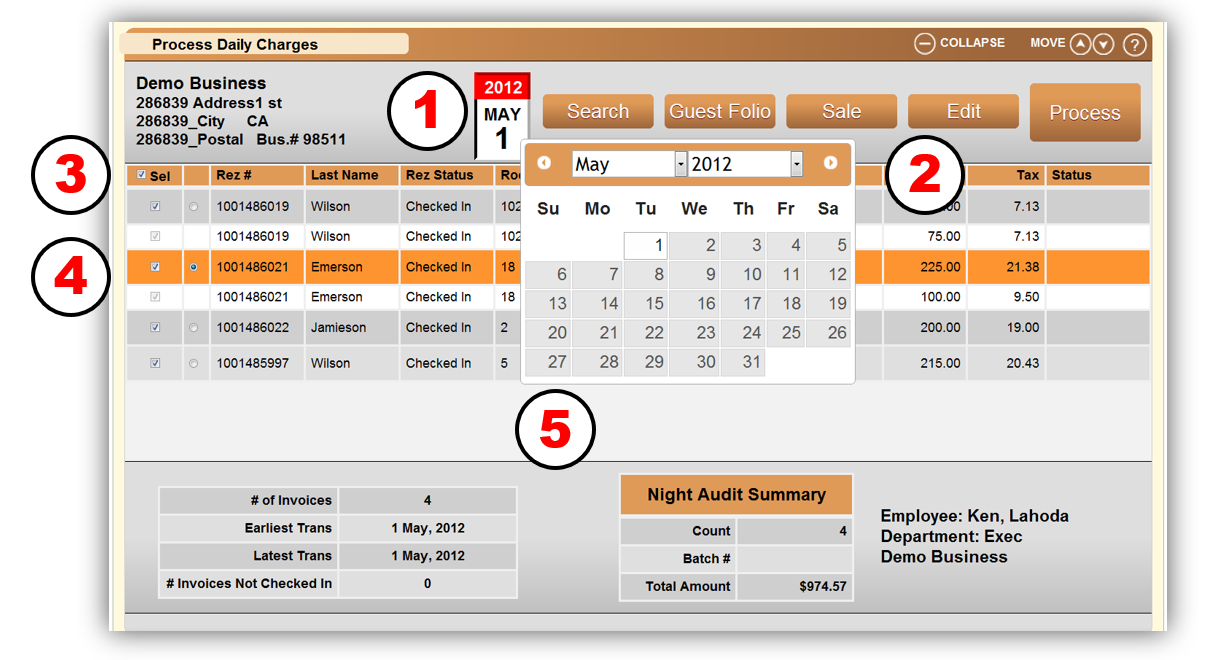
- Calendar Tool: Used for selecting a date to process. Any invoices not processed from prior dates will also be displayed.
- Action Header: Once an invoice is selected, these buttons enable access to each function.
- Selectors:
- Check Box: Select any group or all invoices.
- Option (round): Select an individual invoice for manual editing. - Selected Row: This invoice is selected for editing purposes.
- Summaries: Summarizes the current batch.
Process Daily Charges
- Calendar: Used for selecting a date to process. Any invoices not processed from prior dates will also be displayed.
- Click Search. All invoices will display to process.
- The Invoice box on the left will display a summary of:
of Invoices to be processed
- Earliest transaction
- Latest transaction
Invoices Not Checked In.
- Night Audit Summary box will display:
- Count of invoices
- Batch #
- Total Amount of charges being processed.
- Once the batch is processed, an Export option is available to export the charges processed.
- Click on the Sel box to select all.
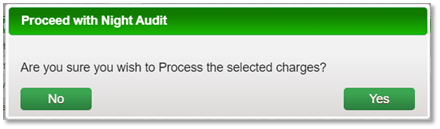
- Click Process to process through the invoices onto the reservations. Click Yes on the pop-up message.
Troubleshooting
Status
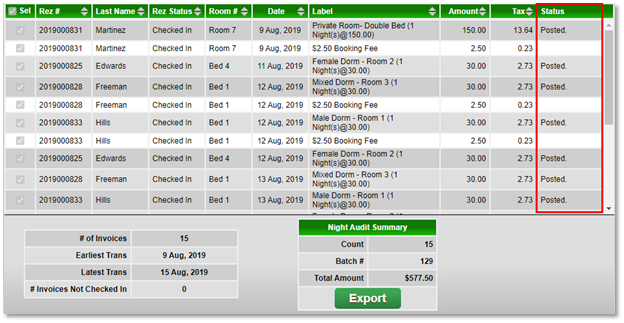
- The Status column will display if the invoices were successfully posted onto the reservation or if the invoices failed.
- Failures can be due to:
- Reservation not checked in or canceled.
- The reservations will need to be checked in to post the charges. Click on the Menu button and select Arrivals/Departures to check in the reservations before returning to the Process Daily Charges panel to post the charges.
Additional Days
- If Night Audit has not been processed for a few days, click Search again and process through the next batch.
Batch Review
- The Batch Review panel located below will display all completed batches for future reference.
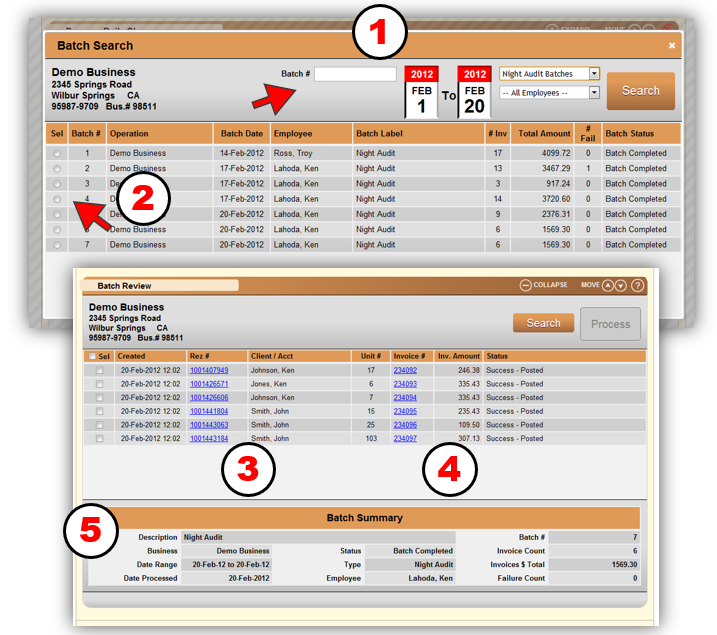
Batch Review
- Batch Search Filters: You can search by a specific Batch Number, a date range, by batch type, and by employee.
- Batch List: Select an Invoice Batch from the resulting list.
- Rez Link: Opens the Guest Folio of the related reservation for review.
- Invoice Link: Opens a PDF copy of the related invoice.
- Batch Summary Footer: Displays the Batch Summary and related information.