Payment Processing Instructions for Bookings
Last modified on:
Overview
This document provides instructions on how to make payments using either credit card or cash/other payment methods. The process begins by submitting a new booking from the 'Rez Quote' or 'Calendar Tool' options, which redirects you to the Credit Card Payment screen on the Guest Folio tab.
Prerequisites
- Access to the 'Rez Quote' or 'Calendar Tool' for booking.
- Guest Folio tab access for payment processing.
Steps
Credit Card Payments
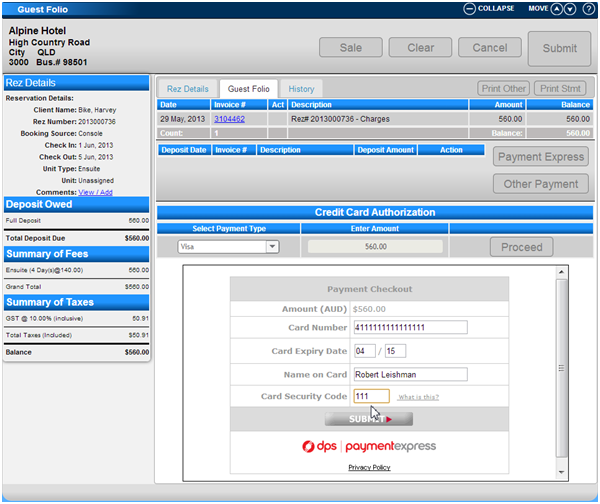
- Access Credit Card Payment Section:
- Navigate to the Credit Card payment section of the Guest Folio panel. - Enter Payment Details:
- Select a Card Type from the dropdown.
- Enter the Credit Card details, including the CVV number.
- Click Submit. - Confirmation:
- The payment is confirmed when the Print Selector Screen appears.
- Credit Card details are securely recorded off-site with the Payment Gateway Provider, ensuring PCI compliance. - Send Confirmation:
- Select either the email or print PDF Confirmation options to send or print the confirmation.
Cash / Other Payment
- Cancel Credit Card Process:
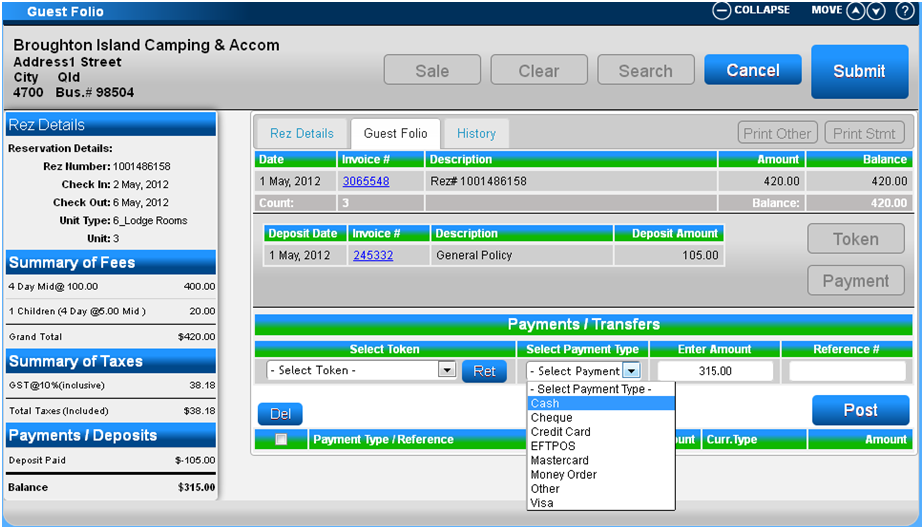
- Click the Cancel button in the Action Header to exit the Credit Card process. - Select Payment Type:
- Reopen the Guest Folio tab and click on the Payment button.
- In the Payments/Transfers section, select the Payment Type from the dropdown. - Enter Payment Amount:
- Enter the amount being paid or use the pre-populated balance amount.
- Click Post. - Submit Payment:
- Click the Submit button to save the payment to the guest folio.
- The Print Selector – Confirmation screen will display.
Troubleshooting
- If the payment process does not redirect to the Credit Card Payment screen, ensure that the booking was submitted correctly through the 'Rez Quote' or 'Calendar Tool'.
- For issues with the Payment Gateway Provider, verify that all entered details are correct and that there are no connectivity issues.