Sending Meter Charges to Accounts Receivable
Last modified on:
Overview
Meter Charges for a Permanent Resident can be sent to their Accounts Receivable (AR) Account instead of the reservation's balance.
Prerequisites
- An Accounts Receivable account must be created for the resident.
Steps
Creating an AR Account
- Search for the Resident:
- Click Search from the Availability Grid.
- Search for the resident. - Edit Client Information:
- Click Edit within the Selected Client box on the right-hand side.
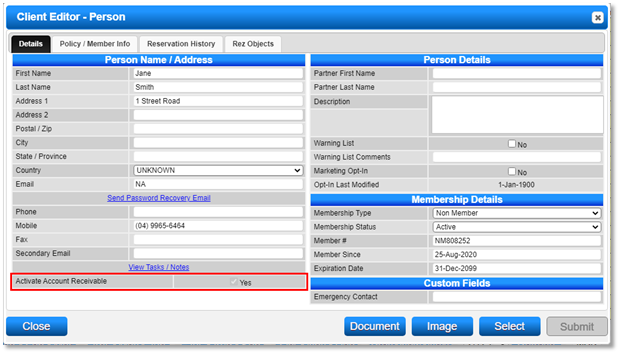
- Within the Client Editor box, tick the Activate Account Receivable flag. - Alternative Method:
- If you miss the above step, the AR Account can be created within the Billing Policy Setup.
Setting Up Meter Billing Policy
- Access Guest Folio:
- Once the reservation is made for the Permanent Resident, navigate to the Charges/Payments tab within the Guest Folio. - Billing Setup:
- Click on the Billing Setup button.
- Click Add. - Configure Policy:
- Policy Type: Select the Meter Billing Policy Type.
- Unit #: Click to select the reservation’s assigned Unit #.
- Reservation #: Leave blank.
- Start Date: Enter a start date.
- End Date: Enter an end date.
- Next Billing Date: Enter the Start Date. - Select AR Account:
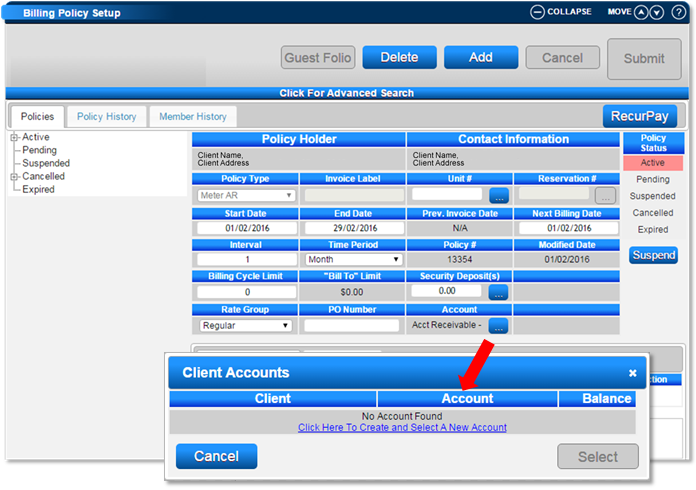
- In the Account section, select the created AR Account.
- If an AR Account hasn’t been created, click Click Here to Create and Select a New Account to instantly create an AR Account for the resident. - Finalize Policy:
- The other fields in the Billing Policy Setup panel do not need adjustment.
- Click Submit to finalize and then Activate the policy. - Result:
- Once activated, all future Meter charges will go to the resident’s AR Account for later payment.
Setting Up Meter Billing Policy Type
- If the Meter Billing Policy Type has not been set up yet:
- Click on a Menu button, select the Setup tab, and click on Billing Policy Type Setup within the Admin/Accounting section.
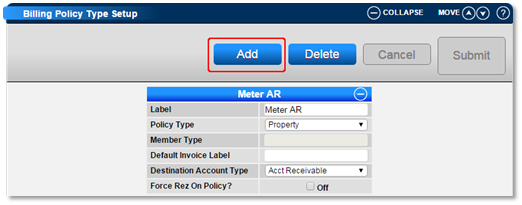
- Click Add.
- Enter the label: Meter AR (or a similar name for easy identification).
- Policy Type: Property
- Default Invoice Label: Leave blank - Invoice Label will come from the Meter Processing.
- Destination Account Type: Acct Receivable.
- Note: If you charge two Meters (e.g., Power and Water), you don’t need to create a second Billing Policy Type. One Billing Policy will handle both Meters and send both charges to the AR Account.
Troubleshooting
- Adjusting Meter Readings:
- If you adjust the Meter Readings in the reservation, charges will be sent to the reservation’s Guest Folio, not the AR Account.
- DigitalRez recommends adjusting Reservation Meter readings only when the resident is checking out and final readings need to be finalized.
- Stopping Meter Charges to AR Account:
- Deleting the Meter Billing Policy will stop sending charges to the AR Account and revert them to the Reservation’s Guest Folio.
- Identifying Charge Destination:
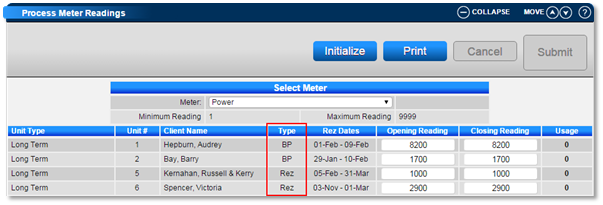
- Within the Process Meter Readings panel, the TYPE will display next to each active meter:
- Rez – Reservation – Charges going to the Guest Folio.
- BP – Billing Policy – Charges going to the AR Account.
For additional information, refer to the Help Document.