Cancel Policy Setup Instructions
Last modified on:
Overview
This document provides instructions on how to set up a cancel policy. It includes steps to access the Cancel Policy Setup and a glossary of terms used in the setup process.
Prerequisites
- Access to the system's menu and setup options.
Steps
To reach the Cancel Policy Setup:
- Click Menu.
- Click Setup.
- Click Cancel Policy Setup.
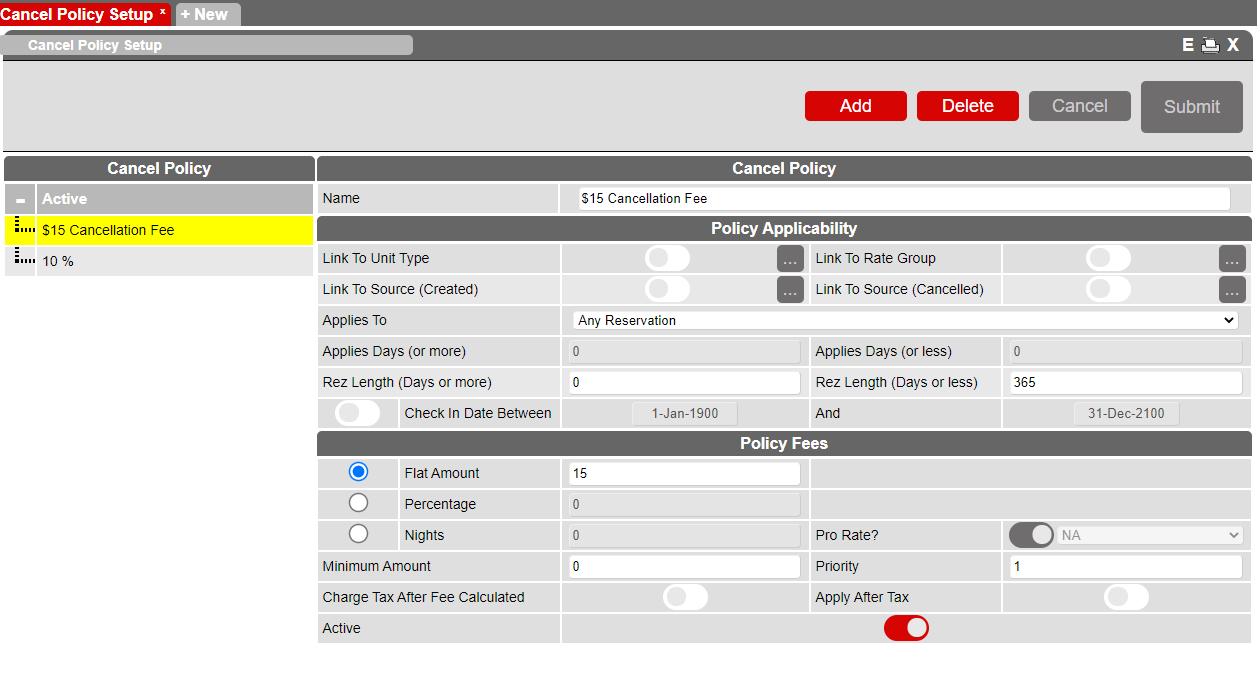
Glossary
- Link To Unit Type: Assign Cancel Policy to specific Unit Type(s). If Disabled, it will be applied to all Unit Types.
- Link To Rate Group: Assign Cancel Policy to specific Rate Group(s). If Disabled, it will be applied to all Rate Groups.
- Link To Source Created: Assign Cancel Policy based on where the reservation was created (Console, Resort Web, Channel). If Disabled, it will be applied to all Sources.
- Link To Source Cancelled: Assign Cancel Policy based on where the reservation is being cancelled (console, Resort Web, Channel). If Disabled, it will be applied to all Sources.
- Applies To: At what stage the policy is applicable:
- Any Reservation: At any time.
- Before Check In: Set the time frame for how many days before check-in the policy is applicable.
- Days After Made Date: Set the time frame for how many days after the reservation was created the policy is applicable.
- Applies Days (or more): Based on Applies To setting, set the minimum days.
- Applies Days (or less): Based on Applies To, set the maximum days.
- Rez Length (Days or more): Set minimum length of the reservation.
- Rez Length (Days or less): Set maximum length of the reservation.
- Check In Date Between: If Disabled, will apply to any Date. Once Enabled, set the date range for when the reservation has to be checking in.
Select one option for the cancellation fee:
- Flat Amount: Set a flat amount for the cancellation fee.
- Percentage: Set a percentage for the cancellation fee.
- Nights: Set if based on nightly rate and how many nightly charges. Prorate will assign the average nightly rate. If Prorate is disabled, the 1st Night pricing will be used x number of nights set. Select which daily rate will be applied from the drop-down.
- Minimum Amount (optional): Set the minimum amount of the cancellation fee.
- Priority: Set priority of the policy. Priority goes from the smallest value to the highest value. This helps determine which rule takes precedence over the other and the order in which they appear.
- Charge Tax after Fee Calculated: Calculate the fee and then add appropriate tax.
- Apply After Tax: Tally of fee is calculated to include tax.
Troubleshooting
For any issues encountered during the setup process, please refer to the system's support resources or contact technical support for assistance.