Security Gate Maintenance Instructions
Last modified on:
Overview
The Security Gate Maintenance panel displays all created Pins and Cards. This document provides instructions on managing these security features within the system.
Prerequisites
- Access to the Admin tab in the system.
- Familiarity with the Security Gates Maintenance section.
Steps
Location
- Navigate to the Menu button.
- Select the Admin tab.
- Click on Security Gates Maintenance within the Administrative section.
Security Gate Maintenance
- All created Pins/Cards will be displayed with their associated Client - Rez #/Unit/Dates.
- Note: Pins/Cards are not automatically deleted or deactivated in RezExpert after a reservation has been checked out.
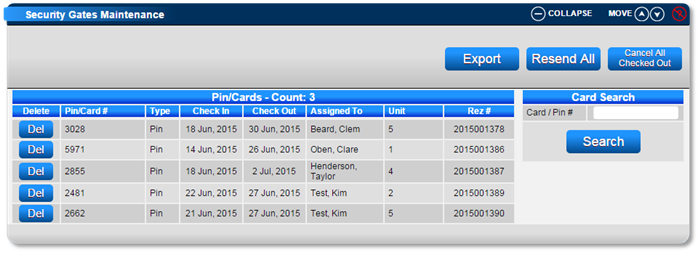
Card Search
- To search for a Card/Pin#:
- Enter the Card/Pin#.
- Click Search.
- If the Card/Pin# is active, it will be highlighted within the Card/Pin# Display panel.
Deleting Old Pin/Card
- Select the Pin/Card#.
- Click Delete.
Cancel All Checked Out
- Click to cancel all Active Pin/Cards# associated with Checked Out or Cancelled reservations.
Resend All
- Click to resend the Active Pin/Cards# displayed to the Access Control Software.
- Note: Use this if the Access Control Software becomes out of sync with RezExpert, e.g., loss of power, reinstallation, or to refresh Evolution with only active users.
Export
- Click on Export to export the displaying Pins/Card#s to an Excel spreadsheet or print a user-defined custom report.
Troubleshooting
- For additional help, click here to print the Help Document.
- To learn how to set up Security Gates, click here.