Splitting Reservations in RezExpert System
Last modified on:
Overview
A reservation can be split into two reservations to accommodate a guest moving to a new Unit Type or Unit. The reservation balance can be settled at any time prior to the Departure date.
Prerequisites
- Access to the Availability Grid
- Ability to locate the reservation
Steps
Guest Folio
- Locate the reservation on the Availability Grid.
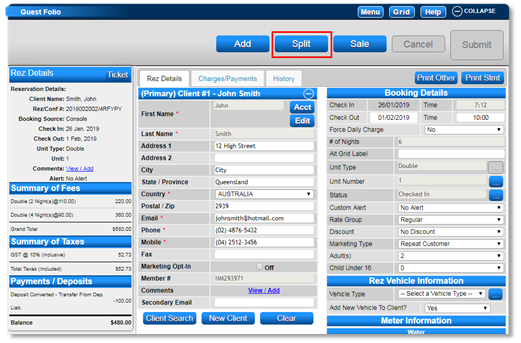
- Press Guest Folio on the till tape to access the reservation’s Guest Folio.
- To split the reservation, press Split.
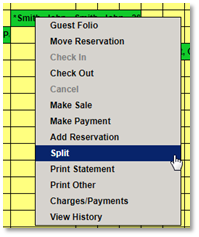
- Alternatively, right-click on the reservation in the Availability Grid and select Split from the Right Click Function Menu.
Splitting the Booking
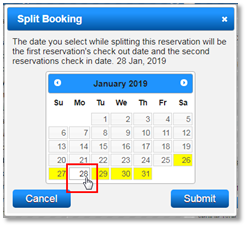
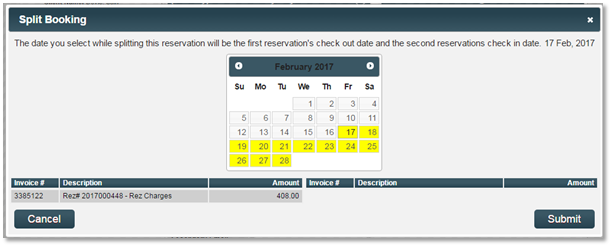
- A Split Booking box will display to select the first reservation’s check-out date and the second reservation’s check-in date.
- Select the date that the guest will be moving to the new Unit Type or Unit.
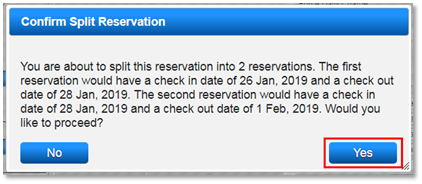
- Confirm the split by pressing Yes.
- Repeat the step if the booking needs to be split multiple times.
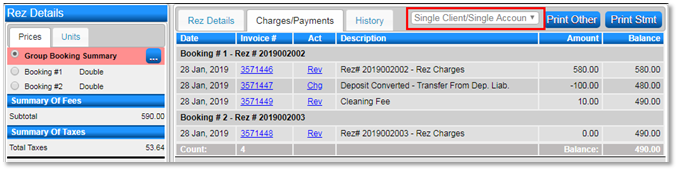
- The reservation will become a Group Booking with the setting Single Client/Single Account. All charges will display at the Group Booking Summary level. Payments will be processed onto the Group Booking Summary level Charges/Payments tab.
- If the Split Reservation – Charge Transfer setting is enabled, the Split Booking box will display the Reservation Charges to transfer if required. Click on the required charges to transfer from Booking #1 to Booking #2.
Note: Once transferred, further transfers required will need to be completed as a Sale transaction within the Guest Folio.
- If you require the Split Reservation – Charge Transfer setting to be enabled, contact your RezExpert Support Tech.
Group Booking
- Once split, the reservation becomes a Group Booking.
- Booking #1 is the first section of the reservation – prior to moving.
- Booking #2 is the second section of the reservation – after the move.
- Click on the Second Booking to change the Unit Type or Unit to the new location.
- Any changes to the Unit Type will automatically charge the new Unit Type’s rates for the selected dates. Original charges remain on the first reservation.
Note: If the new rate is not correct, change to the Charges/Payments tab and click Change to make adjustments.
- If the Split Reservation – Charge Transfer setting is not enabled, the revenue associated with the reservation remains on the original reservation.
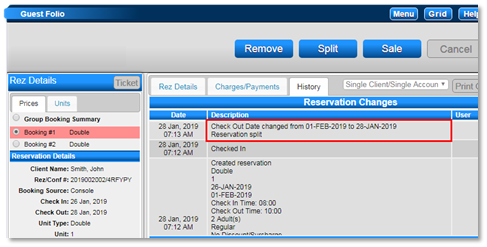
- A record of the split is recorded within the History tab of Booking #1.
Checking Out Booking #1
- When processing payment at the end of the reservation, the first reservation(s) can be checked out at their selected Check Out dates. The balance does not need to be cleared out and transferred to the second reservation.
- On the date of Check Out, click the Check Out button to check out Booking #1. The balance will remain on the Till tape, and the reservation will be checked out.
Troubleshooting
For further assistance, refer to the Help Document.