Accessing RezExpert During Internet Outage
Last modified on:
Overview
When the Internet in your area is unavailable or you have been notified of a scheduled temporary outage, your RezExpert system will not be accessible. This situation is beyond RezExpert's control. However, there are procedures you can follow to access RezExpert until your internet service is restored.
Prerequisites
- Ensure you have access to an alternative location with internet service or a device capable of creating a hotspot.
Steps
- Different Location
Log into RezExpert from a different location that currently has internet service, such as from home or another office. - USB Modem
Purchase a USB Broadband Modem device through a different Internet Provider than your main provider. This will allow you to enable internet access on your laptop. - Smart Phone Hotspot
Use your iPhone or Android smartphone as a hotspot. If your phone has internet access, you can either log on to RezExpert directly on your phone or set up a hotspot for your laptop. - DigitalRez Support Office
DigitalRez can assist by faxing any reports you may require.
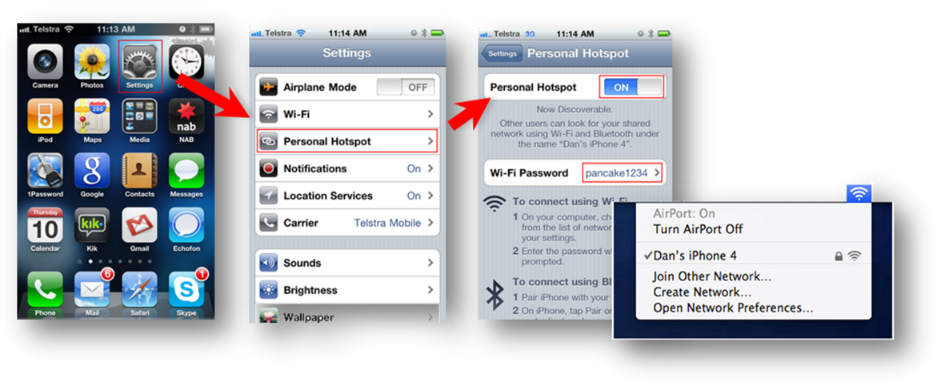
How to Set Up Your iPhone Hotspot
- Go to the Settings menu and tap on the Personal Hotspot menu item.
- In the Personal Hotspot menu, slide the Personal Hotspot option to On. A default password will be displayed on this screen.
- On your computer's Wi-Fi menu, your iPhone should appear in the list. The network name is the name of your iPhone in iTunes, for example, "Dan's iPhone 4".
- Select the network and enter the default password provided earlier. You will then be able to connect your tablet, laptop, etc., to the internet via your iPhone's data plan.
How to Set Up Your Android (Samsung) Hotspot
- Tap on Applications.
- Go to Settings. Under the Connections tab, select More Networks.
- Go to Tethering and Portable Hotspot and enable Portable Wi-Fi hotspot.
- To change Wi-Fi hotspot settings, tap Configure.
- In the Network SSID field, input the required name.
- In the Security dropdown list, select network security settings (Open, WPA PSK, WPA2).
- Input the password and tap Save.
- On your computer's Wi-Fi menu, locate and select the device name on the network list.
- Input your Wi-Fi password and tap Connect.
Troubleshooting
- If you experience issues connecting to the hotspot, ensure that your device's Wi-Fi is enabled and that you have entered the correct password.
- For further assistance, contact DigitalRez Support Office for help with accessing reports or troubleshooting connectivity issues.