Setting Up RezExpert Points Module
Last modified on:
Overview
RezExpert allows you to configure your own branded points system to sell to your clients. These points can be utilized from within the same business or from within a business community that has agreed to a contractual agreement between the hub business and any other business within the community. A contract is made between the hub and the business which will support the hub's points. Once an agreed-upon rate is determined (for example $0.90 for every $1), users of the point system can purchase points from the Hub business and redeem these points from the entity utilizing the hub's points. It would then be based on the contractual agreement between the hub to provide the funds to the entity based on the agreed rate.
Contact DigitalRez to enable this functionality for the Points businesses plus all businesses that will be able to redeem those points.
Prerequisites
- Ensure that the Points Module functionality is enabled by contacting DigitalRez.
Steps
Setting Up Points in the Hub Business
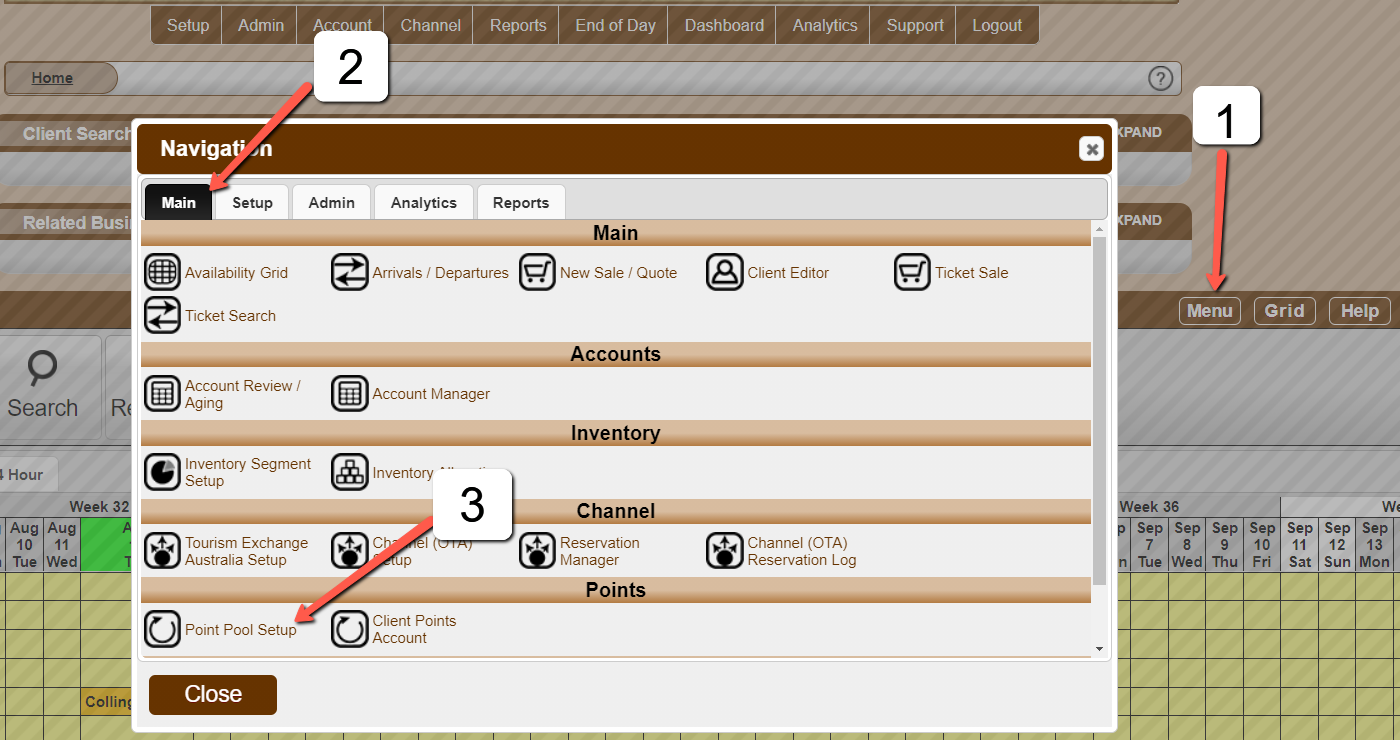
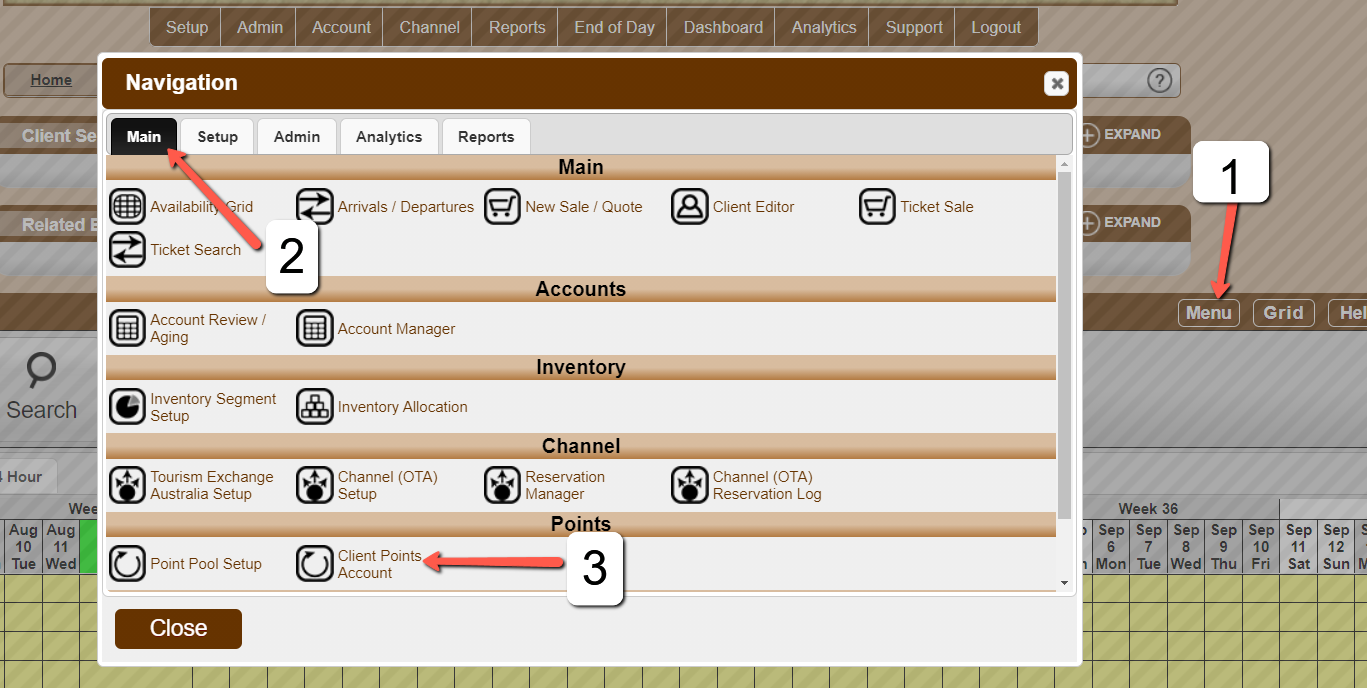
- Click the Menu Button.
- Under the Main tab, select Point Pool Setup.
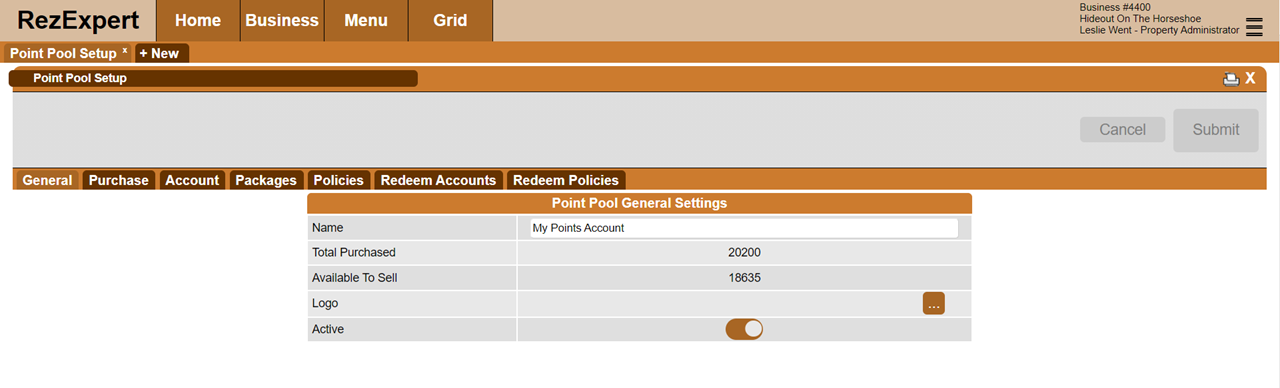
General Tab
- This interface allows the user to create the hub account where the points are purchased to be sold to guests.
- Enter the name of the Points Pool Account.
- Enable the Active slider.
- Click Submit.
Once the Pool Account is created, the logo image can be uploaded by clicking on the 3-dot button.
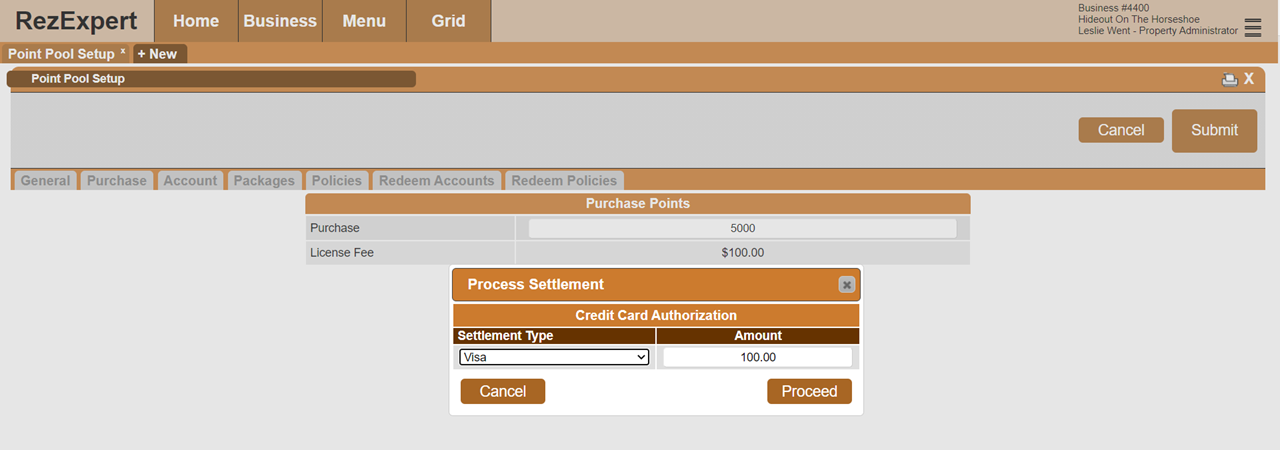
Purchase Tab
- This interface allows the Hub business to purchase the desired amount of points. Each point in the system is worth (one local) $1. The License fee to run the points system is 2% of the amount of points loaded into the resort's Points Account.
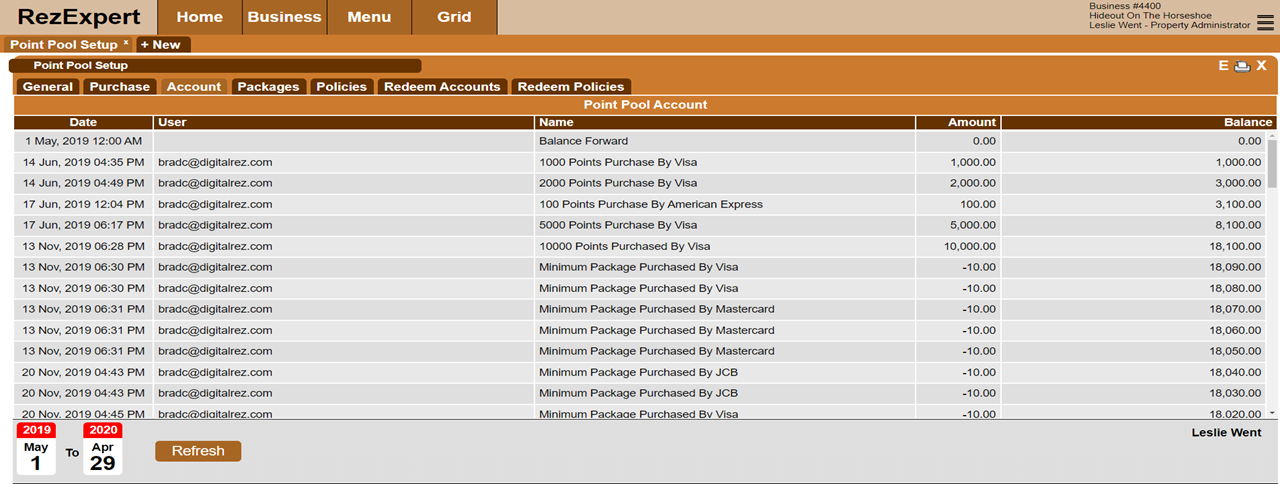
Account Tab
- This panel is a Hub level panel used to audit points bought by the Hub business from the RezExpert System & those purchased by their clients of the Hub business. A user will be able to set the date range to the bottom left for the time frame to review. A max of 365 days at a time.
Packages Tab
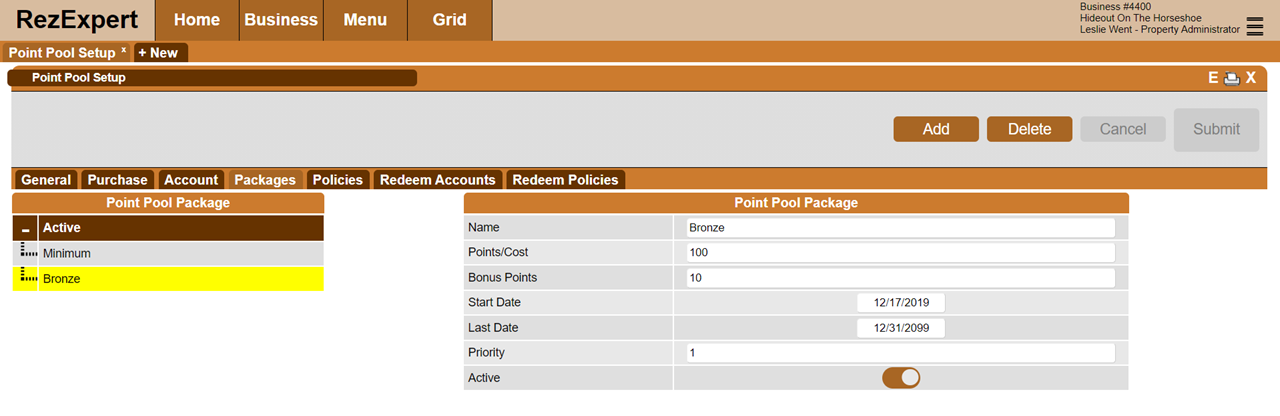
- This interface allows the user to create the different types of packages a client can purchase. The user would set the name and criteria of the package.
- Name: The name of the package
- Points/Cost: How many regular points the client would receive (Price is $1 for 1 point of the local currency)
- Bonus Points: How many bonus points the client would receive (No additional cost to the client)
- Start Date and Last Date: Date range of availability of this package
- Priority: Order in which this package appears compared to the other packages. Values must be whole numbers in ascending order
- Active: Sets whether the package is active or not
Note: A client of the hub cannot purchase a random amount of points and can only purchase configured packages.
Policies Tab
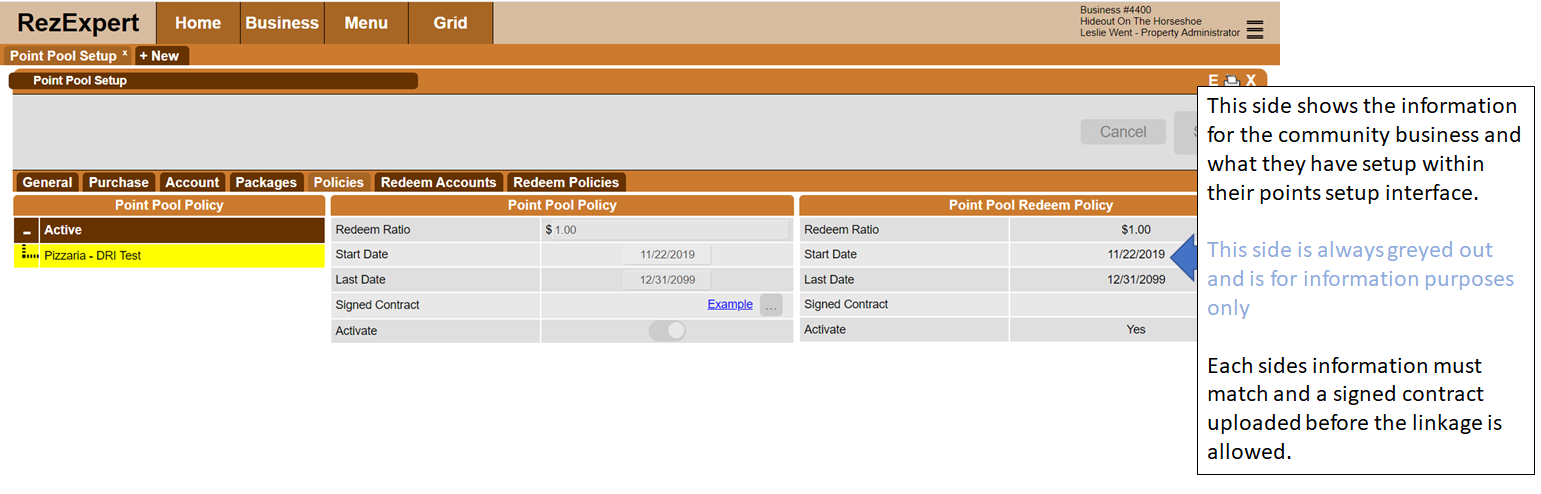
- This interface is where the hotel hub and the community-based business agree on their terms (amount of commission and interval to get paid).
- They both sign a contract and this contract is uploaded here. Only then is the points connection between the two entities made active.
- The community business has an interface in their account which does the same thing. That interface is represented on the right-hand side and is non-editable from this Hotel hub interface (view only).
Redeem Accounts Tab
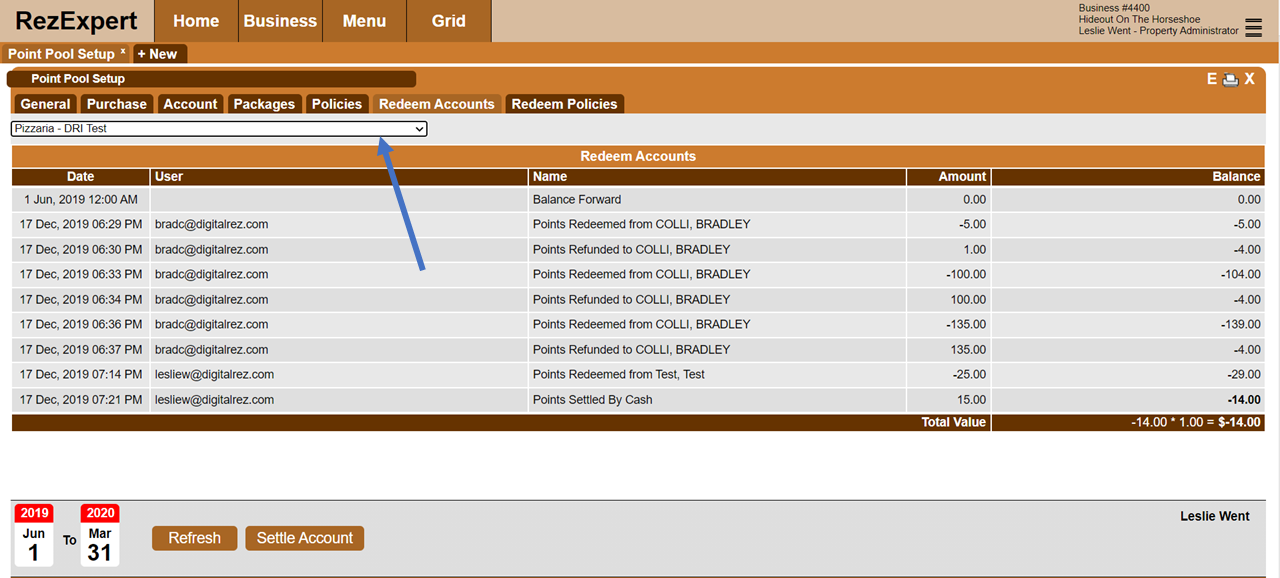
- This panel is a hotel hub level panel used to audit points bought by the Hub's clients and redeemed at local businesses.
- This panel gives a running balance of the amount owed to a community-based business by the Hub's business.
Redeem Policies Tab
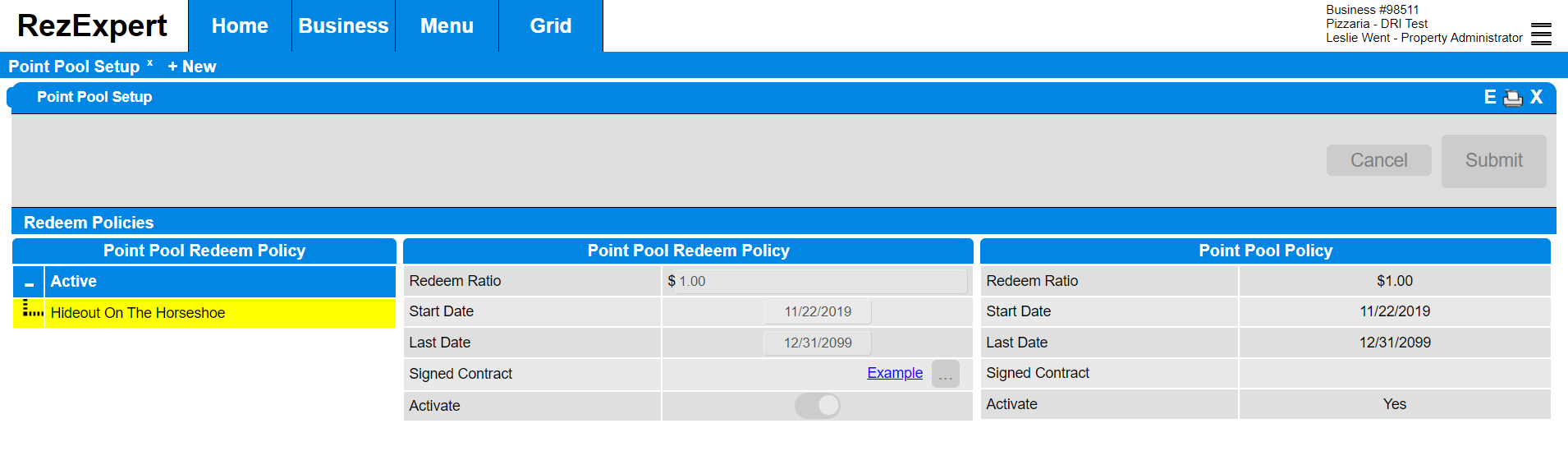
- This interface provides the information on all policies with Hub businesses that have points that can be redeemed at this business.
View or Manage Client Points Account
- This interface will allow staff of the Hub business to view/manage the Points account of the client. To view/manage:
- Click Menu
- Under the Main Tab
- Select Client Points Account
Client Tab
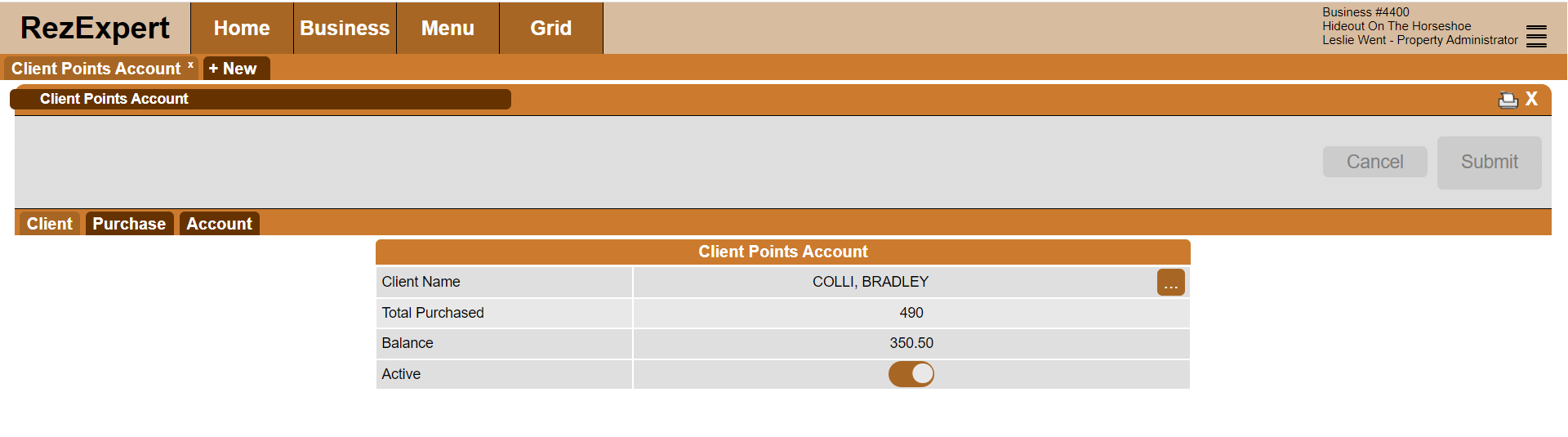
- This interface allows the user to select the desired client to view their Points account. To select the client, click the 3-dot button which will provide the search dialog to enter the criteria. The user will be able to see the current points balance and purchase amount. The account can be activated/deactivated using the Active slider.
Note: The Total Purchased and the Balance can be different amounts due to having bonus points.
Purchase Tab
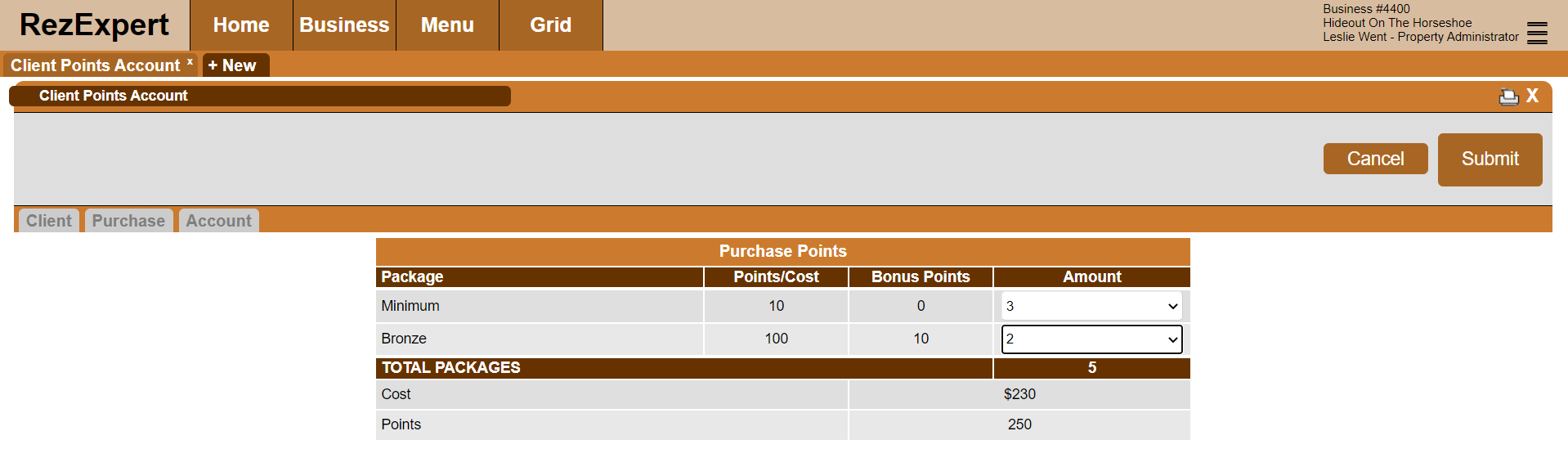
- This allows the user to purchase points packages on behalf of the client through this interface.
Account Tab
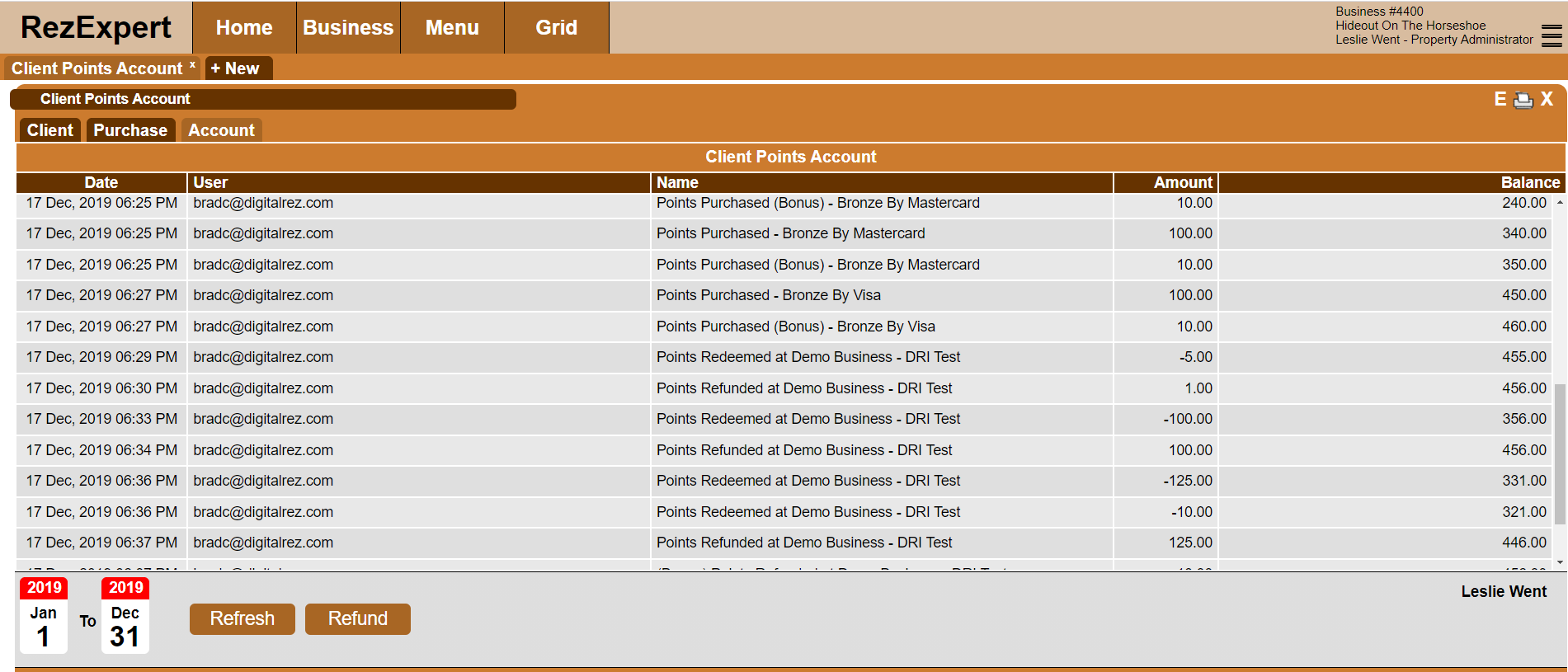
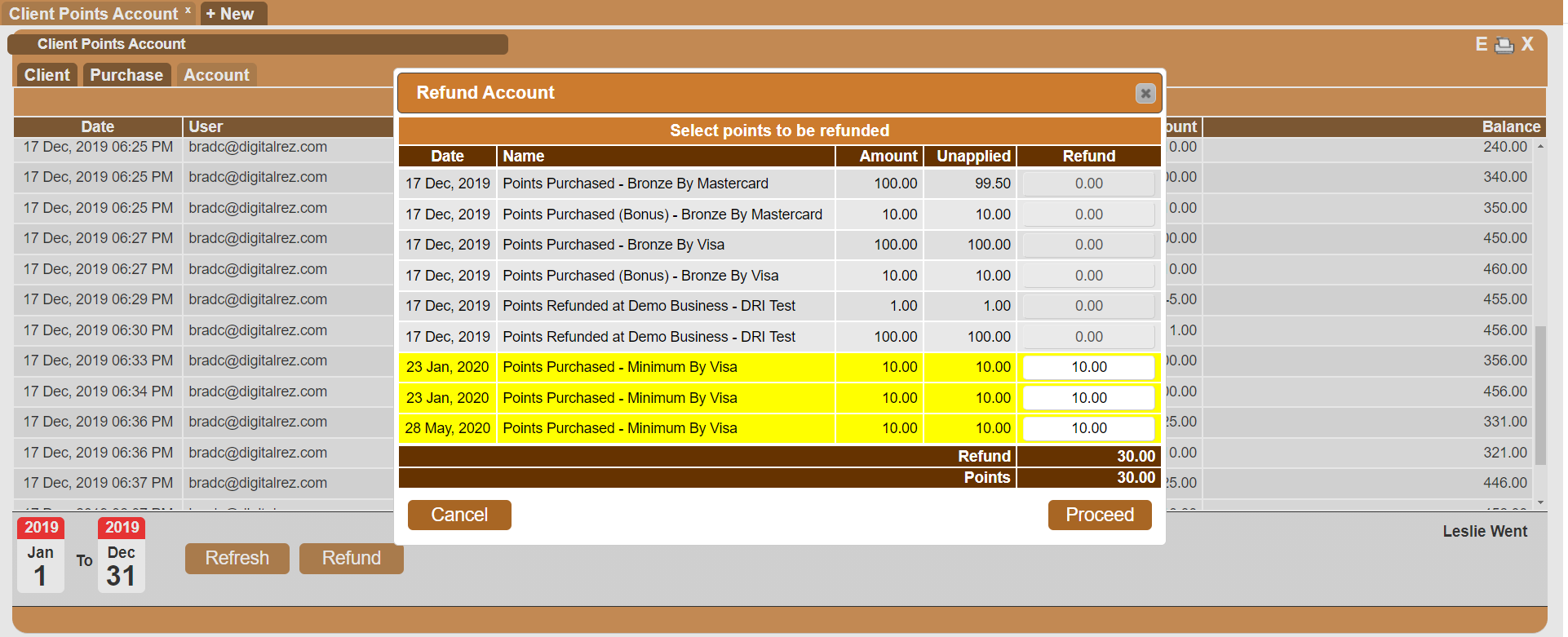
- This panel provides an account of Points purchased and redeemed by the client based on the date range. This interface also allows the user to initiate a refund to the customer if needed.
Business Level Sale Management
- This is the business entity level where the community business would provide the interface for the purchase to be settled through the points system. Tracking and management of the transactions and settlements are provided from within this interface.
Make Sale
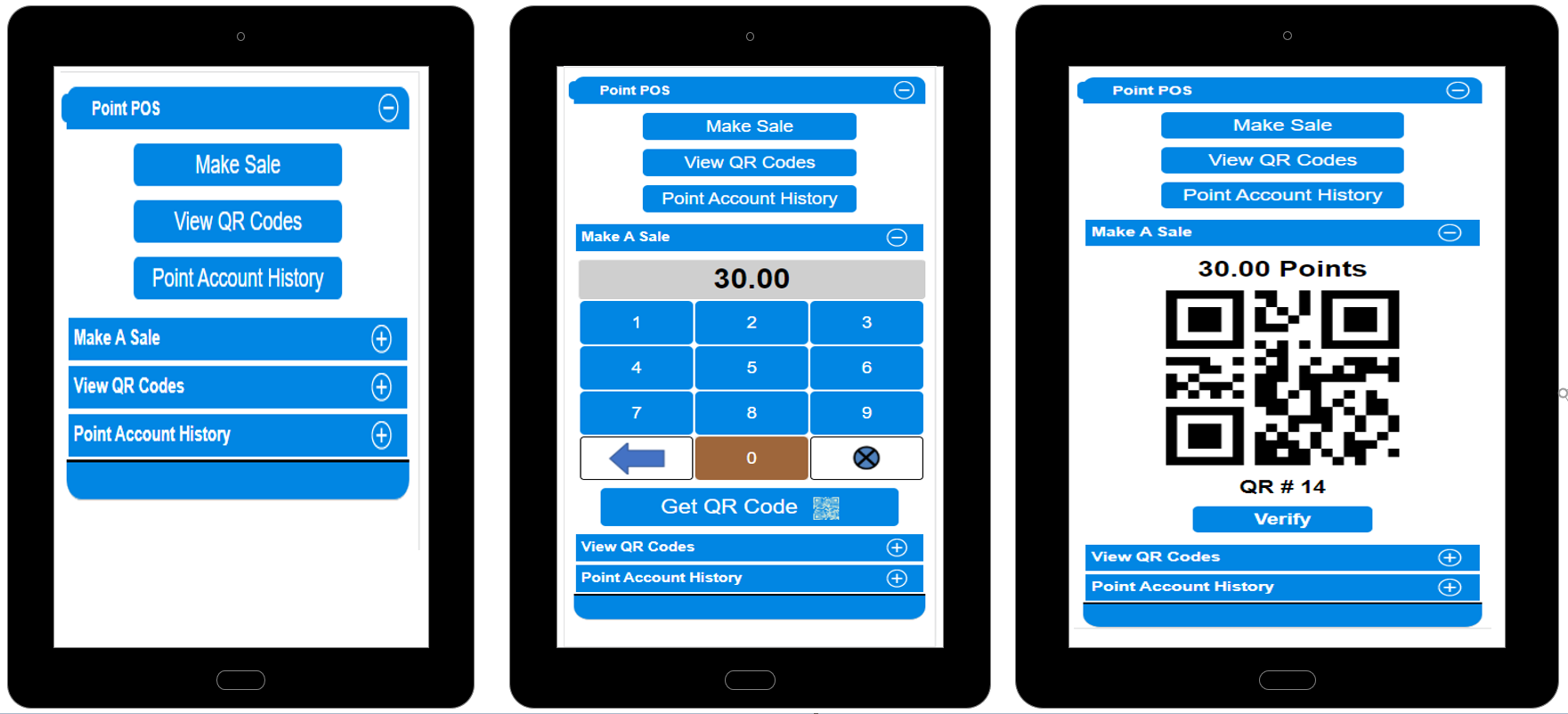
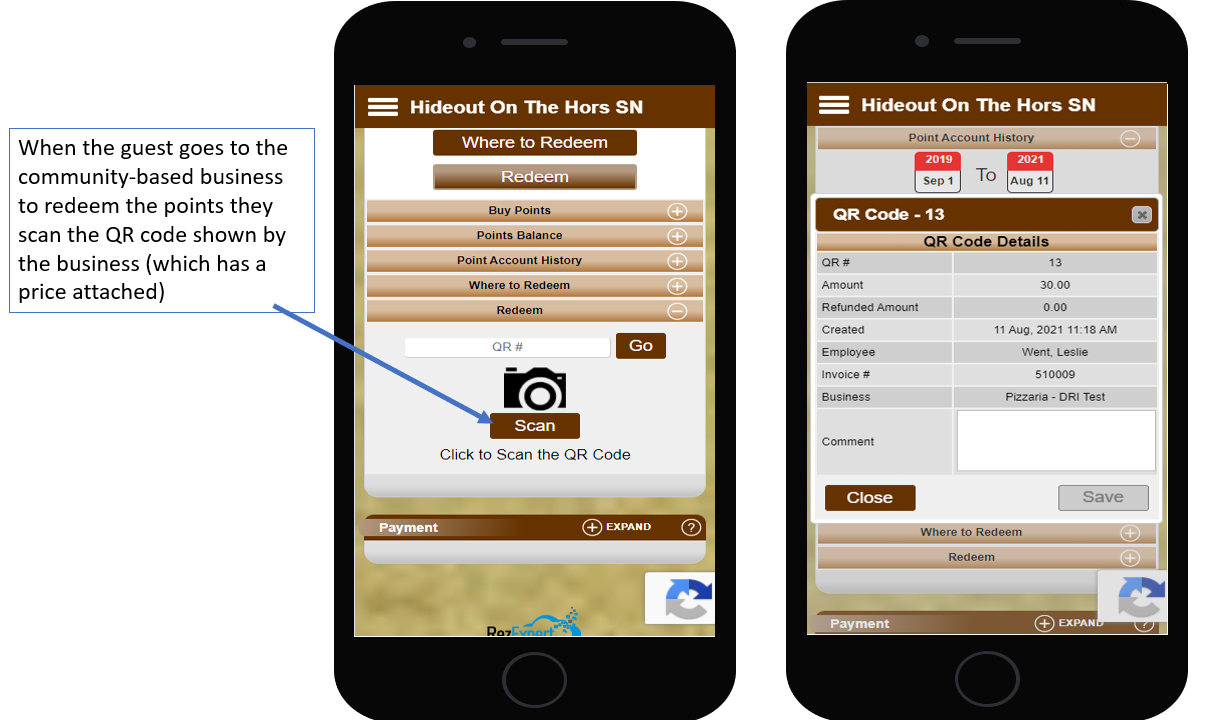
- From the community business, the business would be able to settle the sale using the point interface. The user would select Make Sale and then enter the amount of the sale and click Get QR code. This will generate the QR code that the client can then scan or manually enter the code to confirm the payment.
View QR Codes
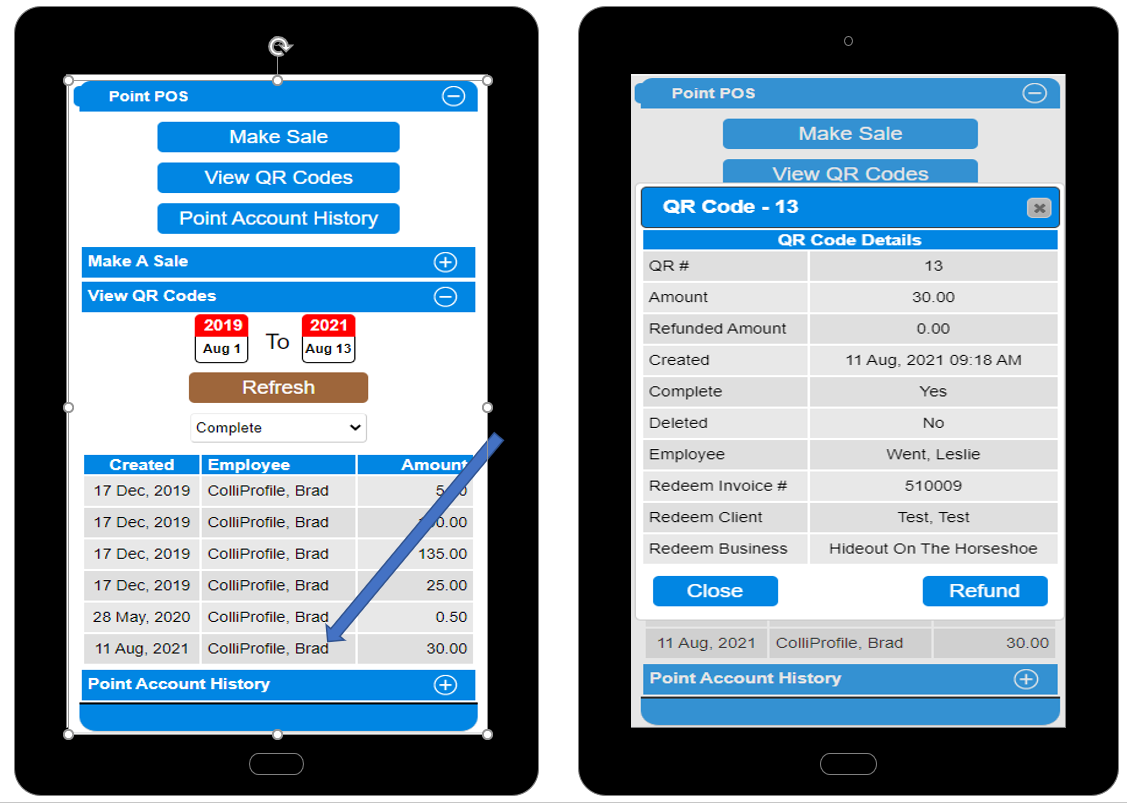
- This interface will allow the user to view all QR codes generated between a date range. The list can be filtered by Active, Completed, or Deleted QR Codes.
Statuses:
- Active: These transactions are pending
- Completed: These transactions have been processed
- Deleted: The transactions have been manually removed
Point Account History
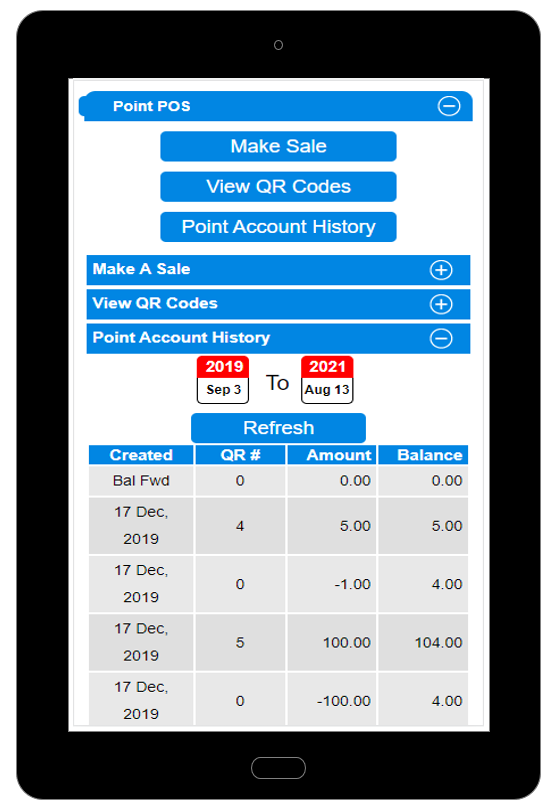
- This will display an account of all transactions between a date range. This will also display the settlements provided from the hub business.
Client Level Portal for Managing Points
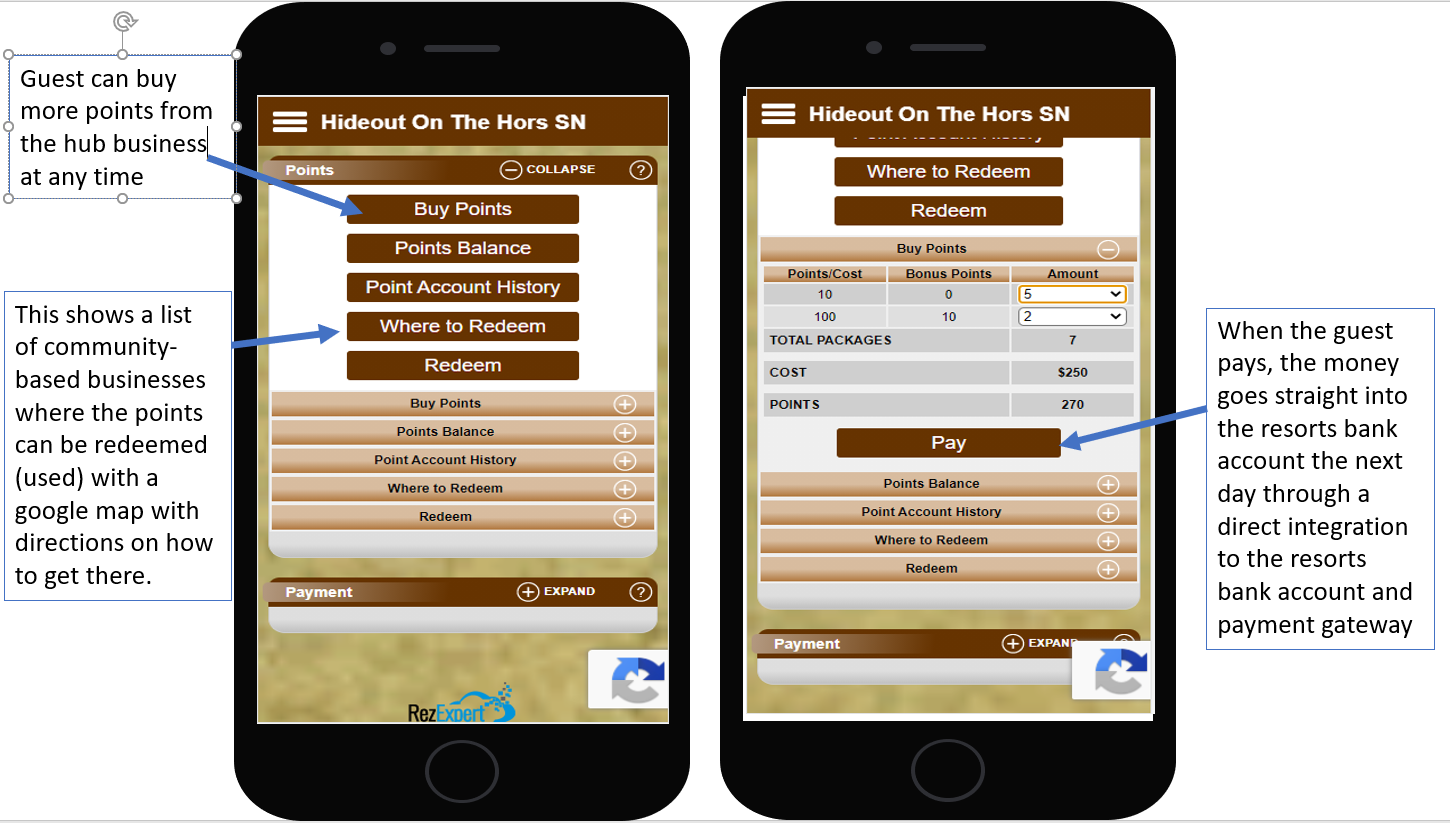
- From the Client Online Portal of the Hub business, the client, once logged in, would be able to buy, track balance, access their account, Redeem locations, and redeem their points at the authorized business(es).
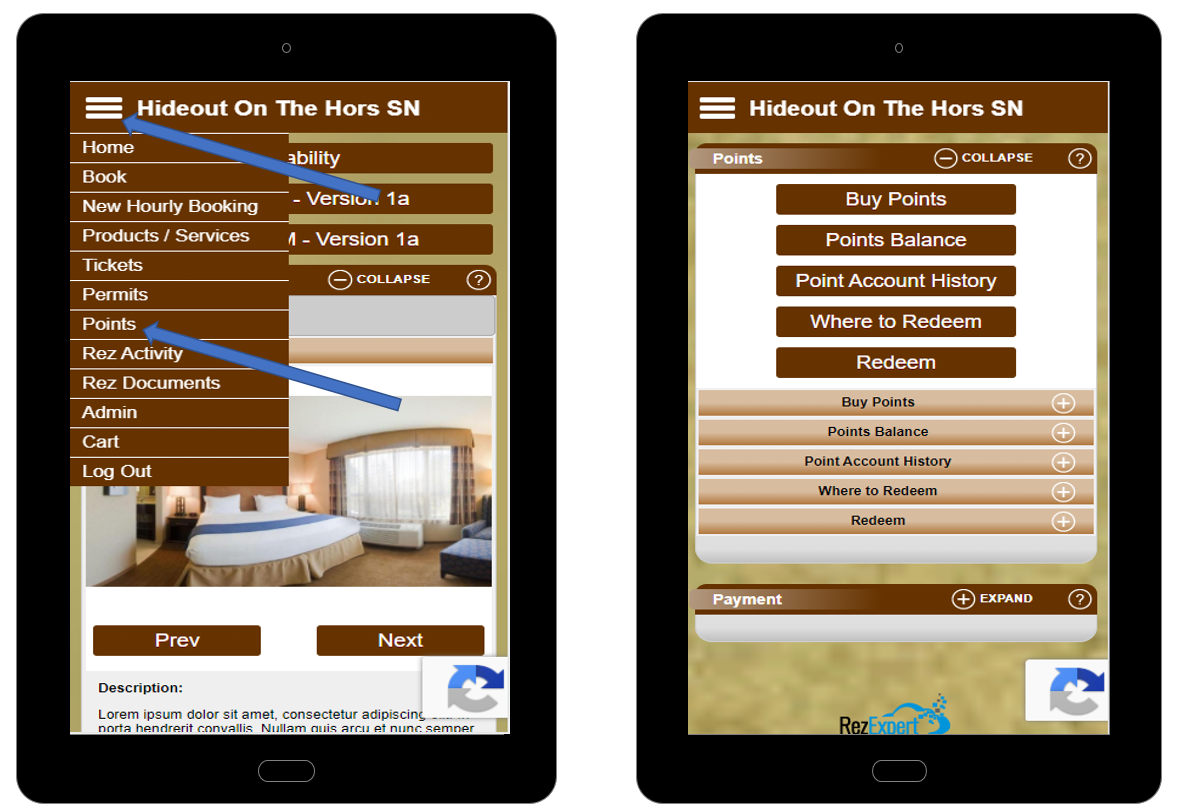
Buy Points
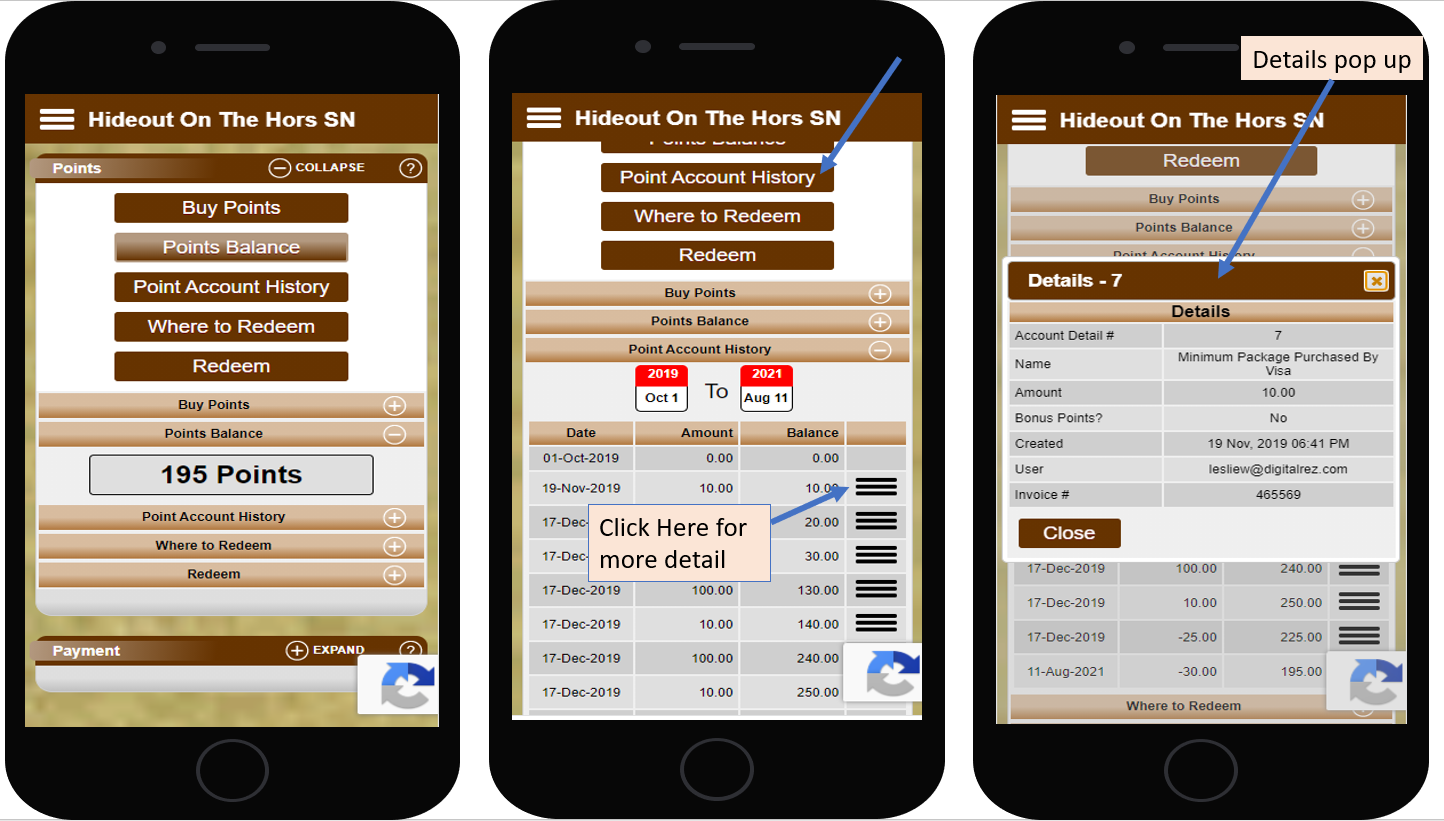
Tracking Points
- View current points balance by selecting Points Balance and transaction history in the Point Account History. Within the account history, the user can view all invoices of purchases and points redeemed. Notes can be added to the transactions where points were redeemed.
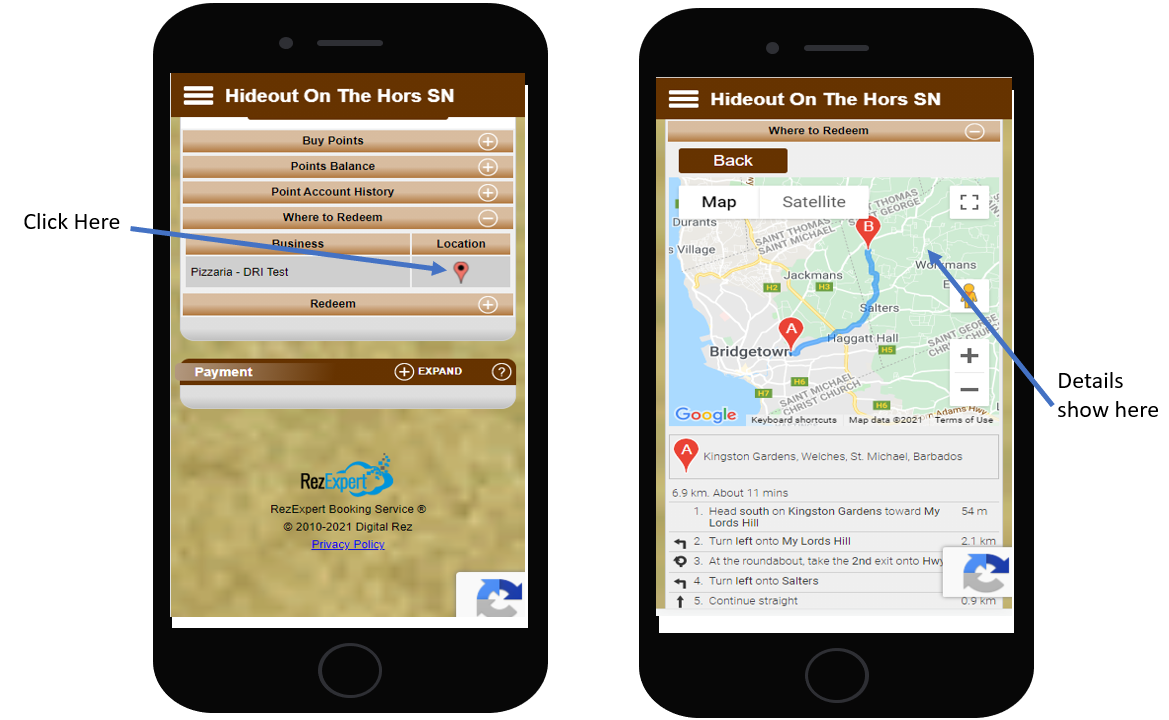
Where to Redeem
- View a list of businesses where the Hub's points can be redeemed. By clicking on the marker, get a GPS location with directions to find the business.
Redeem
- This is where the client would go to redeem their points at the community business. The user can either scan the QR code or manually enter the QR number into the field to confirm the transaction.
Troubleshooting
For any issues or further assistance, please contact DigitalRez support.