Adding Sales to Client Reservation Balance
Last modified on:
Overview
Clients may wish to have product sales/charges added to their reservation balance for future payment.
Prerequisites
- Access to the reservation system.
- Client's reservation details.
Steps
Reservation Till Tape
- Select the client’s reservation from the grid to access the Till Tape.
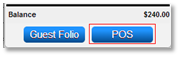
- Click on POS on the reservation Till Tape to process a sale.
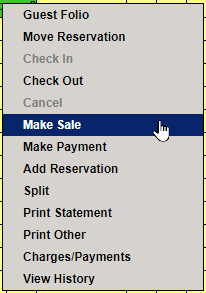
- Alternatively, locate and right-click on the reservation and select "Make Sale."
- If the reservation Guest Folio is already open, click "Sale" from within the Guest Folio.
- The New Sale / Quote screen will open to process the sale.
Processing Sales
- Select Product Group from the Product Group dropdown.
- Select the Product from the Product Label dropdown.
- Enter the Quantity of the products being sold.
- Price per Unit: If a product rate was entered in Product Rate Setup, this price will automatically display. It can be adjusted for this individual sale if needed.
- If no rate has been entered, enter the Price per Unit.
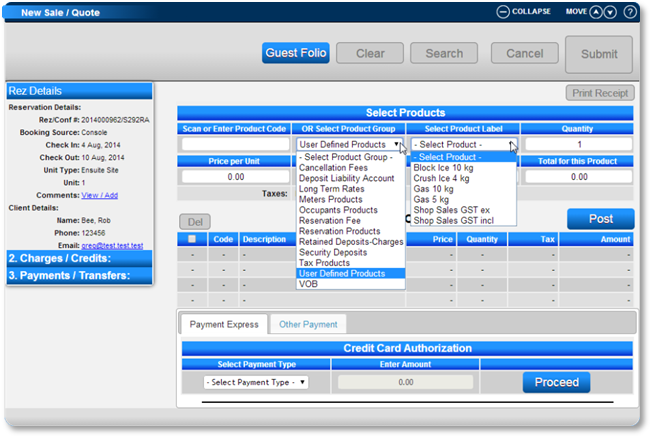
- (Alternatively, if the Product is displayed as a Hot Button, select the button, and the Product Group, Product Label, and rate will automatically display.)
- Click "Post" to allow the system to calculate the tax for the sale. Click "Post" again to post the charge.

- Repeat for all products that are to be charged.
Payment Type
- Select the Other Payment tab. (If no Credit Card Processor has been set up in RezExpert, the tab label will be "Payment.")
- Select the Payment Type: Guest Folio Transfer to transfer the amount to the Guest Folio balance.
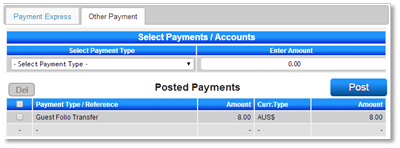
- Click "Post" to post the payment. Press "Submit" to finalize the sale.
Guest Folio
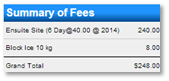
- The added sale will now be added to the total reservation balance.
- If multiple products are added to the balance, the transaction will display in the Charges/Payments tab under Multiple Products.
Troubleshooting
For further assistance, refer to the Help Document.