Corporate Reservation Balance Transfer to AR Account
Last modified on:
Overview
Corporate Reservations can have their balances transferred to the Company's AR Account.
Prerequisites
- Access to Rez Quote or the Calendar Quote Tool
- Company and Employee details for reservation
Steps
Creating Corporate Reservation
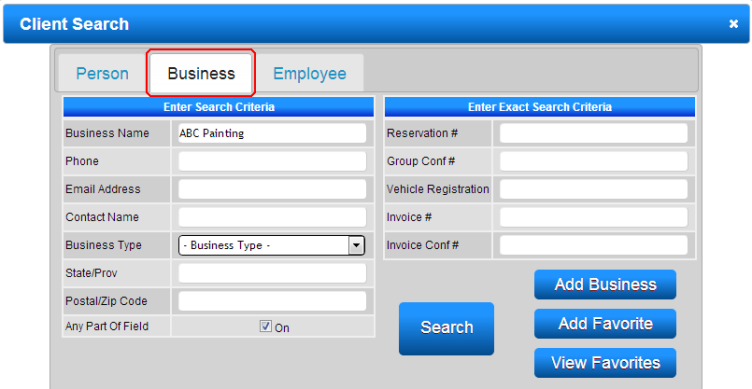
- Search for the Company and create the Corporate reservation using Rez Quote or the Calendar Quote Tool for the desired stay.
- Press either "Search for Client" or "Add New Client" to enter the Employee’s Name as the Client staying.
- Ensure the following details are included:
- Corporate Booking Summary: Contains the Company’s Details.
- Booking #: Contains the Rez and Booking Details for the Employee staying. - Enter the Booking Details such as Occupant Count, Rate Group, and Discounts.
- Press "Submit" to finalize the Corporate Booking.
Check In Reservation
- On the Arrival Date, Check In the reservation and select the desired Unit.

Charges/Payments Tab
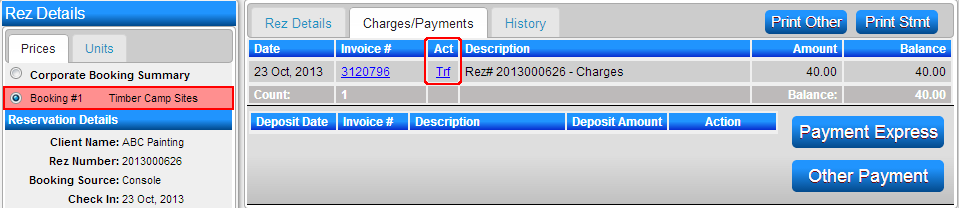
- Change to the Charges/Payments Tab.
- Within the Act column, click the "Trf" link to transfer the invoice balance from the Booking to the Corporate Booking Summary.
- Note: The Employee may choose to pay for any additional charges included with the reservation.
Transferring to Company AR Account
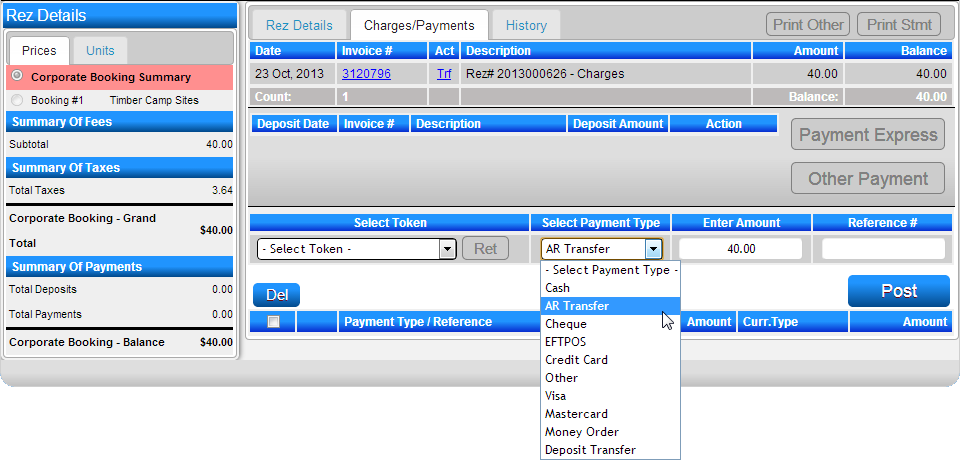
- Select the Corporate Booking Summary within Rez Details.
- Within the Charges/Payments Tab, select the Payment Type - AR Transfer to transfer the balance to the Company’s AR Account.
Troubleshooting
- Ensure all client and company details are correctly entered.
- Verify that the correct payment type is selected for AR Transfer.
- Confirm that any additional charges are addressed by the Employee if necessary.