Security Gates Setup with CampTrac Integration
Last modified on:
Overview
The Security Gates Setup connection to the 3rd Party system CampTrac provides the ability to efficiently manage access to your property by creating various access levels and generating PINs for authorized entry. This feature adds a layer of security to your property, ensuring that only authorized personnel have access to restricted areas during approved dates and times.
Prerequisites
- Access to the CampTrac system
- Credentials (Customer Id and Customer Key) provided by CampTrac
Steps
Location
- Menu
- Setup
- Security Gates Setup
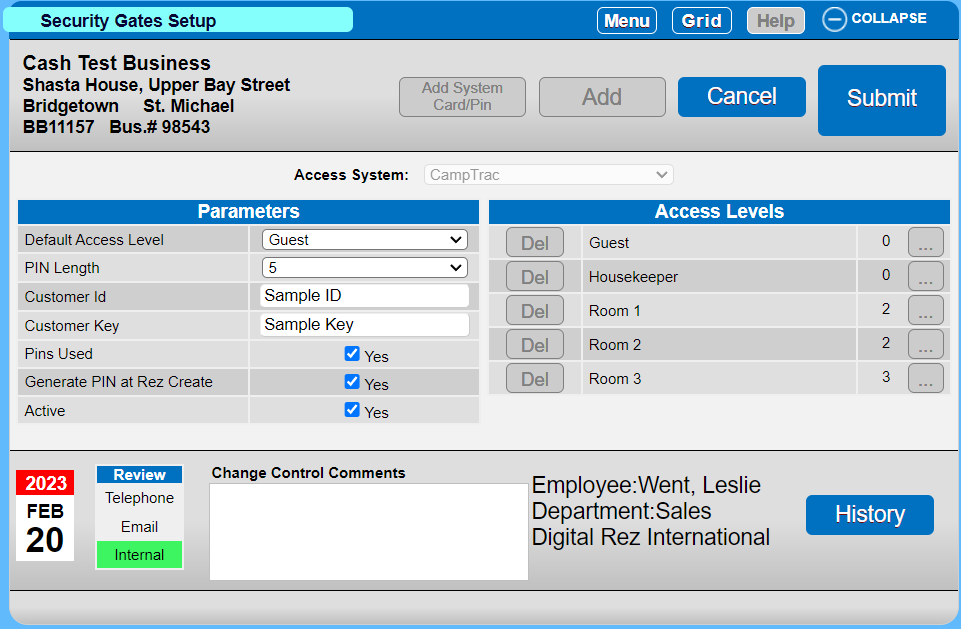
Security Gates Setup
- Default Access Level: The access level assigned will be the default when a PIN is created.
- PIN Length: Sets the number of digits for the PIN.
- Customer Id: Credentials provided by CampTrac.
- Customer Key: Credentials provided by CampTrac.
- Pins Used: Allows Pins to be created.
- Generate PIN at Rez Create: Automatically creates a PIN when a reservation is made.
- Active: Indicates whether security gates are Active or Inactive.
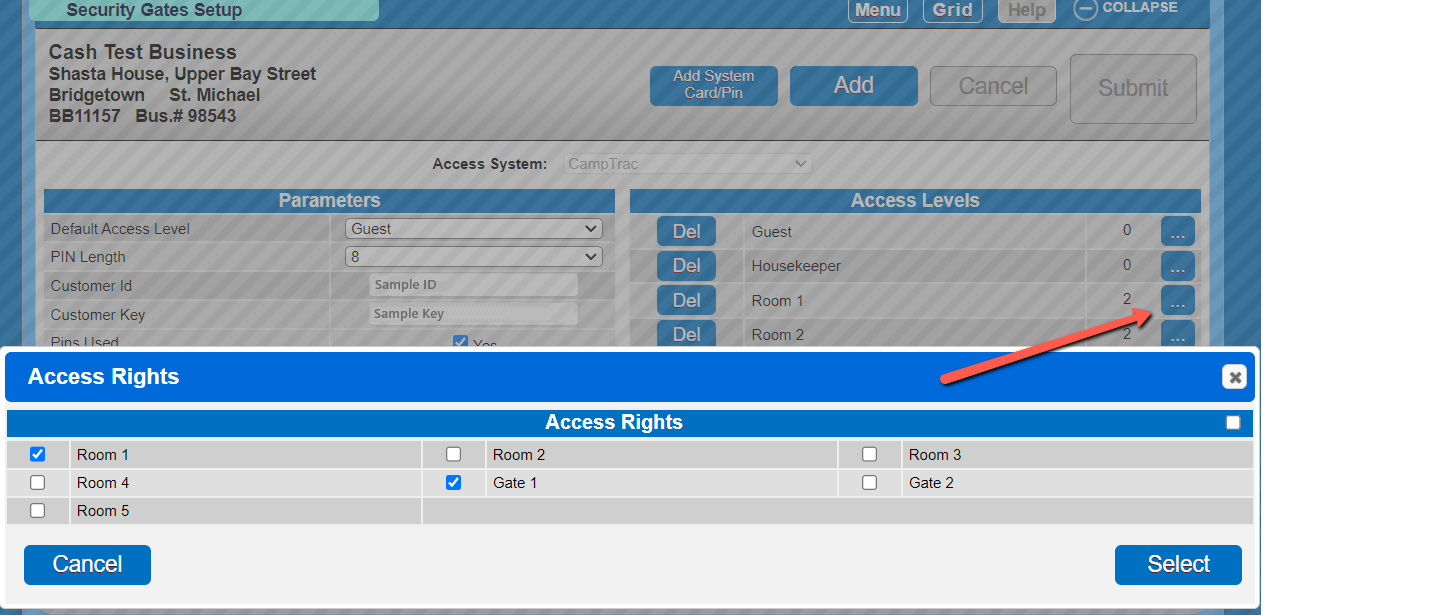
- Access Levels: List of created access levels with a count of Access Rights enabled. Access Rights can be edited for each Access Level by clicking the 3-dot button.
How to Create a New Access Level
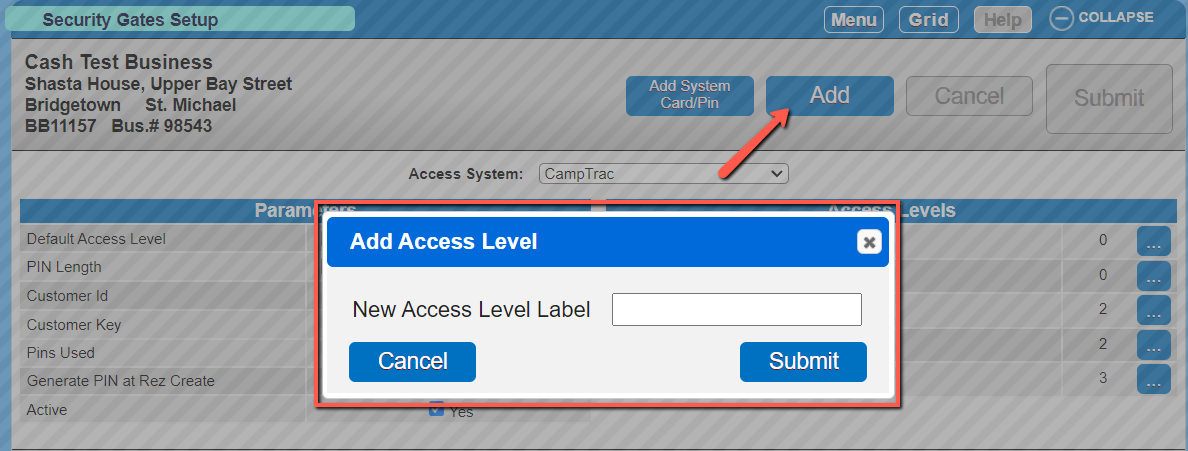
- Click the Add button.
- Enter a Label in the text box for the name of the Access Level.
- Click Submit.
- Select the three-dot button, check the appropriate checkboxes to give access rights.
How to Add Access Rights to Units
Location:
- Menu
- Setup
- Inventory Setup
- ‘Unit’ tab
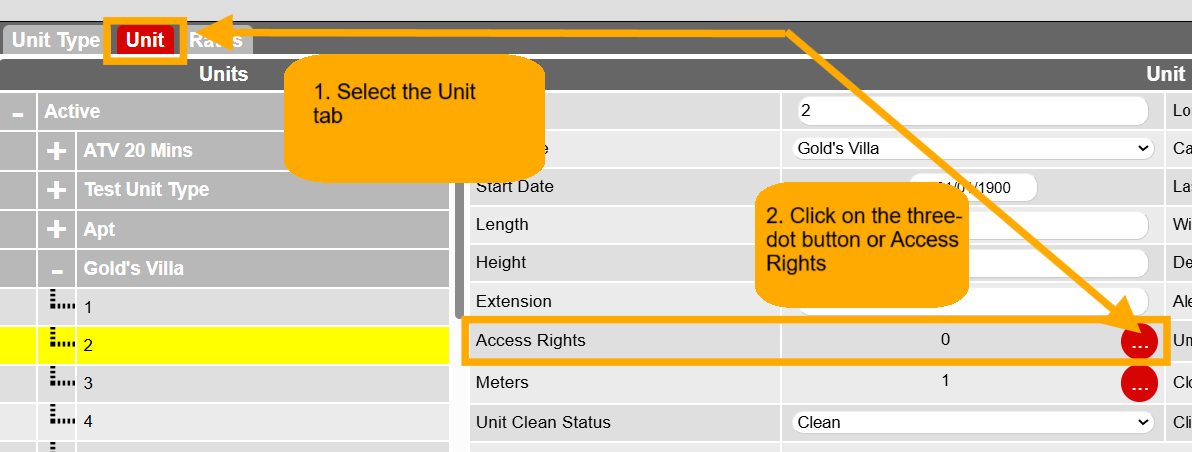
- Select the desired unit and click the 3-dot button for Access Rights.
- Check the suitable Access Right(s) for this unit.
- Click on the Select Button.
- Click the Submit Button.
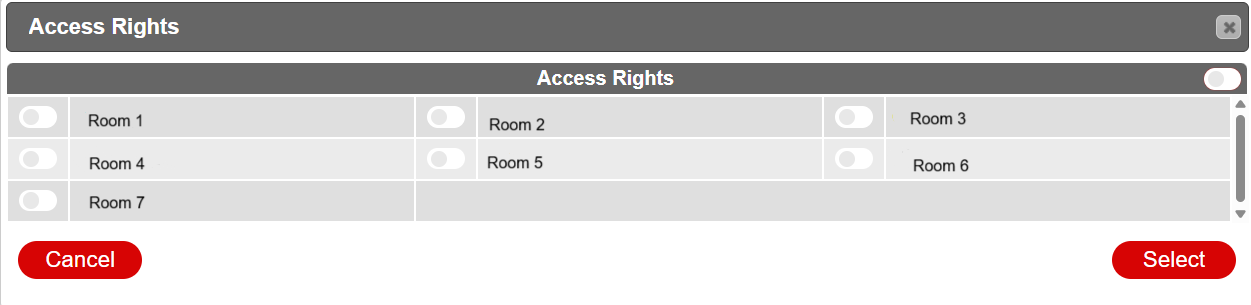
Note: When no Access Rights are selected, no pin will be generated.
How to Manually Setup a PIN
PINS can also be manually created for users on a reservation or not attached to a reservation, but also for other important personnel such as Housekeepers, Emergency, Maintenance, etc., ensuring that all individuals with a need to enter restricted areas have the proper clearance and authorization.
For a reservation:
- In the Till Tape of a reservation, Click View/Add for CampTrac Pins.
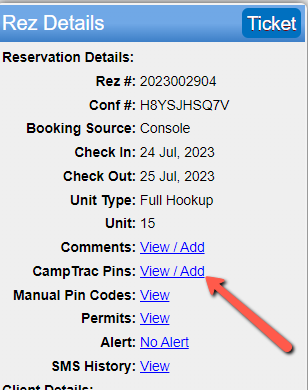
In the Security Gates Setup:
- Click the Add System Card/PIN.
For example:
- Access: Housekeeper
- Assigned To: Jane Doe
- PIN: 0123
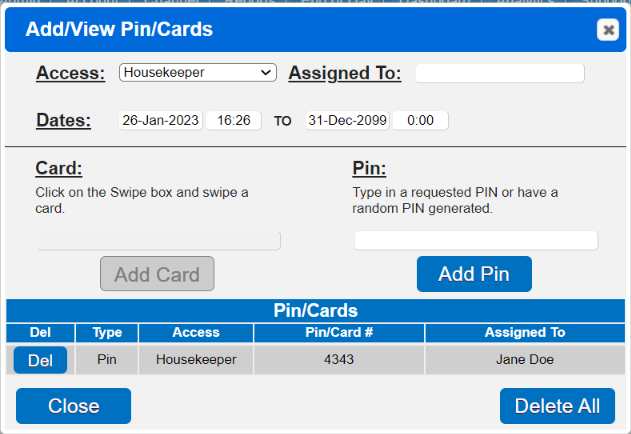
- Dates: Set the accessible times for the Pins.
- Add Pin: If no pin is entered, it will automatically generate one.
Troubleshooting
Security Gates Maintenance
This feature allows you to review and monitor the PINS that are currently active. Additionally, it provides the capability to track and manage these PINS.
Location:
- Menu
- Admin
- Security Gates Maintenance (below Administrative section)
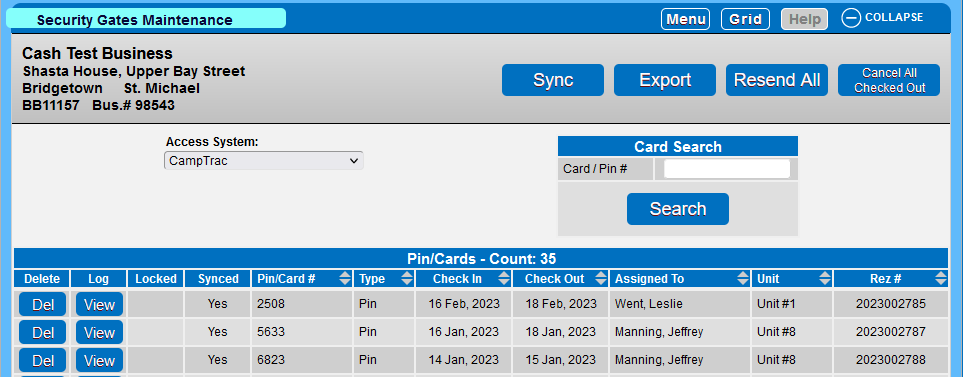
- Card Search: Allows you to search for active PINS.
- Sync: Synchronizes RezExpert immediately with CampTrac. The system naturally synchronizes every 5 minutes, but this will immediately initiate this process to update both systems.
- Export: Exports/Prints the listed PINs/Cards to an Excel spreadsheet.
- Resend All Button: Attempts to resend all the active pins to CampTrac.
- Cancel All Checked Out: Cancels all Active Pin/Cards# associated with Checked Out or Cancelled reservations.
- Del: Deletes the selected PIN. This will also cancel the PIN in CampTrac.
- Log: Clicking on the View Button will bring up a dialog to view the communication with CampTrac to RezExpert for this card/pin.
- Locked: If a PIN attempt is made 3 times and fails, it will stop trying and be placed in a locked status, indicated with a checkbox. Once the check is removed, it will try to send the PIN to CampTrac again.
- Synced: Yes/No - Indicates whether the PIN was successfully updated to the Access System.
- PIN/Card: Shows the PIN linked to a reservation.
- Type: PIN or Card.