Managing Online Availability in RezExpert Inventory
Last modified on:
Overview
RezExpert allows you to fully manage your properties' online availability by adjusting the number of available units that can be booked online. Withholding a number of units from the online interface maximizes availability for console operators and reduces booking conflicts.
Prerequisites
- Access to RezExpert Inventory Manager.
- Understanding of unit types and booking processes.
Steps
Inventory Manager
- Access the Inventory Manager by clicking Inventory from the Menu Bar.

Inventory Allocation
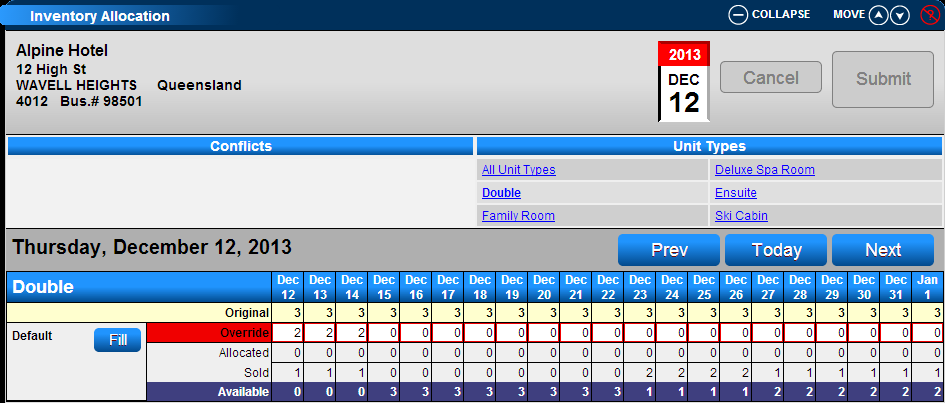
- Click on a Unit Type to view the number of available units (21-day date range).
- To adjust available units:
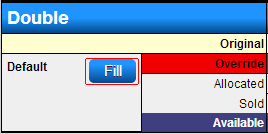
1. Fill Method:
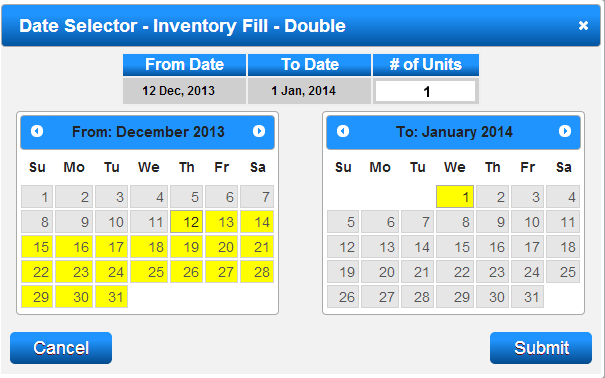
- Select the From date on the left calendar and the To date on the right calendar.
- Enter the number of units to be held (positive values only).
- Press Submit to finalize the change.
2. Override Method: - Enter the number of units to hold back in the Override column.
- The available number will adjust accordingly.
Conflicts
- Overbooking conflicts appear in the Inventory Allocation panel.
- Click on the conflict to view the Override value.
- Refer to the Booking Conflicts Help PDF to resolve conflicts.

Online Inventory Example
- Use the Fill (Manager Override) option to decrease the number of units available online.
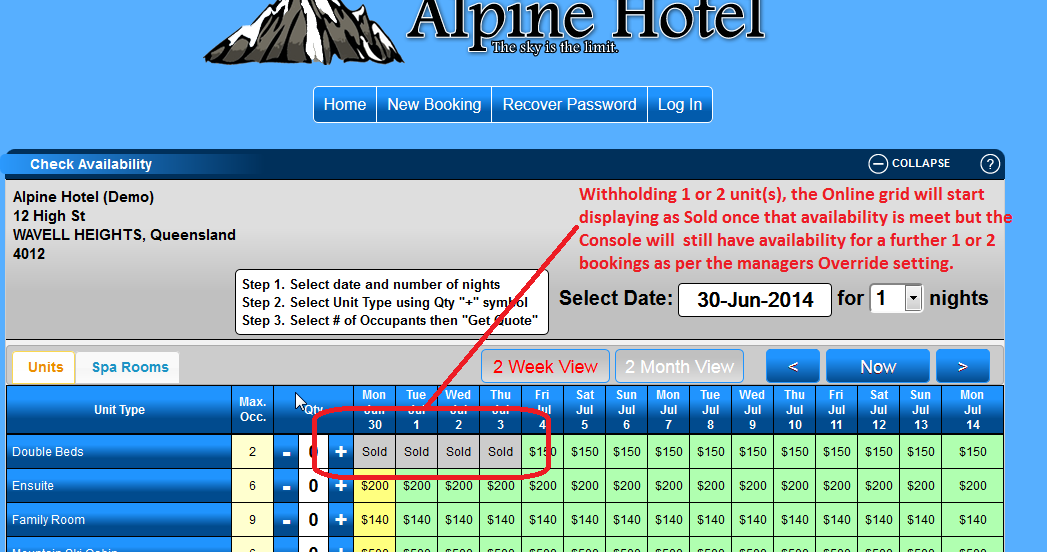
- Withholding units shows them as sold out online but available on the Console grid.
Online Interface
- Online Availability shows zero due to Manager Override for that date range.
Console Grid
- The console grid shows total remaining units, including Manager Overrides.
- If a unit held by a manager override is selected, an error screen will appear.
- Use the Inventory Manager to adjust the override quantity.
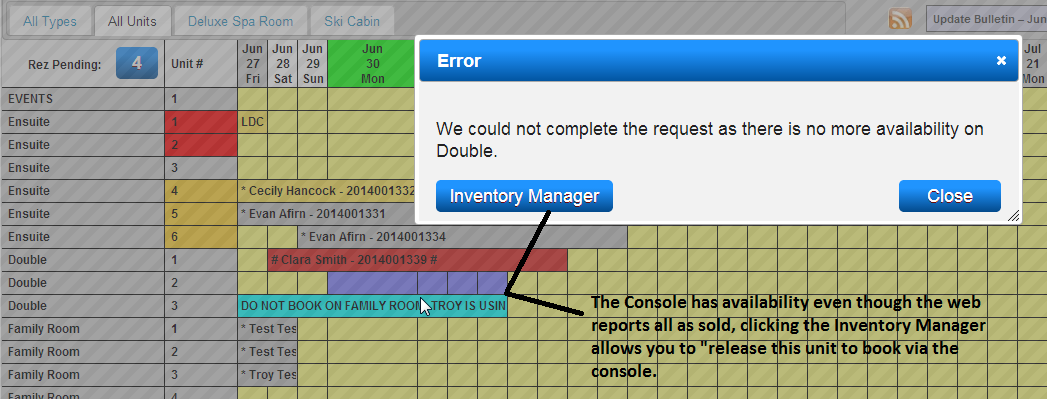
Inventory Manager
- Select the Inventory Manager button to display the Inventory screen.
- Highlight the desired date range and adjust the manager override quantity.
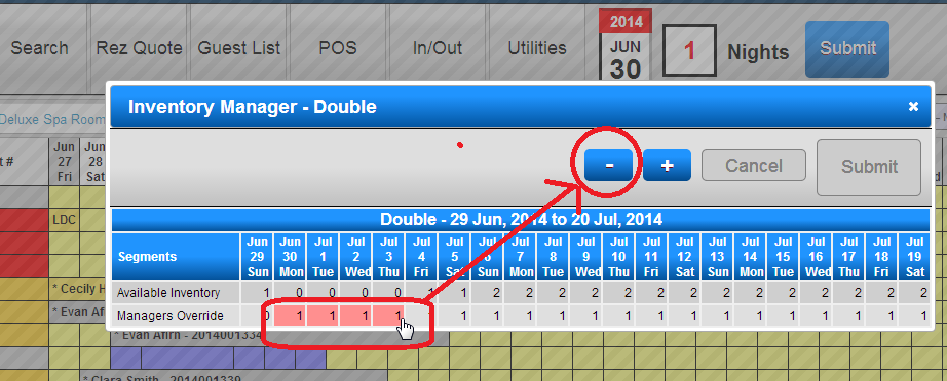
Utilities Button
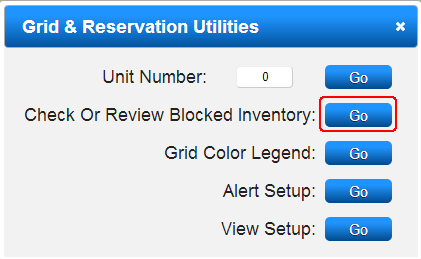
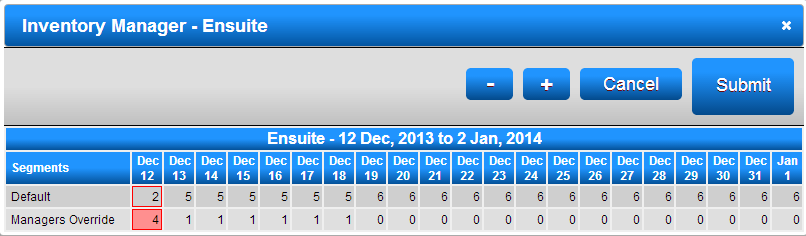
- To view Blocked Inventory, click on the date on the Unit Type in the Availability Grid.
- Click Utilities and select Check or Review Blocked Inventory.
- The Inventory Manager for that Unit Type will display, allowing unit release.

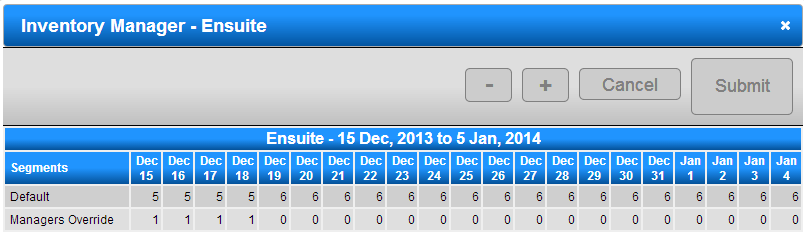
Adjusting Blocked Inventory
- To adjust blocked units, click on the Manager's Override value and use the + or - to change the number.
Troubleshooting
Booking Conflicts
- Booking Conflicts occur when no single unit is available for the entire reservation length.
Identifying Booking Conflicts
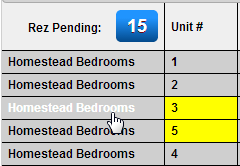
- On the Unit Grid View, click each Unit Type on the left.
- A box labeled Booking Conflicts will display at the top of the grid.
Conflicts
- If no conflicts exist, the box will display No Conflicts Found.
- If conflicts exist, the reservation details will display.


Resolving Booking Conflicts
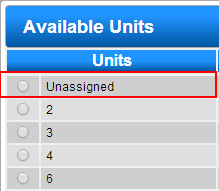
- Unassign Unit #s from upcoming reservations.
- The system will rearrange unassigned reservations for optimal availability.
No Solution
- If no solution is found, shorten the reservation.
- Before submitting, adjust the Charges/Payments tab to reflect the correct amount.
- Place pencil ins for remaining days to prevent booking and indicate guest relocation.