Employee Reservation Linking Setup and Configuration
Last modified on:
Overview
This feature allows businesses to add employees to reservations for special purposes.
Prerequisites
- Ensure that the feature is enabled by contacting Tech Support.
- Set up Employee Departments once the feature is enabled.
Steps
Enabling Employee Reservation Linking
To link employees to reservations:
- Contact Tech Support to request that the feature be enabled.
- Once enabled, ensure Employee Departments are set up.
- Assign selected employees to their respective departments.
Setting Up Employee Departments
- Go to the Employee Departments Setup.
- Click any Menu button.
- Click the Setup tab.
- Select Employee Department Setup in the Employee Setup section.
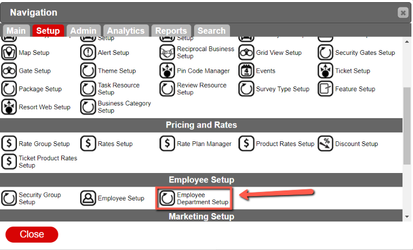
- Click the Add button.
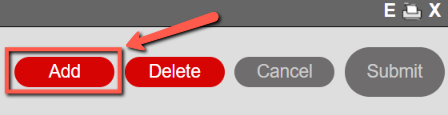
Steps to Configure Employee Department
- Create a Name
- Select a Start Page
- Enable "Associate Employee to Rez"
- Set the Priority
- Activate the Setting

- Click Submit.

Assigning a Department to an Employee
- Click any Menu button.
- Click the Setup tab.
- Select Employee Setup in the Employee Setup section.
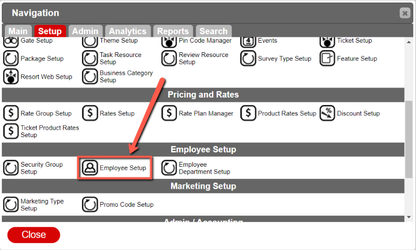
- Choose an employee.
- Select an Employee Department.
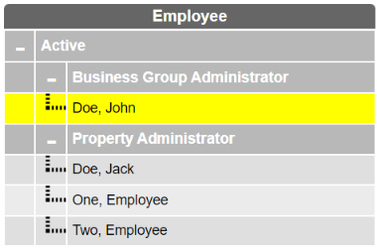
- Click Submit.
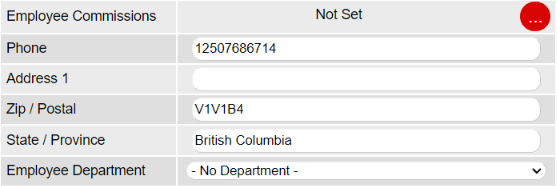
- If there are no employees available to associate, add a new employee first.
- For details on adding a new employee, go to Employee Setup.
Associating Employees to Reservations
- Go to the Grid.
- Navigate to the date row at the top of the grid.
- Right-click on a date that has reservations.
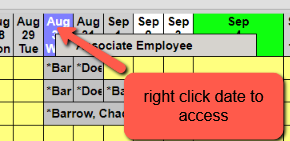
- Click Associate Employee to load the Associate Employee Window.
- Select an employee from the drop-down.
- Select the reservations you want to associate with an employee.
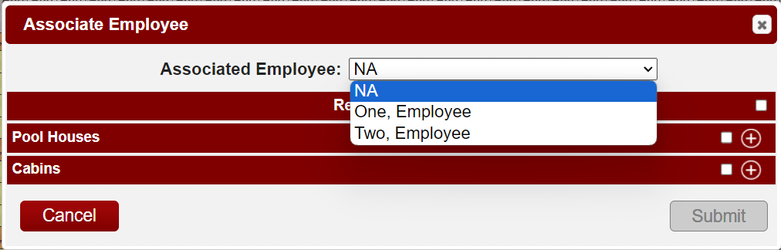
- Click Submit.
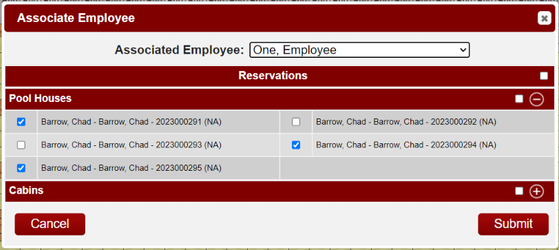
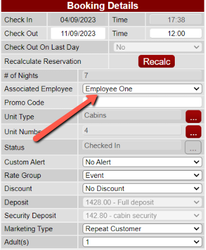
- You can open the Guestfolio to see the assigned employee in the booking details to the right.
Troubleshooting
- Note: You can only associate multiple reservations if they are on the same date.